

Sign up to receive promotional offers and new product announcements.
Impresso Studio
Your photo. Painted automatically. Yours to refine.
Turn your photo into a finished painting—automatically. Open a photo and click the “Randomize Painting” button. Impresso Studio creates the brushwork, color, and texture for you, with no painting experience needed.
Keep the painting as it is, or make it your own. Explore Impressionism, Pointillism, and richly textured Impasto, then adjust paint layers, brush size, color, and texture as much or as little as you like. Click “Randomize Painting” again for a fresh interpretation, and save your favorite looks as custom presets.
Launch Special
$99.99$74.99

 Availability: Instant Download
 Mac |
Mac |  Windows
What is Impresso Studio?
Your photo is the starting point.
Impresso Studio is a photo-to-painting app for Mac and Windows. Open a photograph and click the “Randomize Painting” button—the app creates the brushwork, color, and texture automatically. Enjoy the finished look, or use it as the beginning of your own creative exploration.
Do I have to paint it myself?
No. Impresso Studio creates the painting from your photo, so you can get started without drawing or painting experience. Optional brushes and masks let you guide where an effect appears, such as refining a face or softening a background.
How do I make it my own?
Choose a look you love, then adjust the brush size, color, and texture as much as you like. Combine paint layers or click “Randomize Painting” for a fresh direction. Export your artwork and save your favorite settings as a preset for another photo.
Do I need another photo editor?
No. Impresso Studio works as a standalone desktop app: open your photo, create your painting, and save the result. If you already use a compatible photo editor, you can also use the plugin workflow.
A World of Possibilities in Every Photo
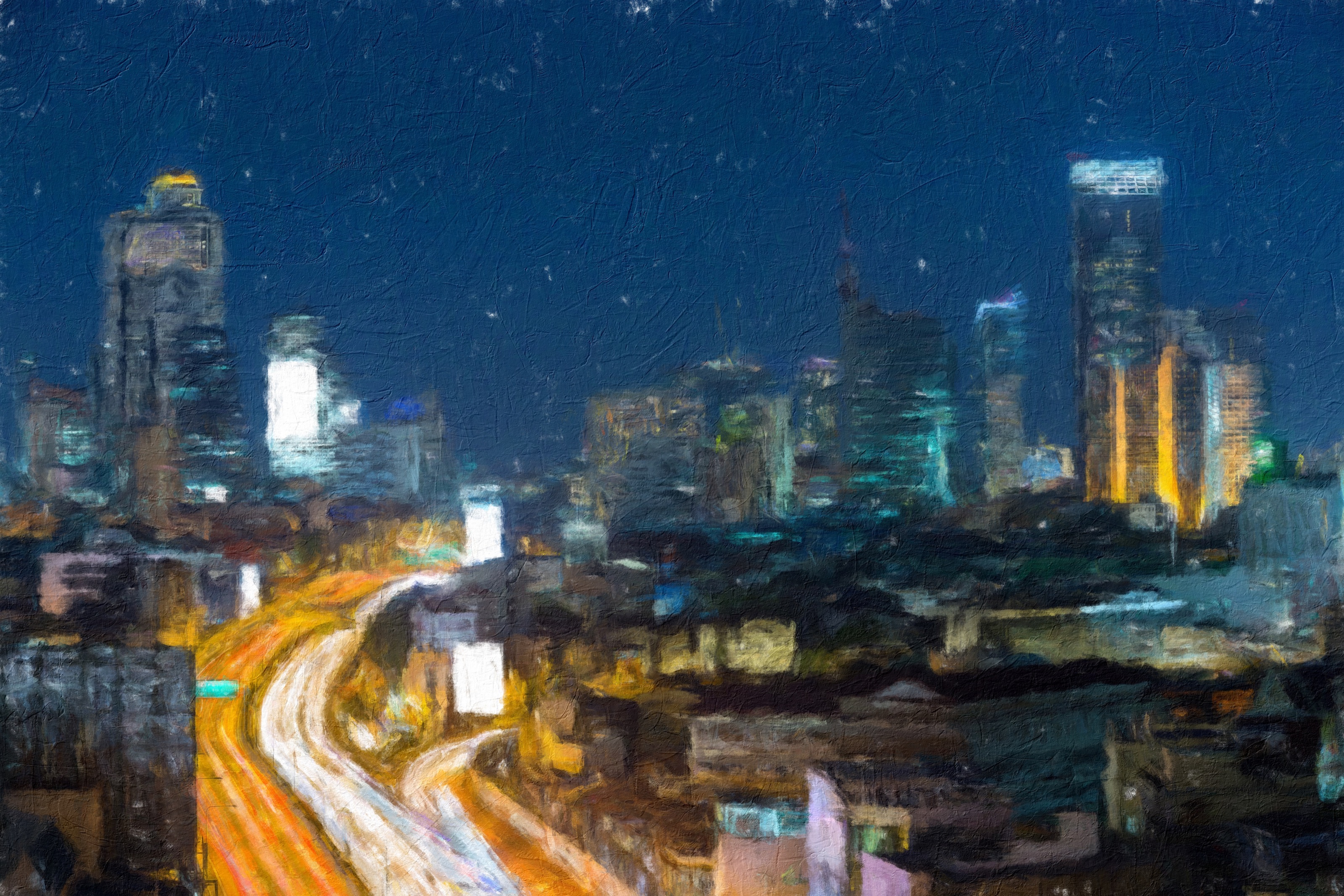
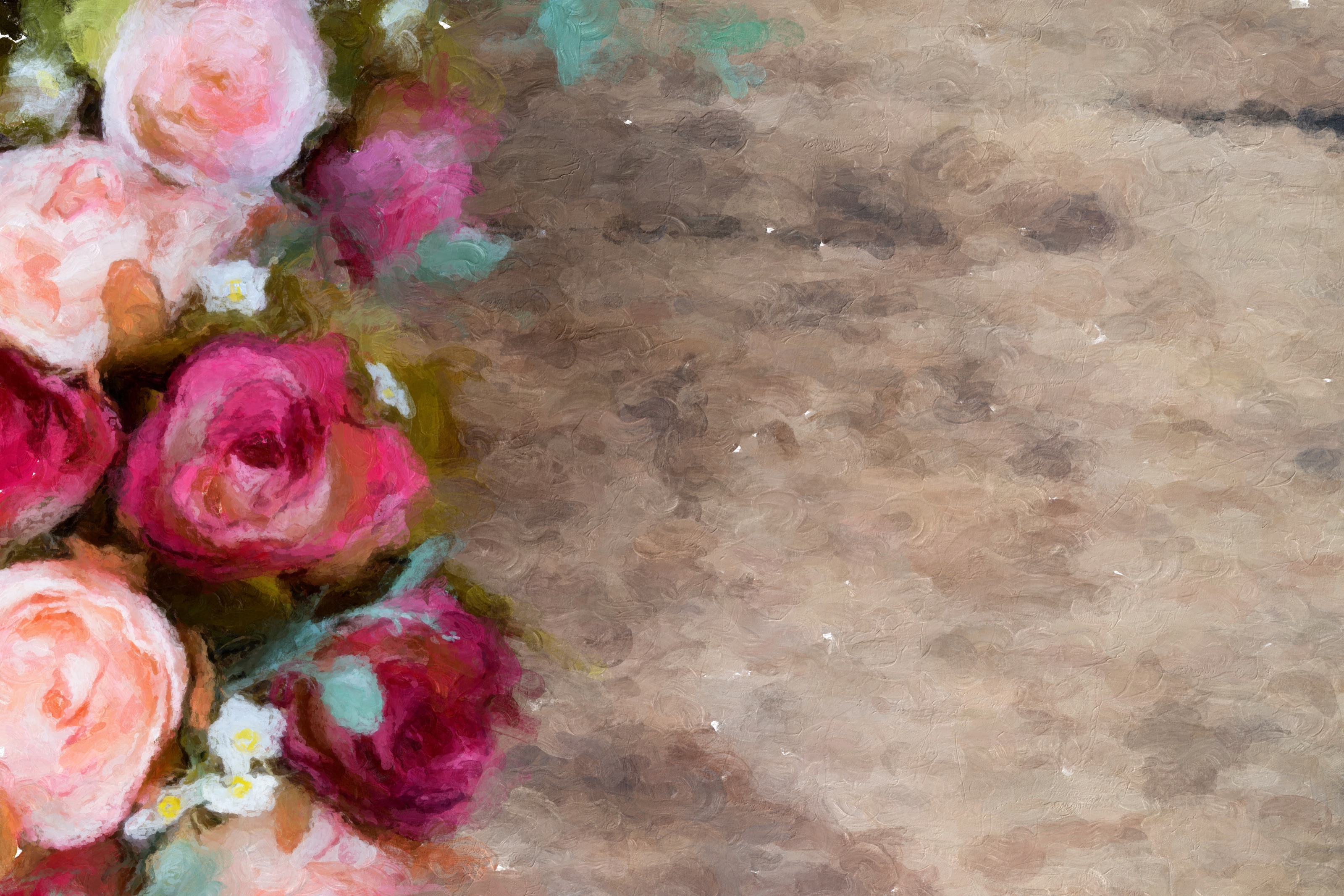
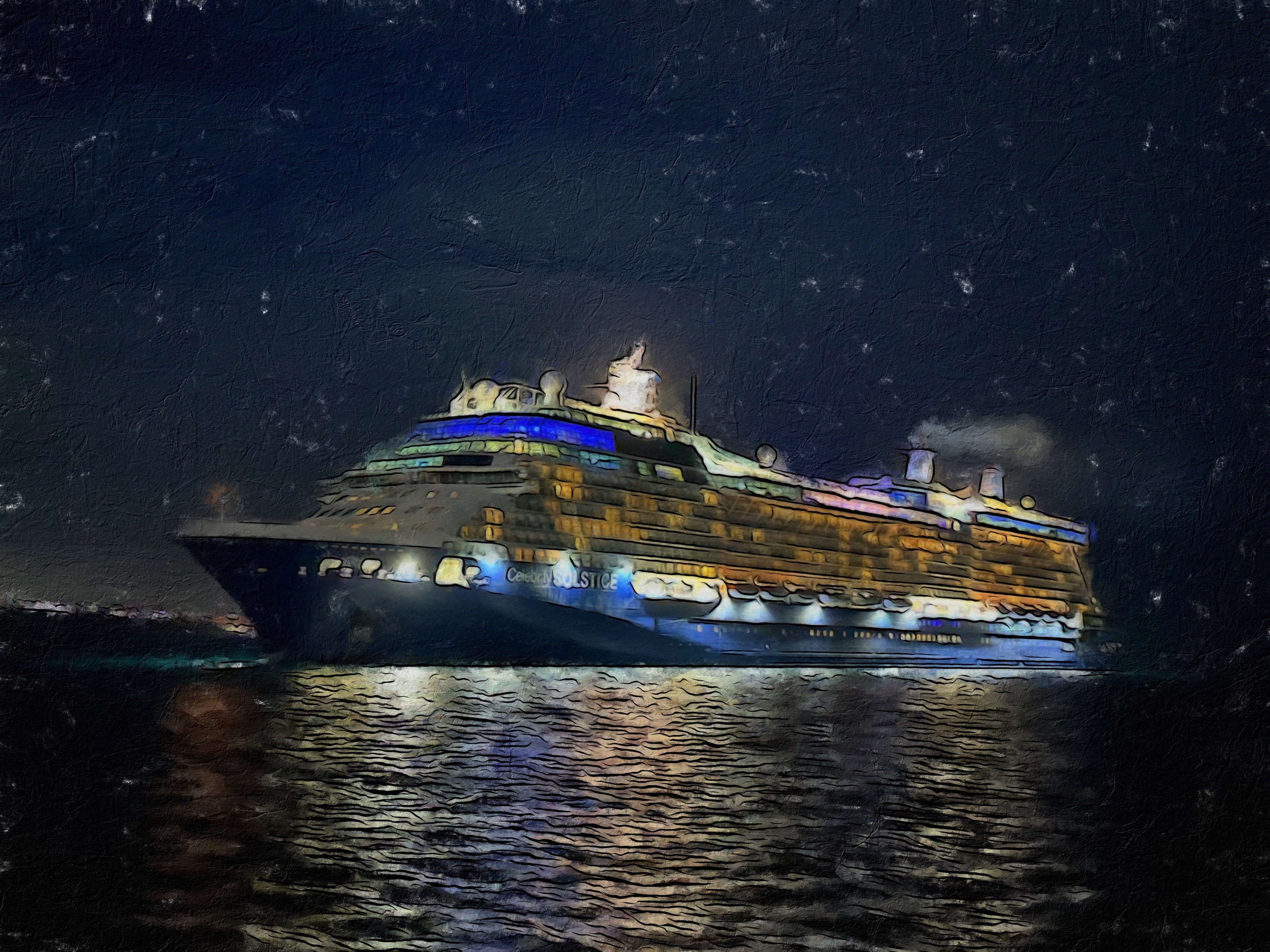
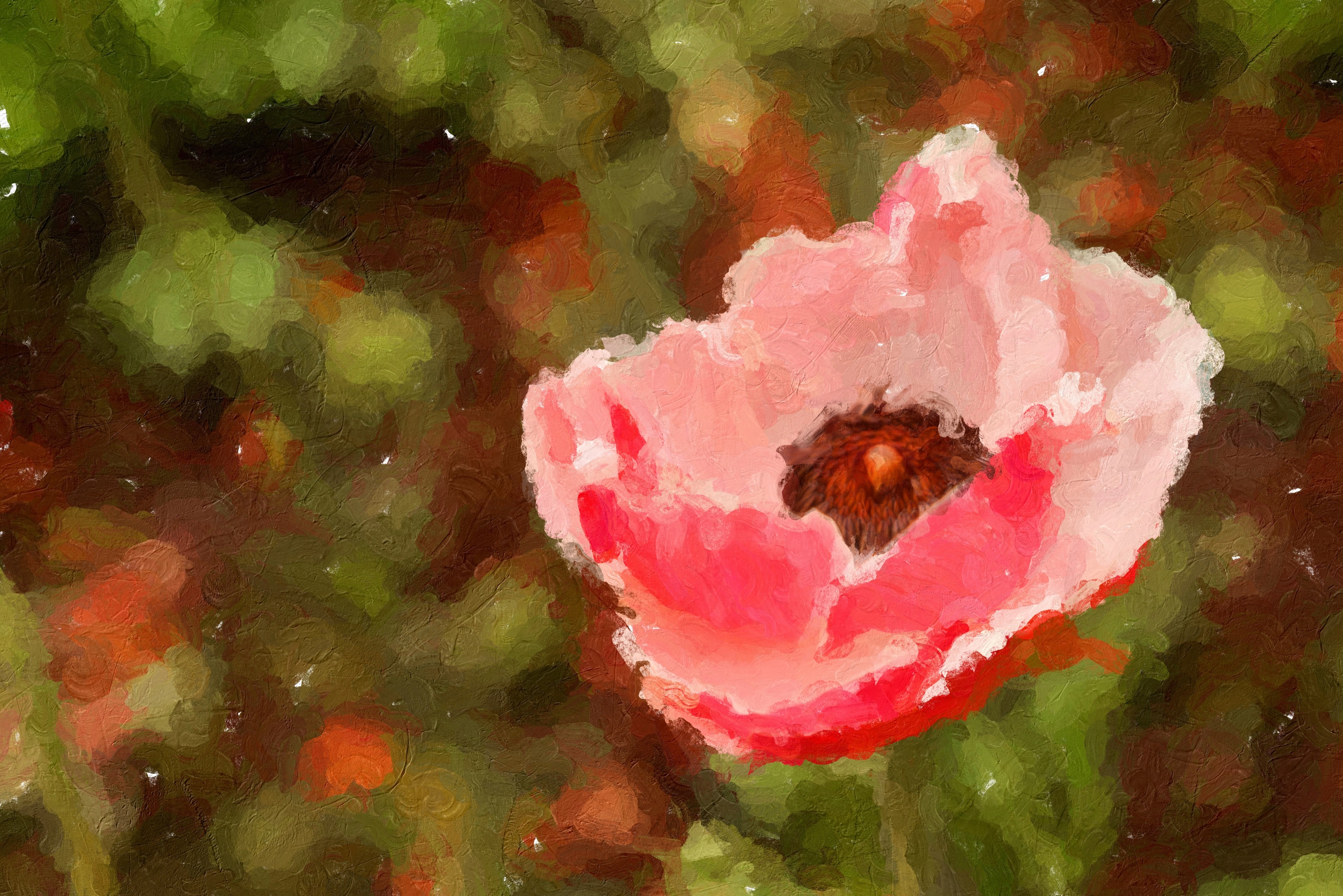
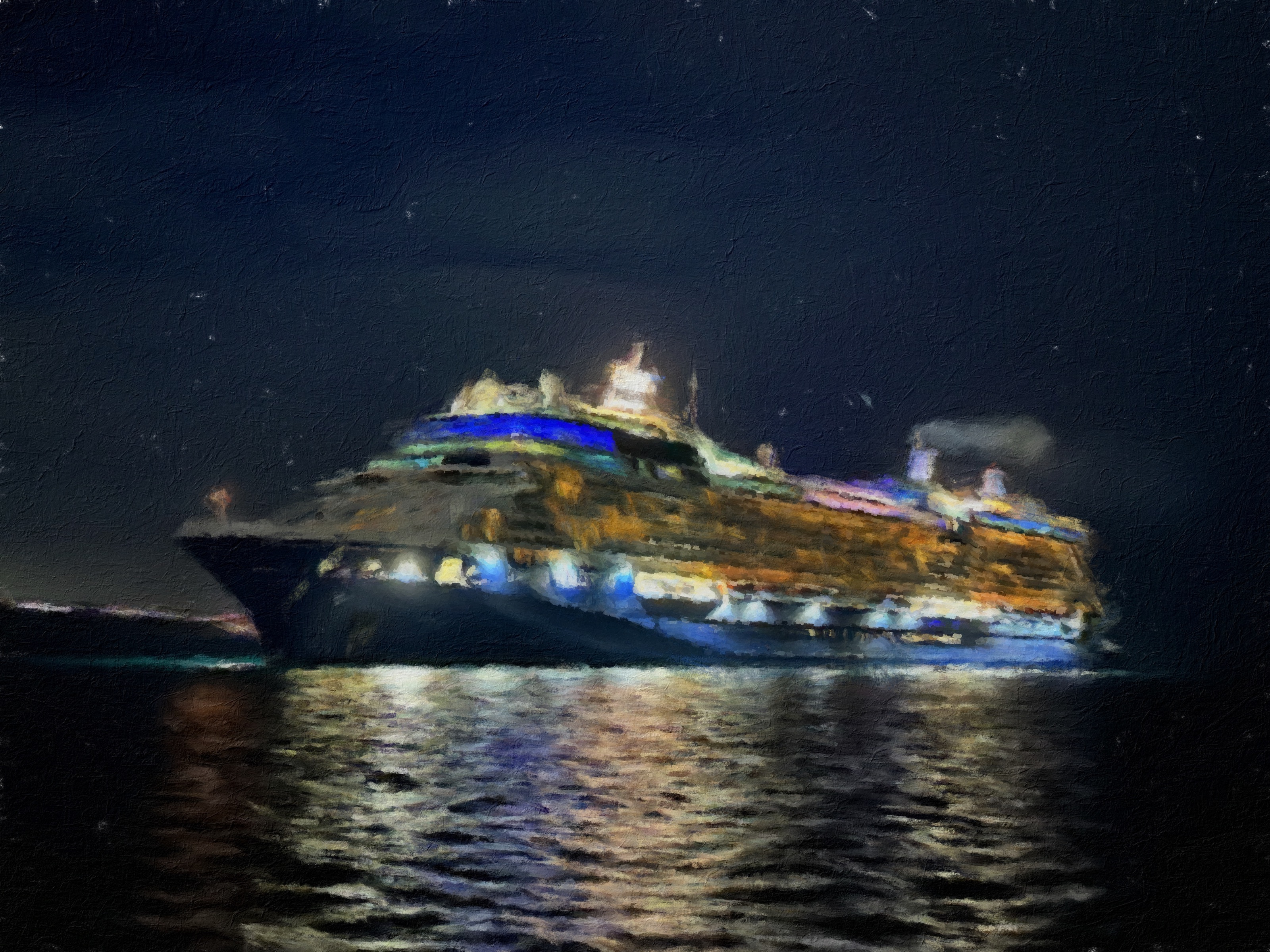
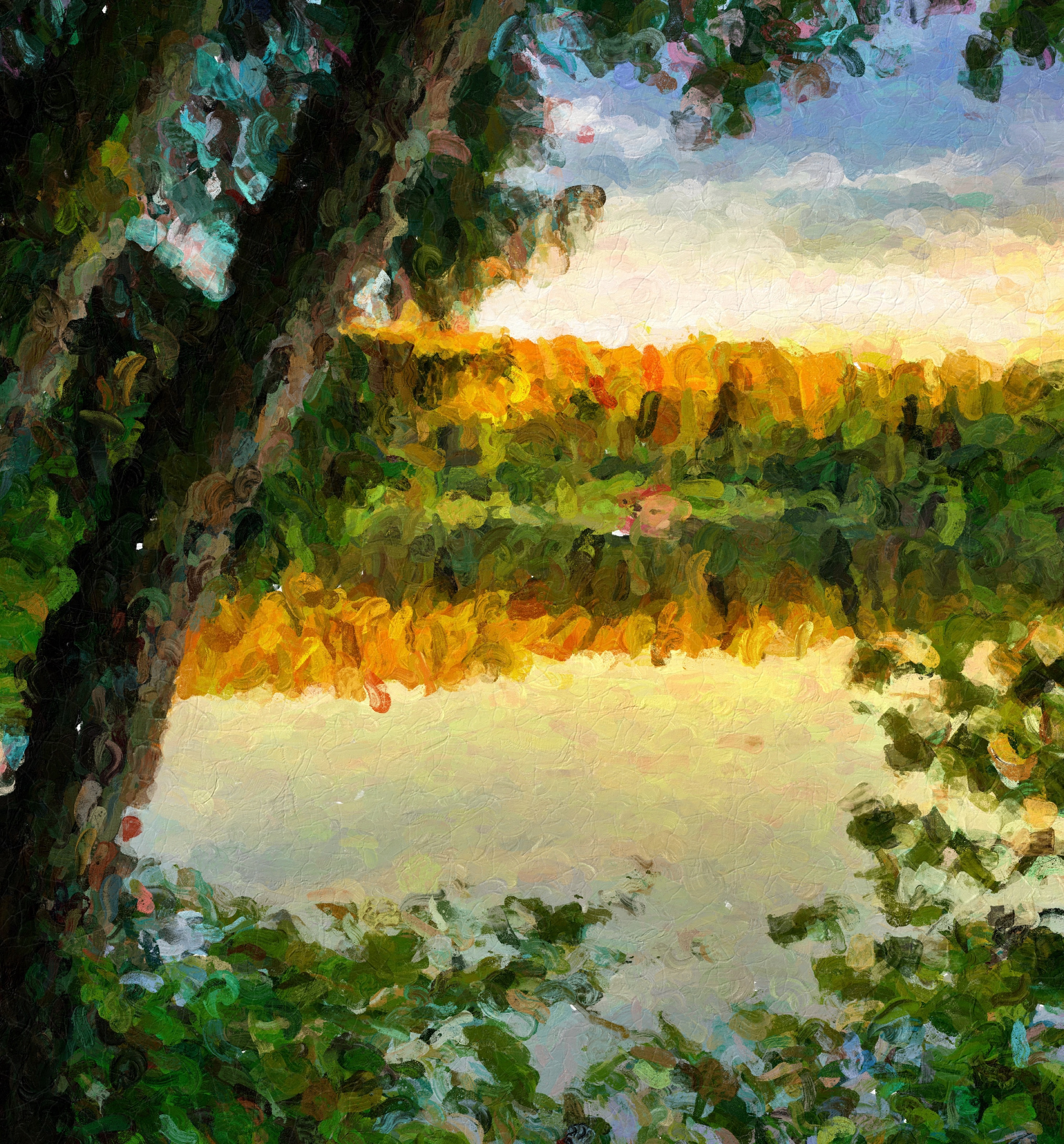
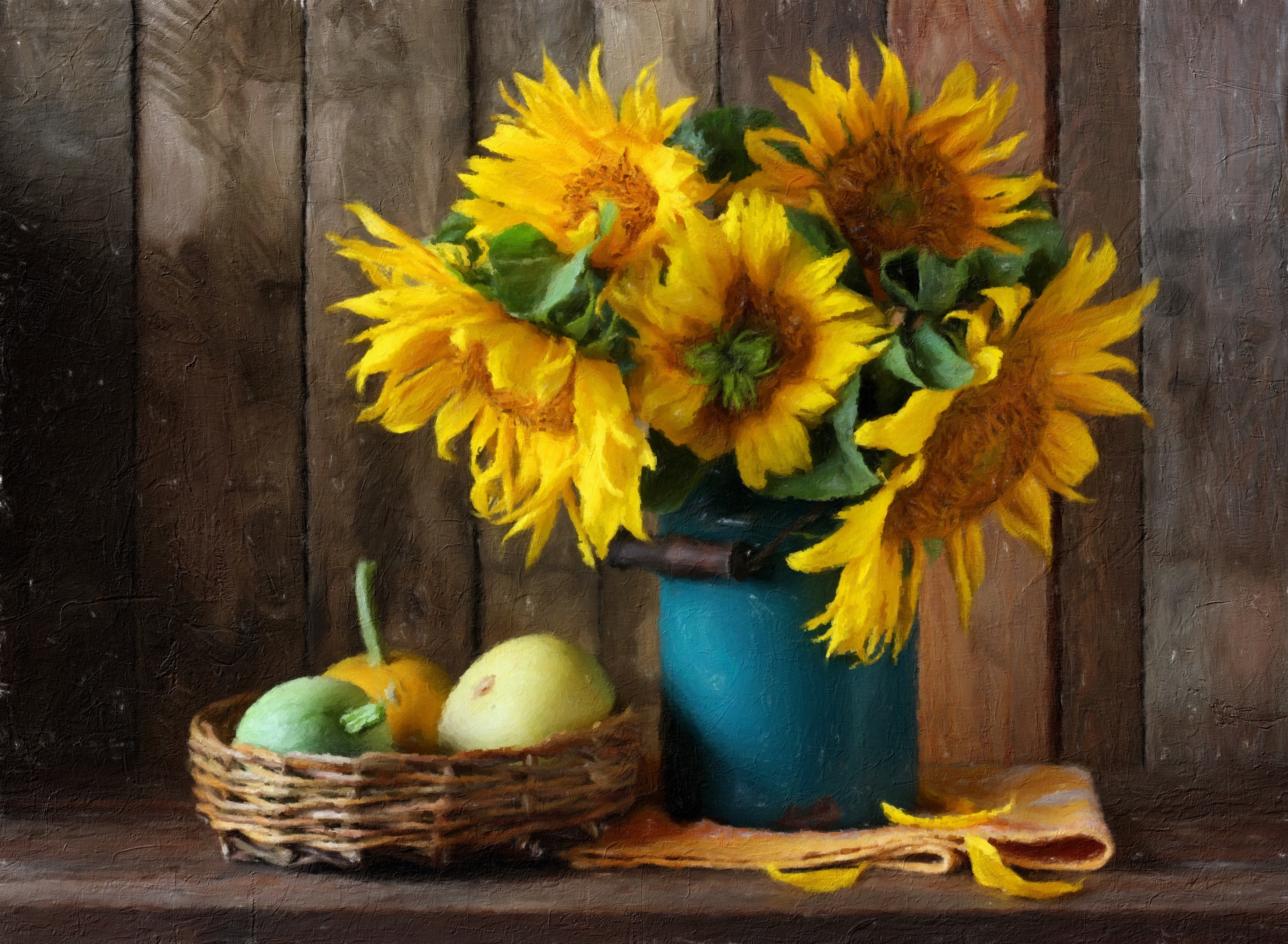
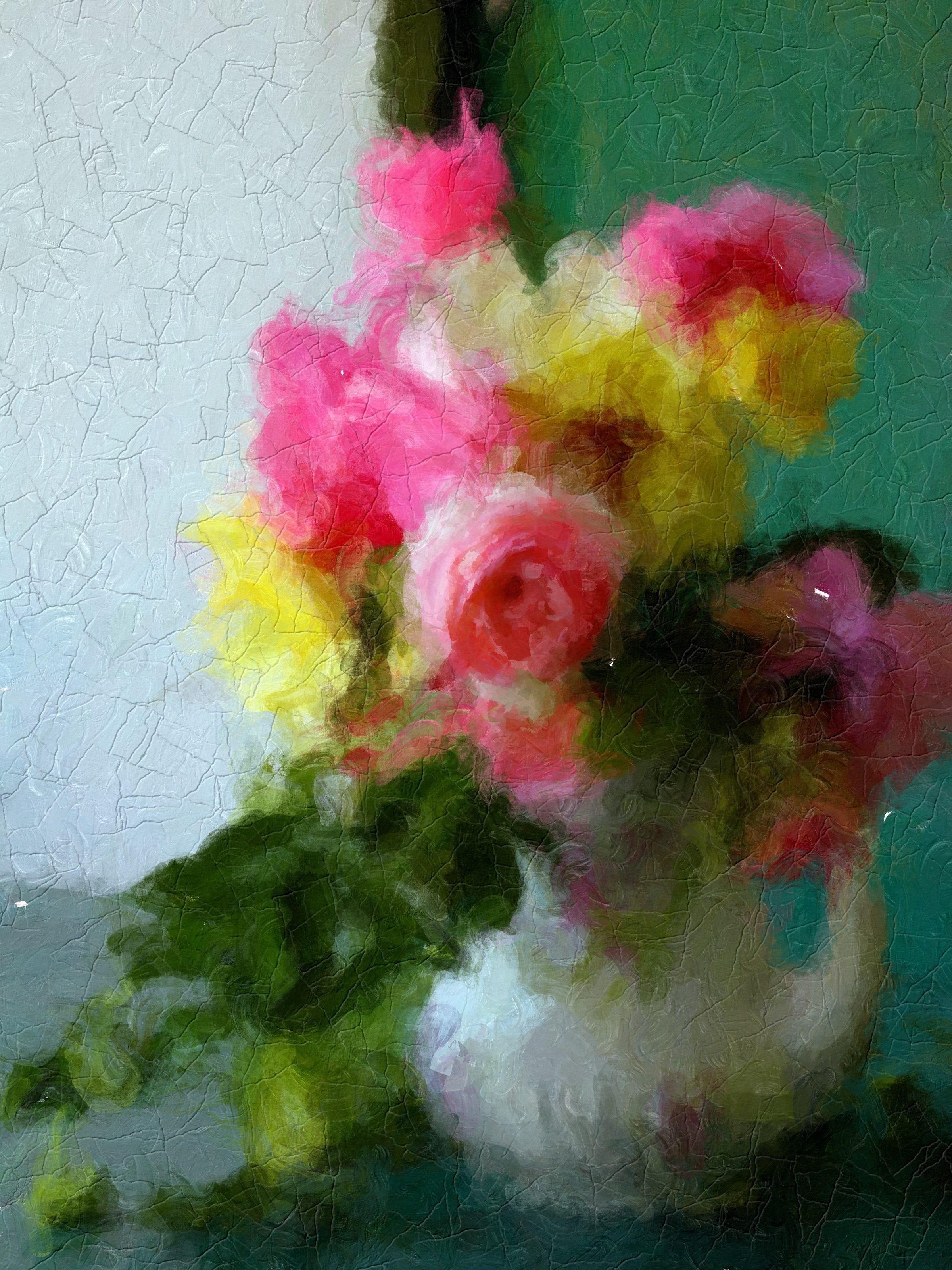
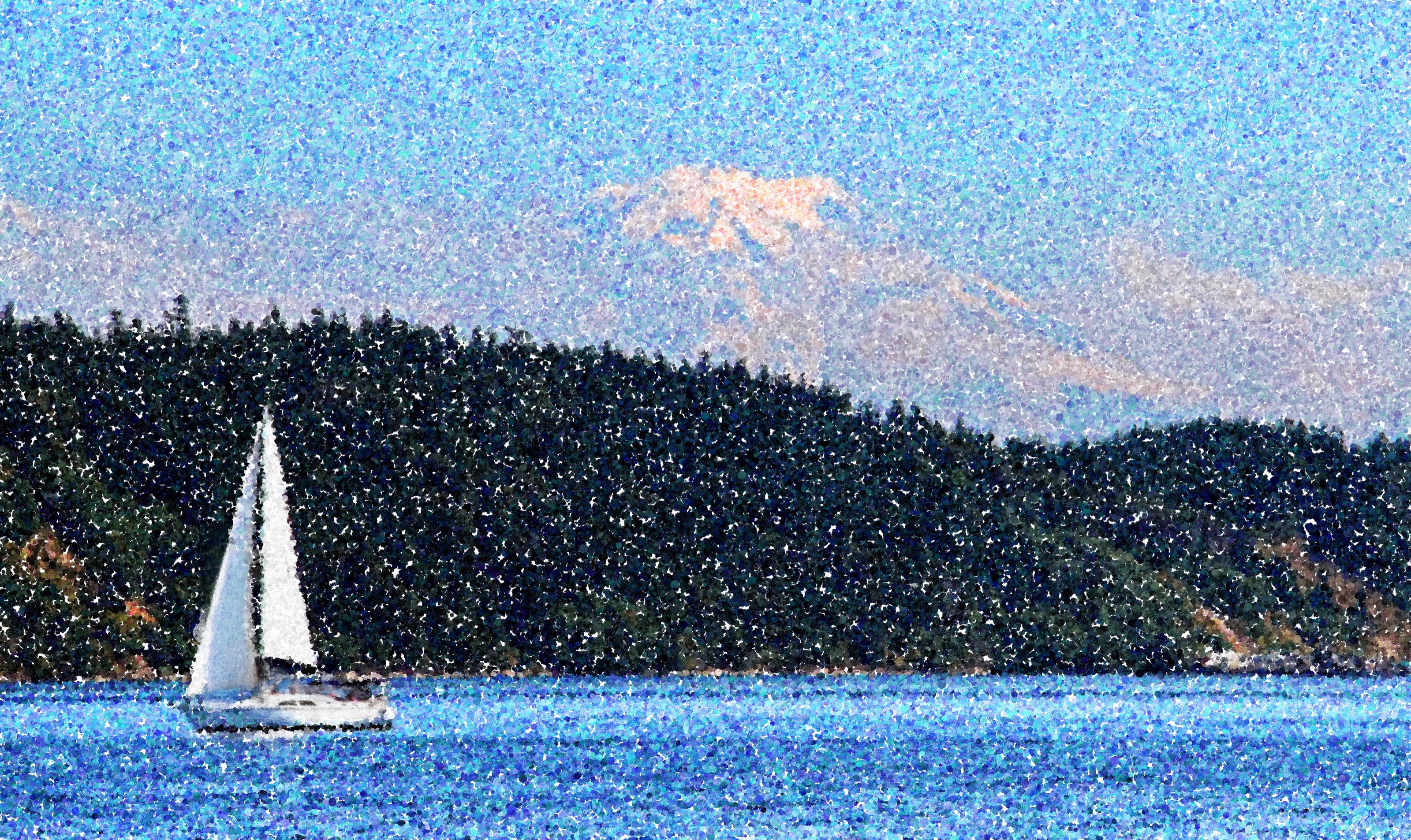
Let a garden dissolve into a shimmer of painted dots. Give a city at night the weight of palette knife strokes, with bright reflections scattered across the water. Turn a familiar face into a portrait of soft color and expressive marks. Impresso Studio gives each idea its own paint language: flowing Impressionism, sparkling Pointillism, broad patches of Macchia color, and dimensional Impasto. Layer them together to find a rhythm that belongs to you.
Build atmosphere with broad strokes, then draw the eye back to the details that tell the story. Shape brush size, color, and paint depth; blend layers and brush effects into just the areas you want. Bring definition to a face with Oil Detail or Macchia Detail, or add another layer of brush texture with Glaze. Finish with canvas texture, worn paint, an Oil Study edge, and your signature. Save the combination as a preset and carry your personal style into the next painting.
Explore the possibilities
Paint Study
One subject, so many ways to paint it. Choose a study, then explore its colors, brushwork, and textures.
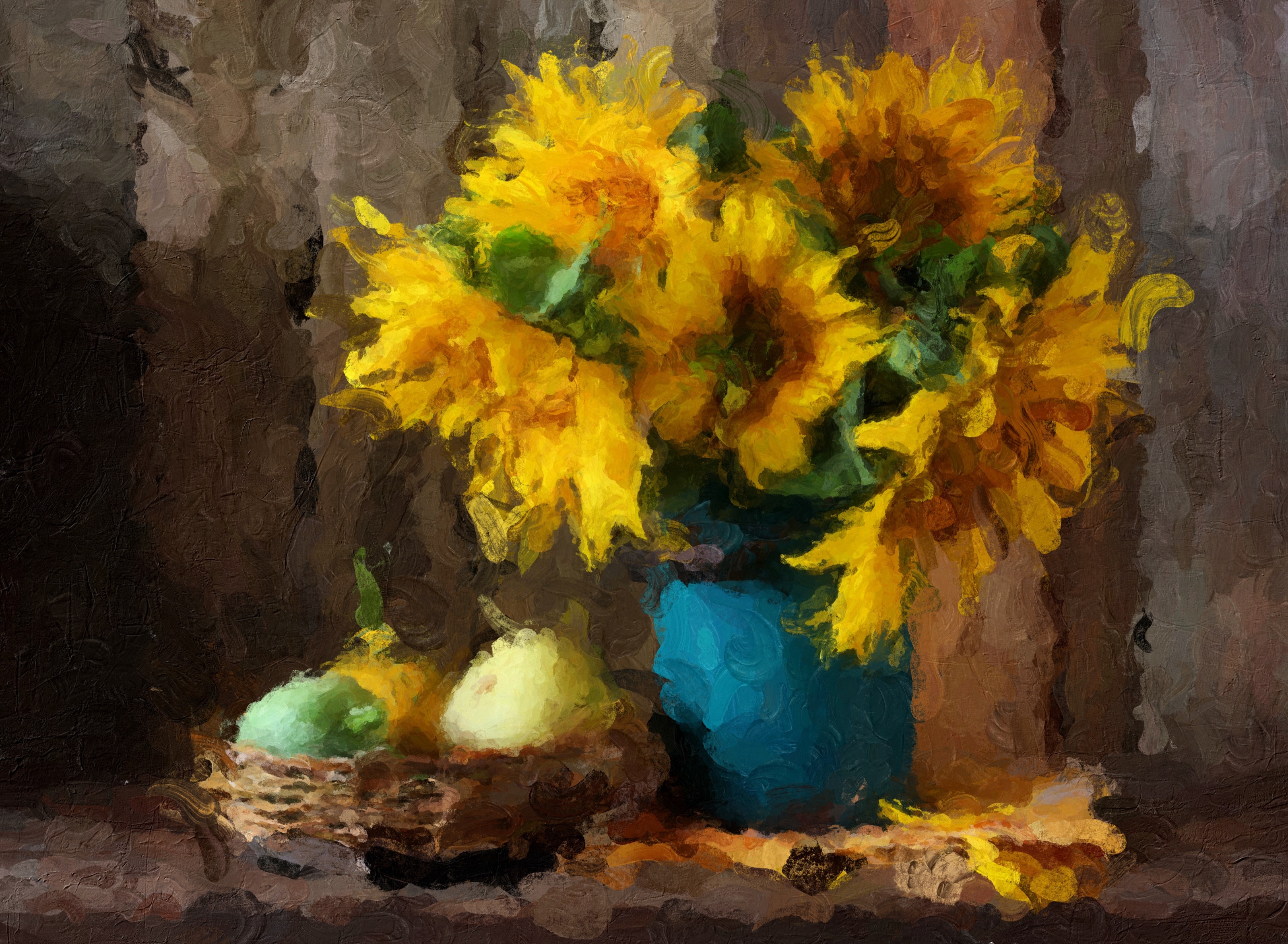
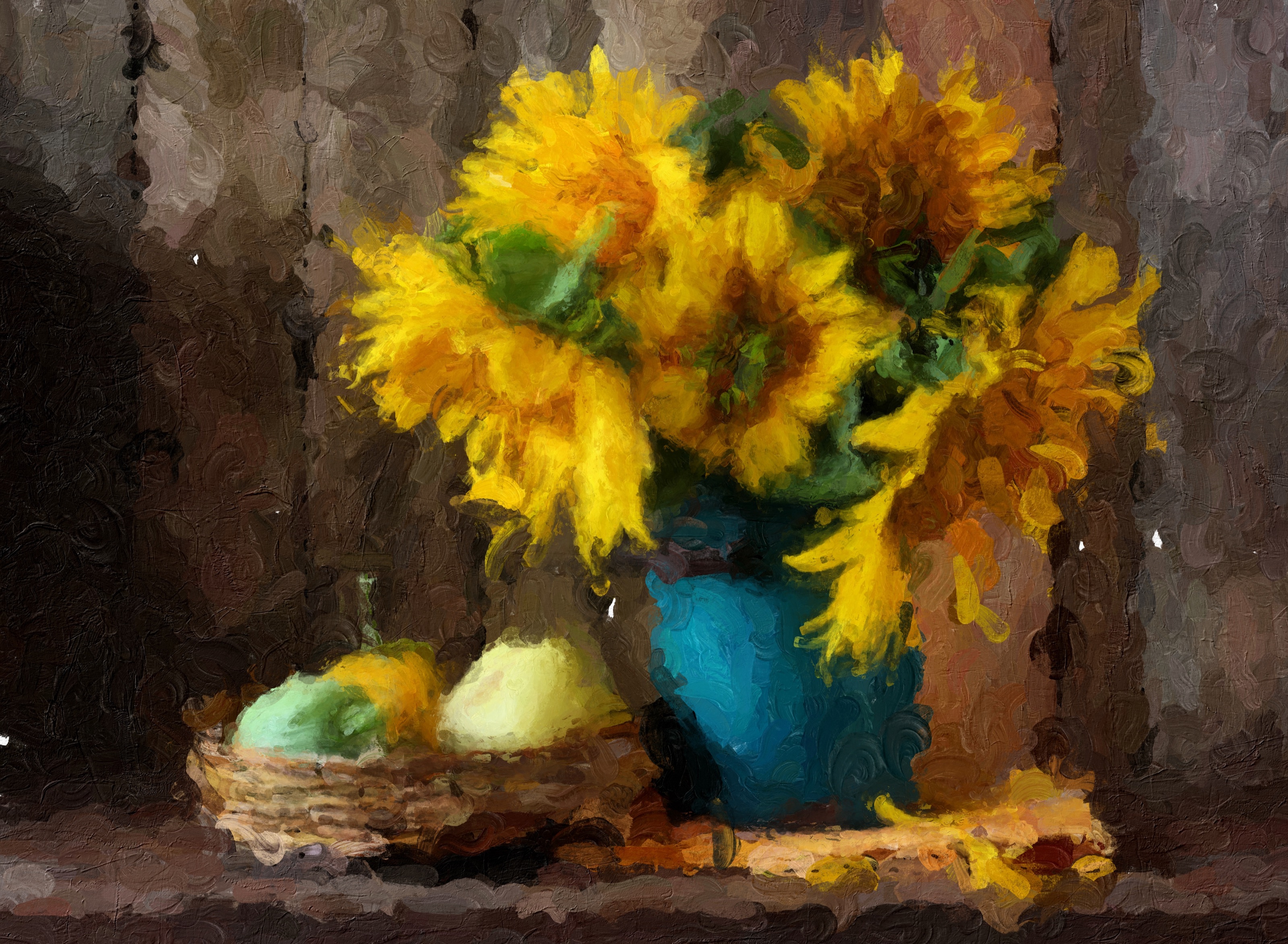
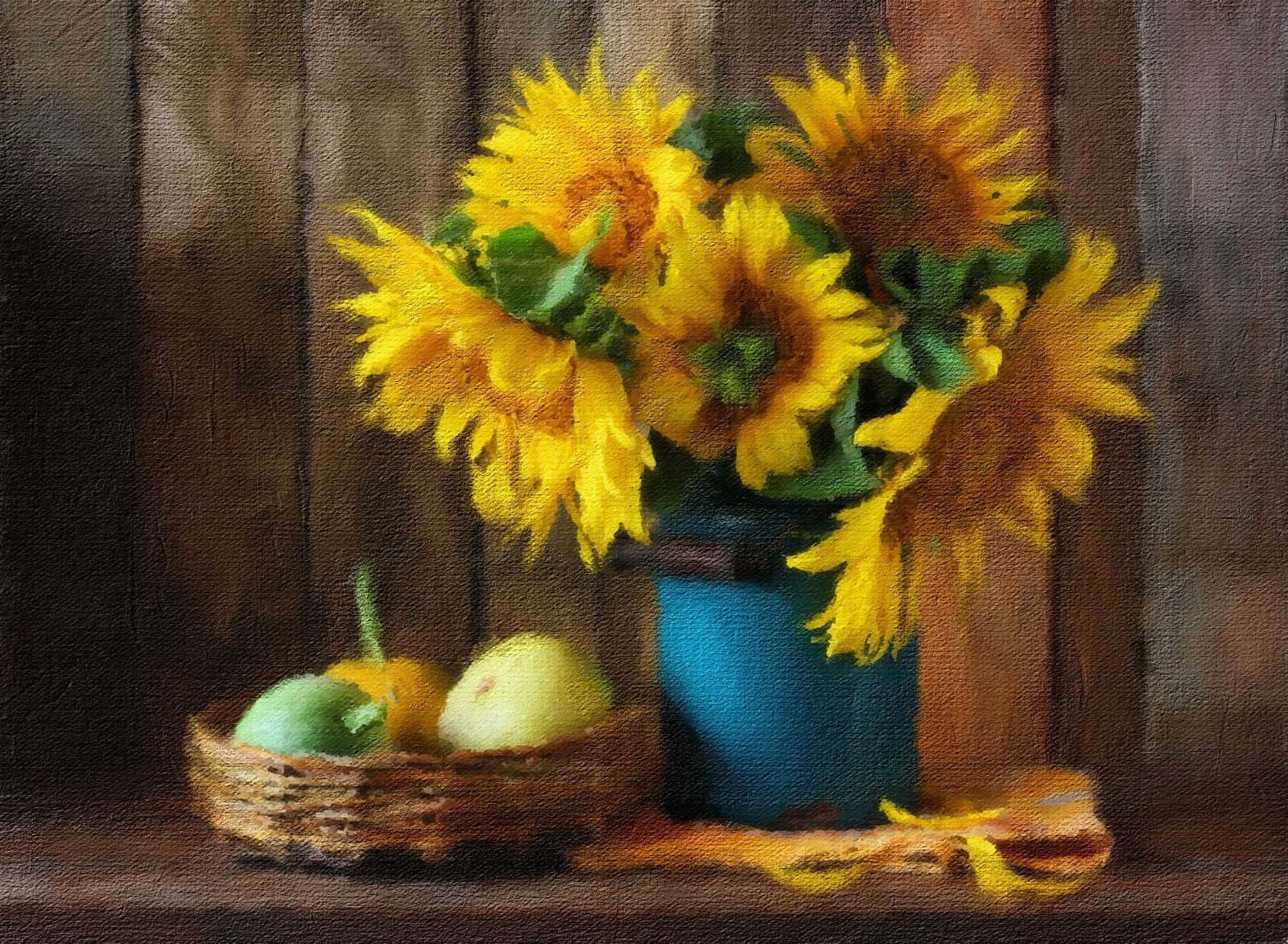 Sunflowers8 variations
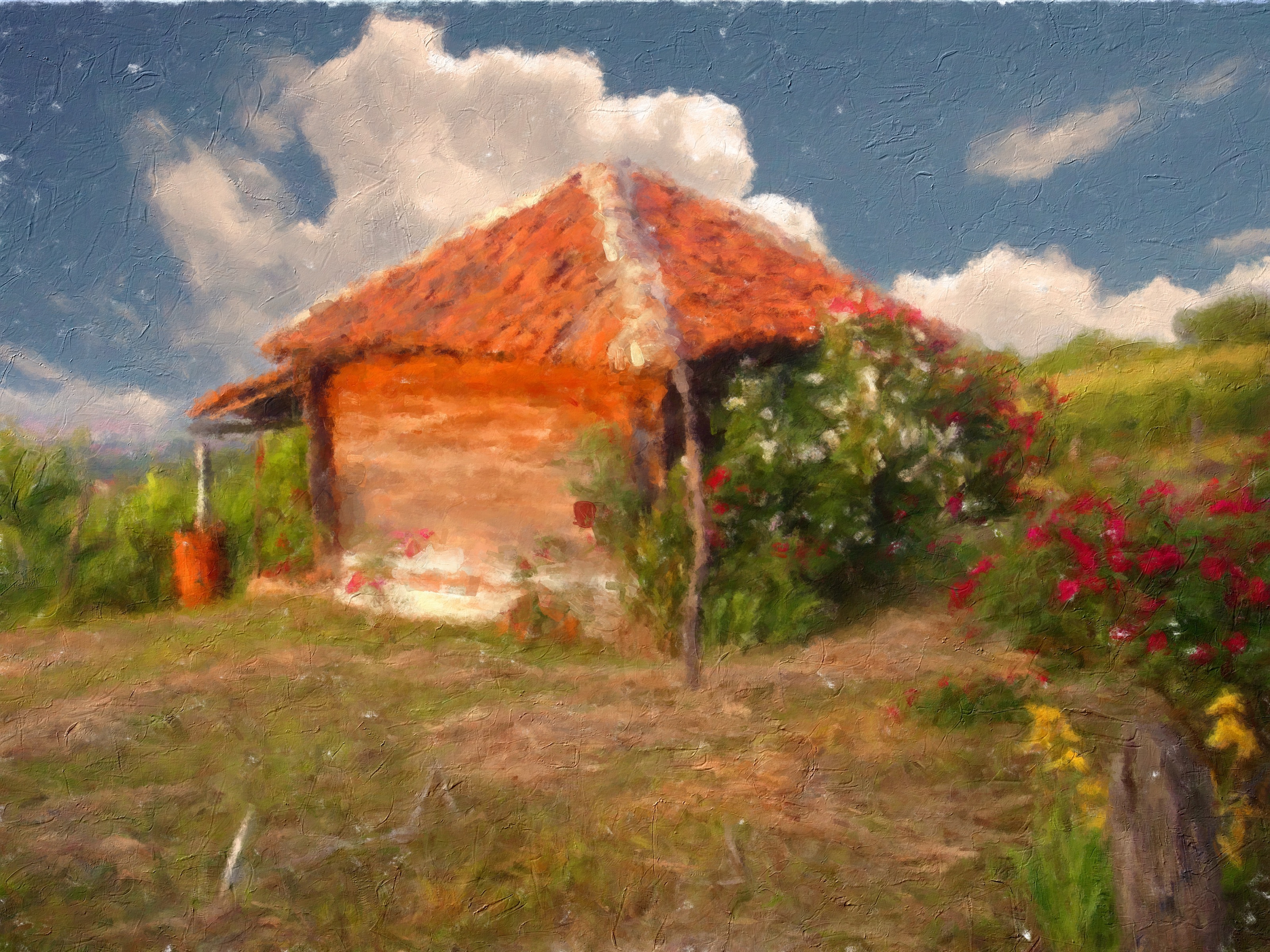
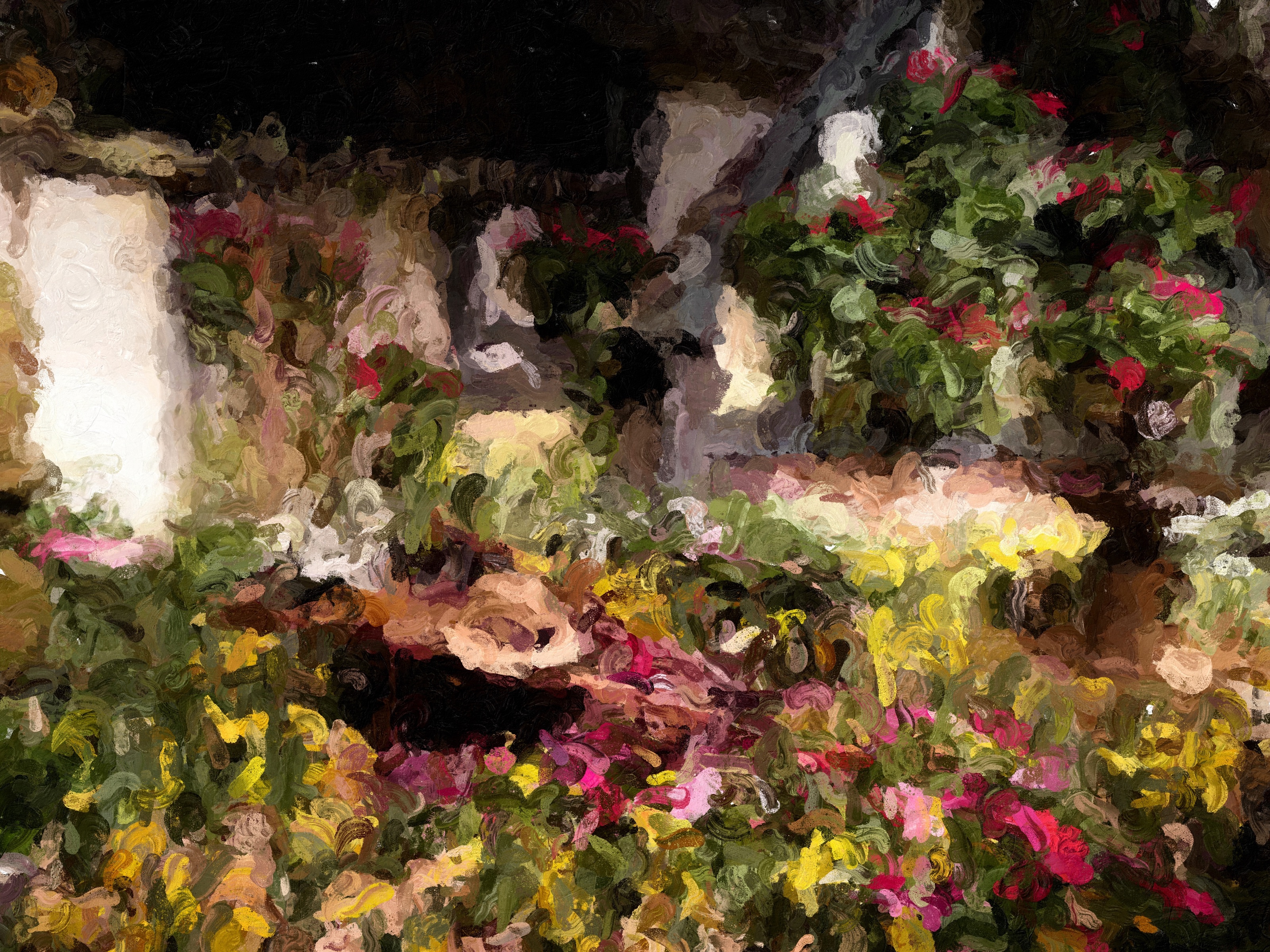
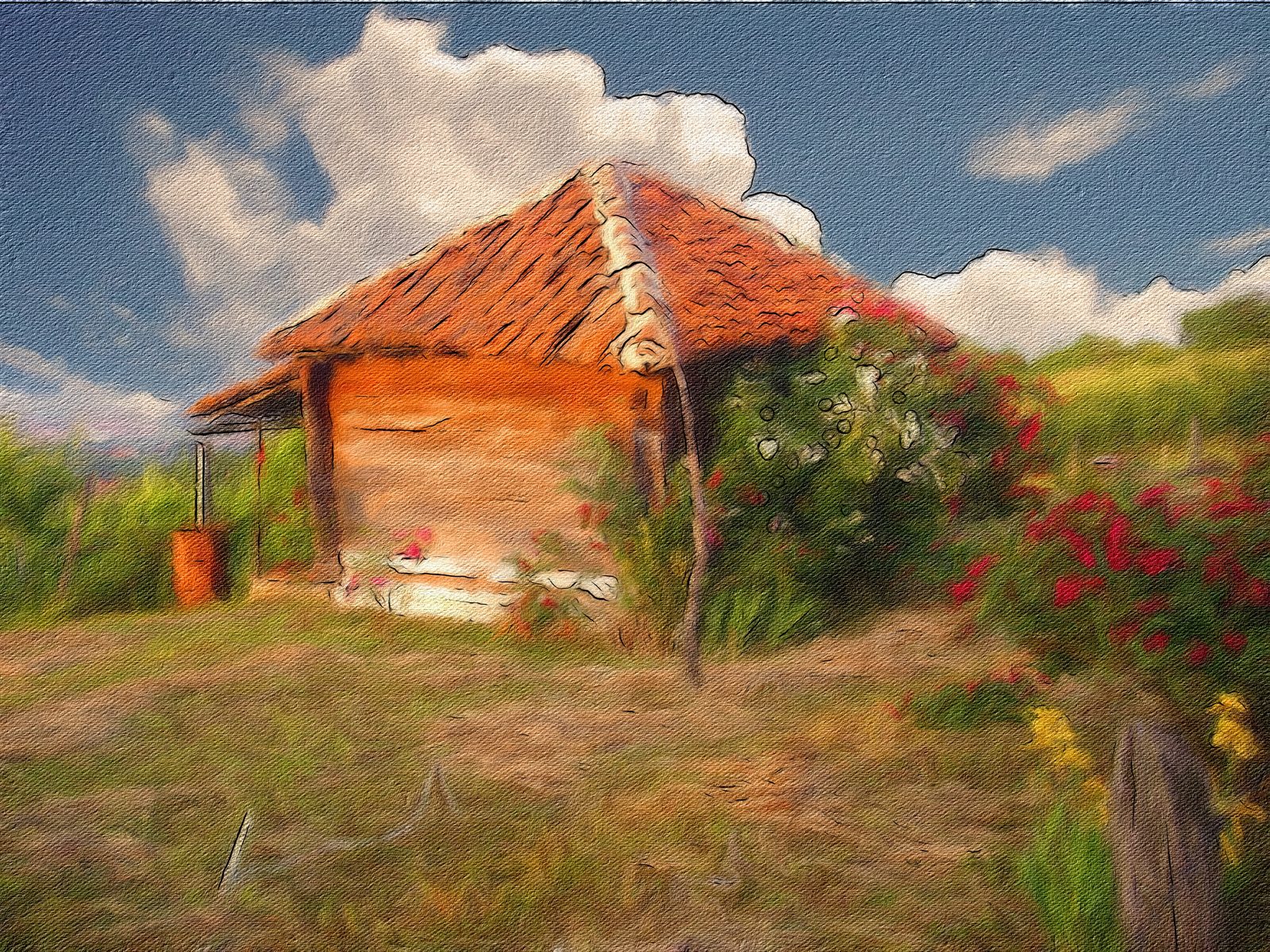 Country cottage8 variations
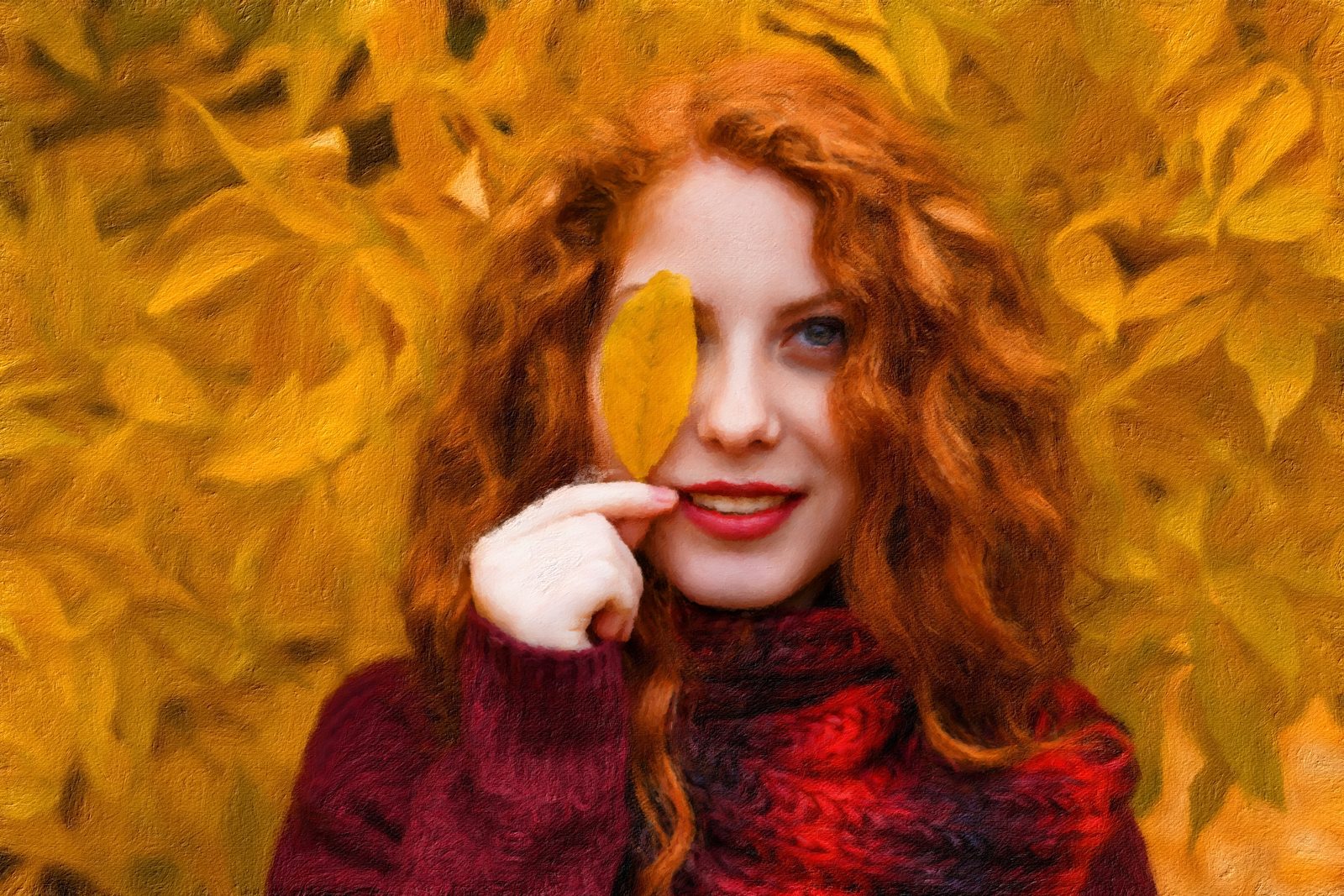 Autumn portrait8 variations
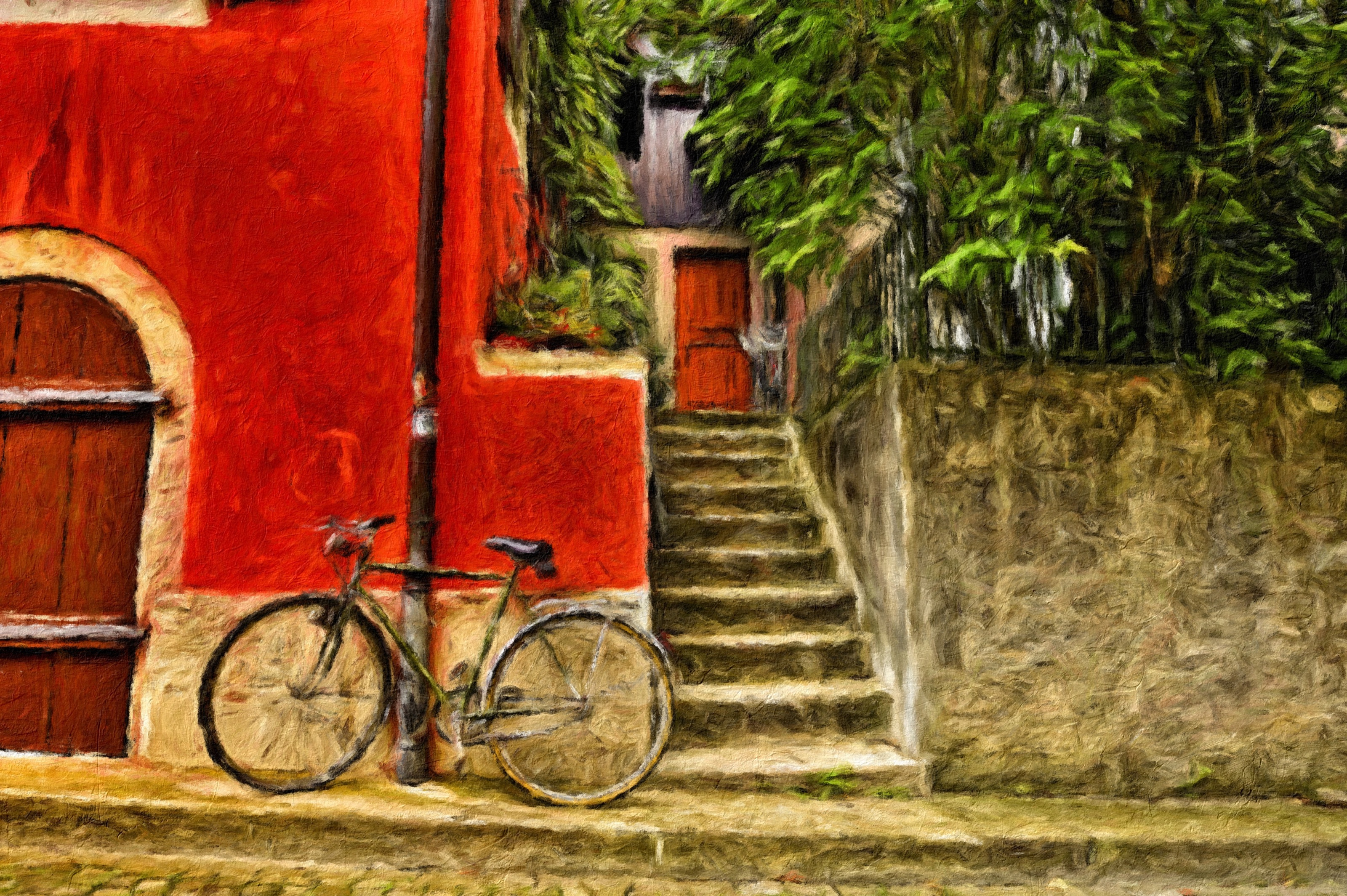
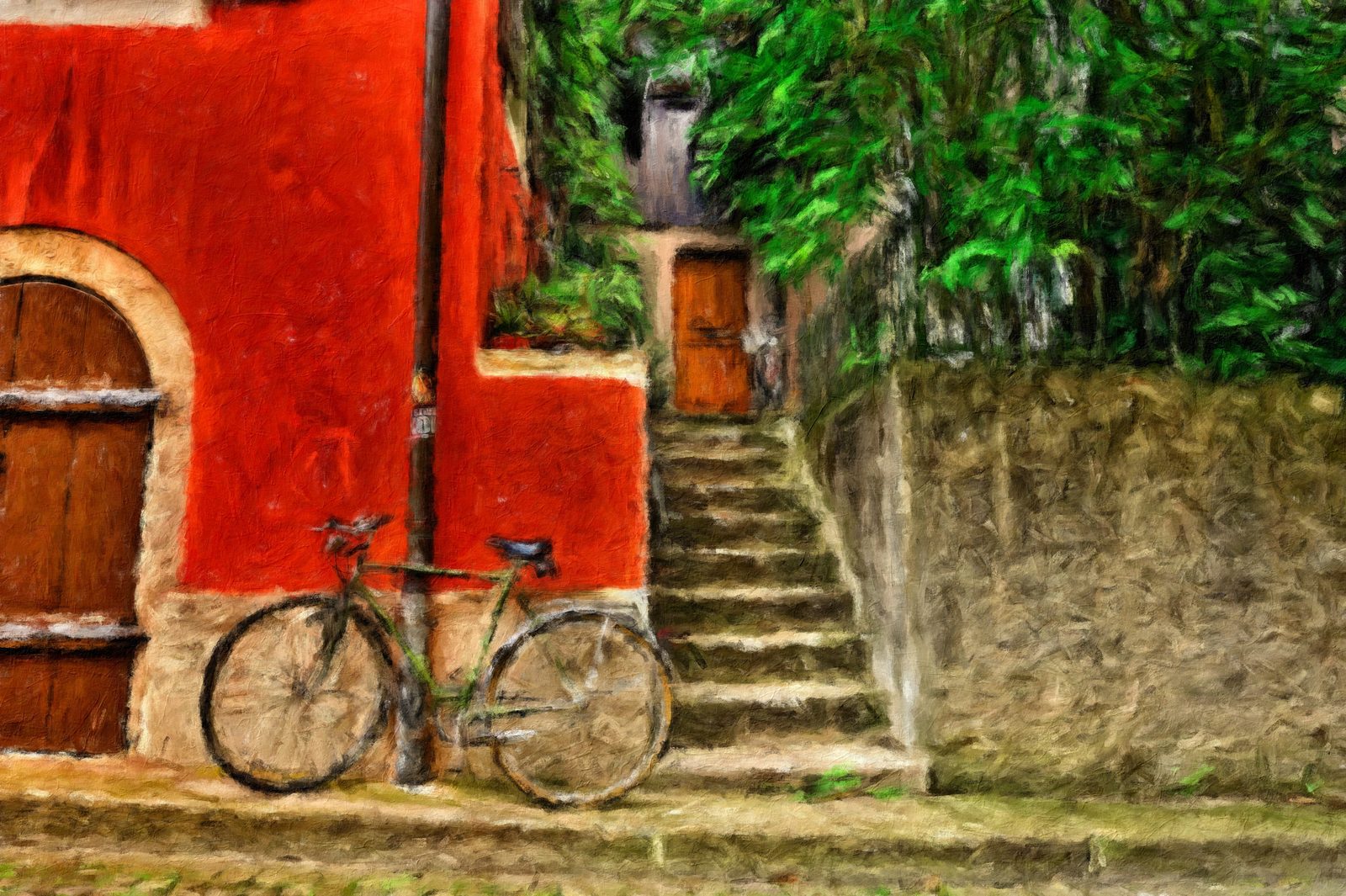 Bicycle & courtyard10 variations
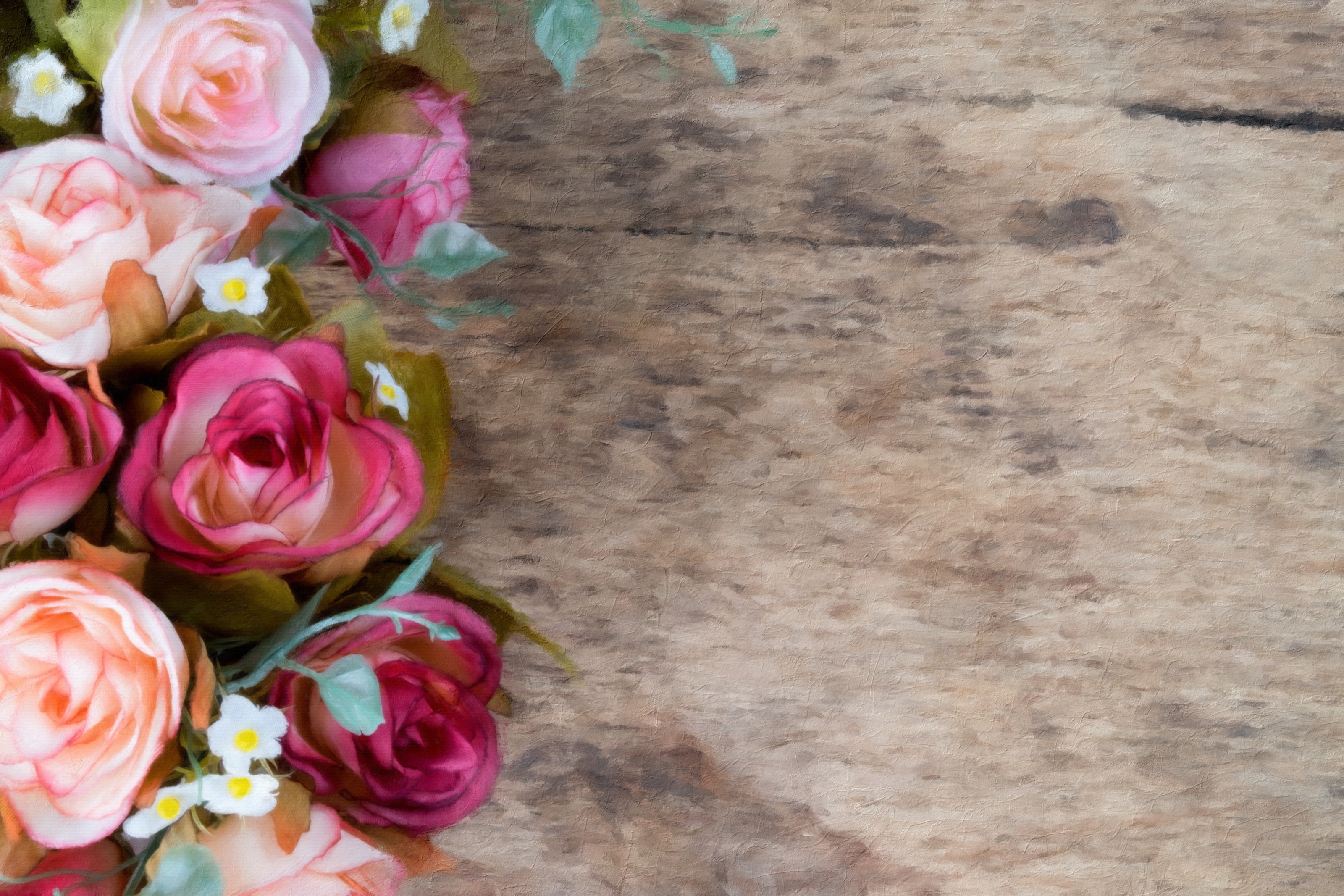
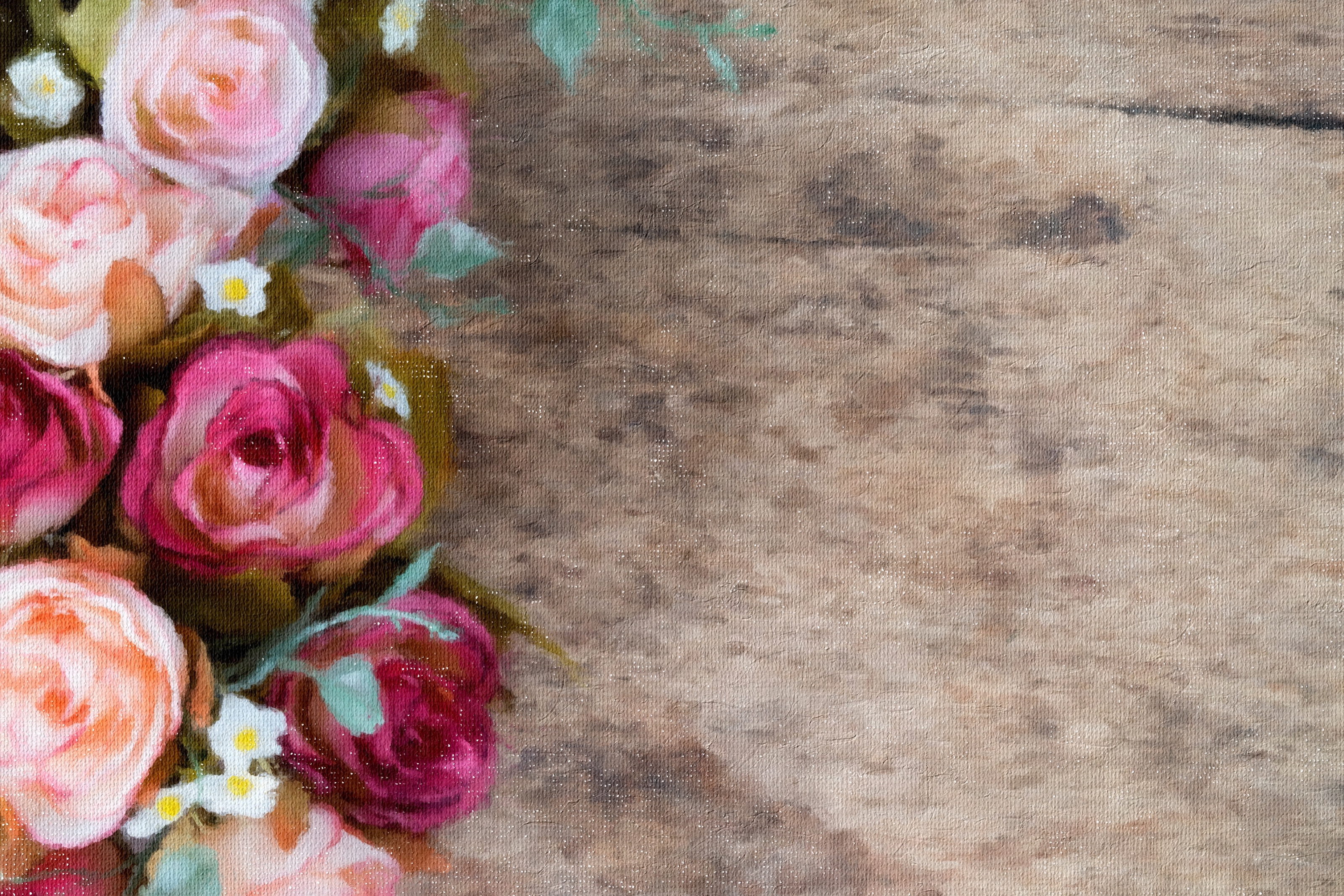
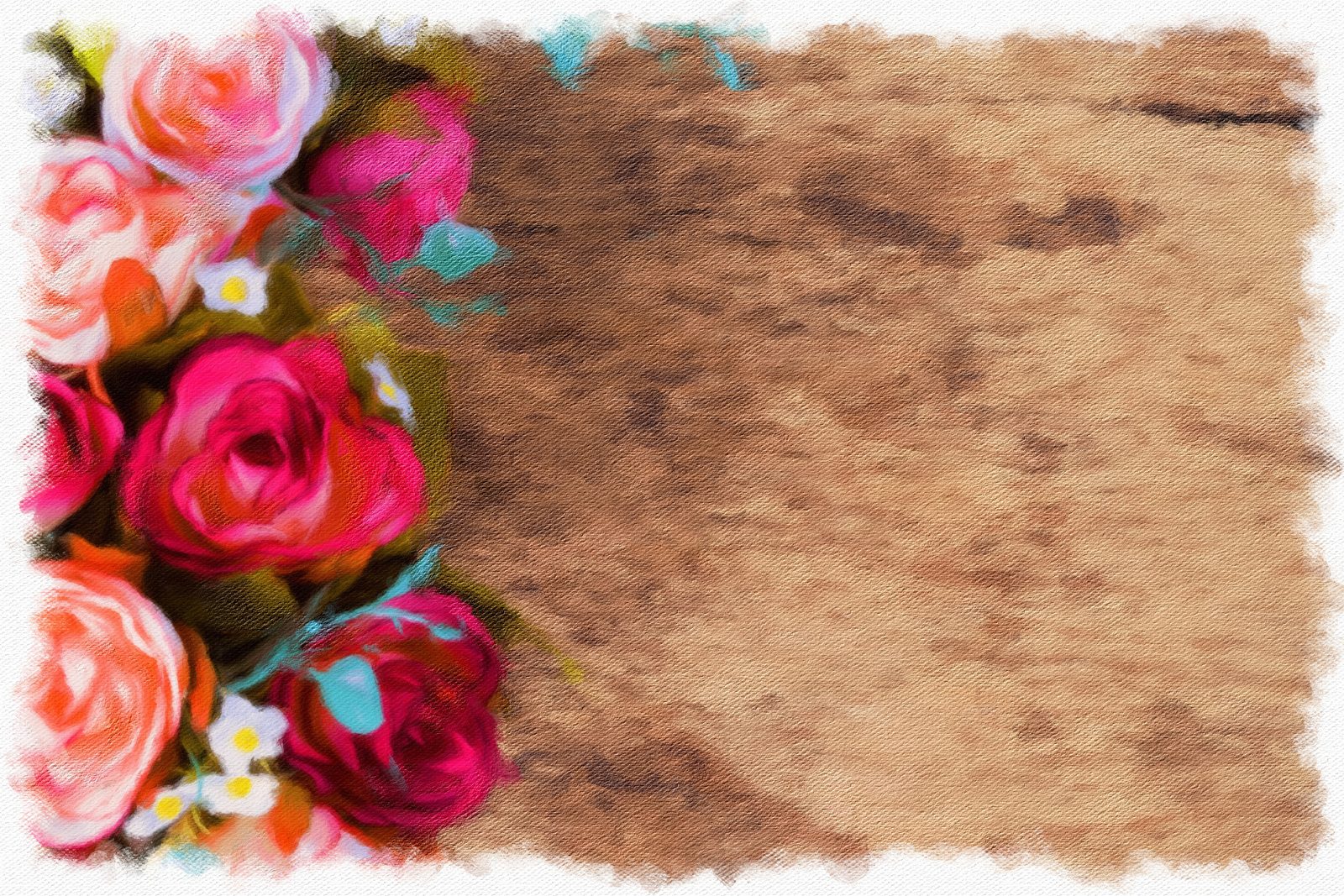 Roses on wood11 variations
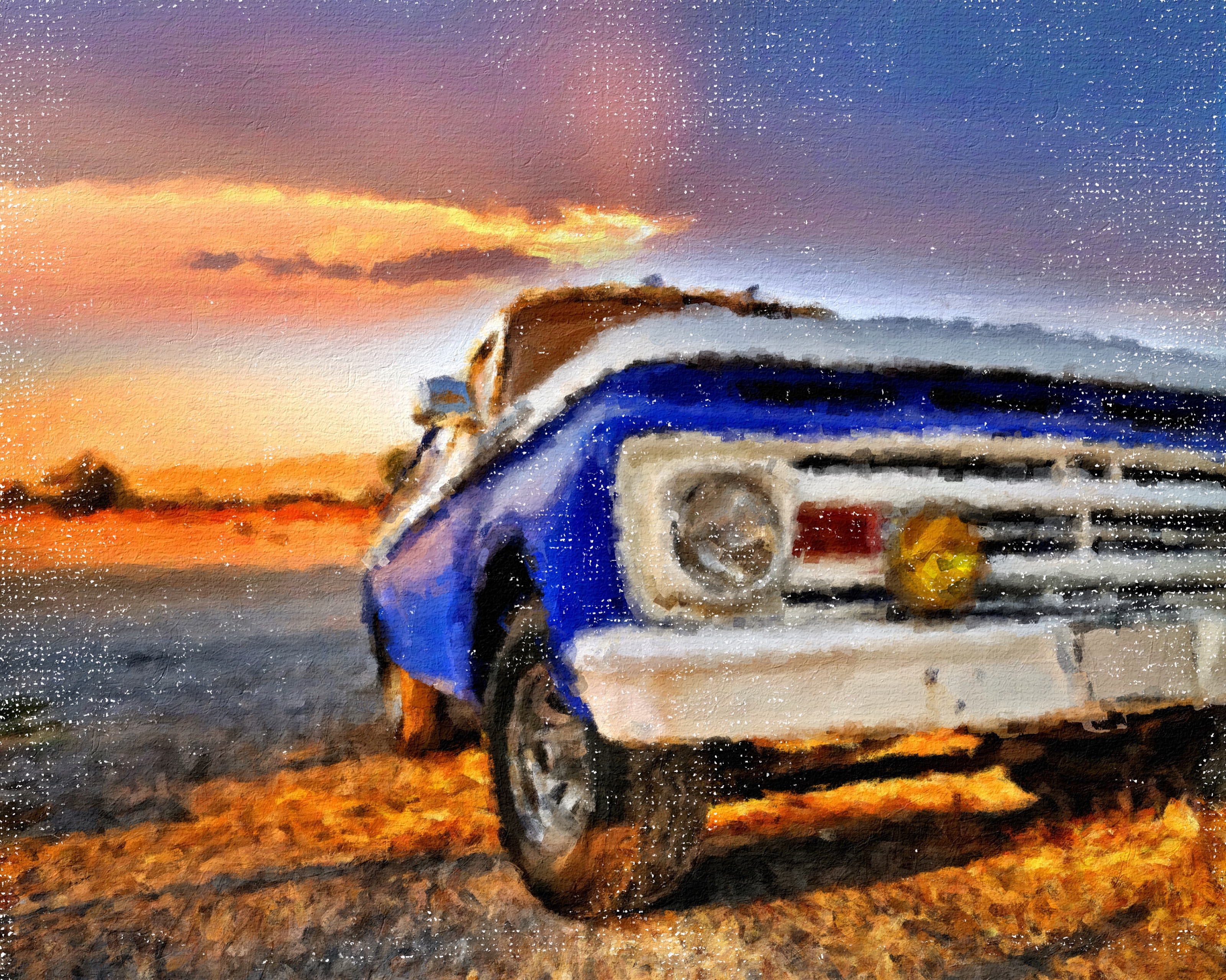
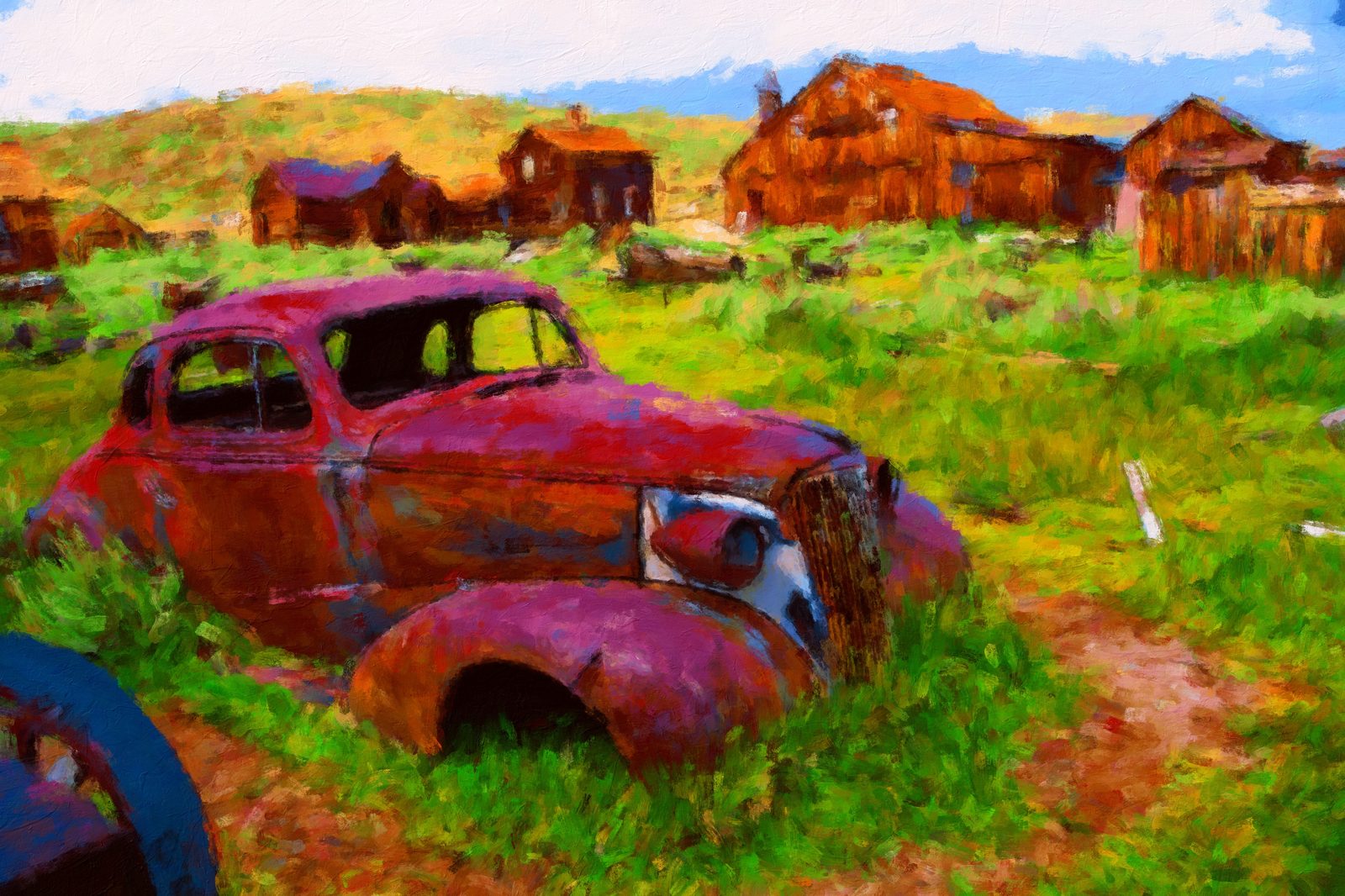 Vintage car7 variations
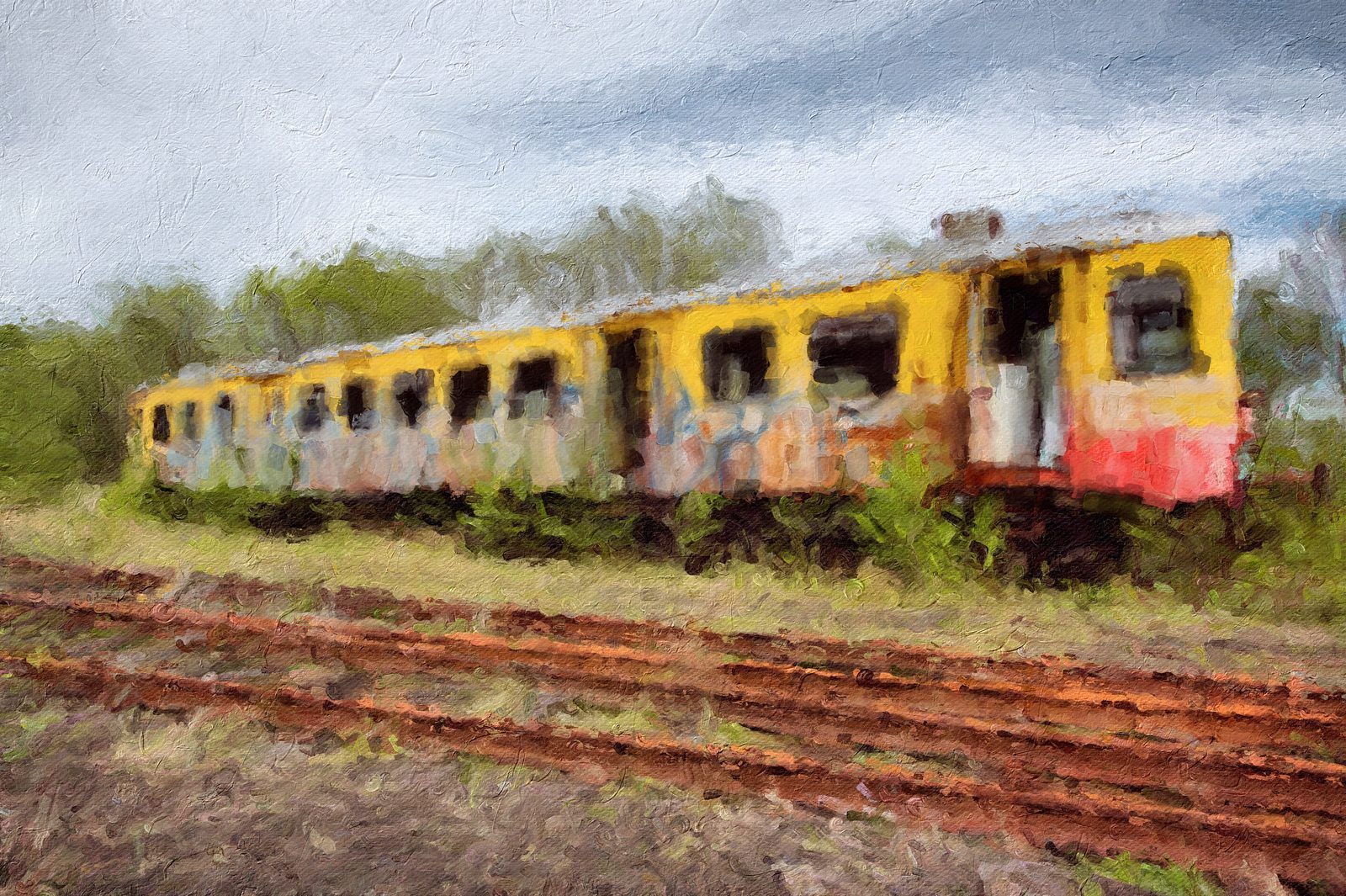 Railway carriages13 variations
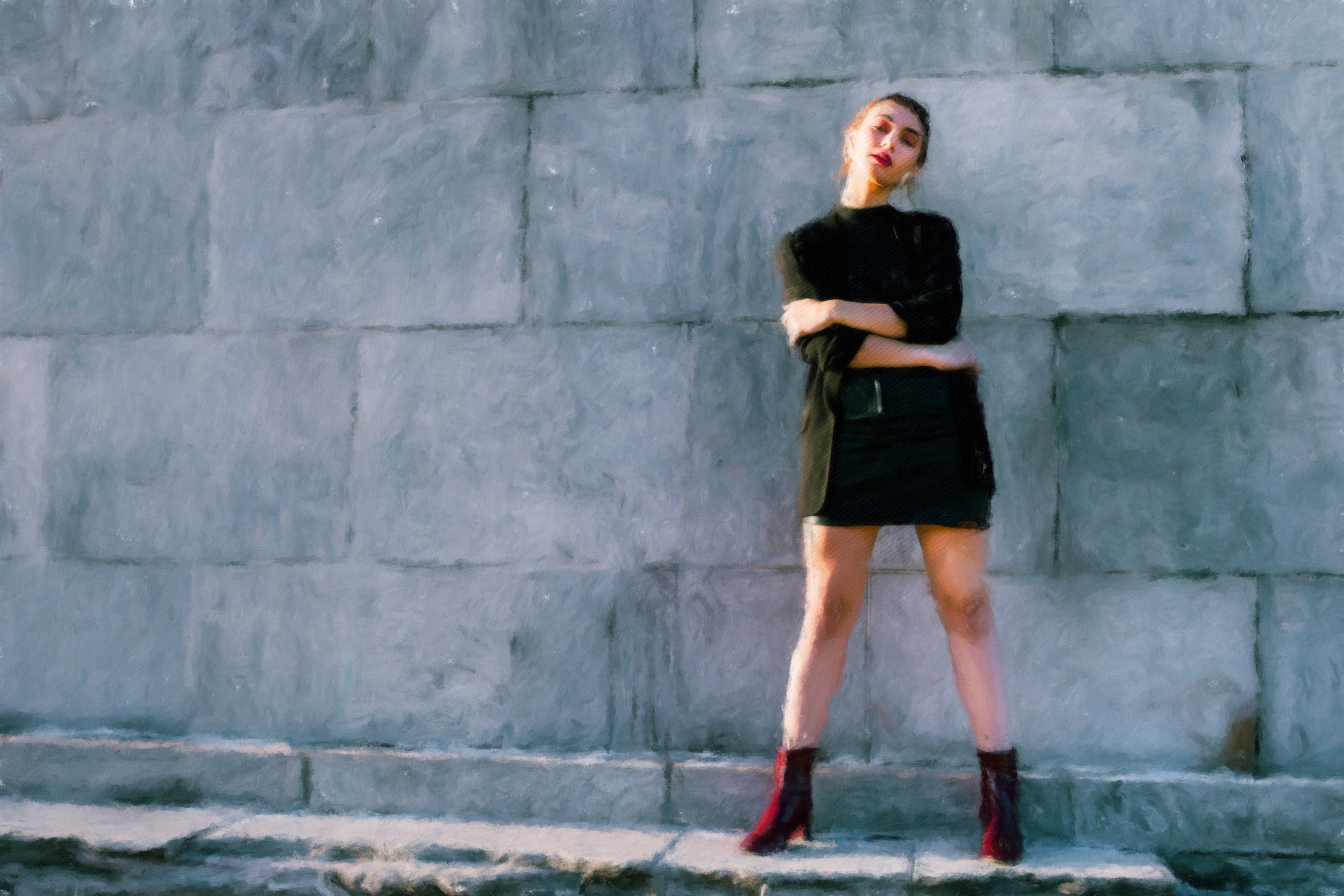
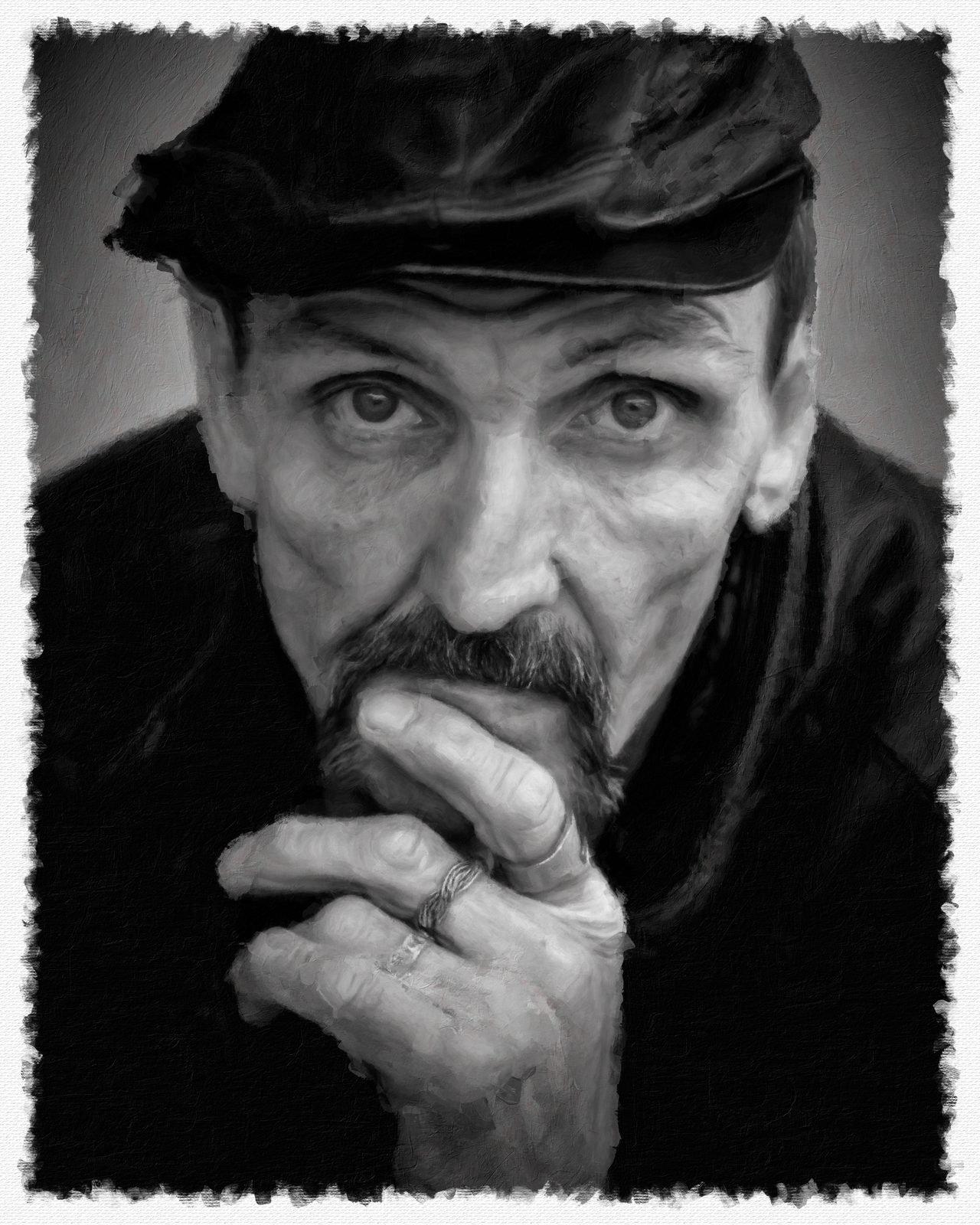 Portrait in black & white11 variations
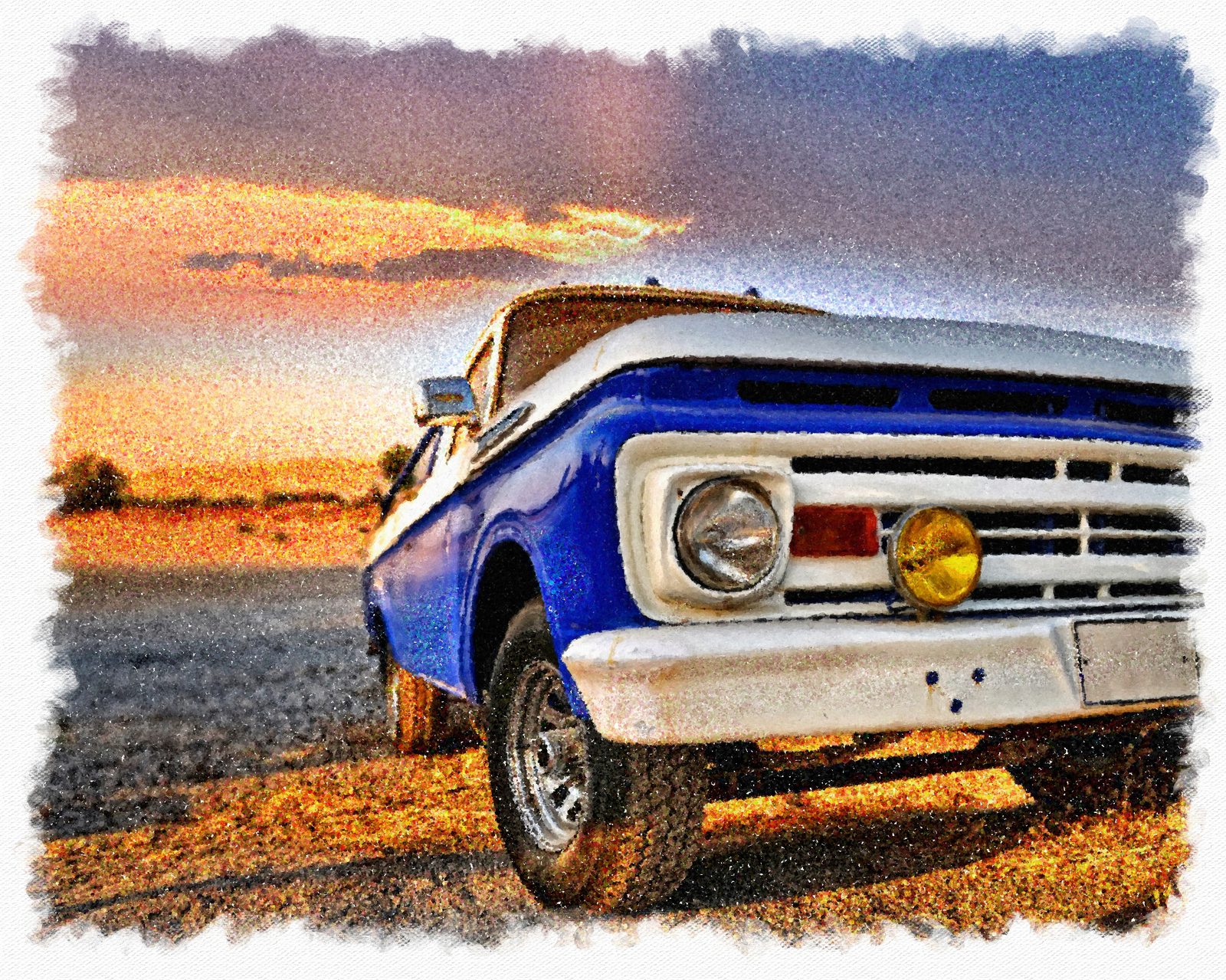 Blue pickup16 variations
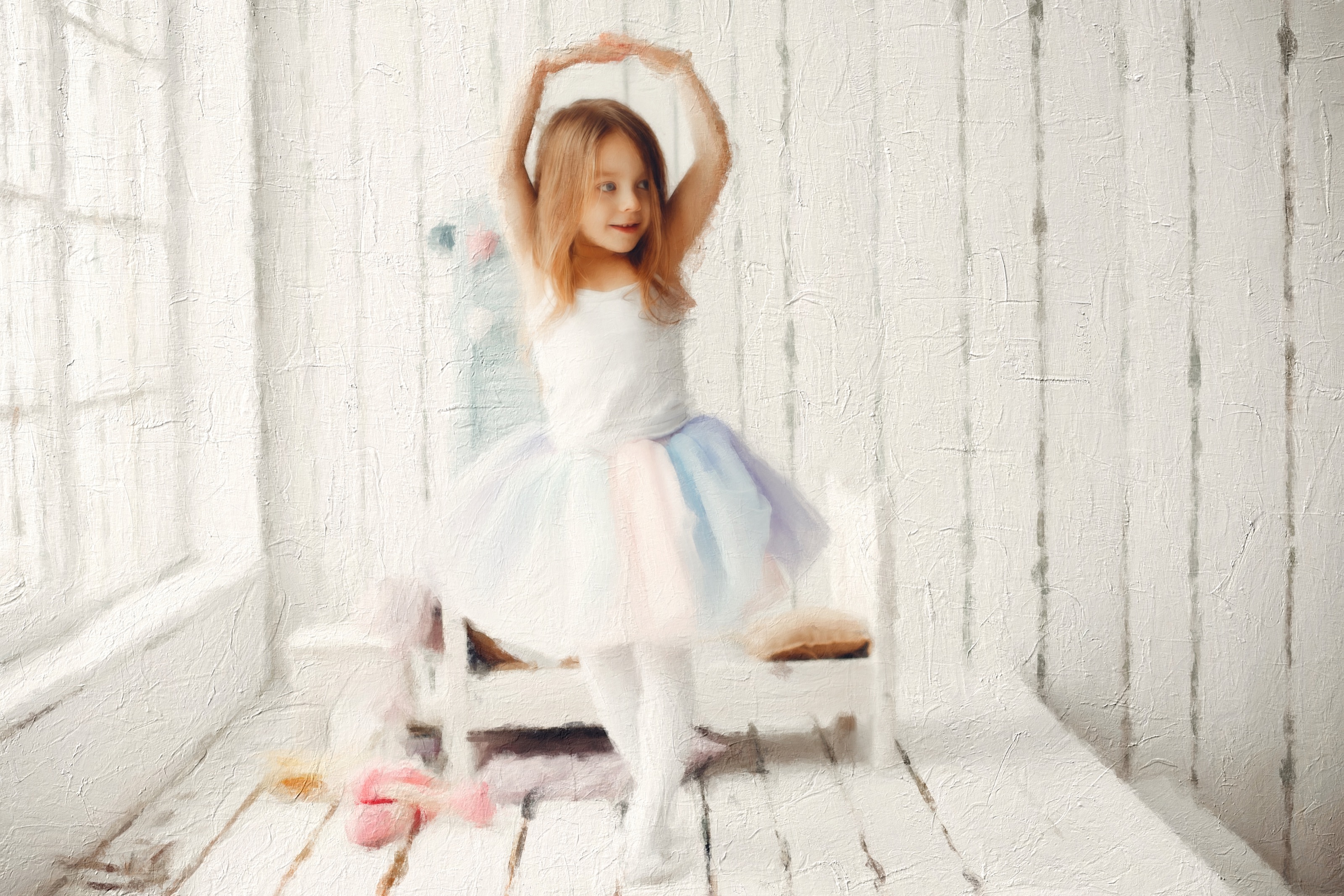
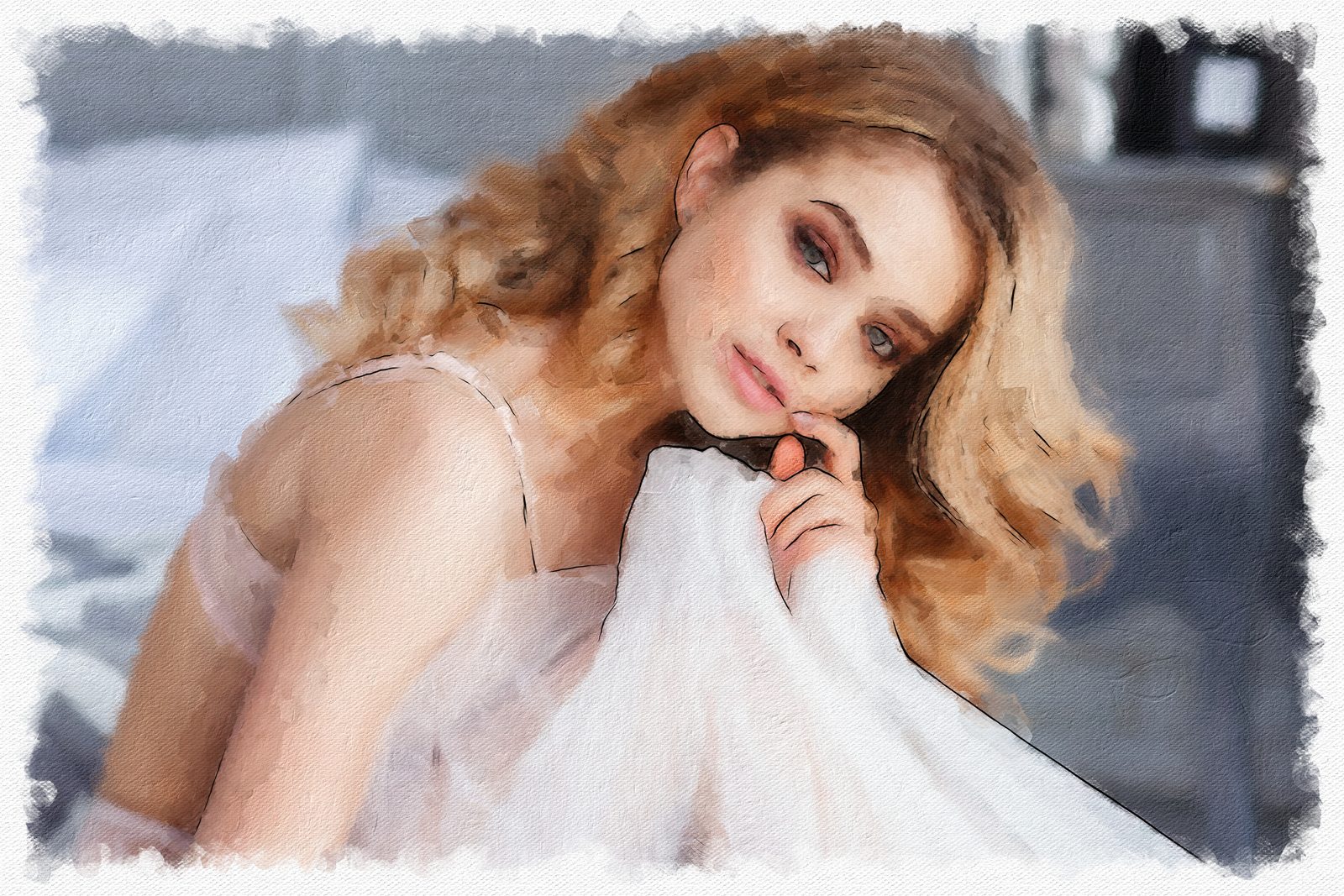 Portrait in white12 variations
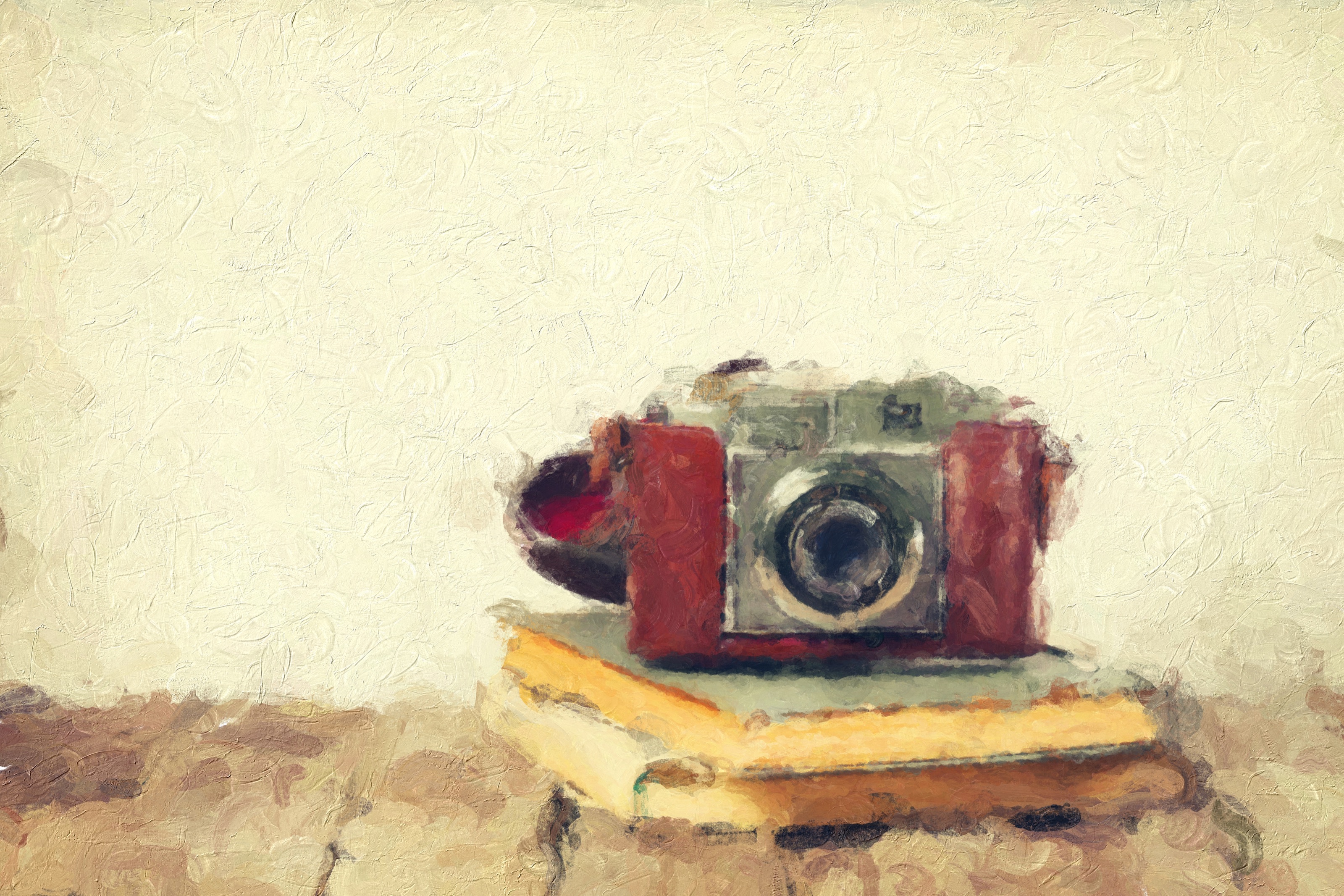
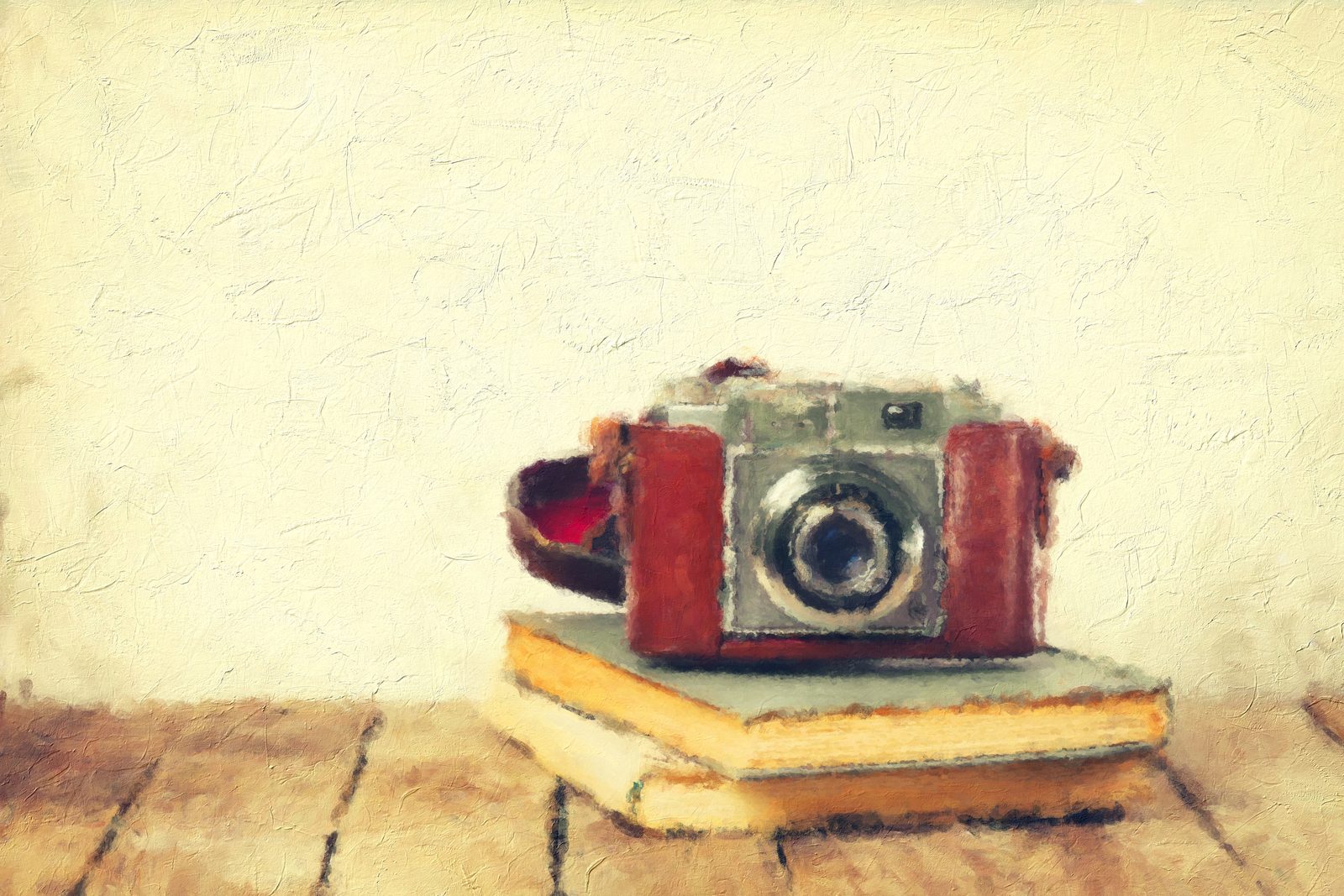 Vintage camera8 variations
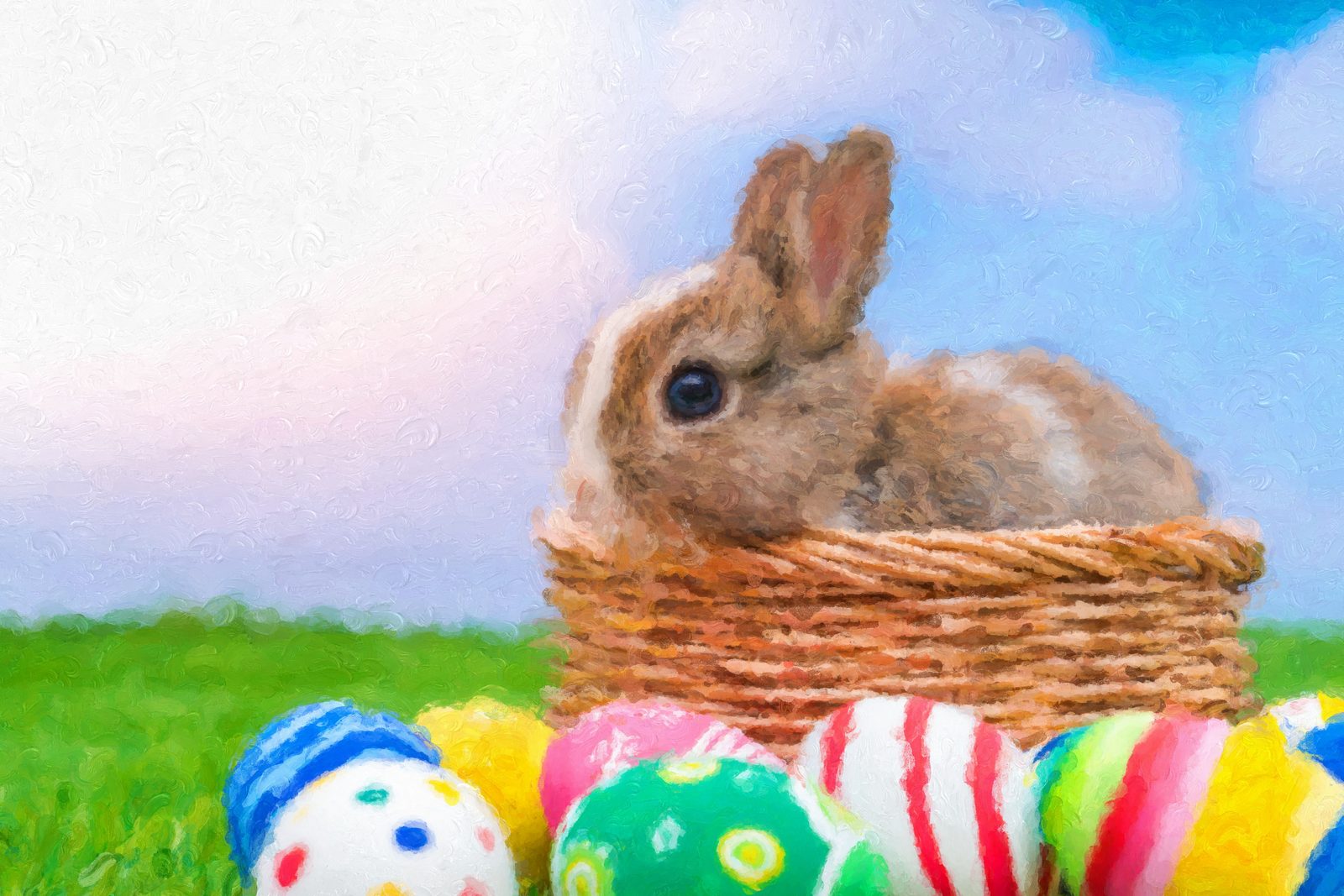 Rabbit & Easter eggs10 variations
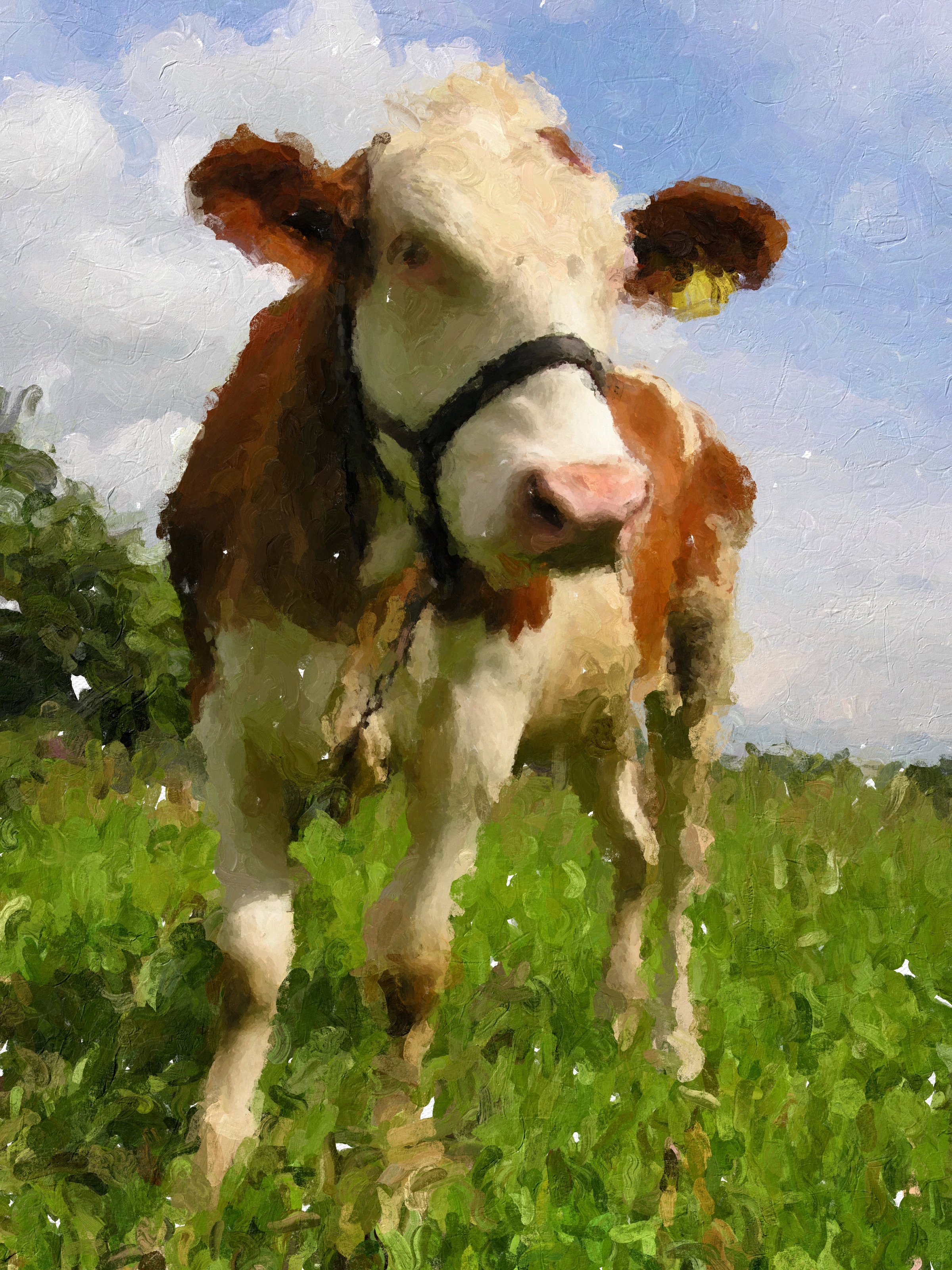
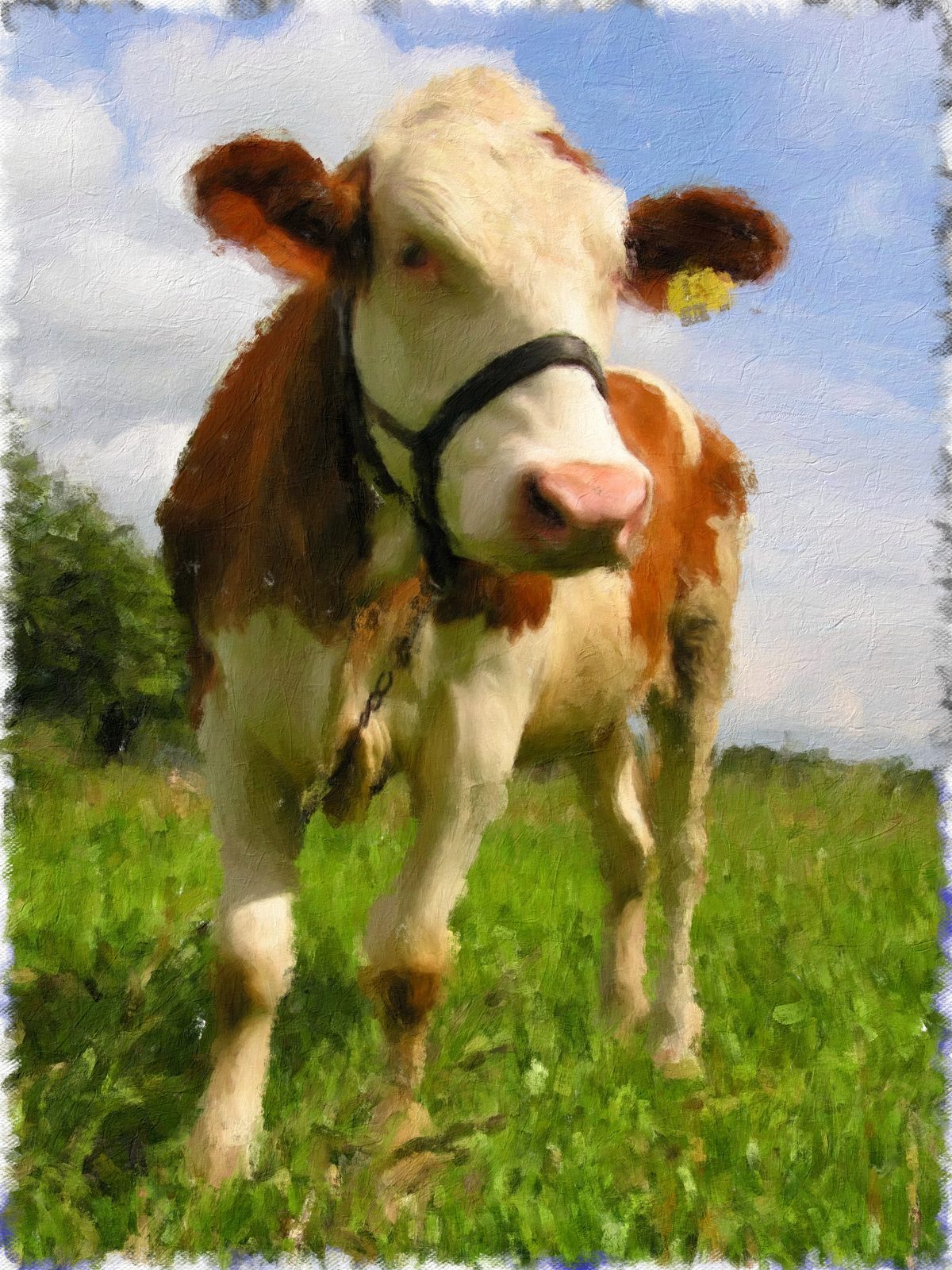 Country cow7 variations
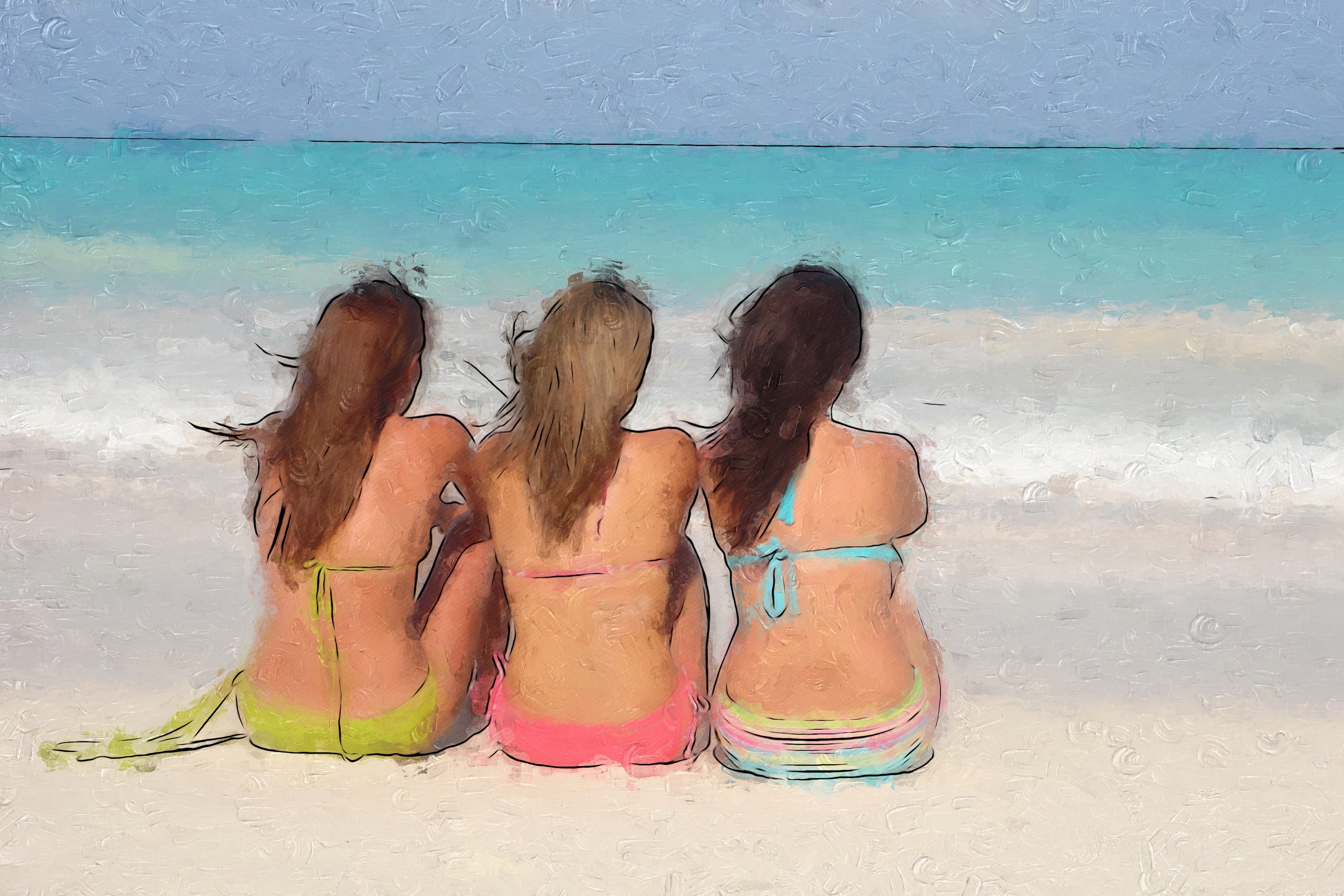
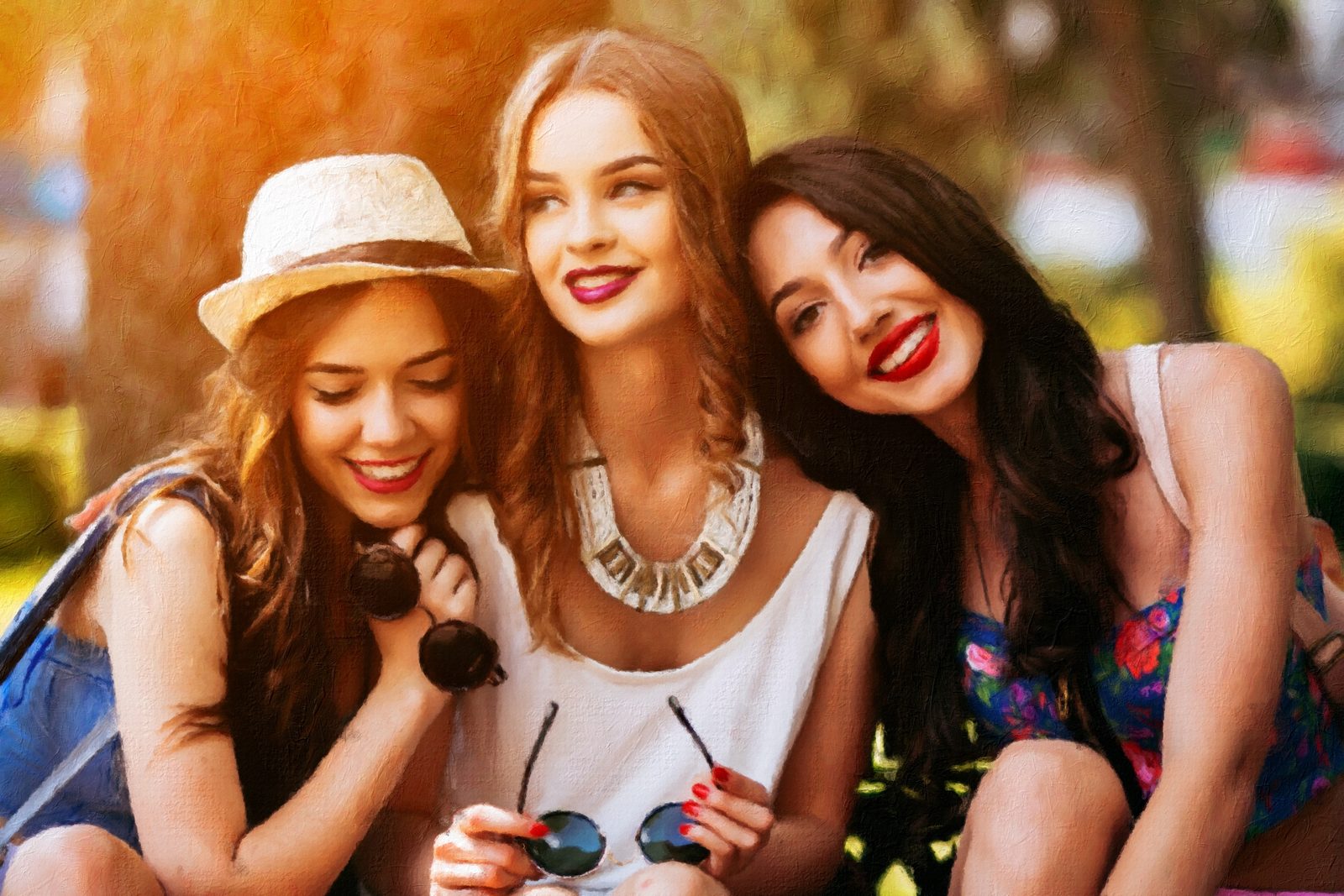 Three friends11 variations
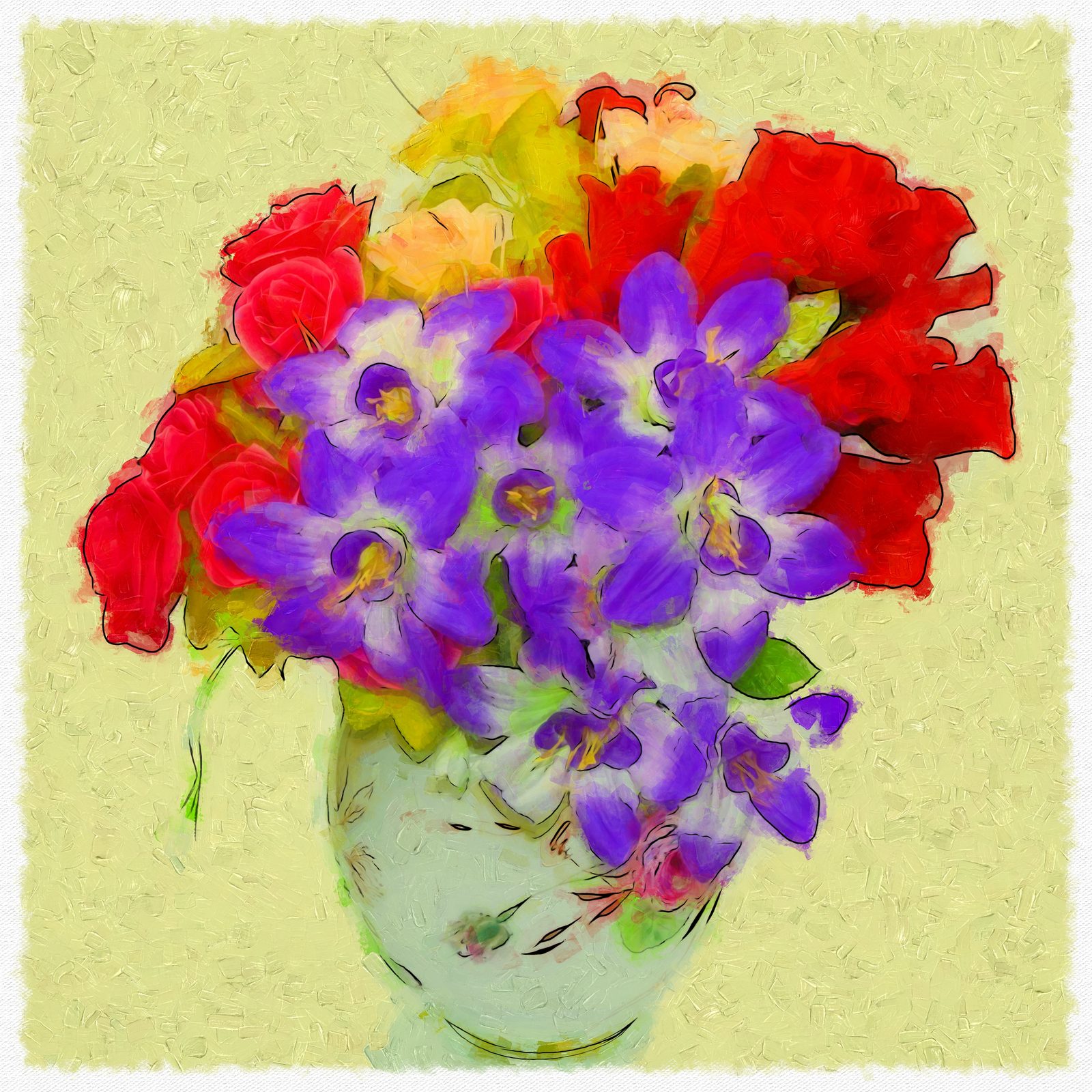 A vase of color23 variations
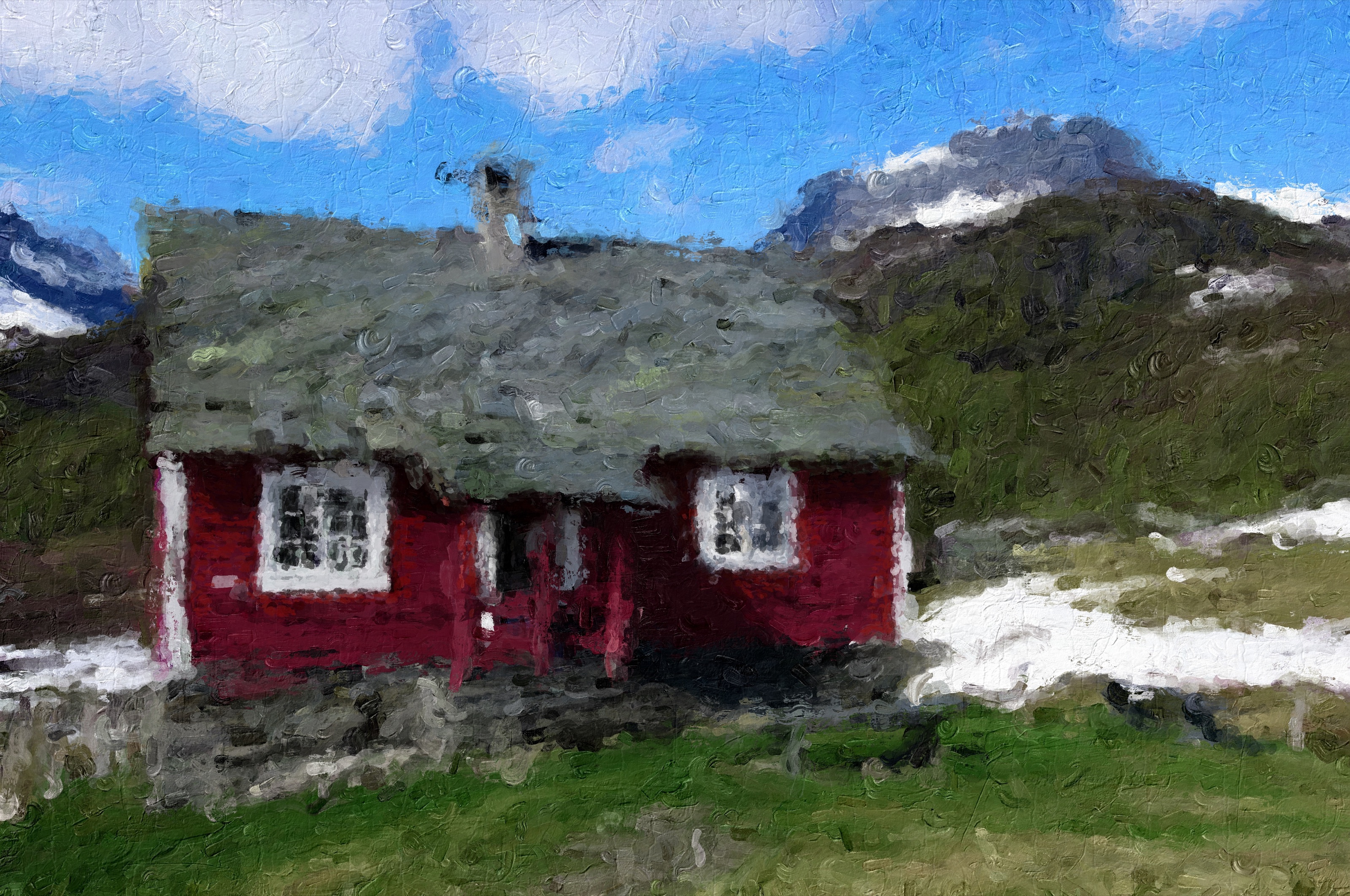
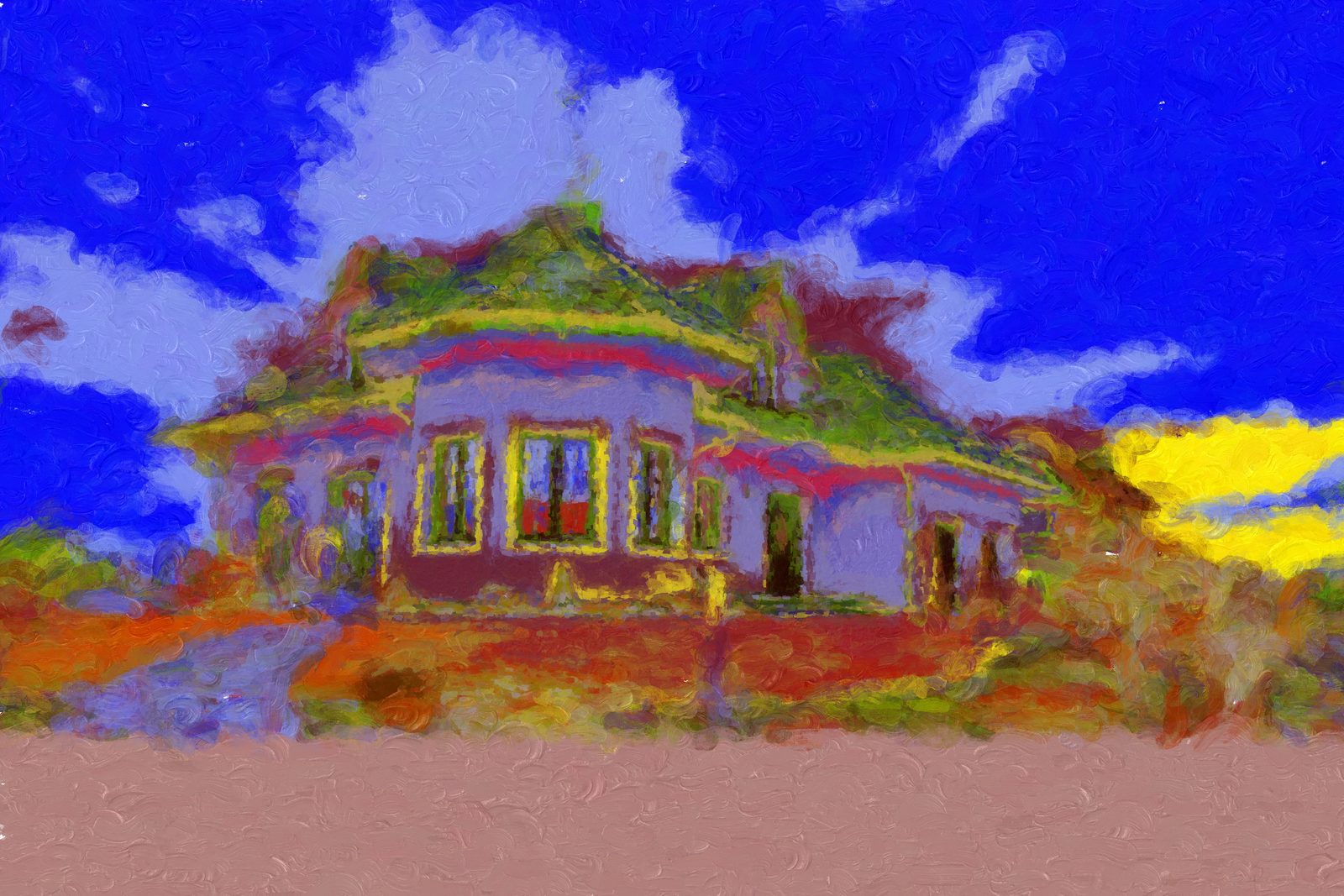 Country house5 variations
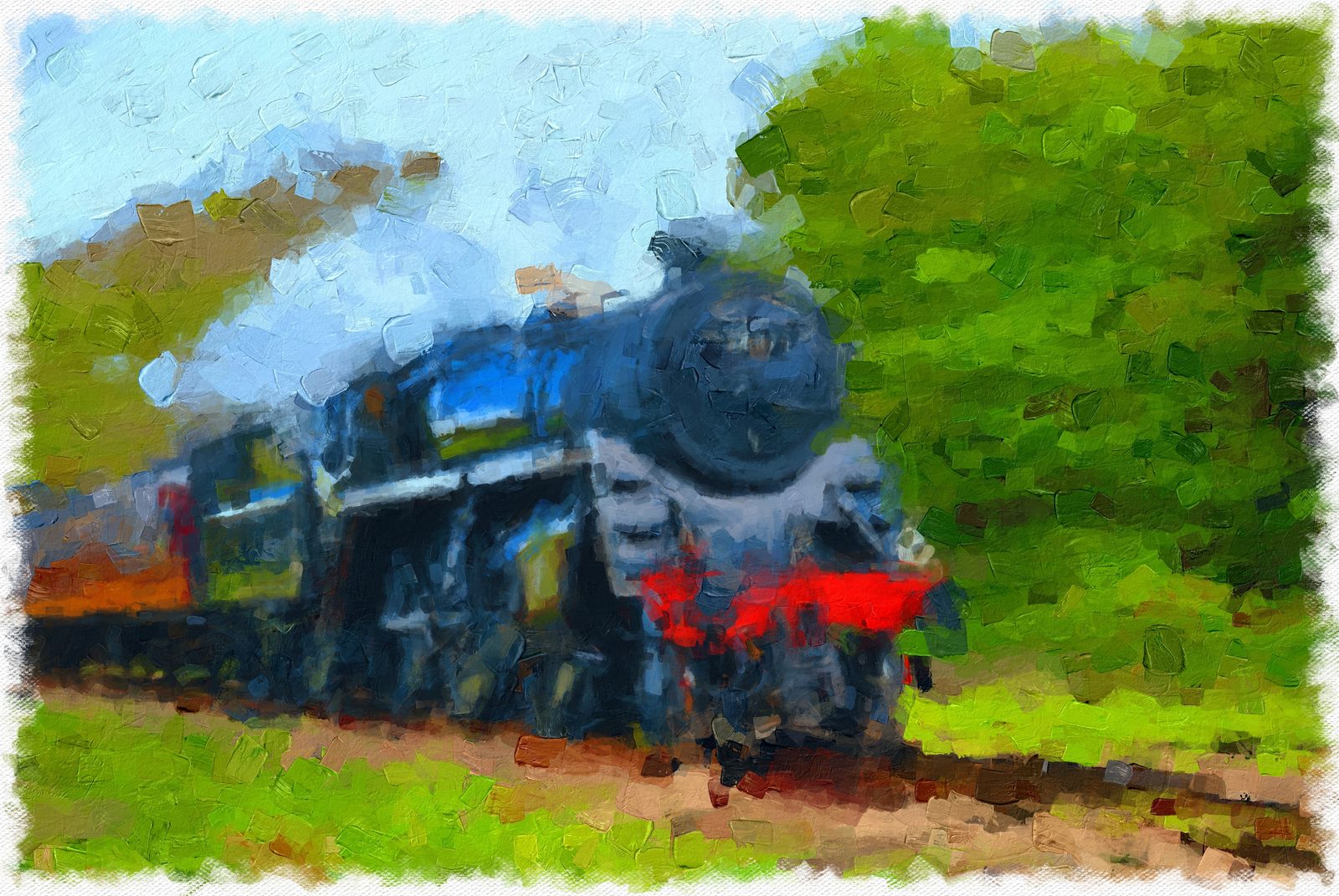 Steam train11 variations
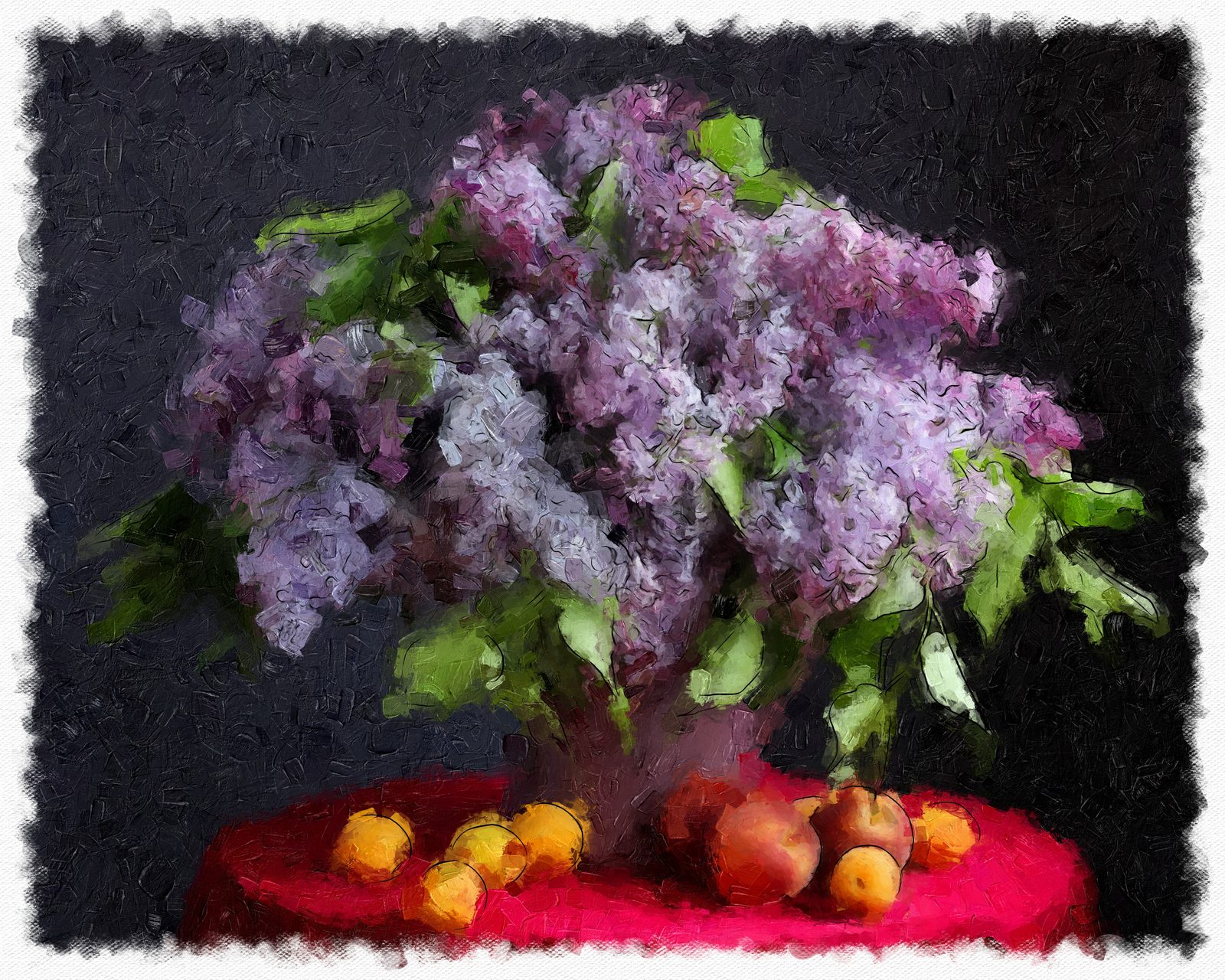 Lilacs & fruit8 variations
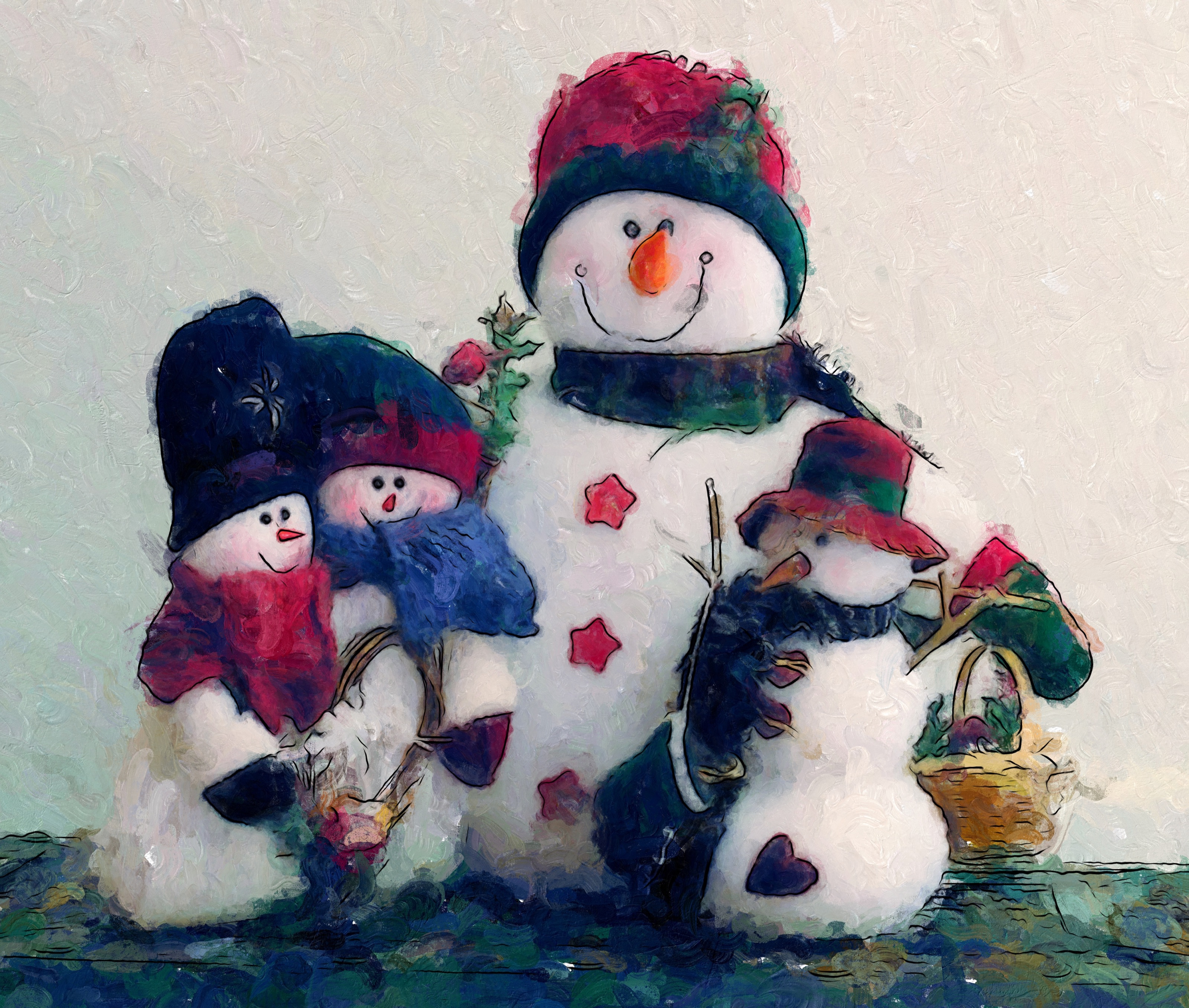
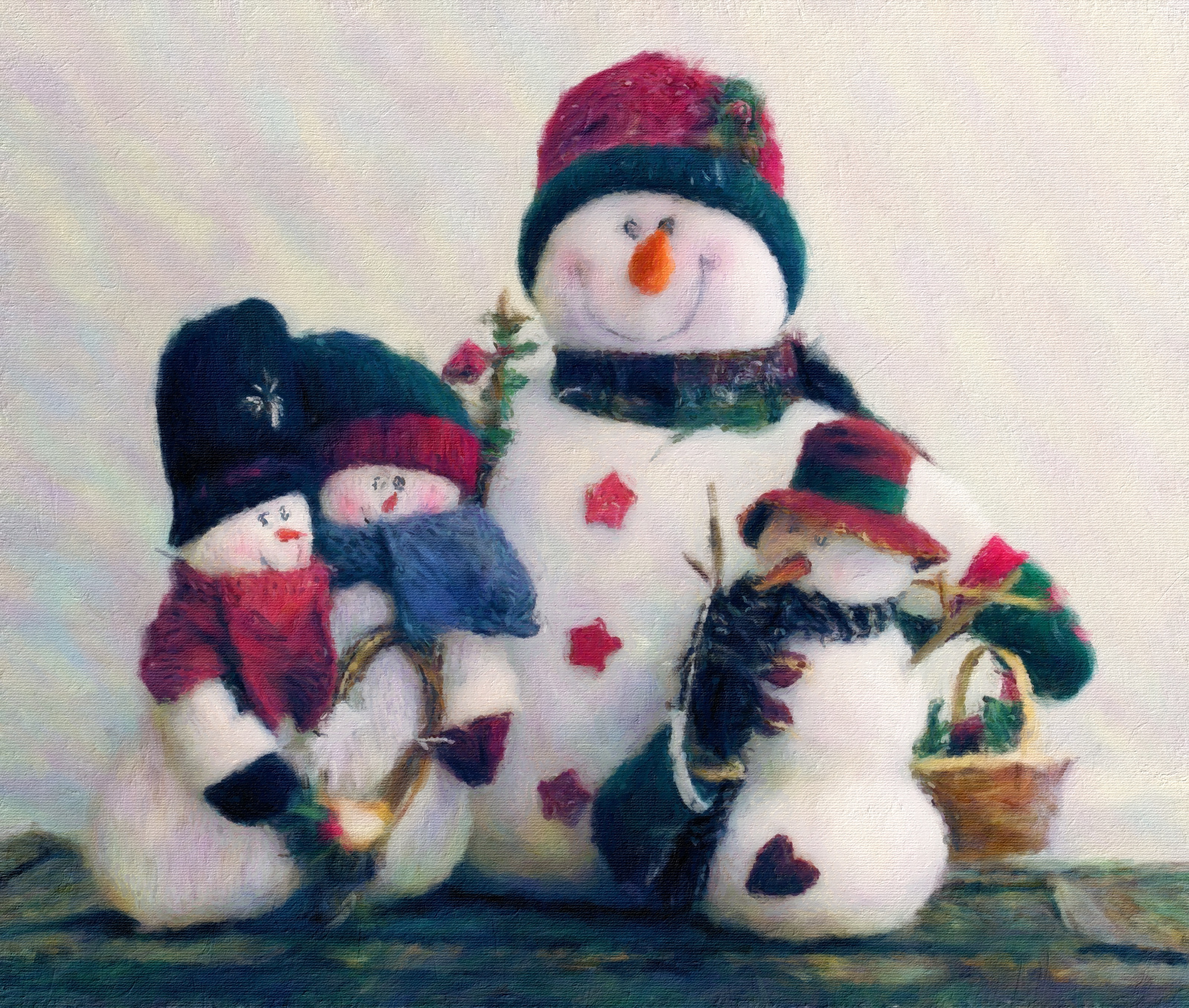
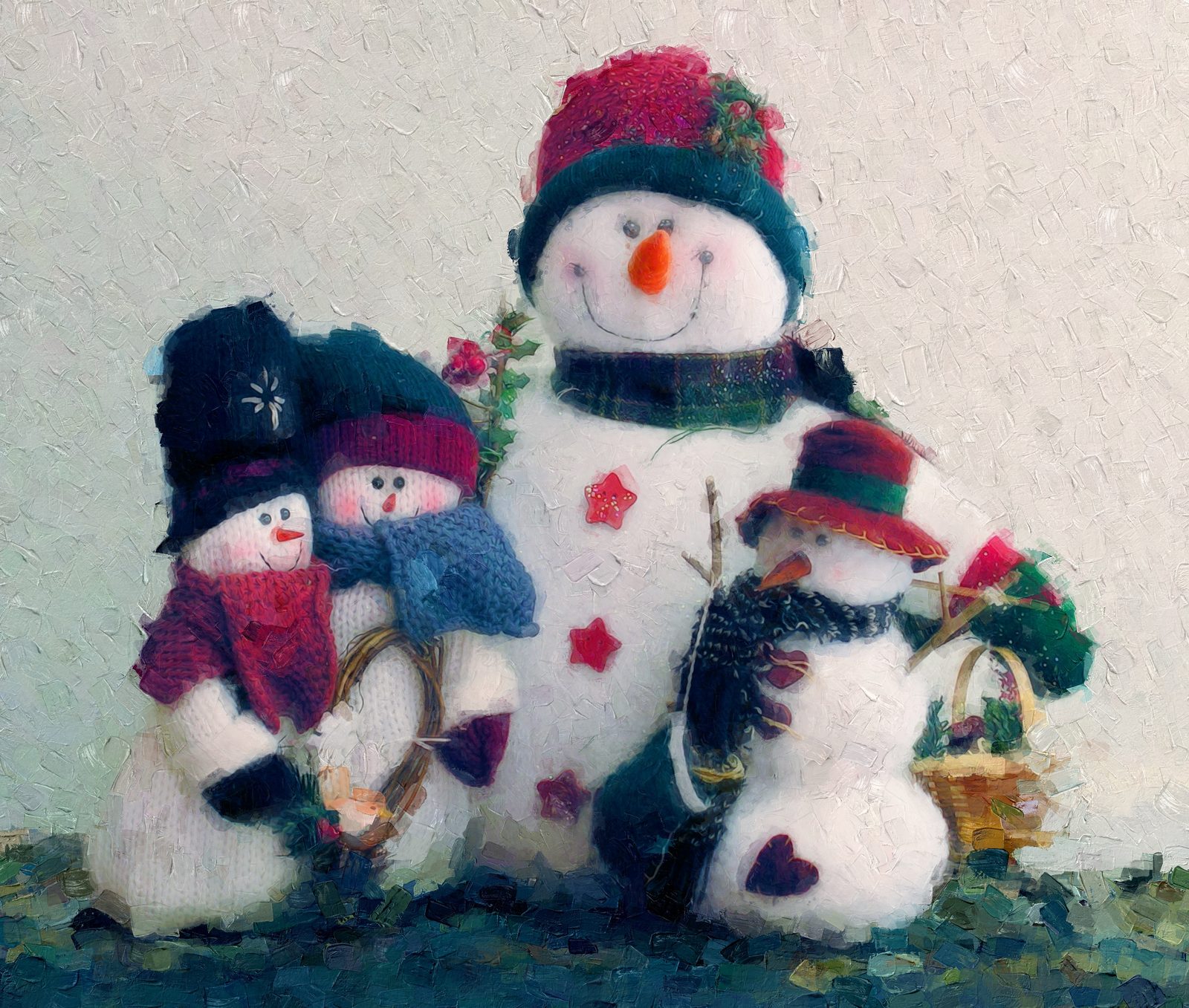 Winter snowmen8 variations
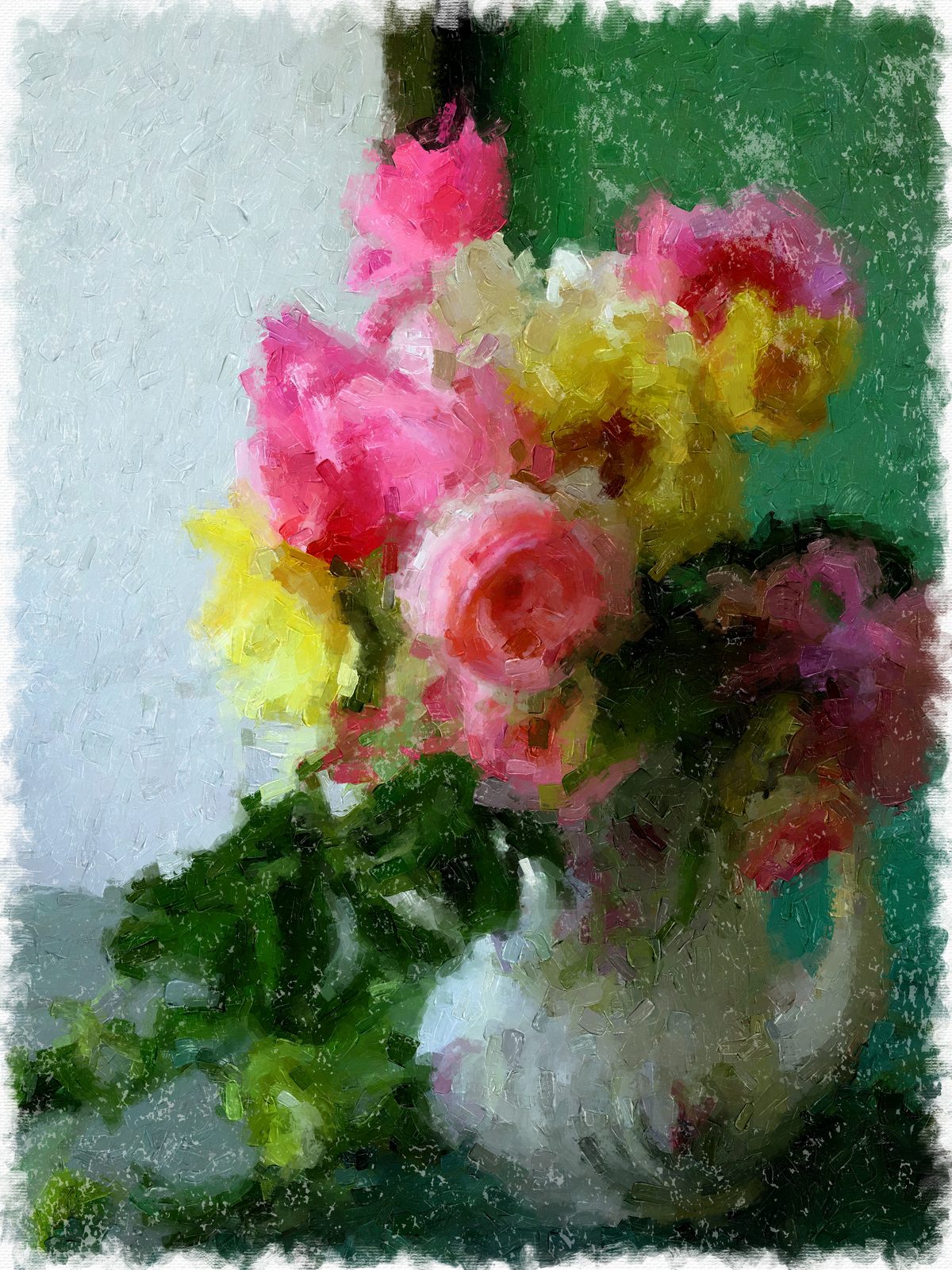 A vase of roses9 variations
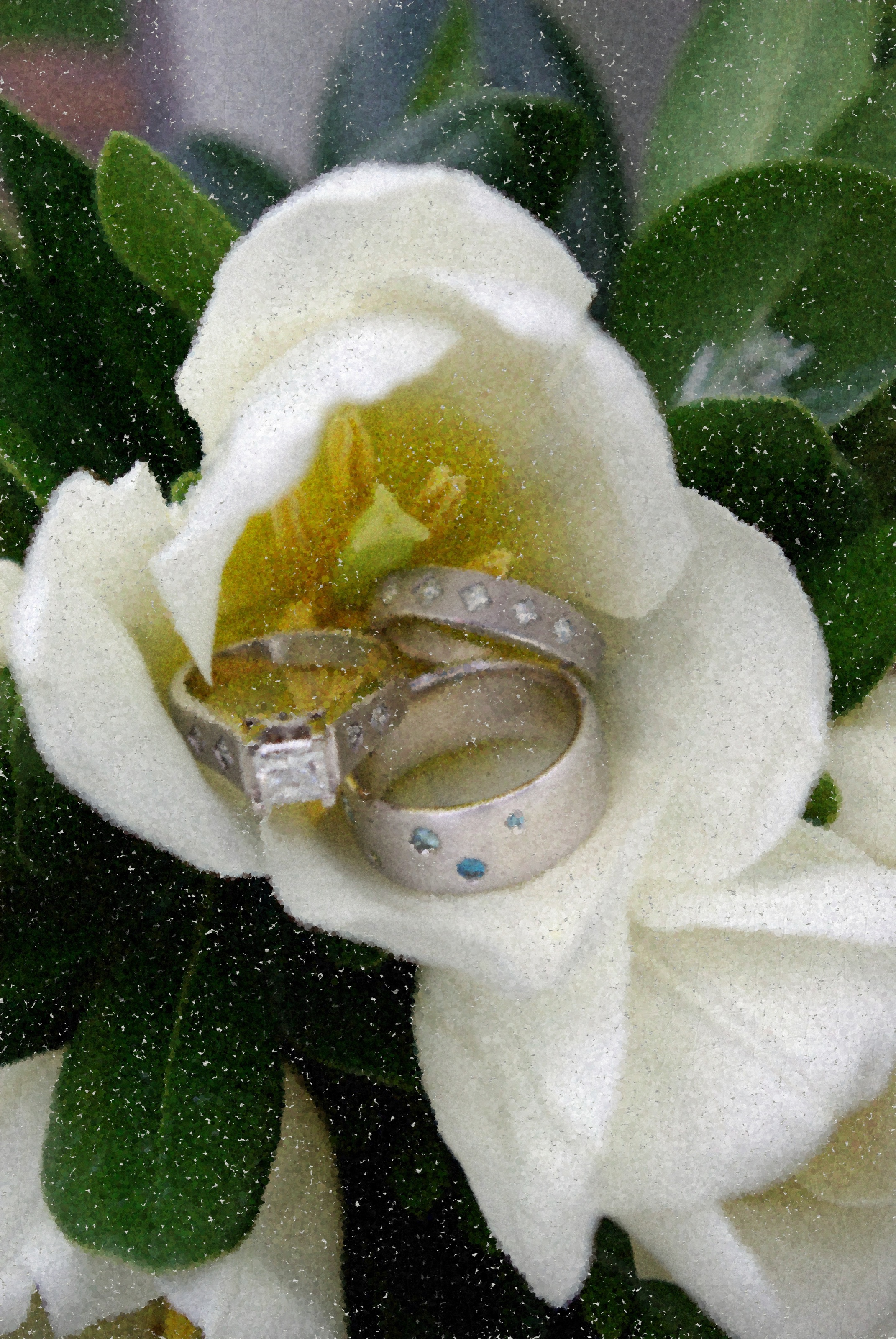
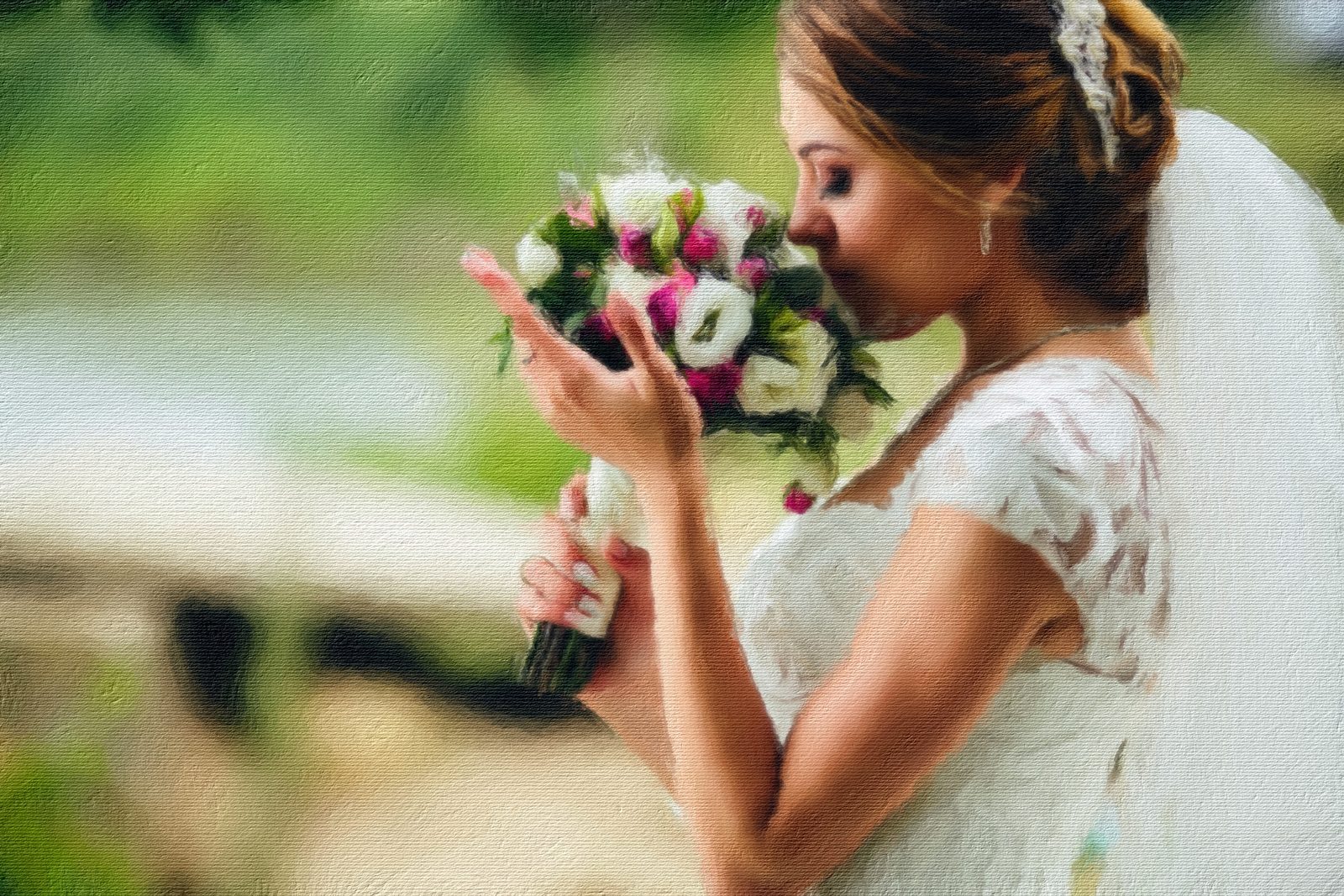 Bridal bouquet11 variations
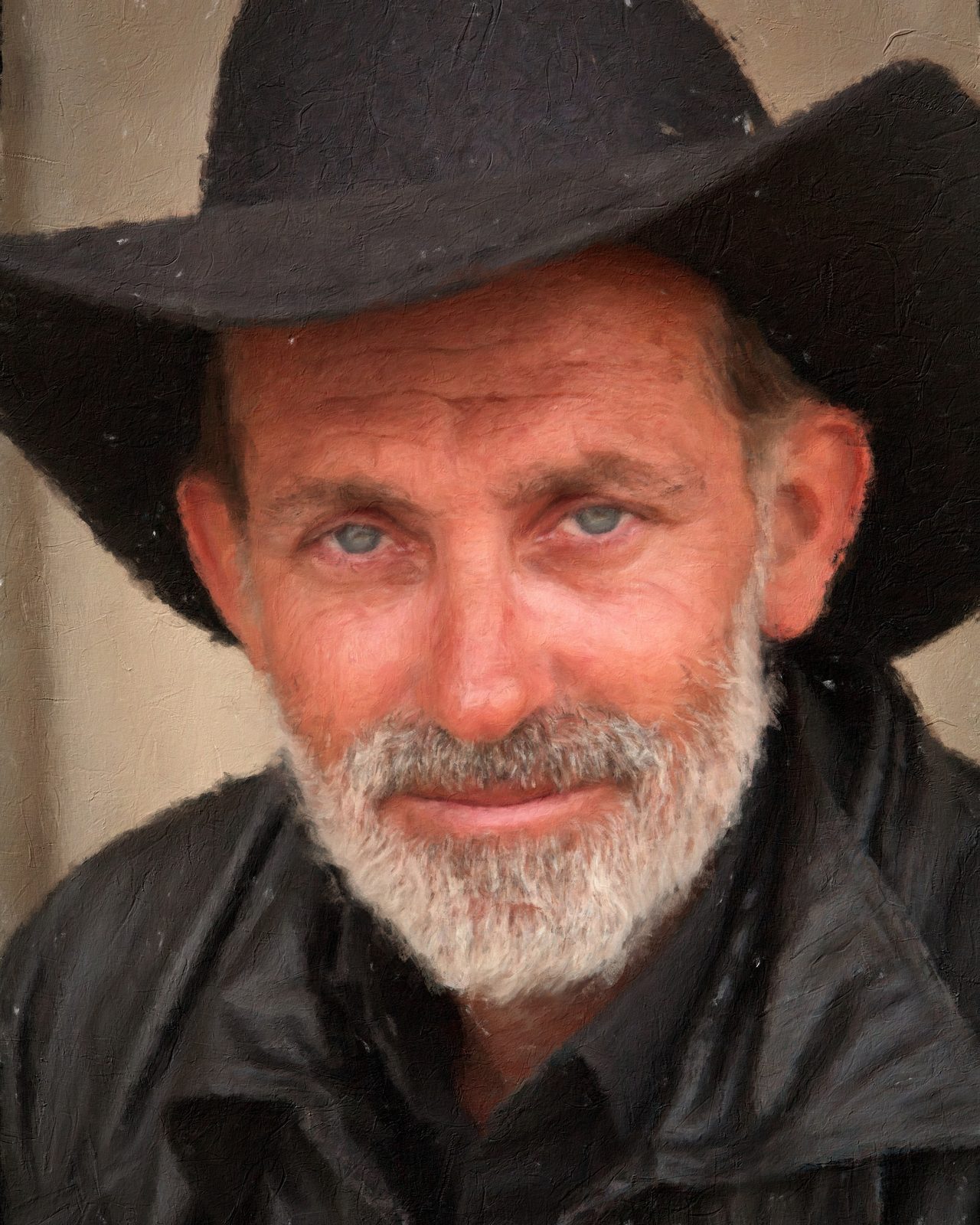 Cowboy portrait10 variations
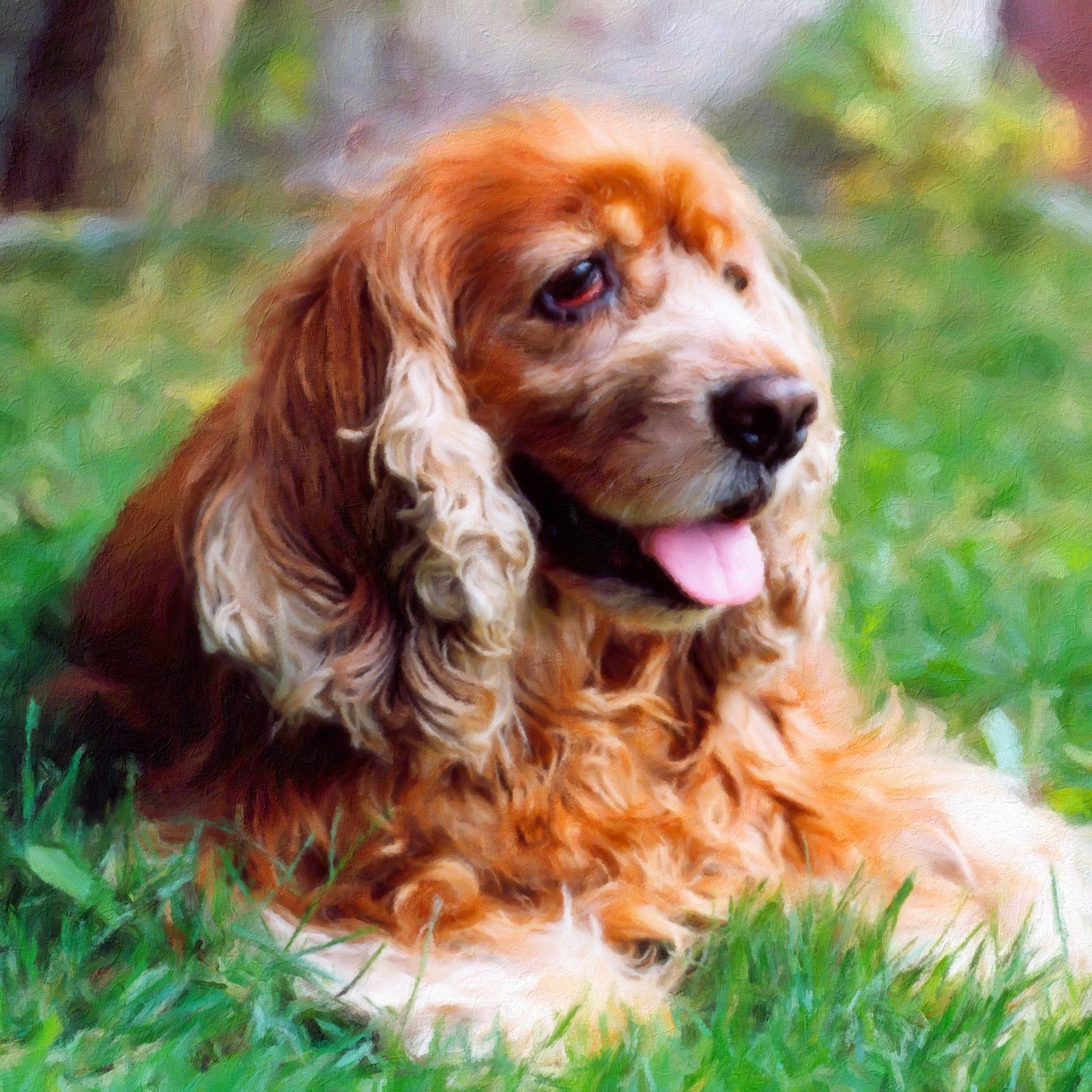 Spaniel in the garden6 variations
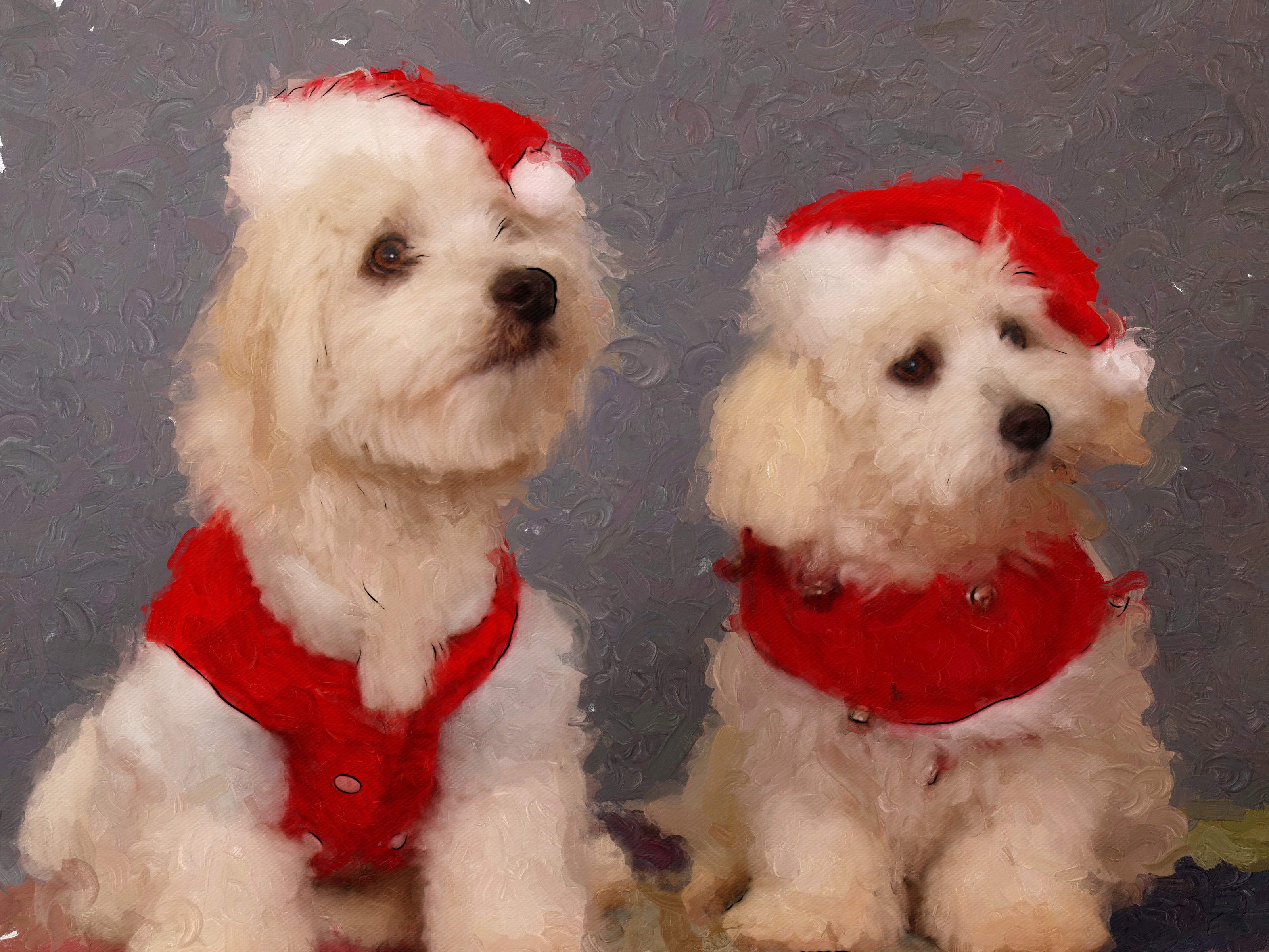
 Christmas dogs5 variations
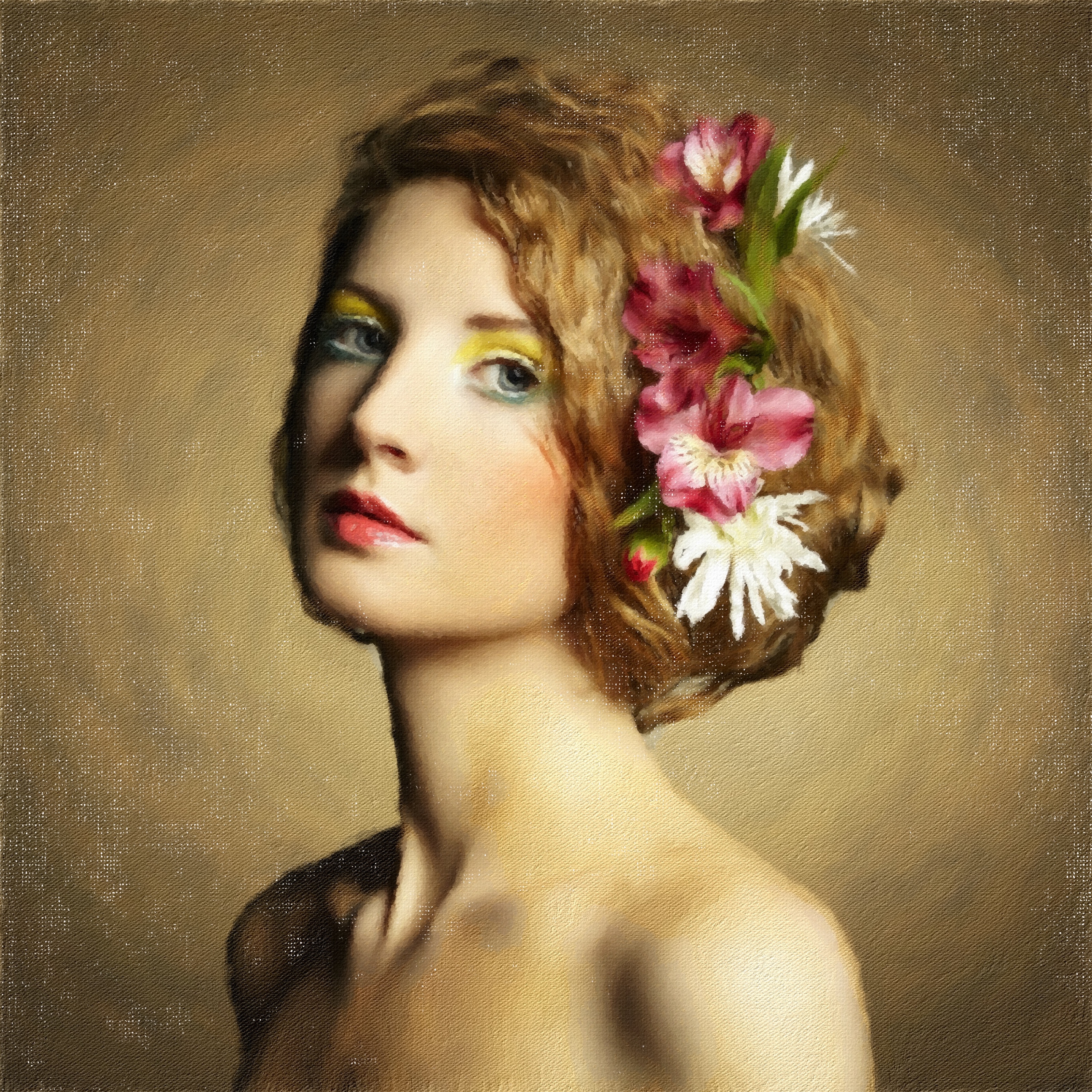
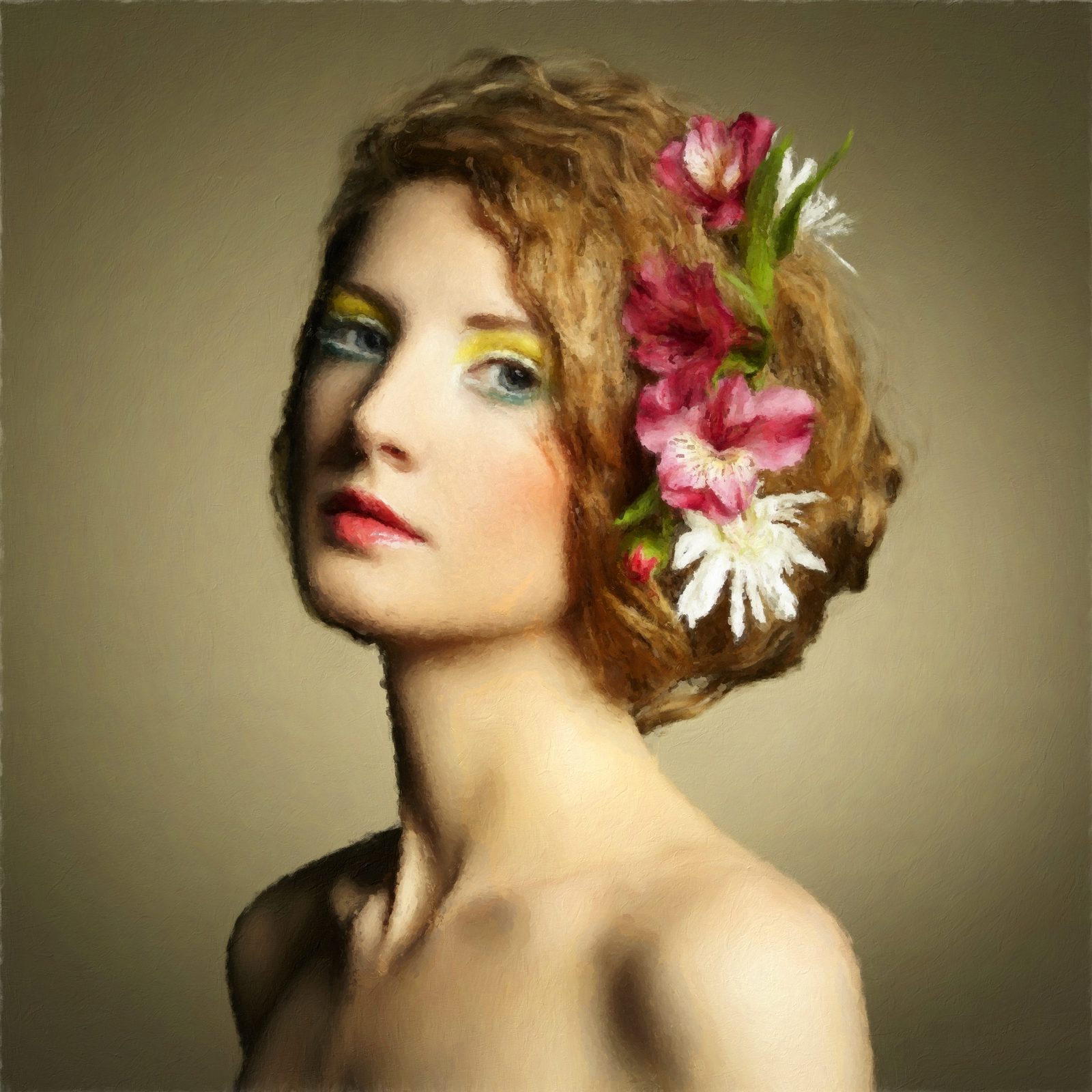 Portrait with flowers9 variations
How It Works
Open a photo and let Impresso Studio create a complete painting automatically. Keep the result, explore another look, or use the optional controls to make it your own.
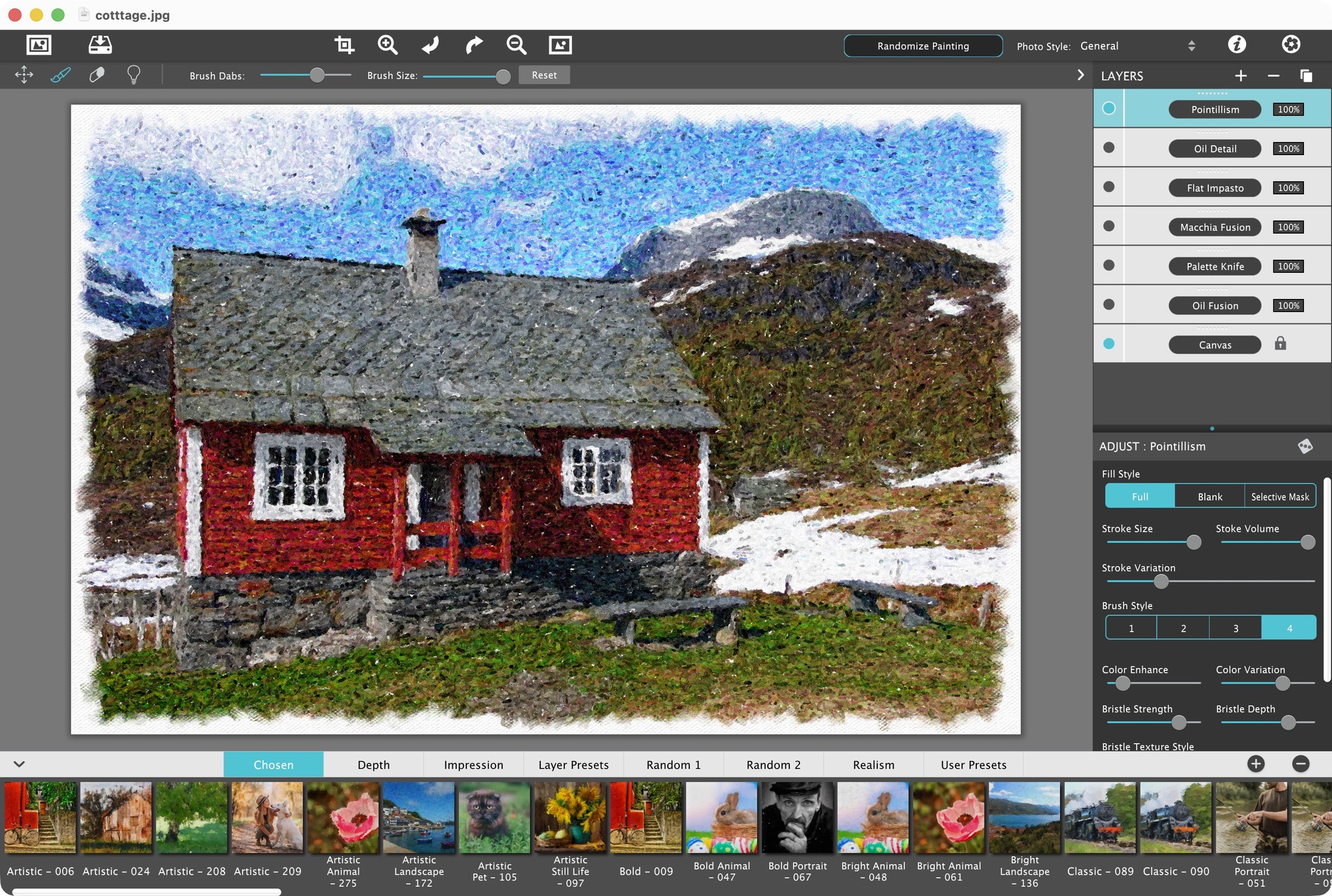
Choose Your Direction
Open a favorite photo, set Photo Style to suit a portrait, pet, landscape, or still life, and click the “Randomize Painting” button. The app creates a complete painting for you, including the brushwork, color, and texture.
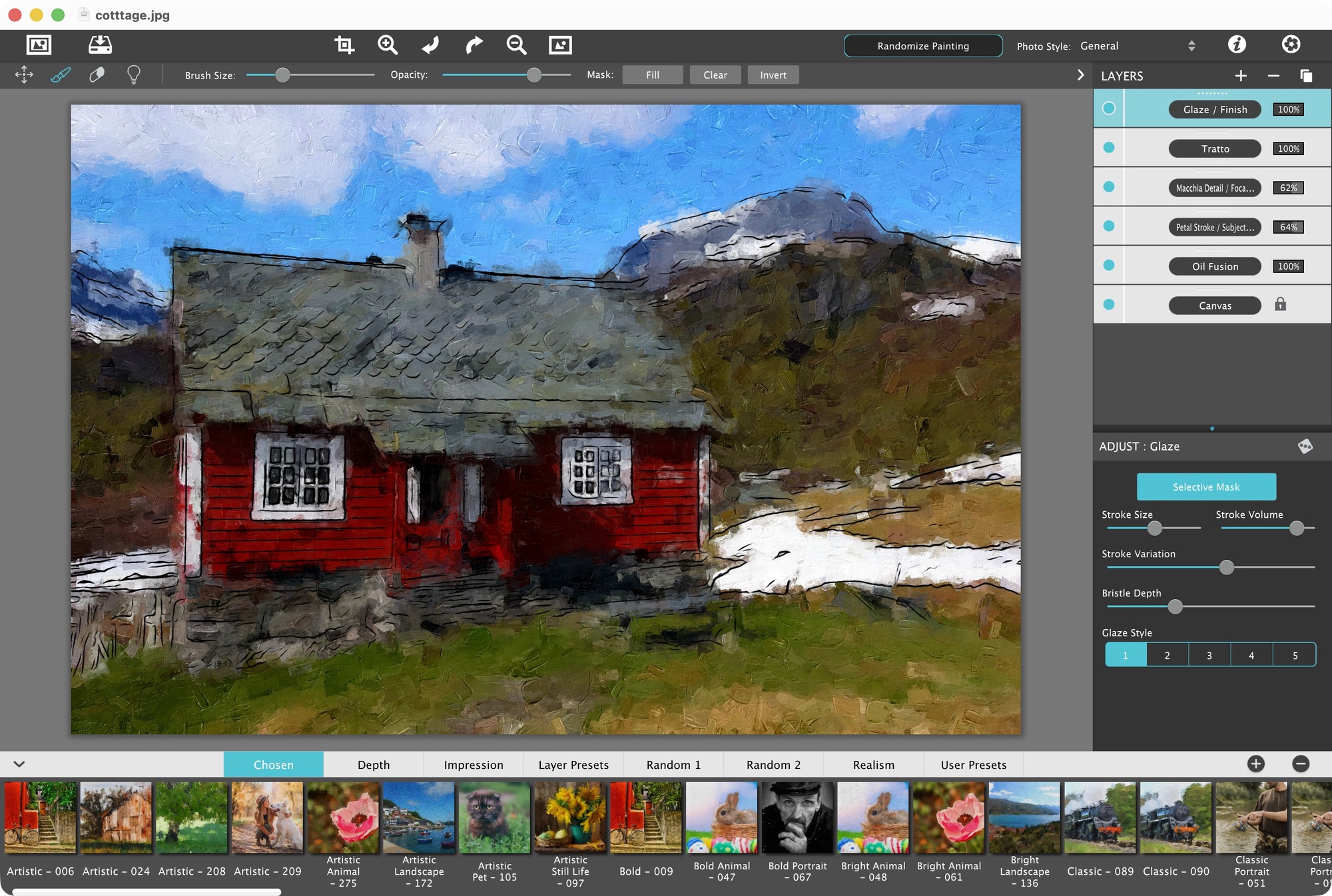
Discover the Unexpected
Keep a result you love, or click “Randomize Painting” again to create a fresh interpretation of your photo. Discover a different mood, a surprising color treatment, or a bolder surface.
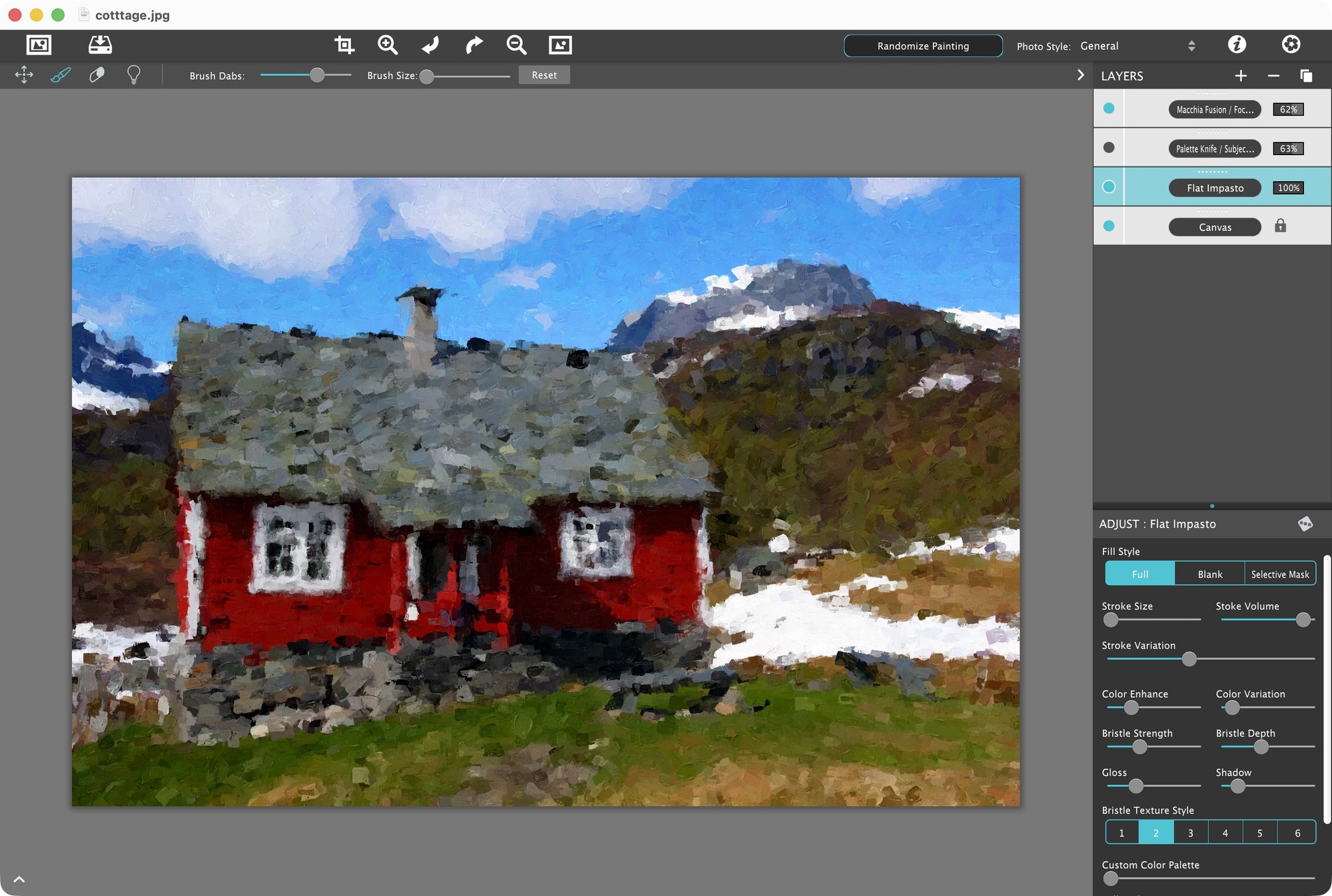
Make It Yours
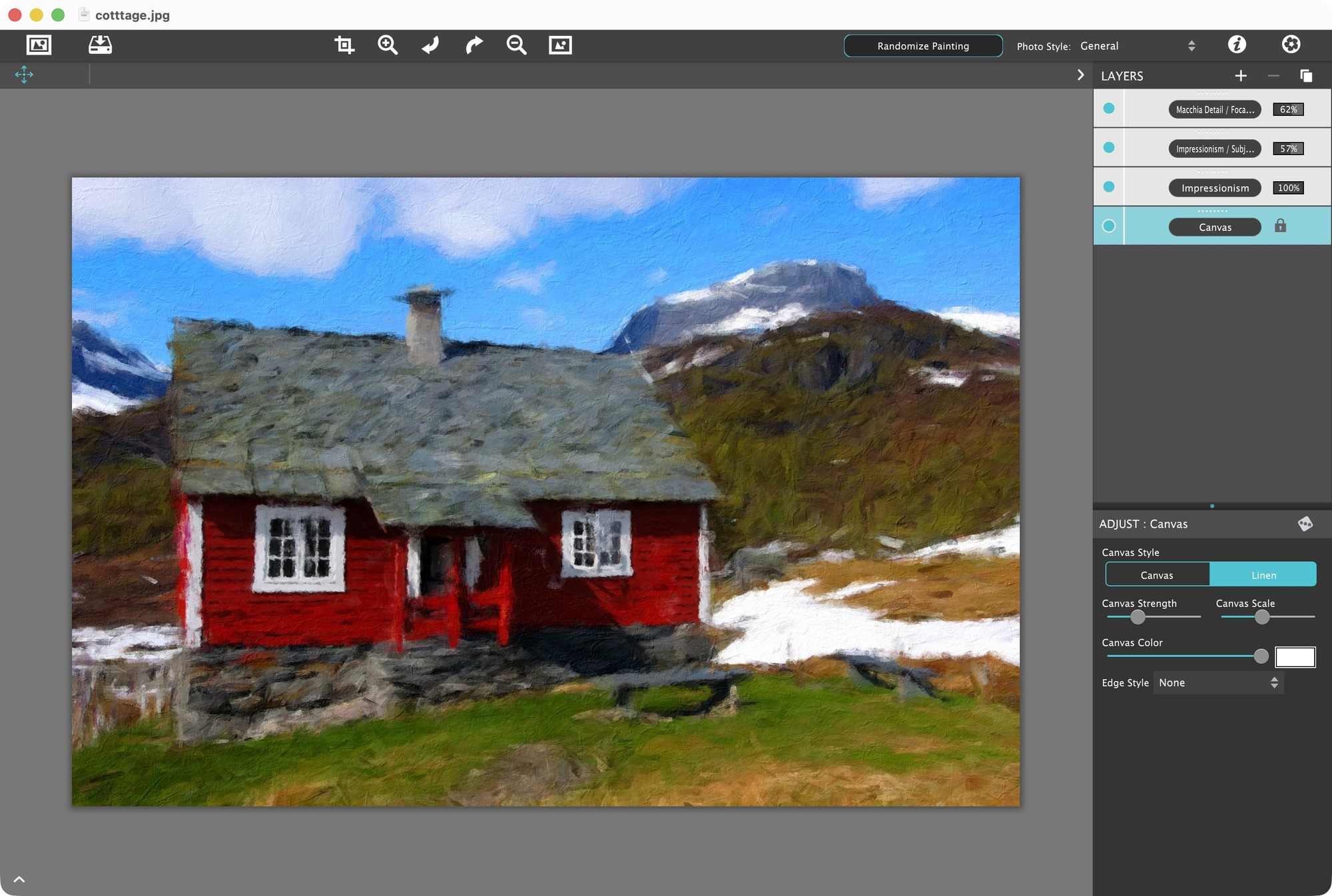
Fine-tune your painting if you like. Adjust individual paint layers, blend their strength, or experiment with brush size, color, and depth. Optional masks and brushes let you refine selected areas and preserve the details you love.
Finish with Character
Give the painting a surface and a sense of history with canvas texture, Glaze, or Aged Paint. Choose an edge, add your signature, and export your artwork at high resolution. Save a custom preset to revisit the look with another photo.
What's Included
A Palette of Paint Styles
- Alla Prima, En Plein Air, Tache, and Impressionism for expressive brushwork
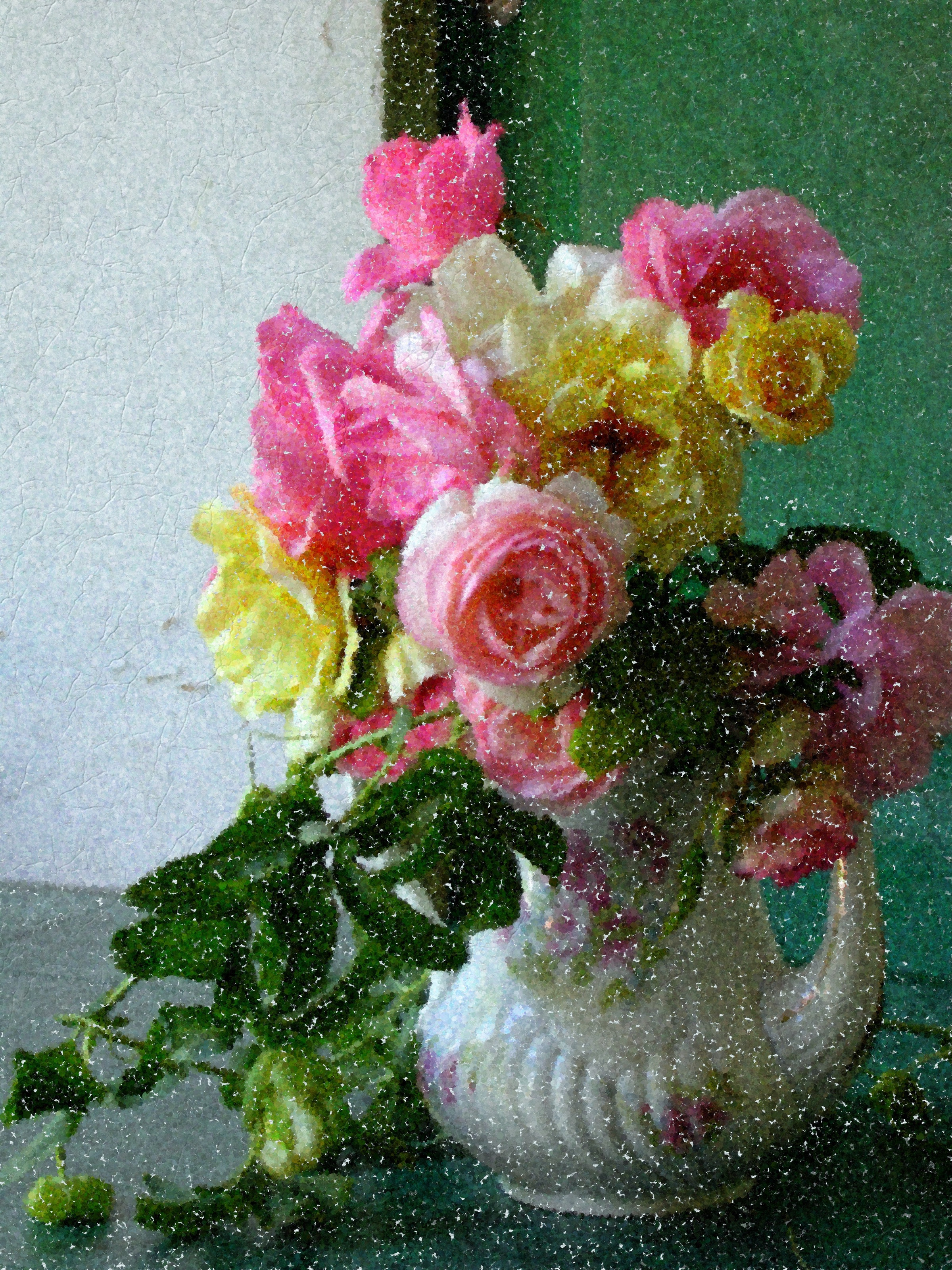
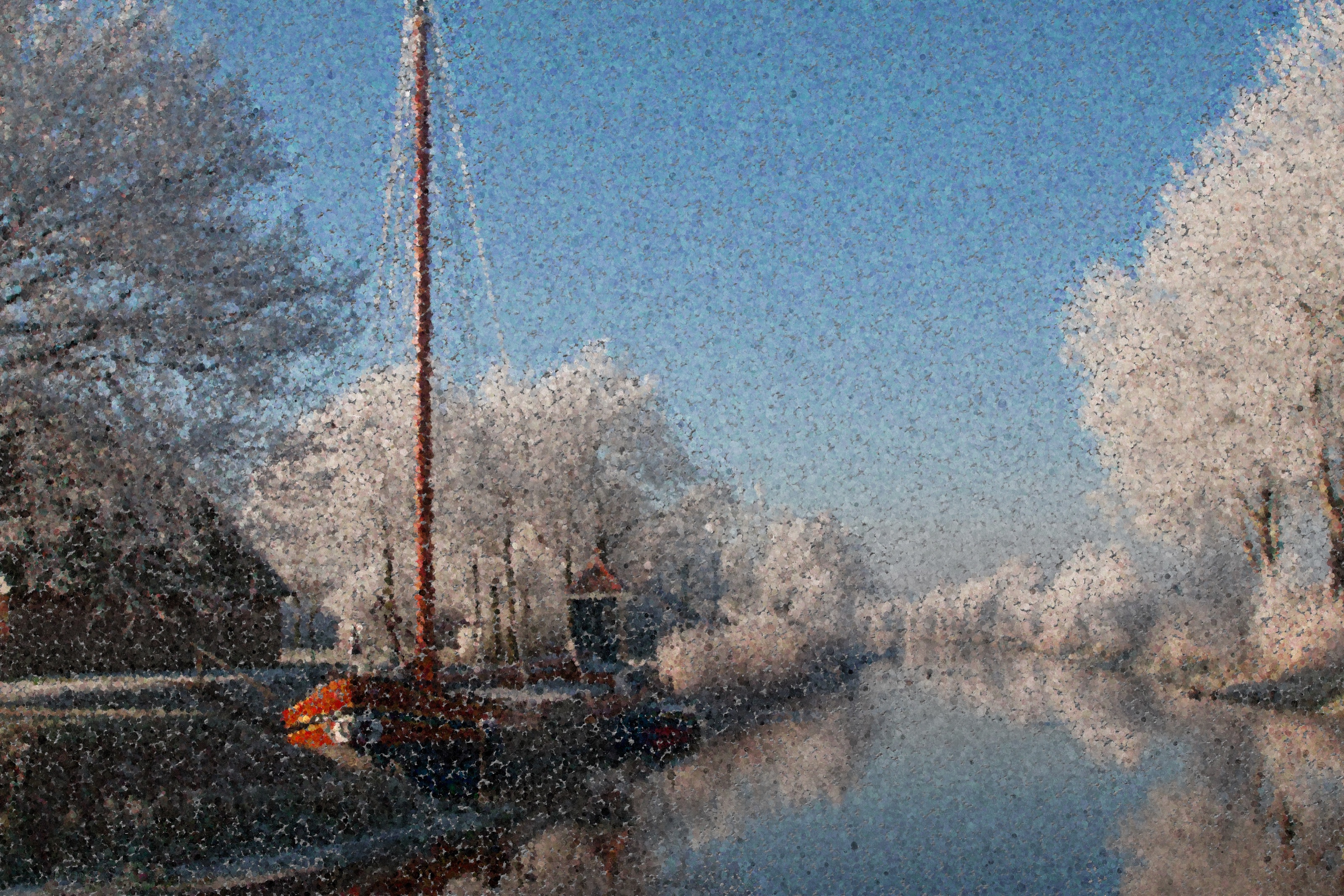
- Pointillism for paintings alive with dots of color
- Macchia for bold patches of light and shade
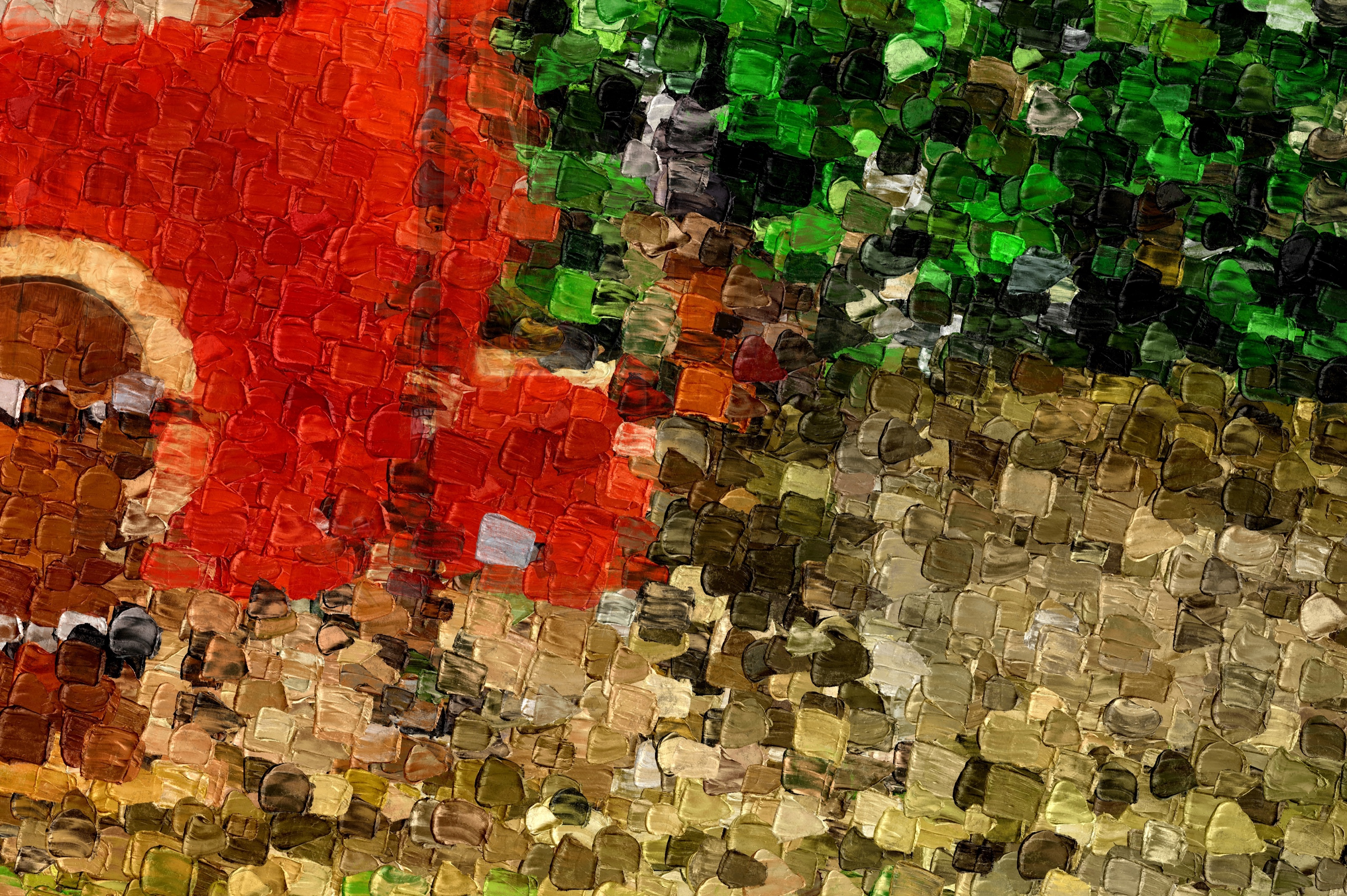
- Palette Knife and Flat Impasto for sculpted paint and rich texture
- Oil Fusion and Macchia Fusion for layered paint with depth and movement
- Petal Stroke and Bokeh Impasto for distinctive painted marks
- Oil Detail, Macchia Detail, and Soft Paint for the details that matter
Your Creative Toolkit
- The “Randomize Painting” button to turn your photo into a complete painting automatically
- Photo Style choices for portraits, pets, animals, landscapes, and still life
- Editable layers with controls to blend, reorder, duplicate, and remove
- Brushes and masks to add or remove effects in selected areas
- Paint controls for brushwork, color, and dimensional depth
- Glaze, Aged Paint, and Texture Relief for brush texture, weathering, and surface character
- Canvas texture and color with Square Edge and Oil Study options
- Typed or freehand signatures to make the painting your own
- Custom presets to save your favorite looks and layer combinations
Photoshop Plugin
- Quick access from inside Photoshop CS3+, Elements, Lightroom and PaintShop Pro (Mac/Win)
- Supports actions, transparency, blending
- Last filter command and batch processing
- 16bit RGB/Greyscale modes
- Serif Affinity Photo (Mac/Win)
- Corel PaintShop Pro X7+ (Win)
Every JixiPix Product Features
- High resolution image support and output
- Multiple Undo
- Randomize Button
- Quick Previewing
- Customizable Styles
- Superior customer service—Contact us any time
Find Your Painting Language
Every photo holds more than one painting. Explore distinct brushwork, sculpt the surface, and combine techniques until the result feels entirely your own. Discover what each effect brings to your canvas, with details from our sample gallery showing how layers of paint, color, and texture come together.
Impressionism
Let light become brushwork
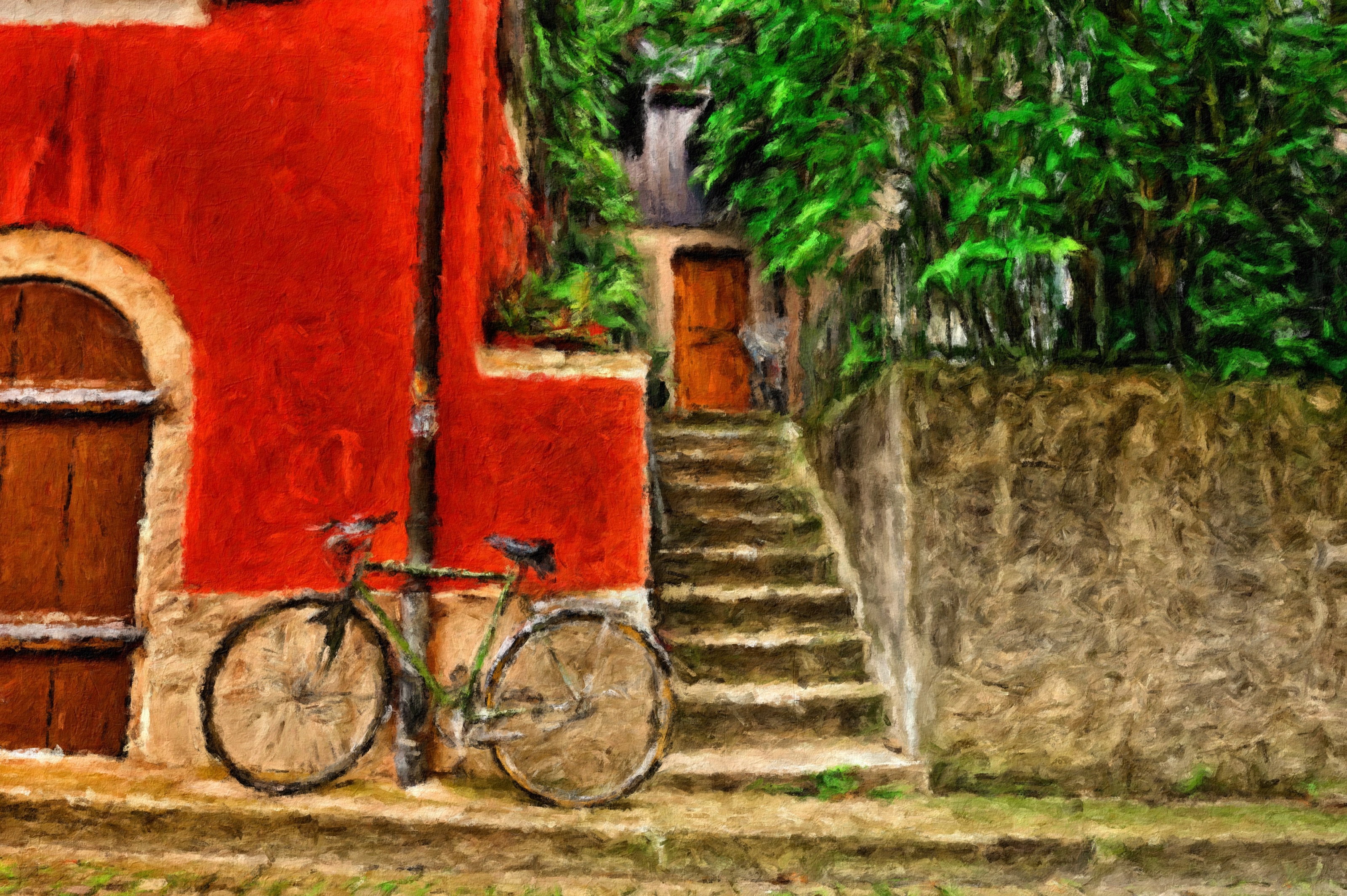
Turn photographic detail into expressive strokes and lively color. Shape the balance between abstraction and definition with stroke size, paint detail, bristle texture, and artistic finishes.
- Paint Detail moves the image from loose impressions to finer definition.
- Conform Strokes brings brushwork closer to the shapes in your photo.
- Artistic Finishes introduce mottled light, color, and atmosphere.
Pointillism
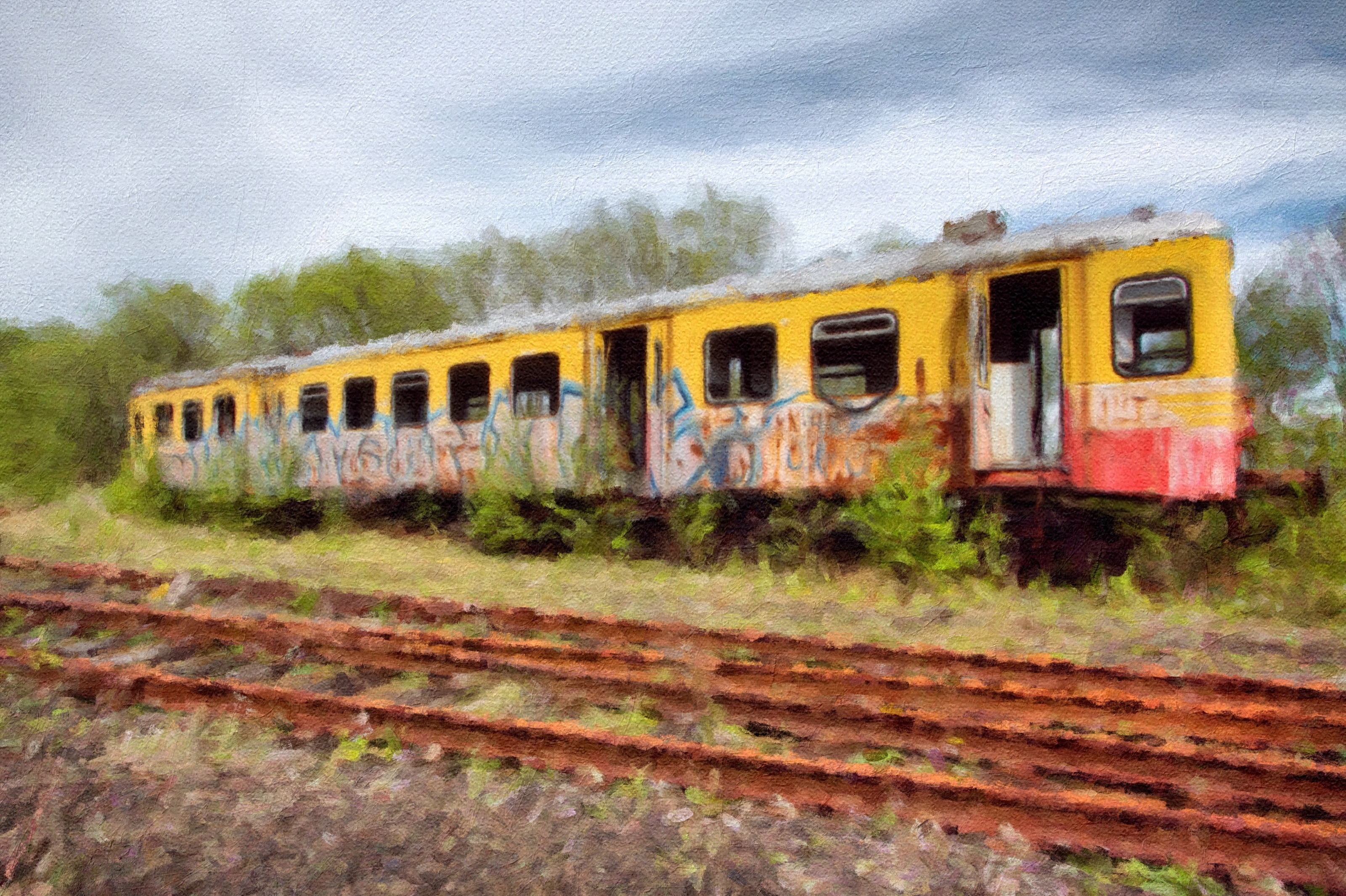
A world built from dots
Reimagine your image as a constellation of individual painted marks. Explore dot styles, scale, and color variation for a surface that shimmers with detail.
- Four dot styles offer different shapes and scales of painted marks.
- Stroke Size changes the rhythm from fine stippling to bolder dots.
- Color Variation adds lively differences between individual marks.
Macchia
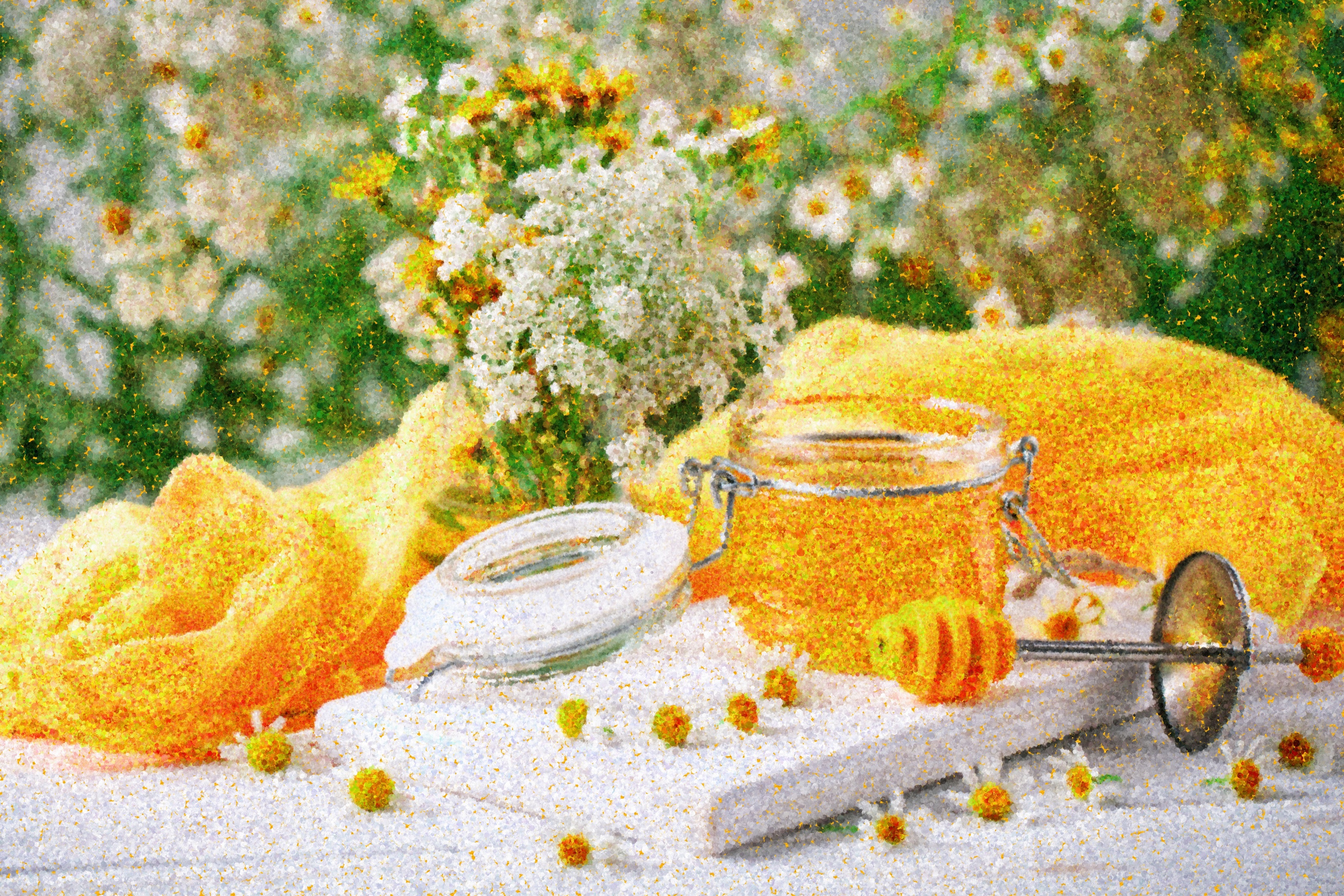
Make a statement with every mark
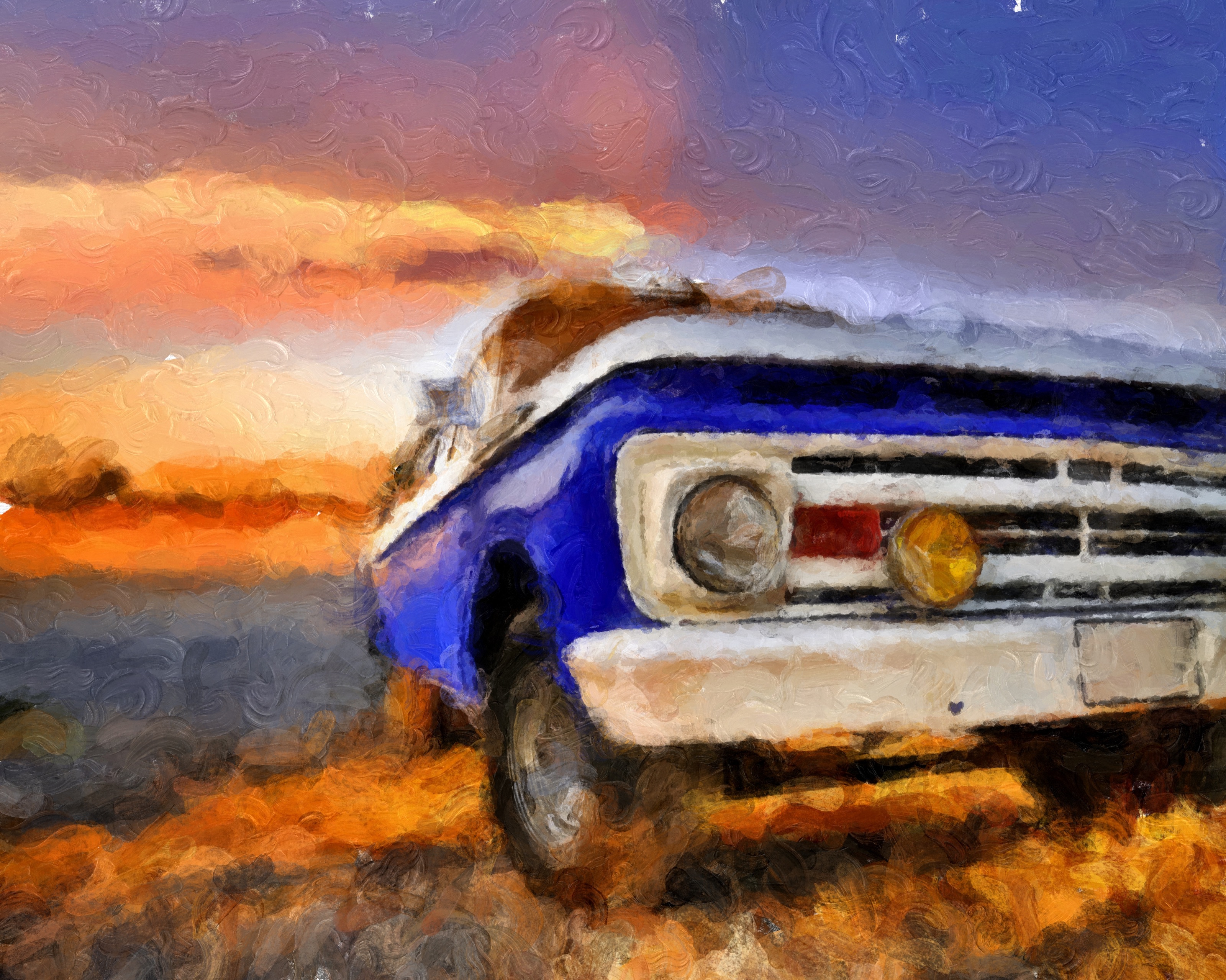
Build your painting from rich, distinct dabs of color. Adjust the brush character, paint depth, and color variation to move from delicate passages to bold, tactile surfaces.
- Brush styles change the character of each colorful dab.
- Wetness lets new strokes pick up color from the paint beneath.
- Gloss and Shadow give the raised paint a stronger sense of depth.
Palette Knife
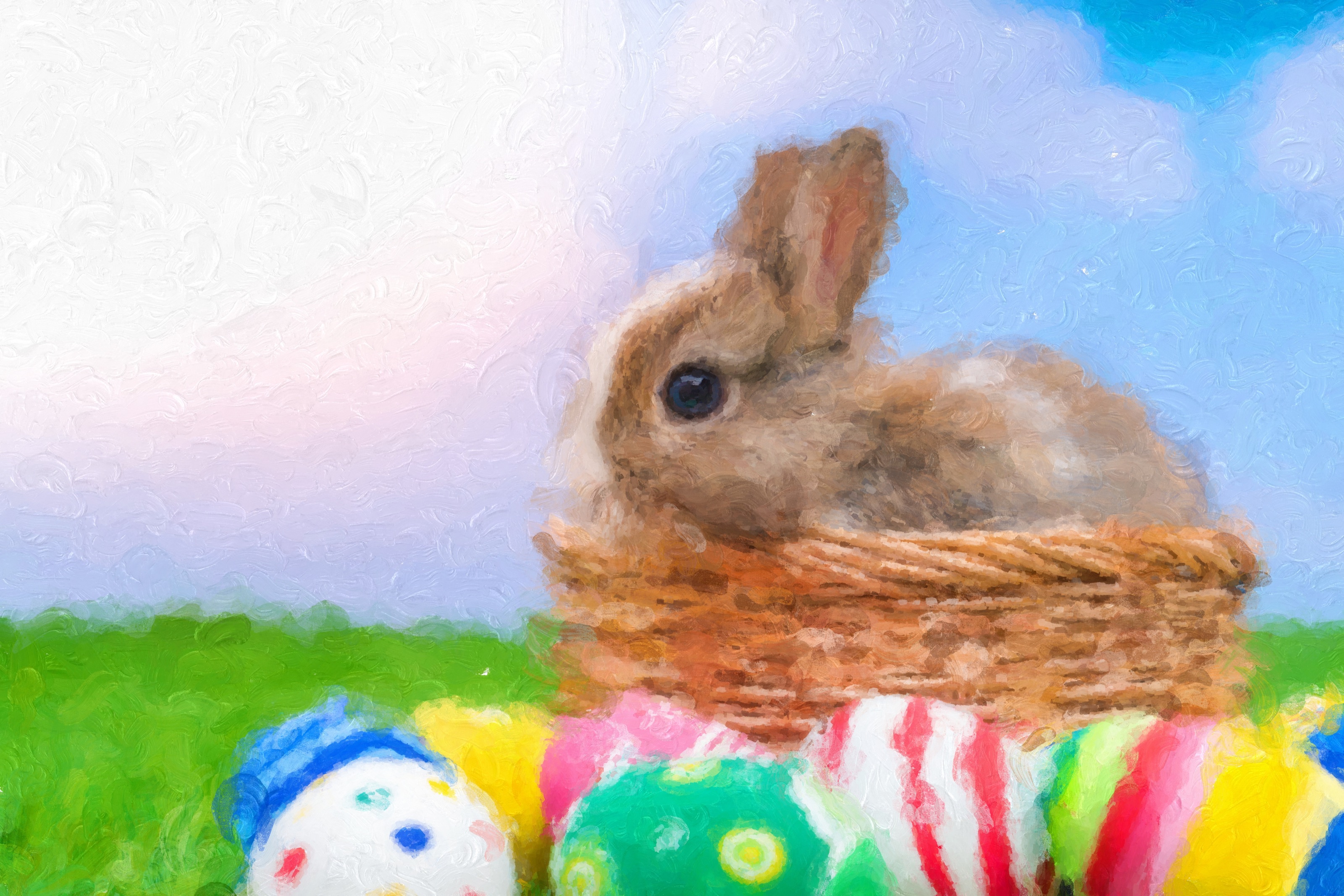
Give color a sculptural edge
Lay down broad knife strokes with the presence of thick paint. Let strokes follow the image’s contours, then shape their bristle texture and depth.
- Knife marks mingle with broader flat strokes for varied brushwork.
- Follow Contours guides the strokes along the forms in your image.
- Gloss and Shadow bring out the ridges of the painted surface.
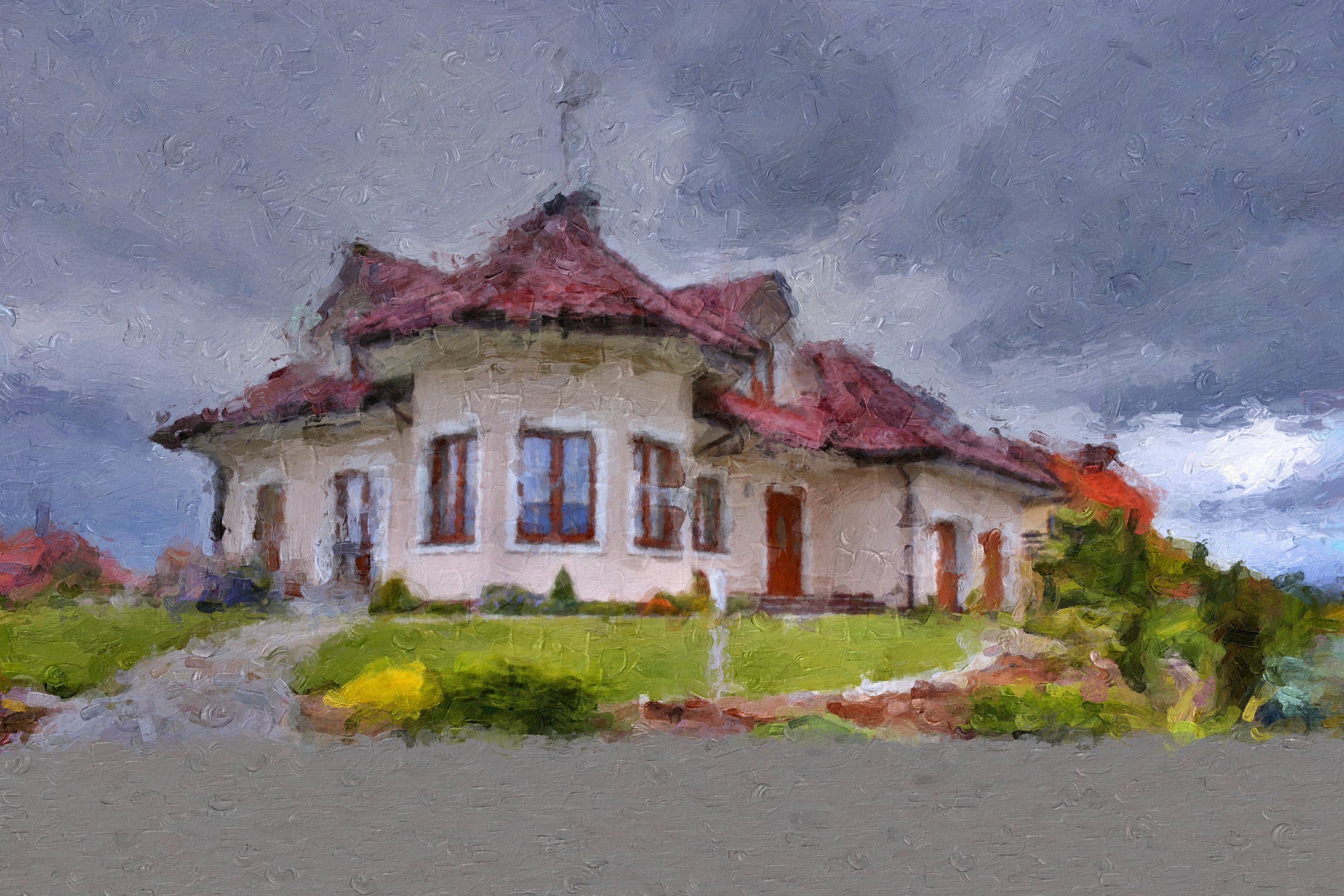
Flat Impasto
Broad strokes, striking simplicity
Explore wide, flat marks that bring graphic rhythm to your painting. Adjust stroke scale and contour flow to simplify a scene while keeping its essential movement.
- Wide, flat marks build generous blocks of painted color.
- Follow Contours lets broad strokes bend with the scene.
- Bristle Depth controls how strongly the paint rises from the surface.
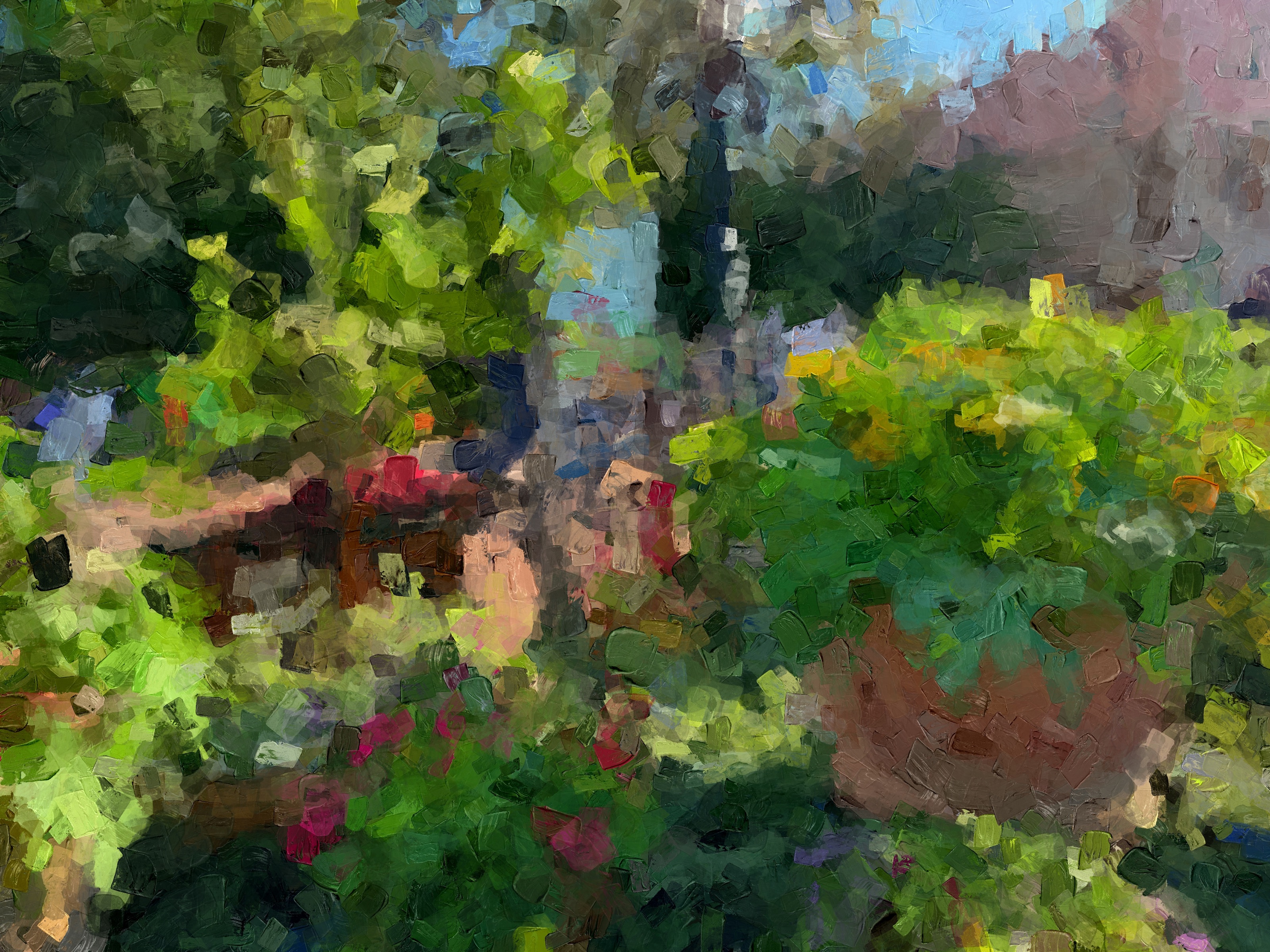
Oil Fusion
Let the paint flow together
Blend color across neighboring strokes and soften the ridges between them. Follow the image’s contours to create flowing passages with the rich surface of oil paint.
- Blend Across draws wet color between neighboring strokes.
- Relief Fusion softens the seams between raised paint ridges.
- Follow Contours carries the brushwork along the image’s natural flow.
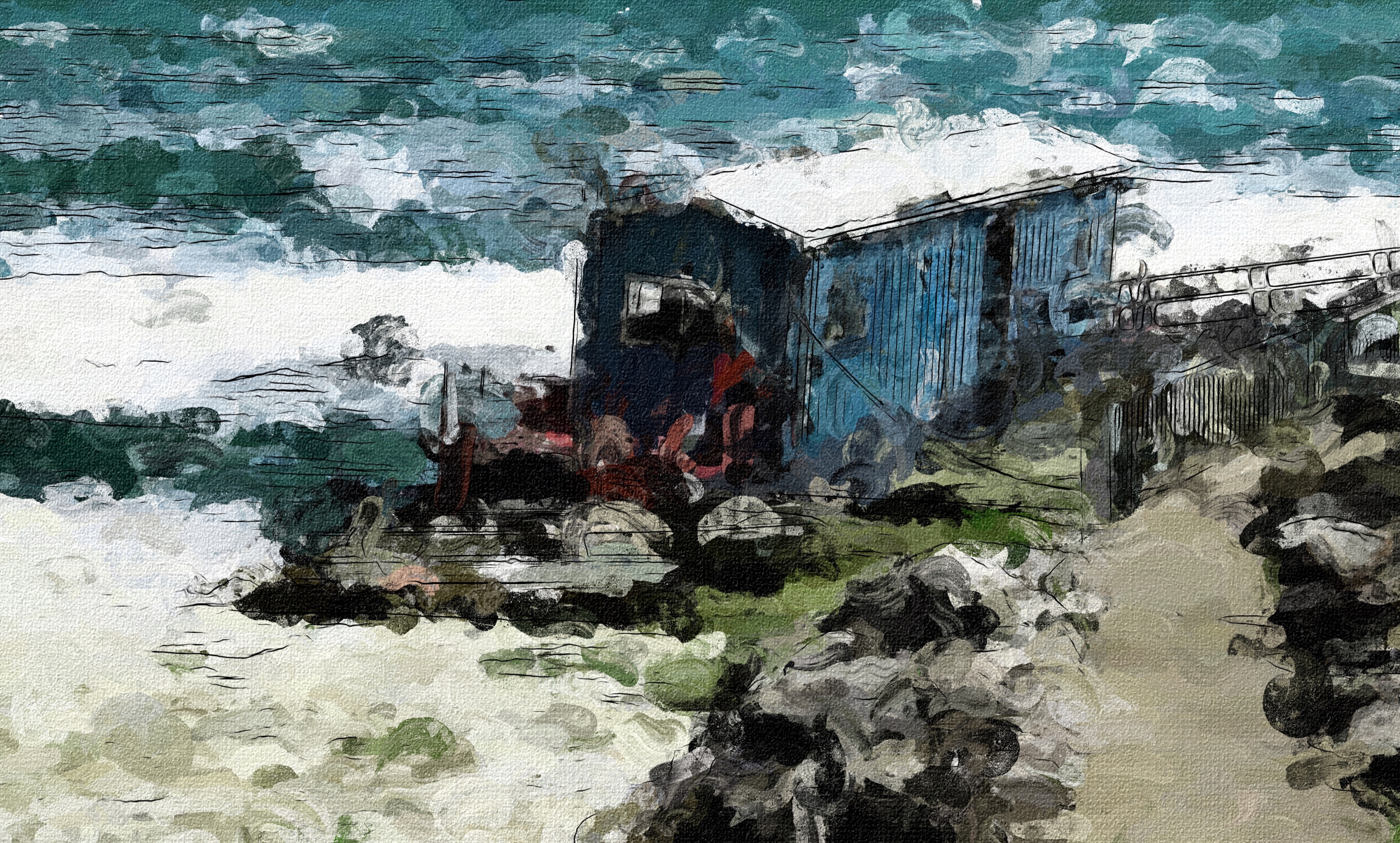
Macchia Fusion
Color dabs meet flowing paint
Bring the character of Macchia into a more connected painted surface. Blend neighboring colors and relief, or mix Macchia with palette knife strokes for a richer variety of marks.
- Stroke Mix combines Macchia dabs with palette knife marks.
- Blend Across connects neighboring colors without losing all their character.
- Relief Fusion joins the painted surface into smoother passages.
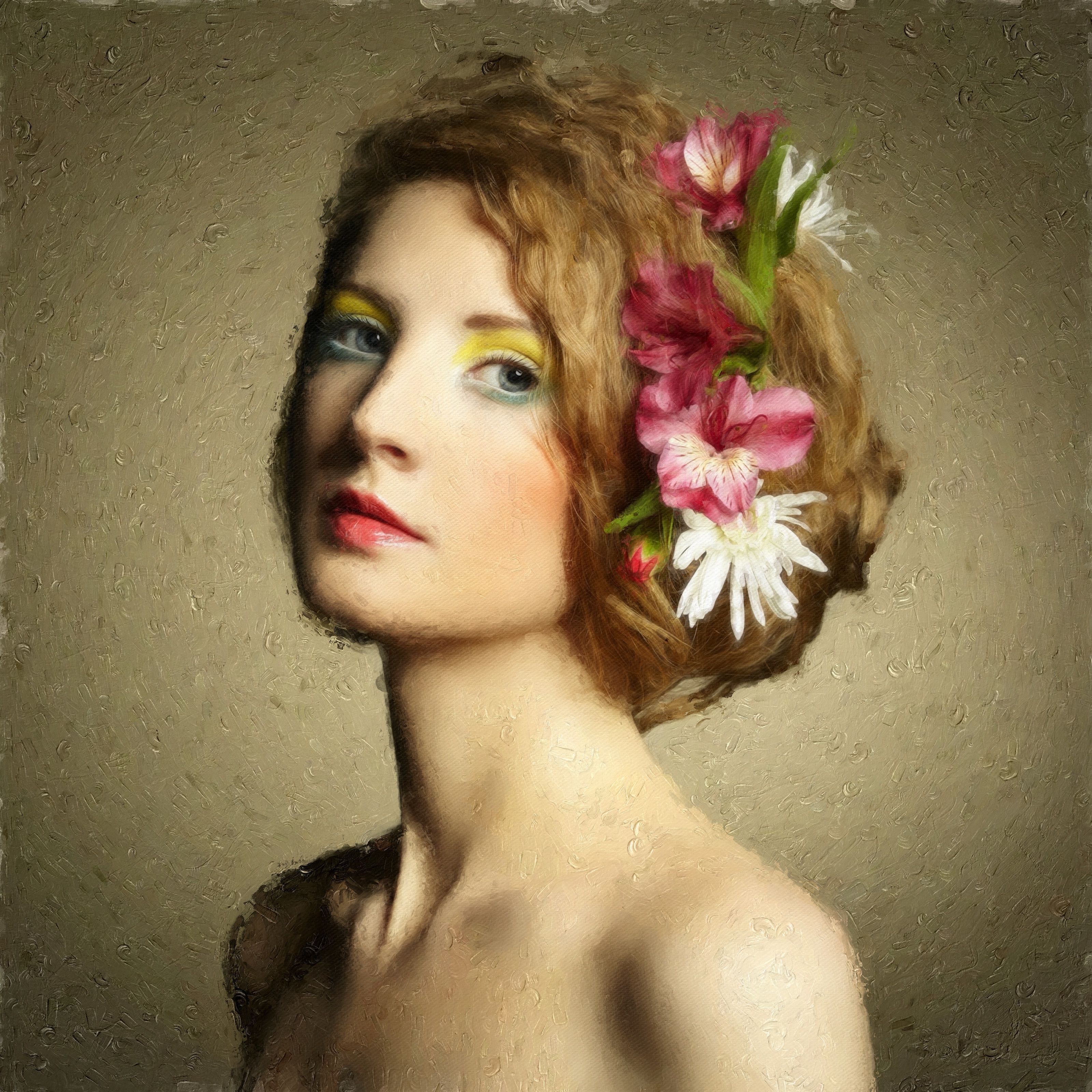
Petal Stroke
Paint with a flourish
Cover your image in dimensional marks with the character of flower petals. Let their direction shift dynamically, or set a shared angle to give the painting a deliberate rhythm.
- Petal-shaped marks add sculptural accents to flowers, foliage, and more.
- Dynamic direction varies the movement across the painting.
- Directional mode aligns the marks at an angle you choose.
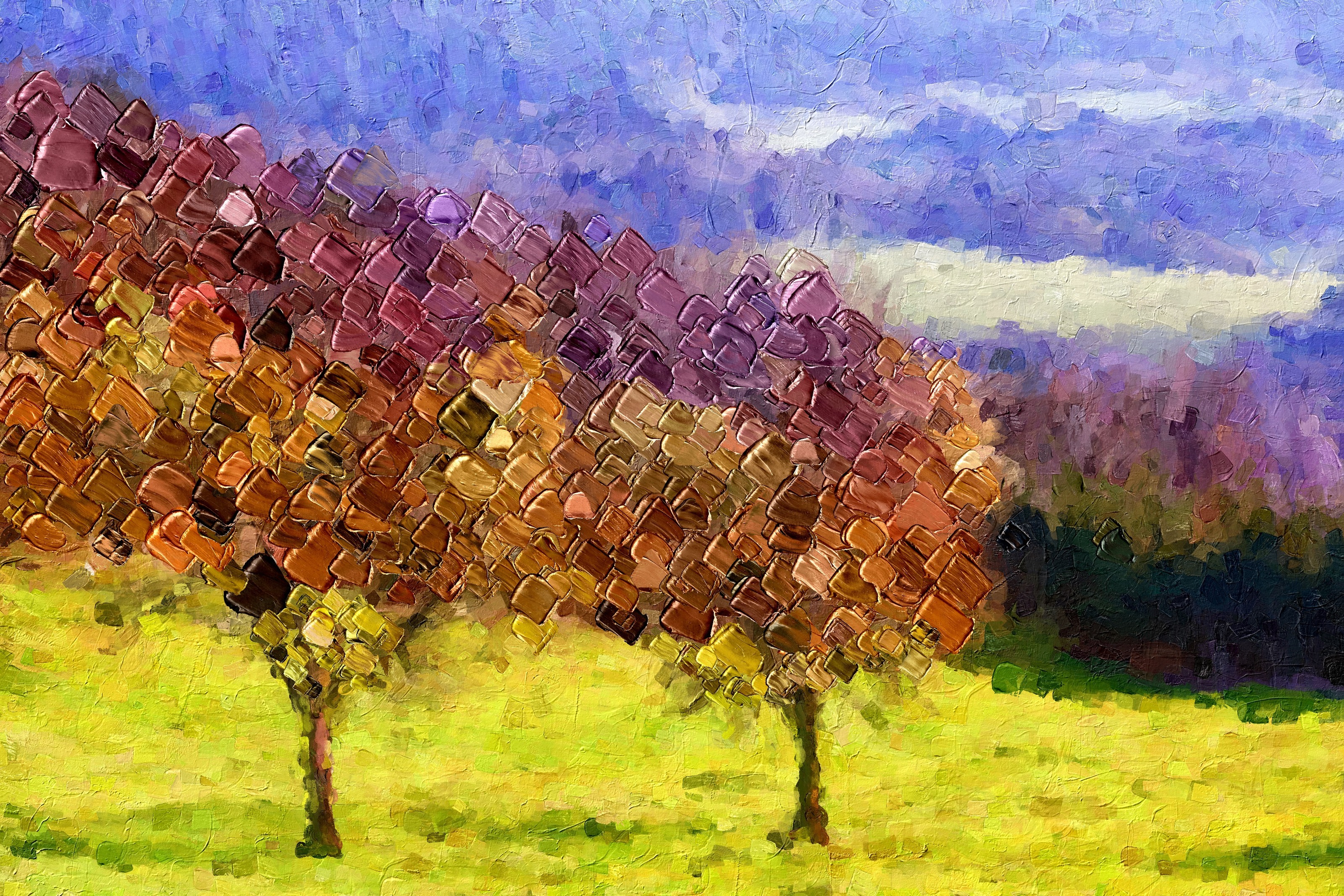
Bokeh Impasto
Turn color into luminous circles
Recast your photo in rounded dabs with the depth and sheen of raised paint. Adjust their scale, surface texture, and color for playful accents or an entirely new painted world.
- Circular dabs turn everyday detail into a pattern of painted color.
- Stroke Size controls the balance between small accents and bold circles.
- Bristle texture and depth give the rounded marks a tactile surface.
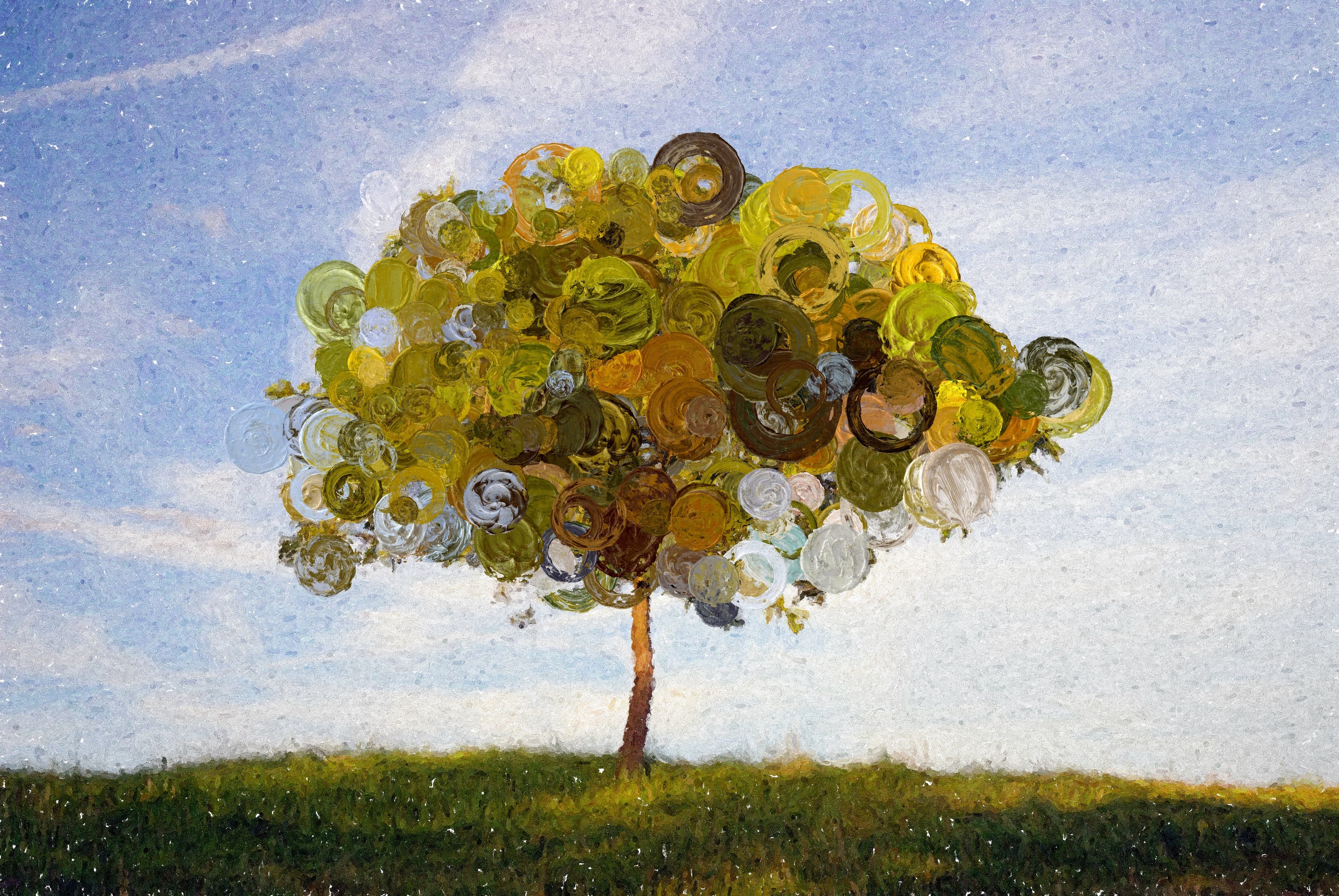
Macchia Detail
Bring the small things into focus
Add fine Macchia strokes where the painting needs more definition. Control detail size and restrained bristle depth, then use selective masking to place the attention.
- Detail Size stays within a fine range for small painted accents.
- Bristle Depth adds restrained relief without heavy buildup.
- Full, Blank, and Selective Mask modes control where detail appears.
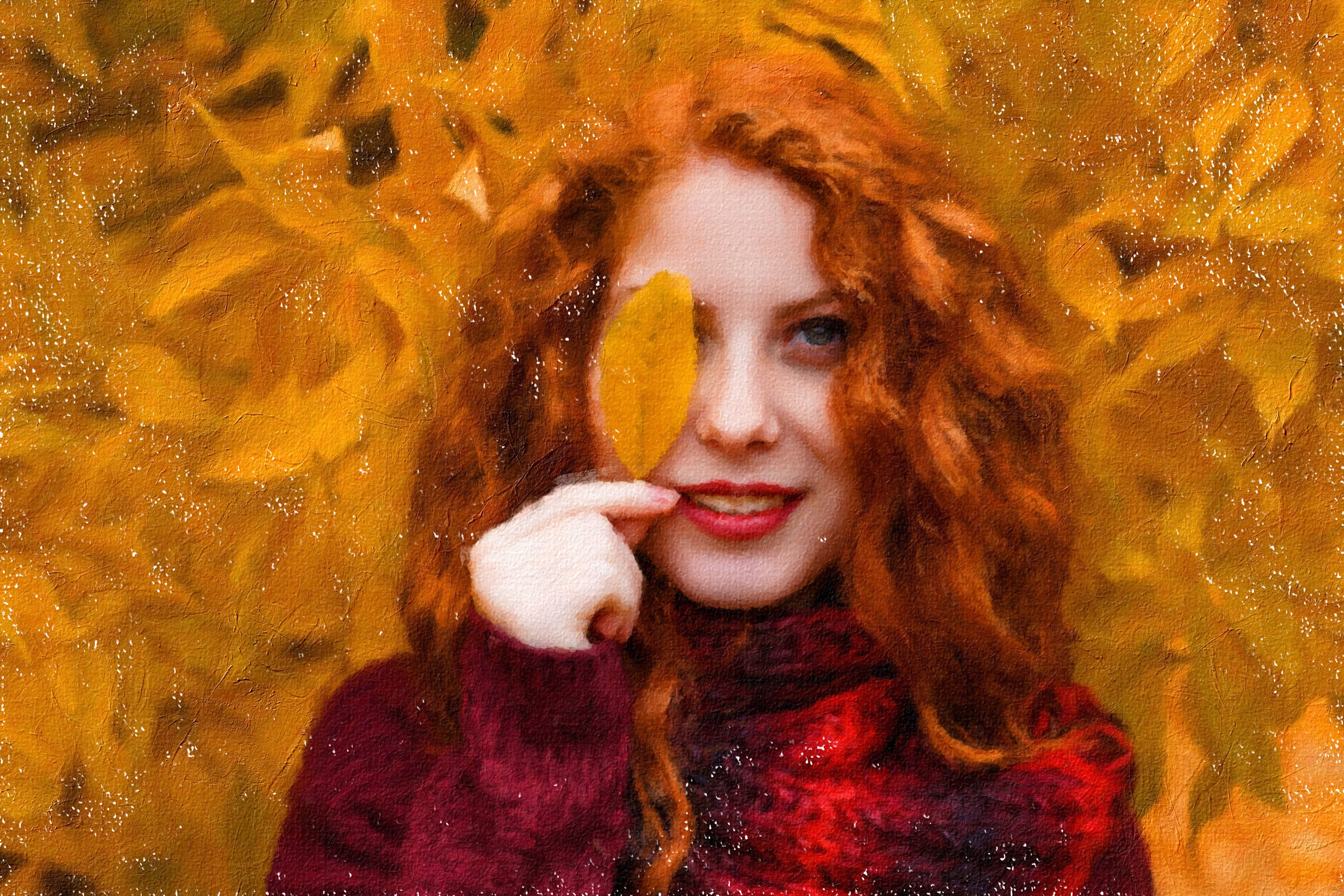
Oil Detail
Refine the flow
Introduce small oil strokes that follow the contours of your image. Restore definition to selected passages while keeping the surface visibly painted.
- Fine oil strokes define small features without replacing them with large marks.
- Follow Contours steers short strokes along the subject’s shape.
- Selective Mask concentrates the extra definition where it matters.
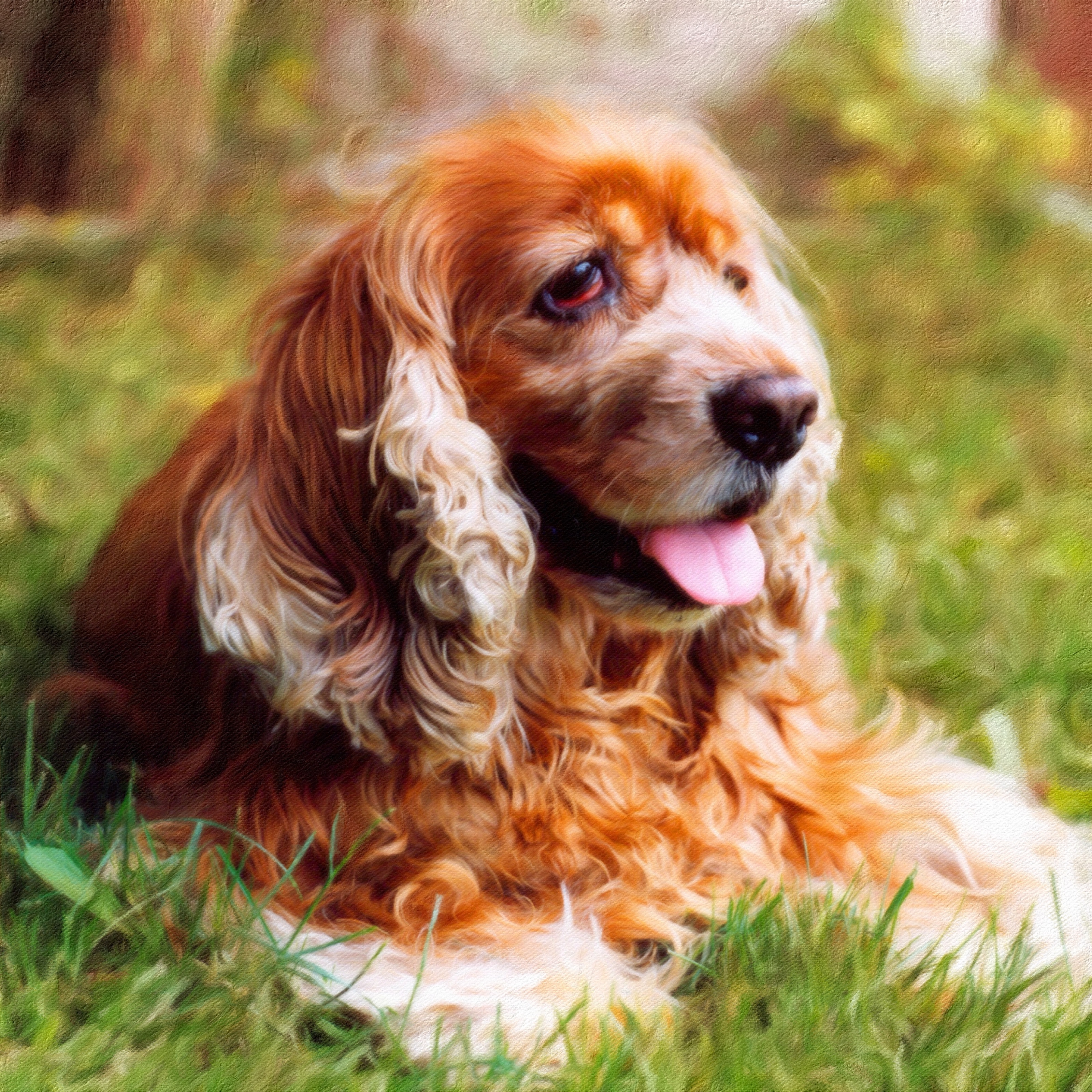
Tache
Discover the character of the mark
Scatter broken brushstrokes across your painting, from a light spackling to a full field of color. Shape their scale, volume, texture, and color to find a different rhythm within the same image.
- Broken marks create an energetic scattering of painted color.
- Stroke Volume shifts the coverage from sparse accents to fuller paint.
- Bristle Strength gives the marks more visible texture at their edges.
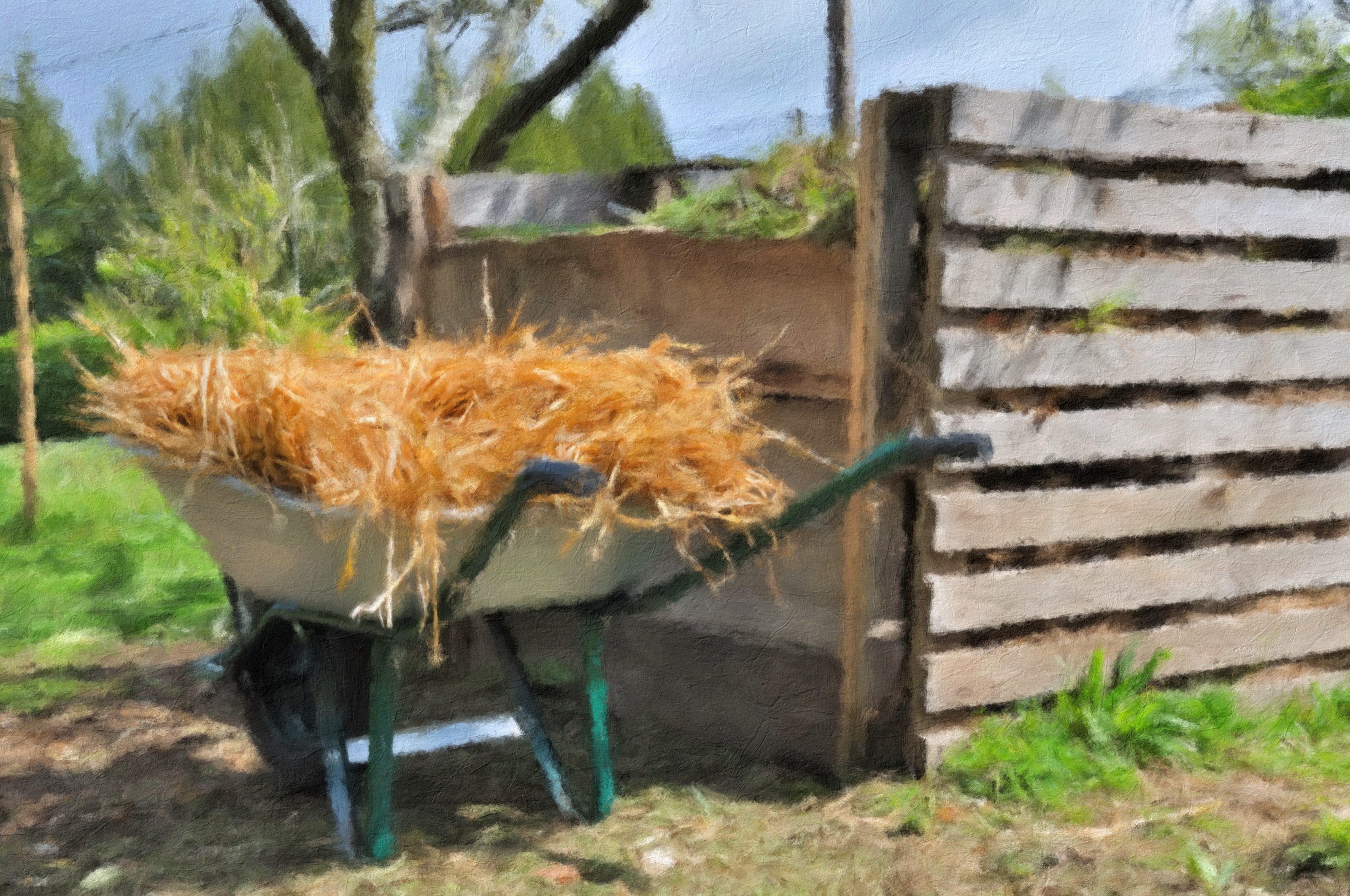
Glaze
Add another layer of expression
Bring fresh brush texture and raised detail to the painting beneath. Explore glaze styles, stroke volume, and bristle depth, then brush the effect into selected areas.
- Five glaze styles offer different surface and stroke characters.
- Stroke Volume and Bristle Depth shape the added paint texture.
- Brush the glaze into selected passages to vary the finish.
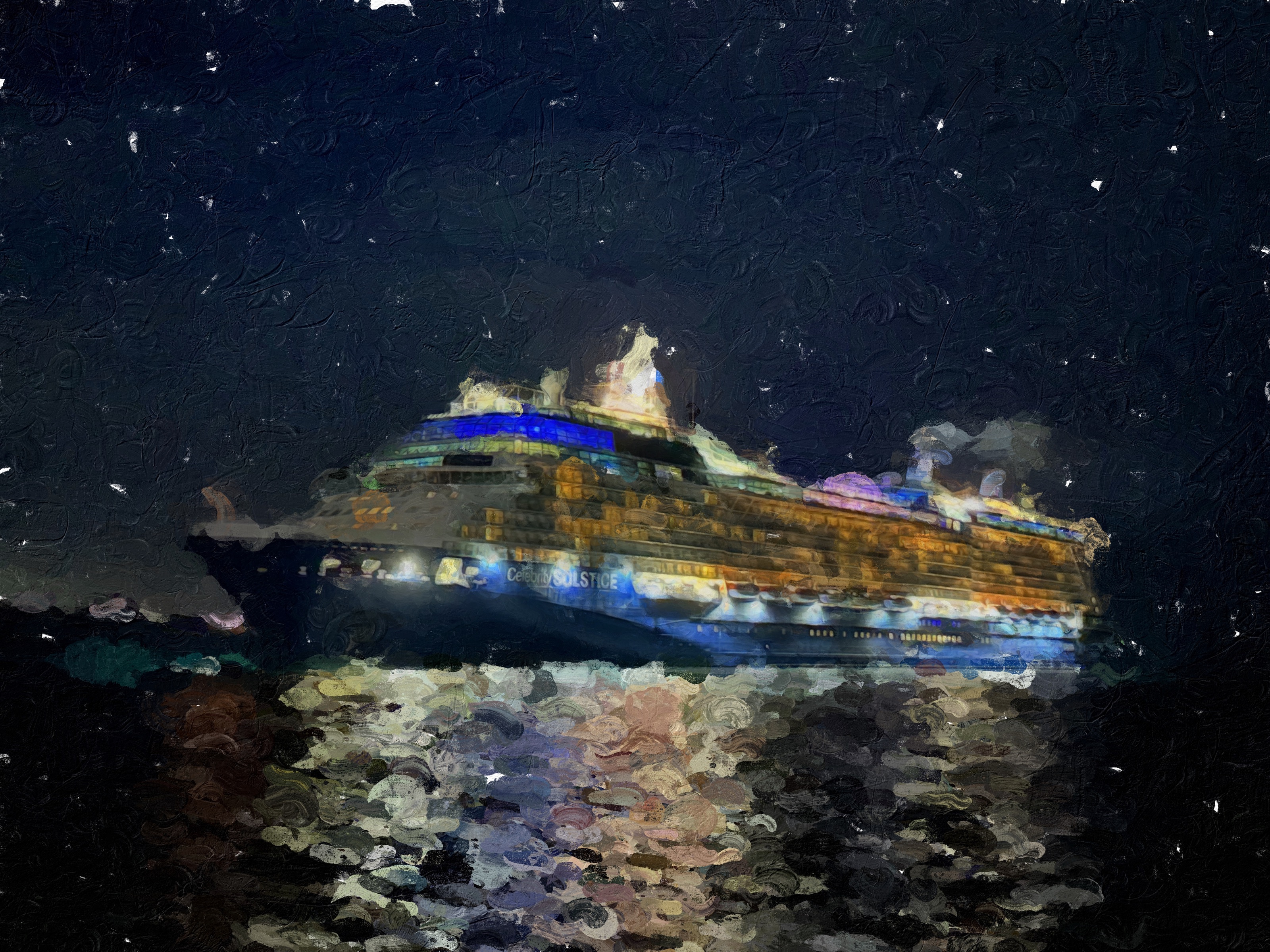
Texture Relief
Give the surface a story
Shape the painting with textured relief or worn passages that reveal what lies beneath. Control texture variation and wear depth, and direct the light to bring the surface into view.
- Wear Through reveals earlier layers in worn patches of paint.
- Texture Relief brings a textured surface into the painting.
- Wear Depth and movable lighting shape the surface’s visible character.
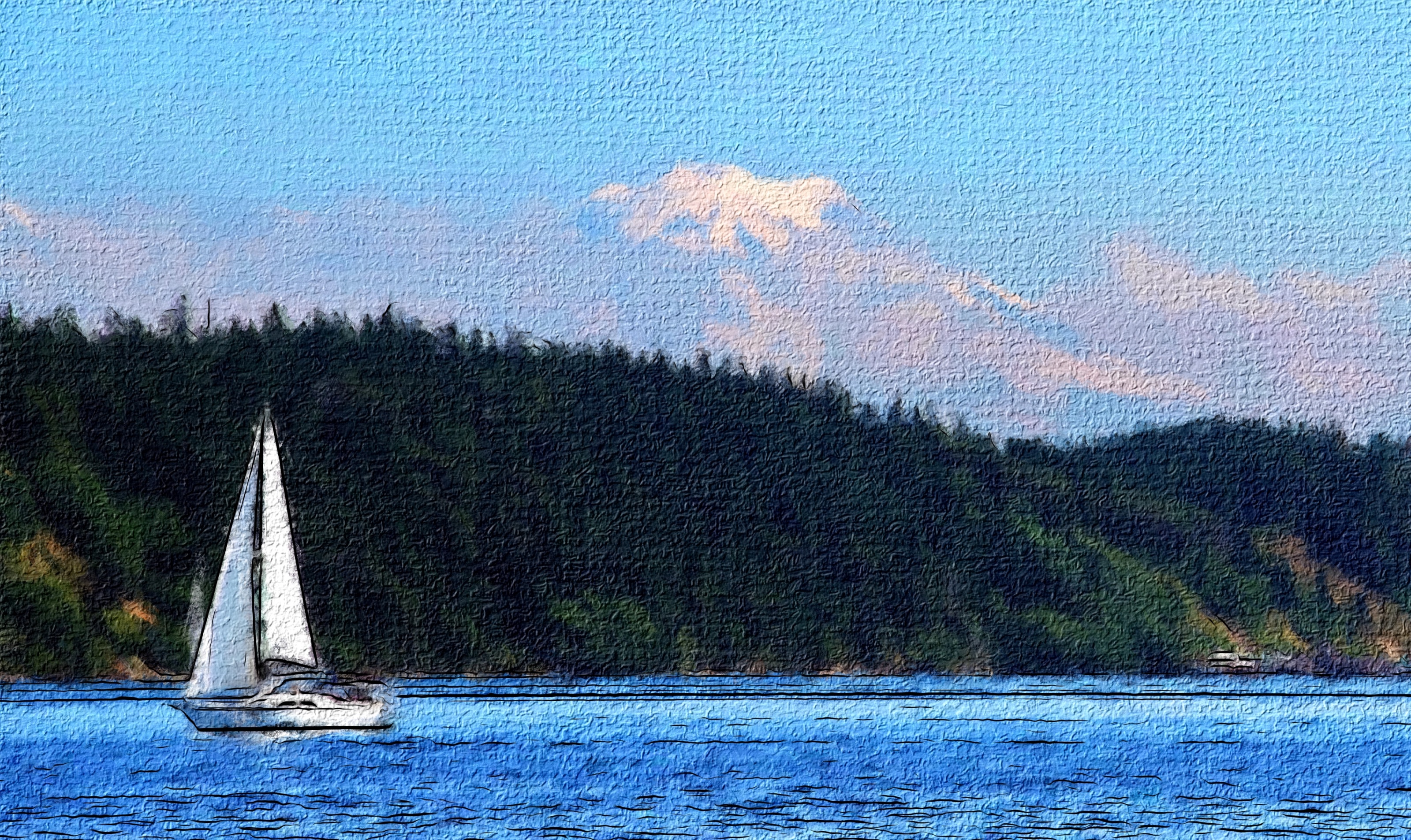
Aged Paint
A touch of time
Give your painting the character of an aged surface. Shape the crack pattern with spacing, branching, irregularity, and strength, from subtle traces to a more weathered finish.
- Spacing controls how widely the cracks spread across the surface.
- Branch Length connects the cracks into a more intricate pattern.
- Crack Strength adds depth for a subtle patina or a weathered finish.
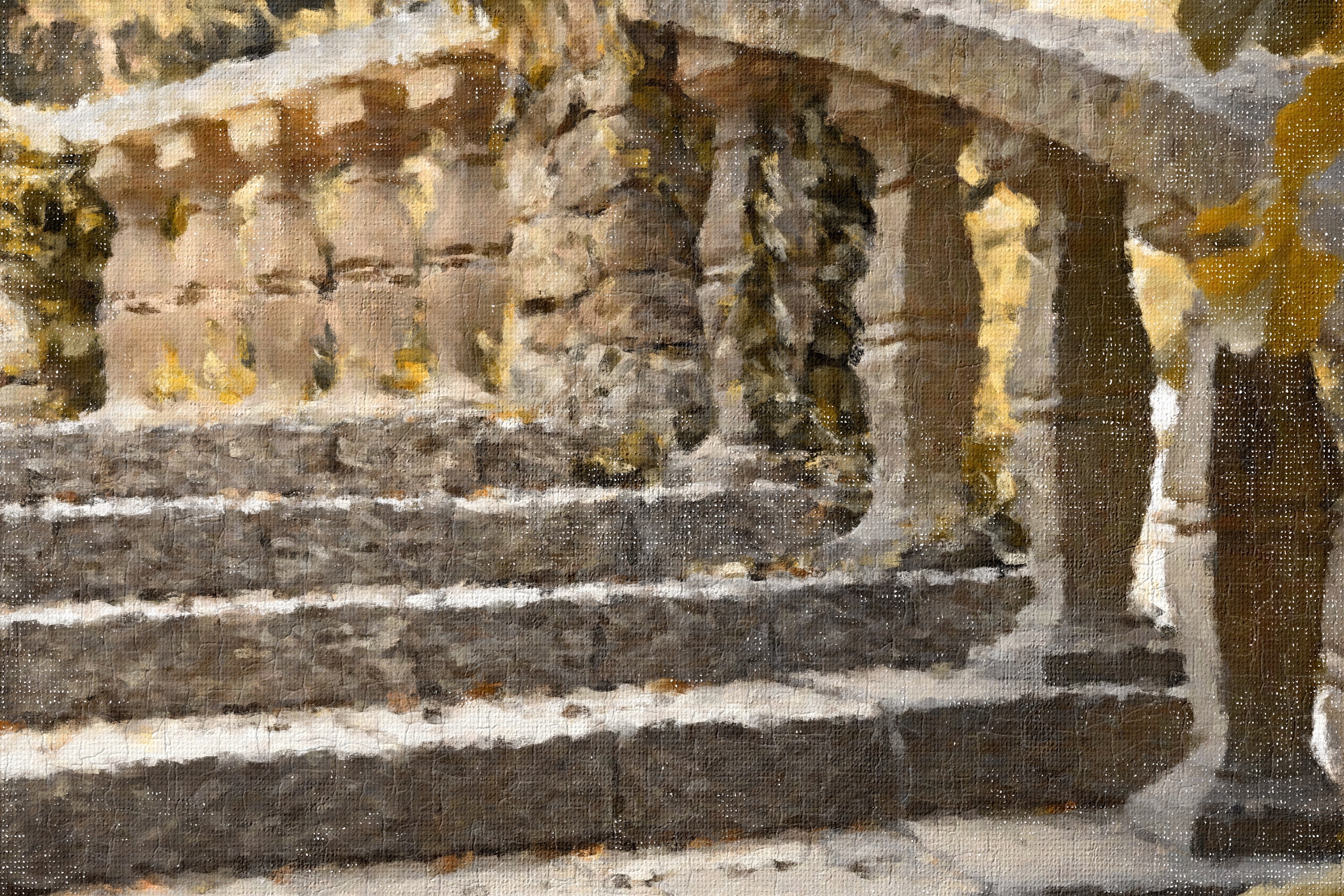
Tratto
Make the lines speak
Bring drawn definition to your painting with expressive outlines. Adjust detail, line thickness, and smoothness to create anything from delicate accents to a stronger graphic structure.
- Detail controls pick out the edges that define your subject.
- Thickness turns delicate lines into a more assertive outline.
- Smoothness removes small flecks for cleaner drawn accents.
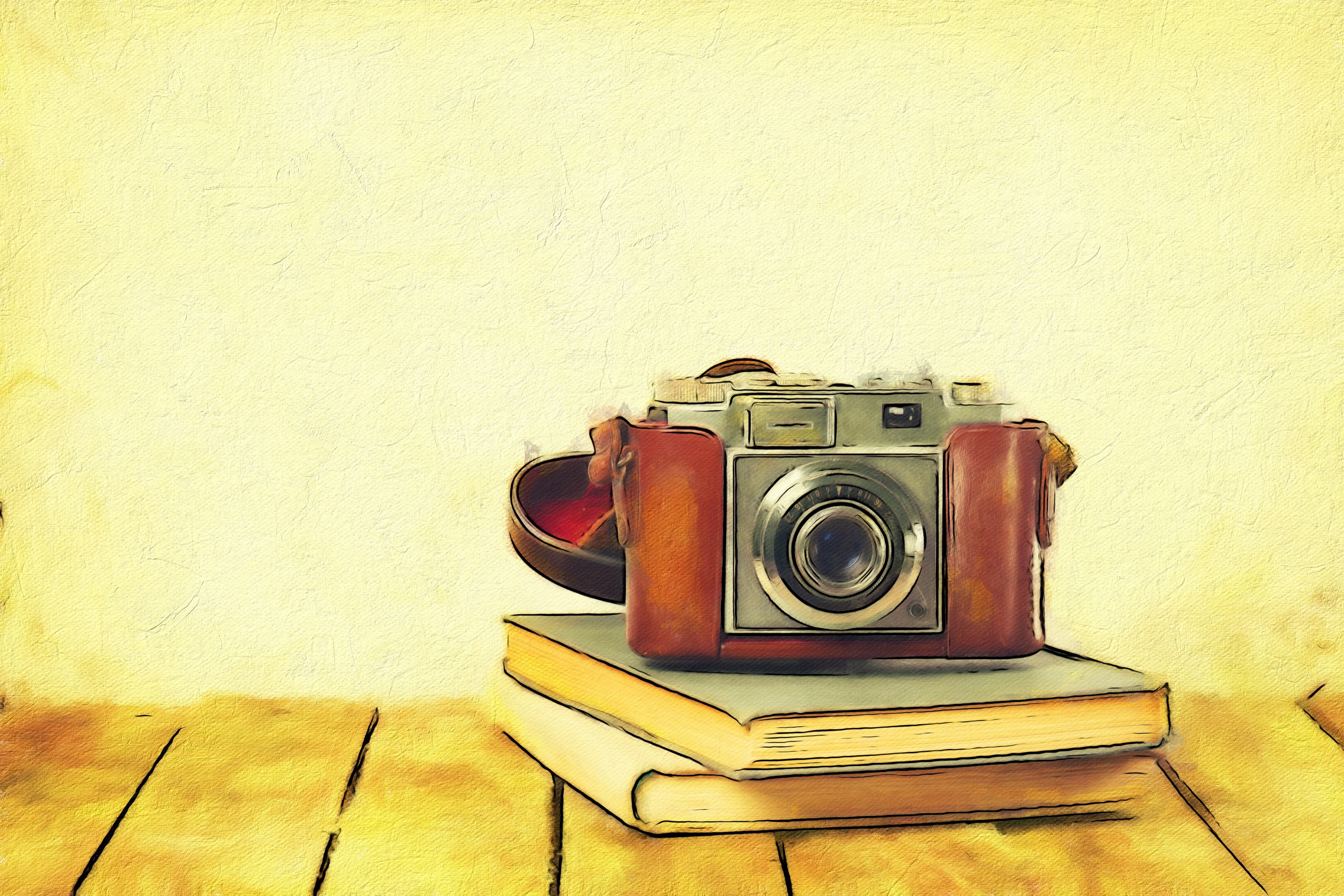
Soft Paint
Begin with a gentler impression
Soften photographic detail into a smoother painted foundation. Adjust the softness and color enhancement, or brush in selected areas to bring your subject back into focus.
- Soft Paint adjusts how gently photographic detail is simplified.
- Color Enhance brings more brightness and color into the painted image.
- Brush selected areas to balance recognizable detail with surrounding paint.
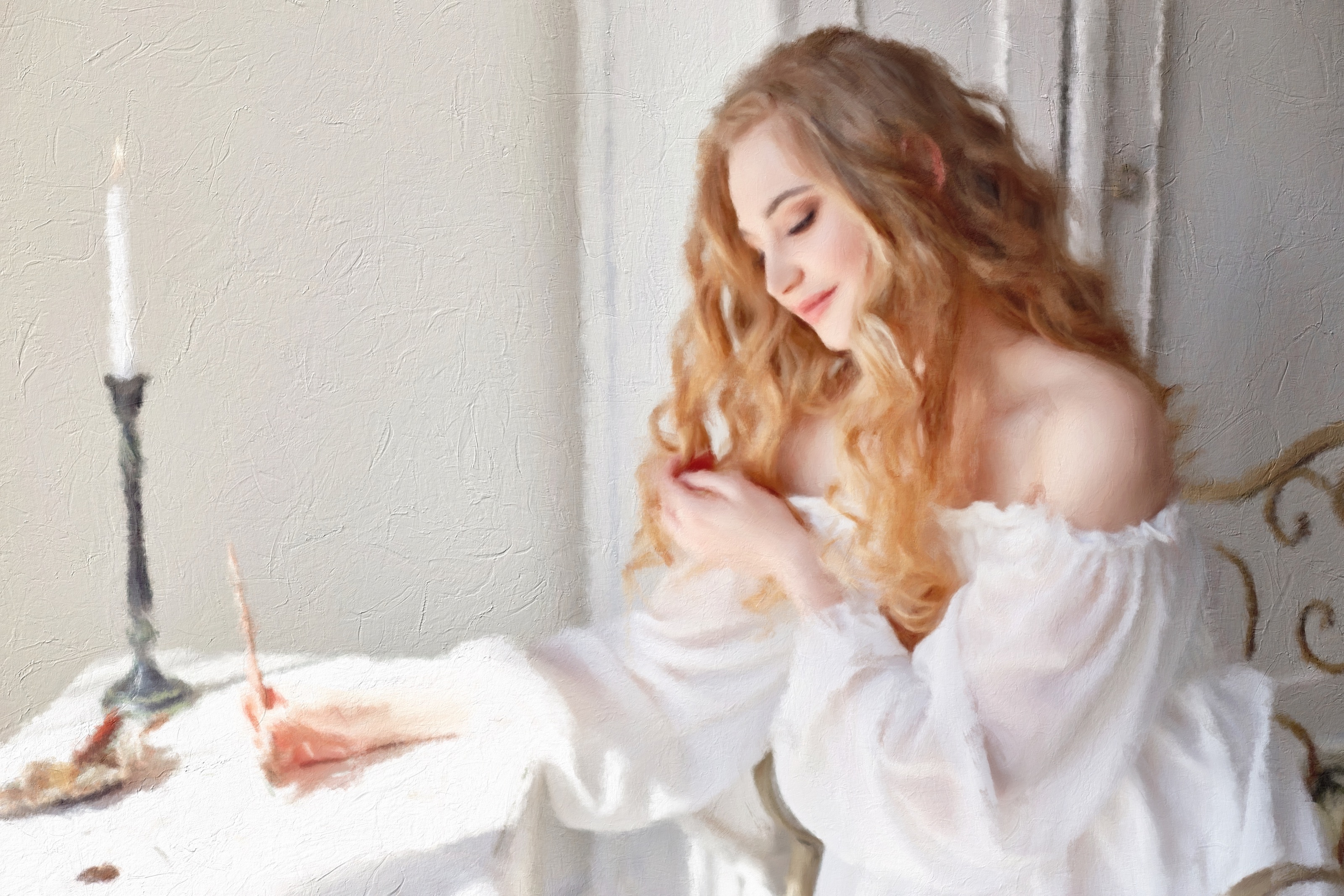
Alla Prima
Capture the energy of the first stroke
Transform your photo with direct, expressive brushwork. Shape stroke size, paint volume, bristle texture, and color to find the balance between recognizable detail and painterly freedom.
- Stroke Size moves between smaller marks and broad, expressive brushwork.
- Stroke Volume and Bristle Depth build the presence of the paint.
- Artistic Finishes add mottled light and color to the completed strokes.
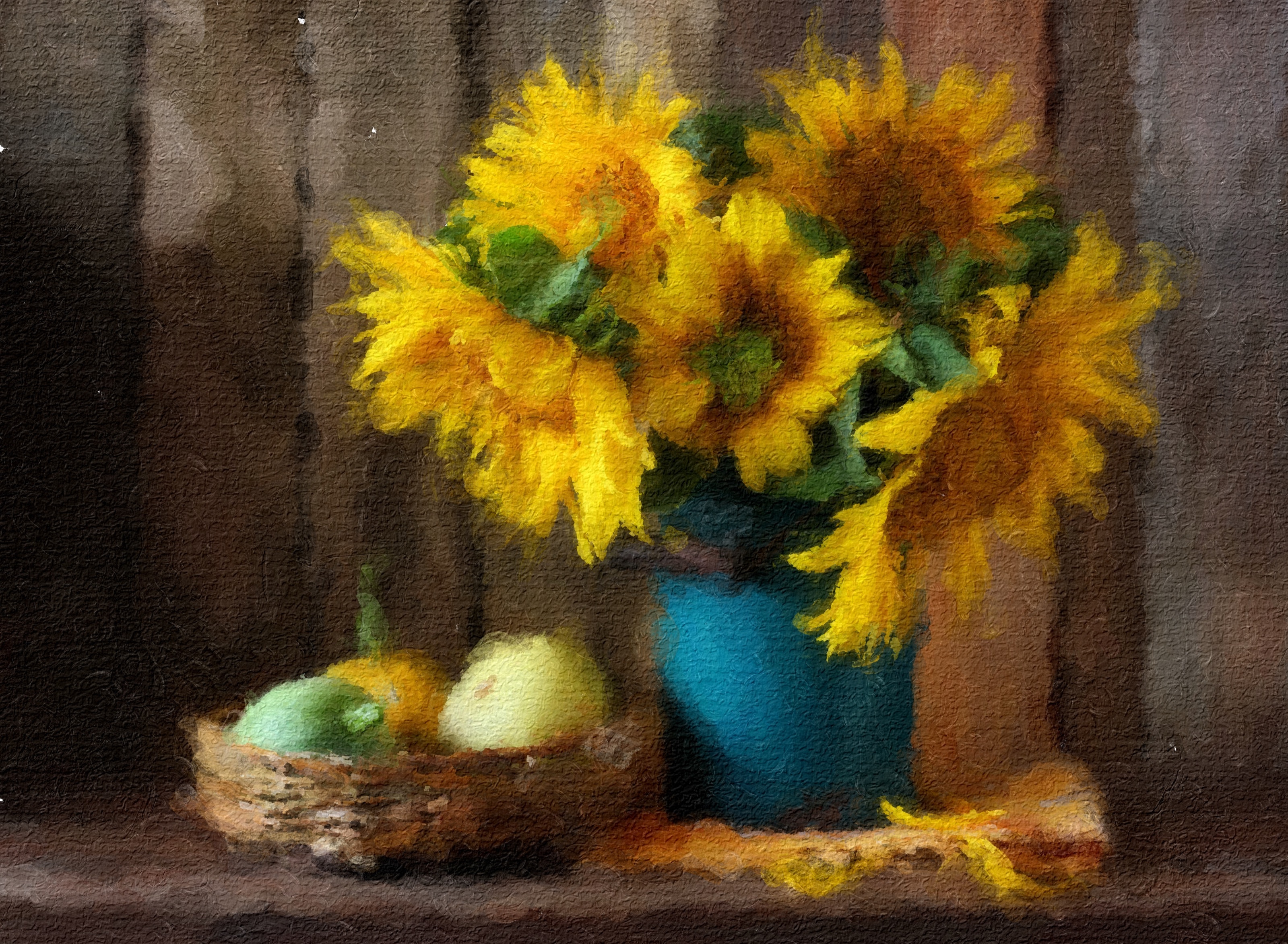
En Plein Air
Paint the mood of the moment
Explore expressive brushwork and a palette of your own choosing. Keep the image’s natural colors or introduce a custom palette to take the scene in a new direction.
- Keep the natural colors of the photo or introduce a custom palette.
- Edit palette colors to create a different mood within the same scene.
- Adjust stroke scale, volume, and bristle texture to shape the painted atmosphere.
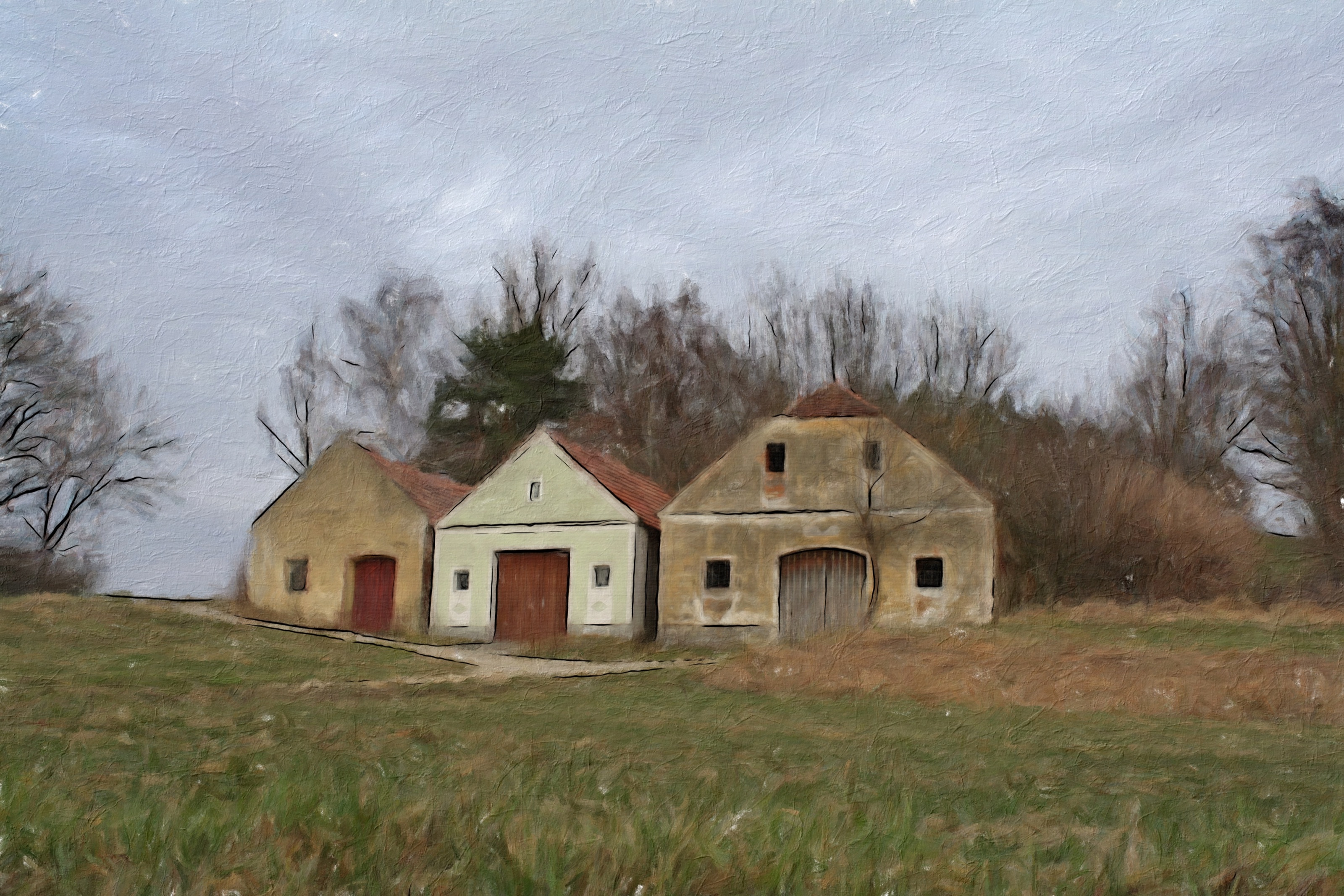
Finishing Touches
Make every layer your own
Combine painting styles, control their opacity, and brush effects into the places that matter. Choose canvas texture, color, and painted edges, then add a typed or freehand signature to make the finished work your own.
- Stack painting styles and adjust opacity to develop your own combination.
- Choose Canvas or Linen, then finish with Square Edge or Oil Study borders.
- Add your signature with a typeface or paint it freehand.
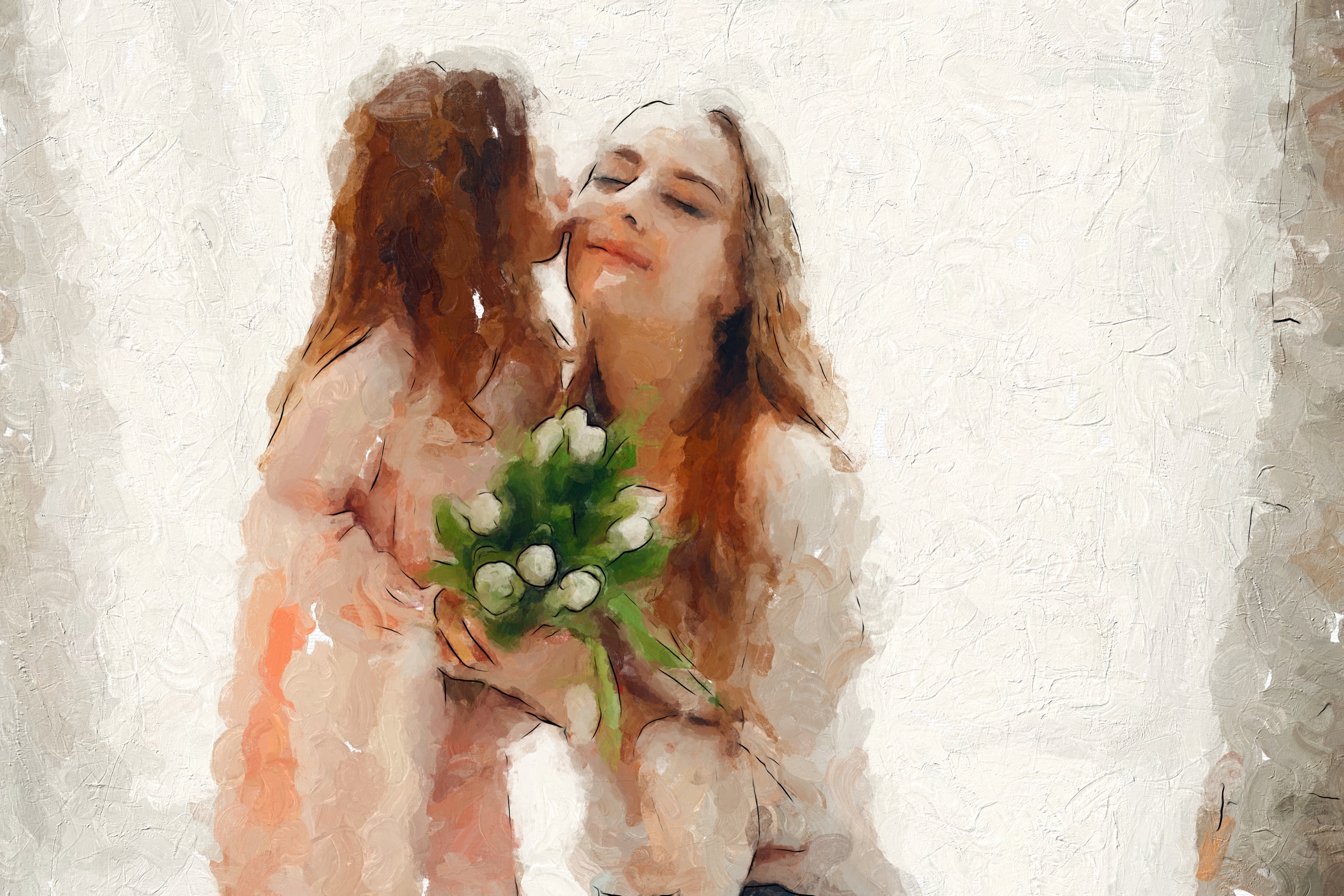
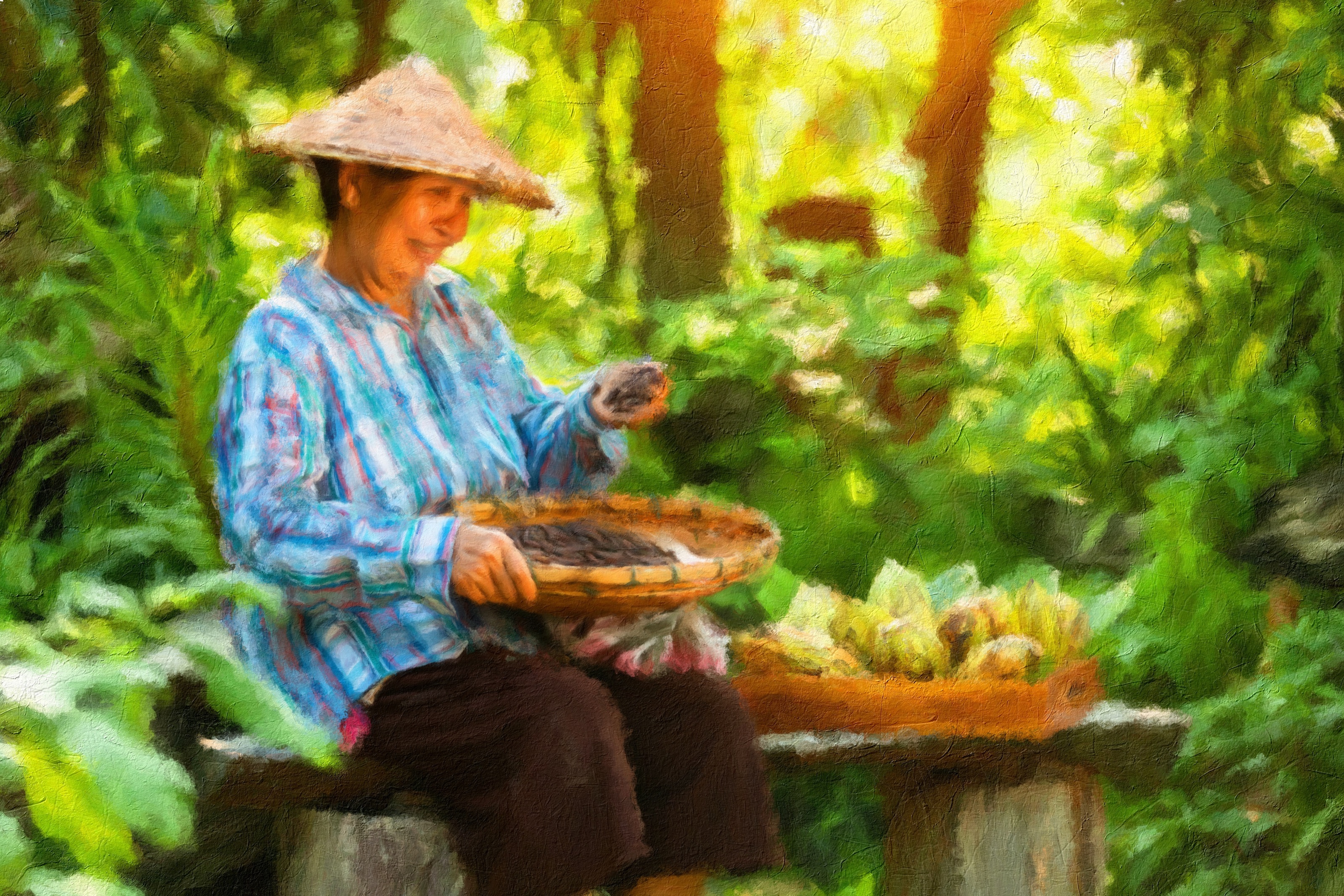
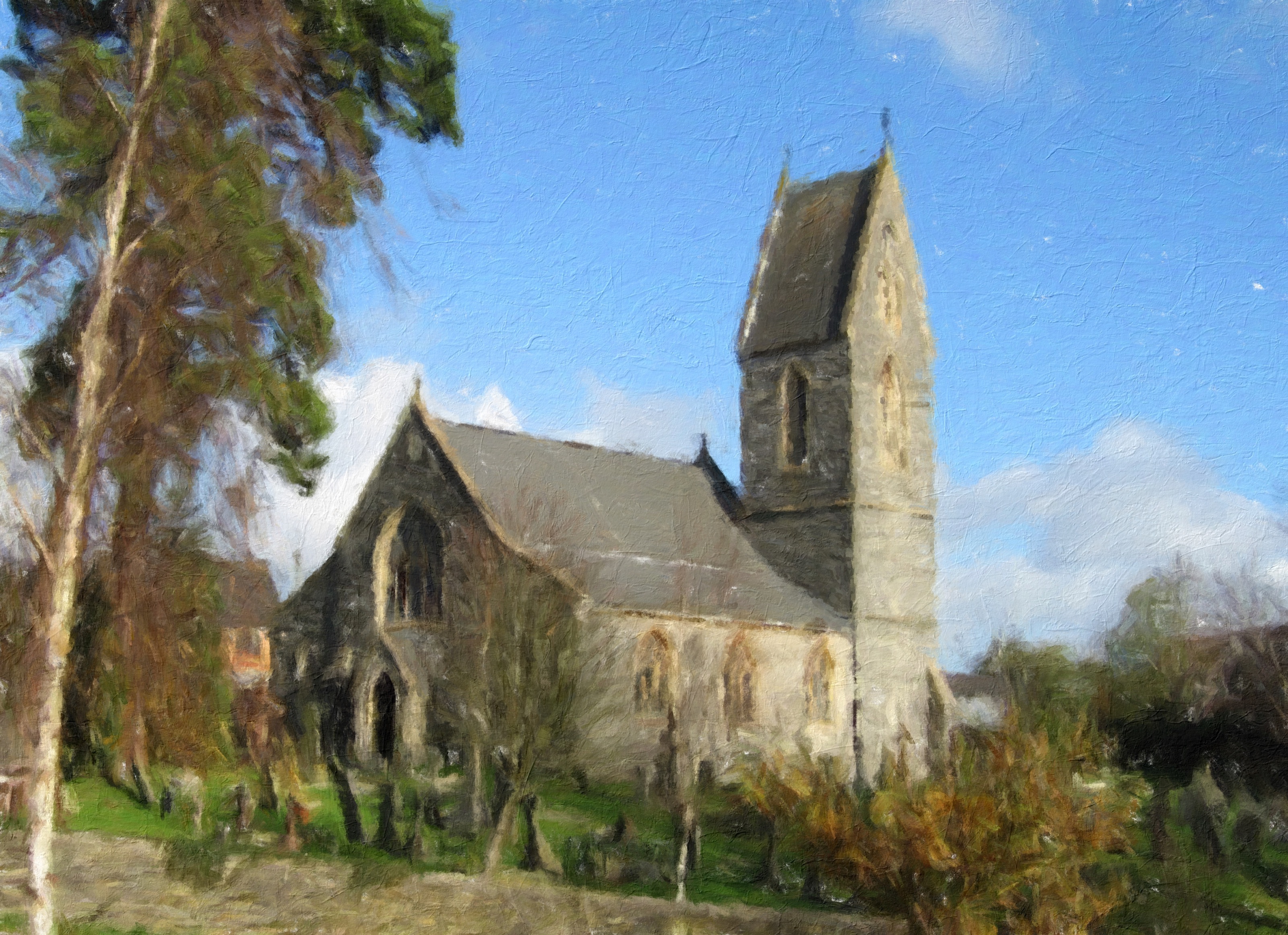
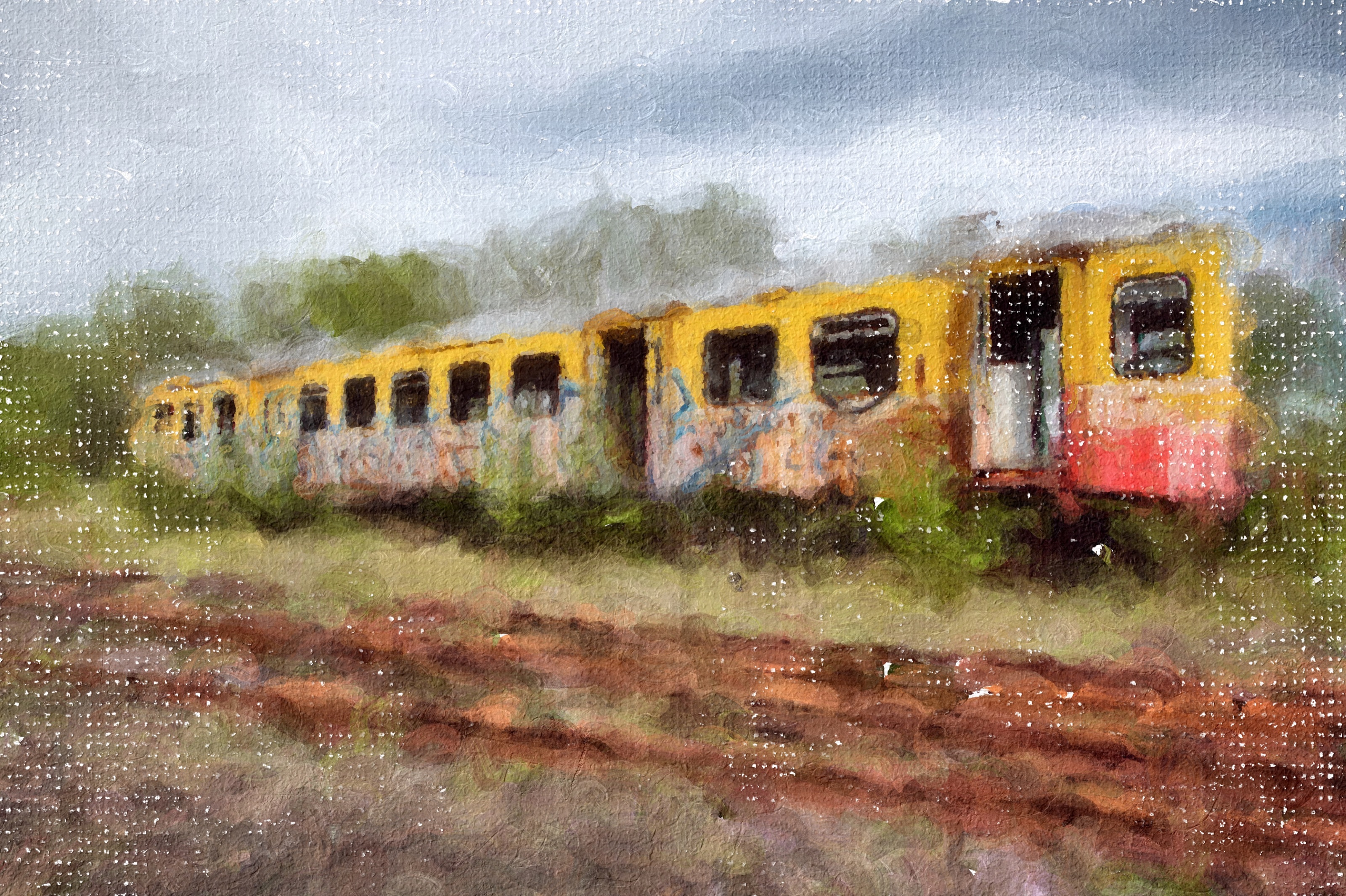
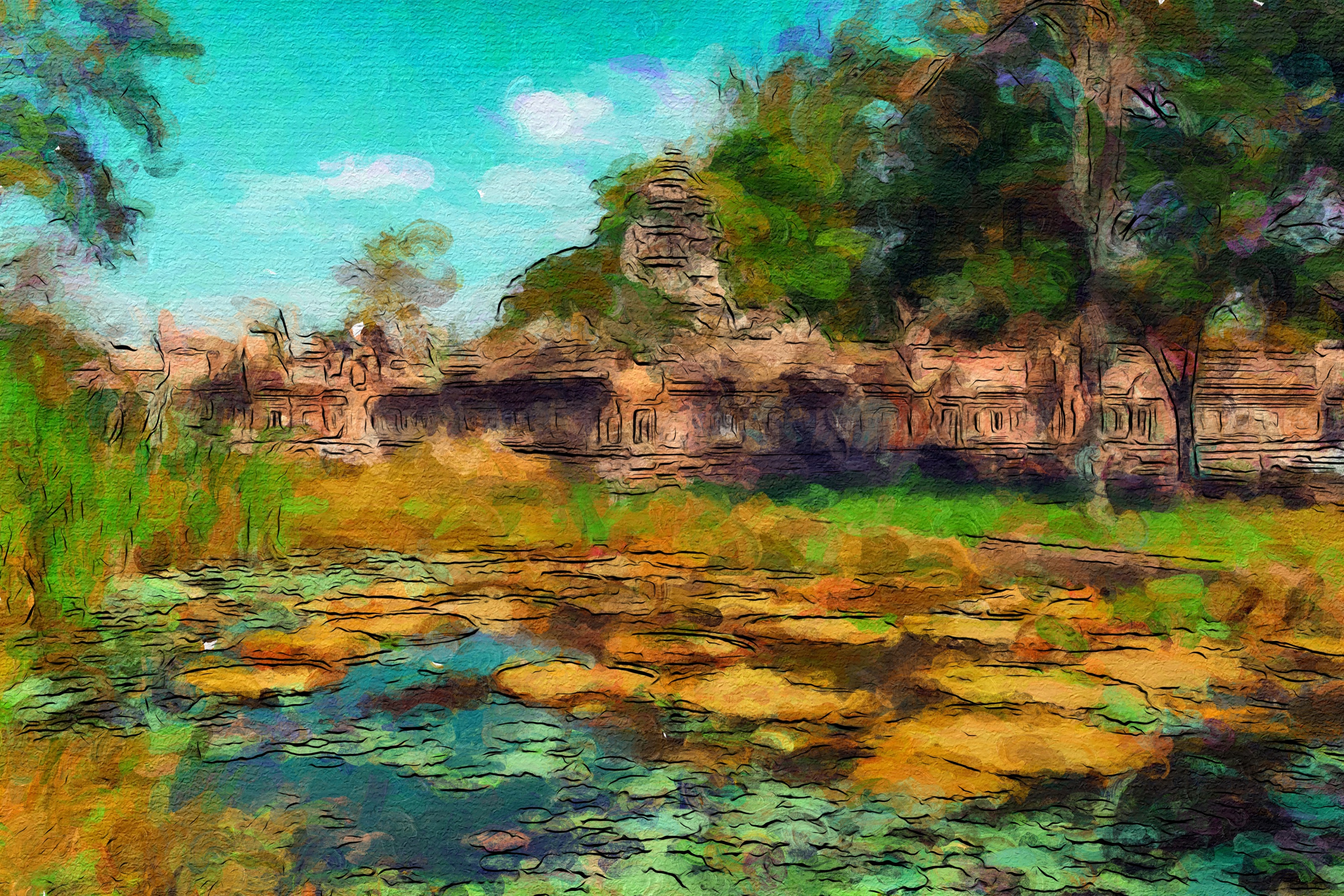
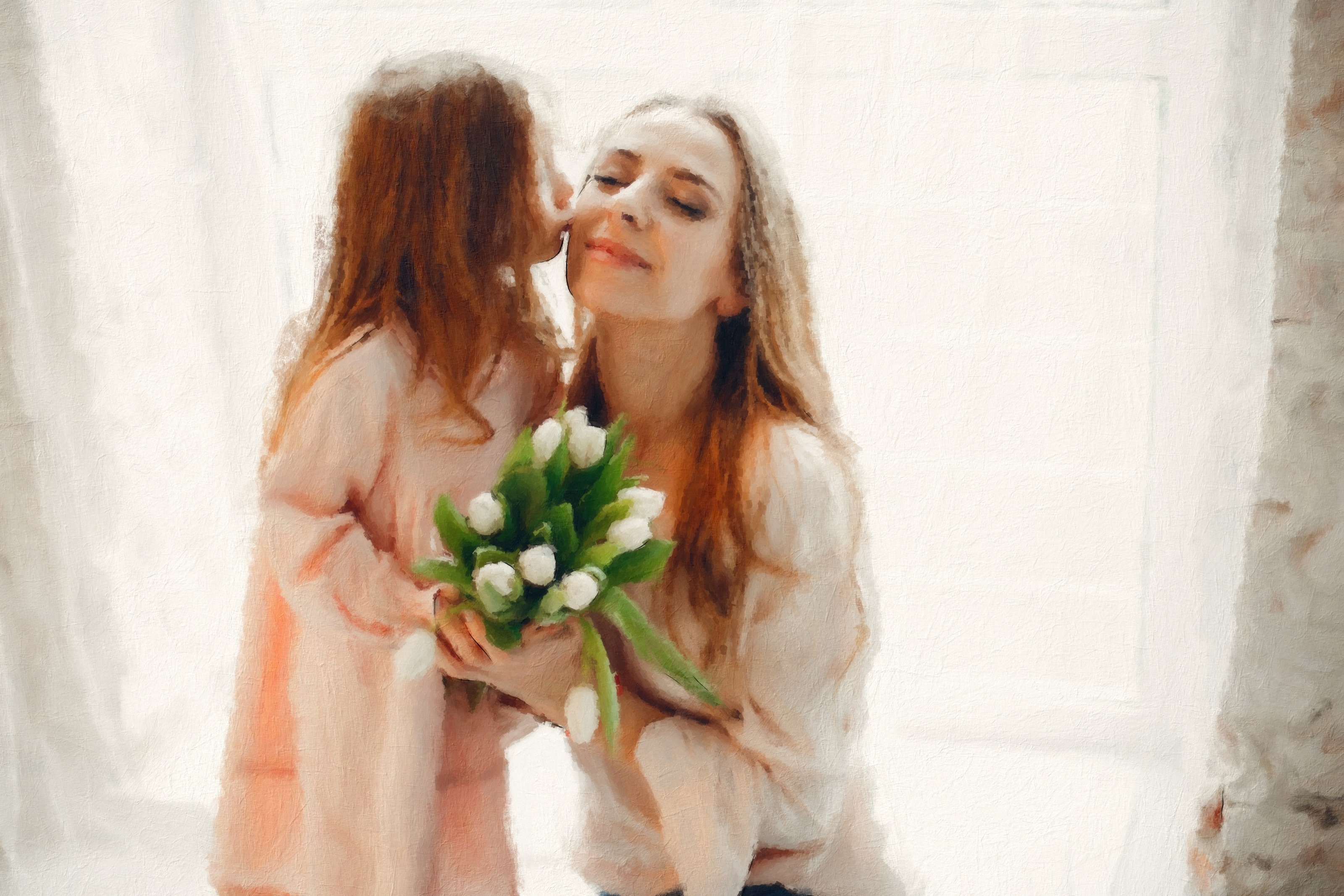
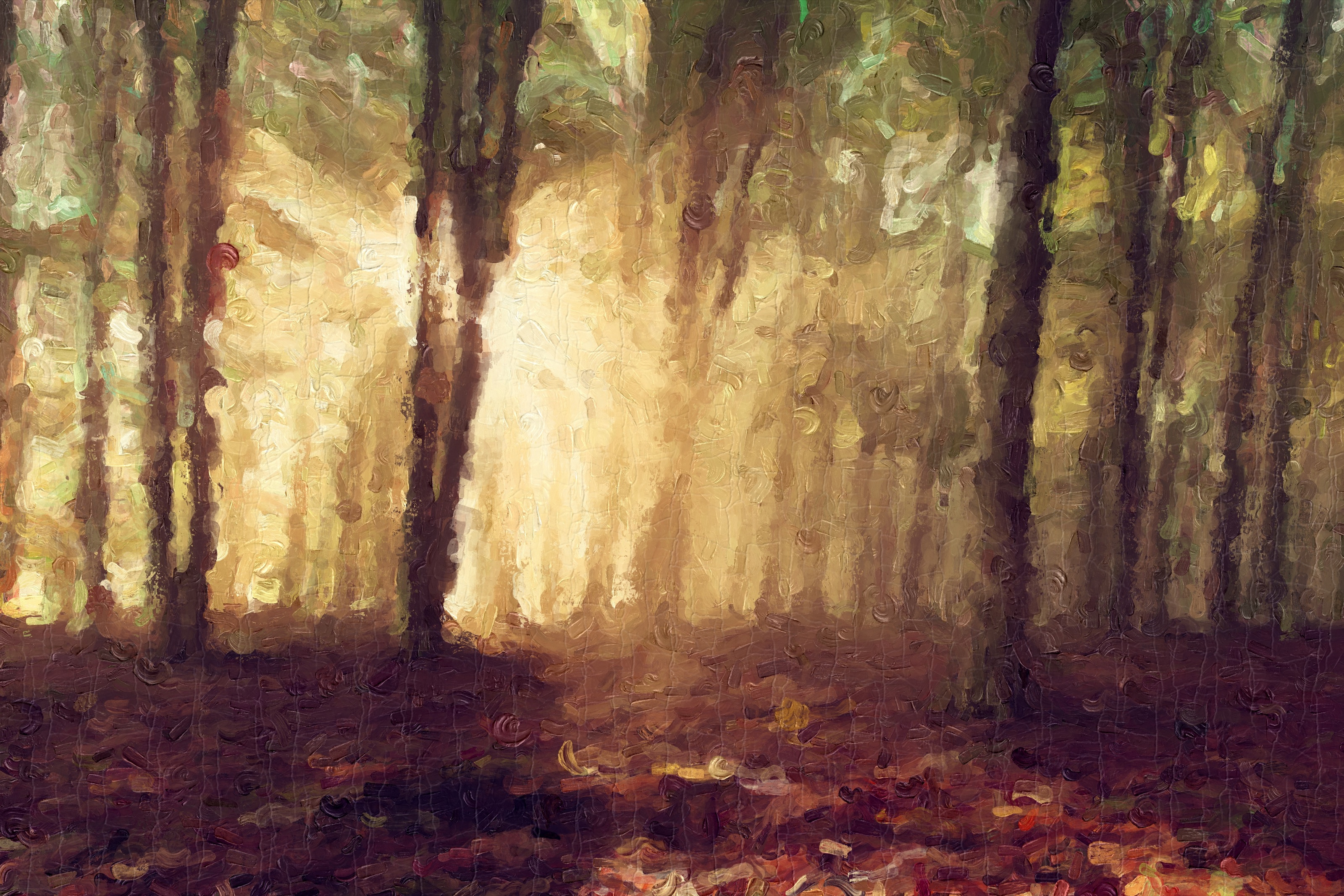
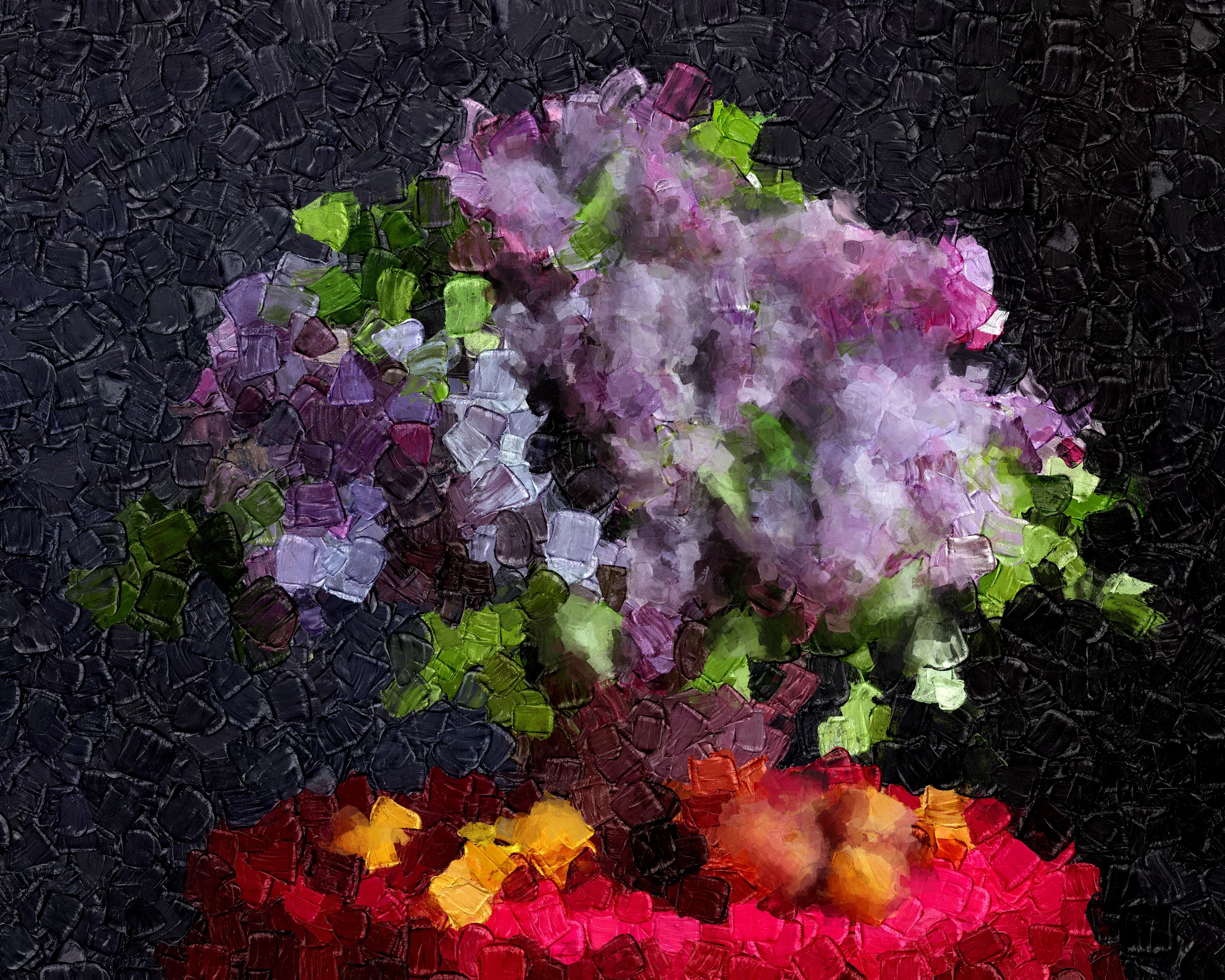
Impresso Studio Examples
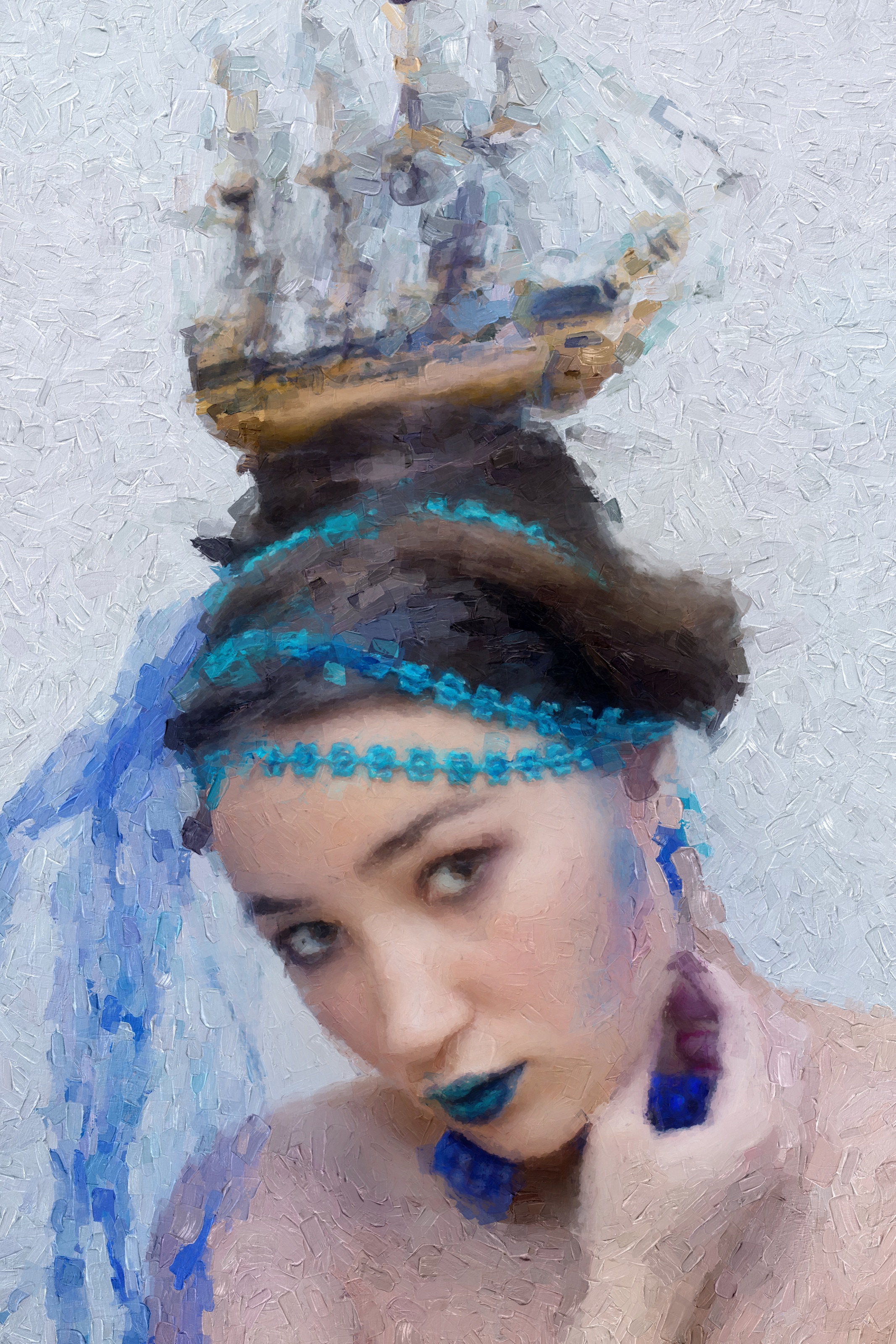
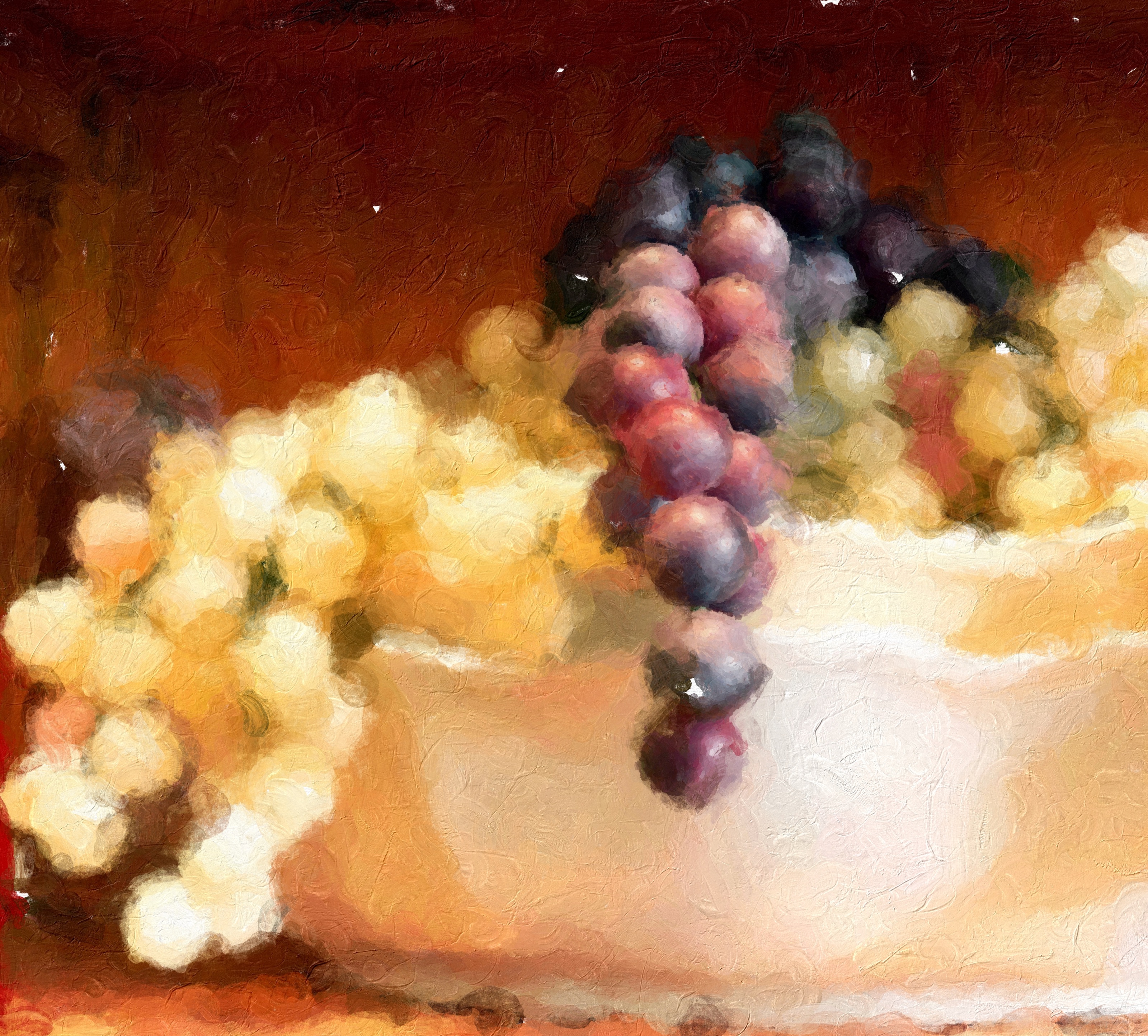
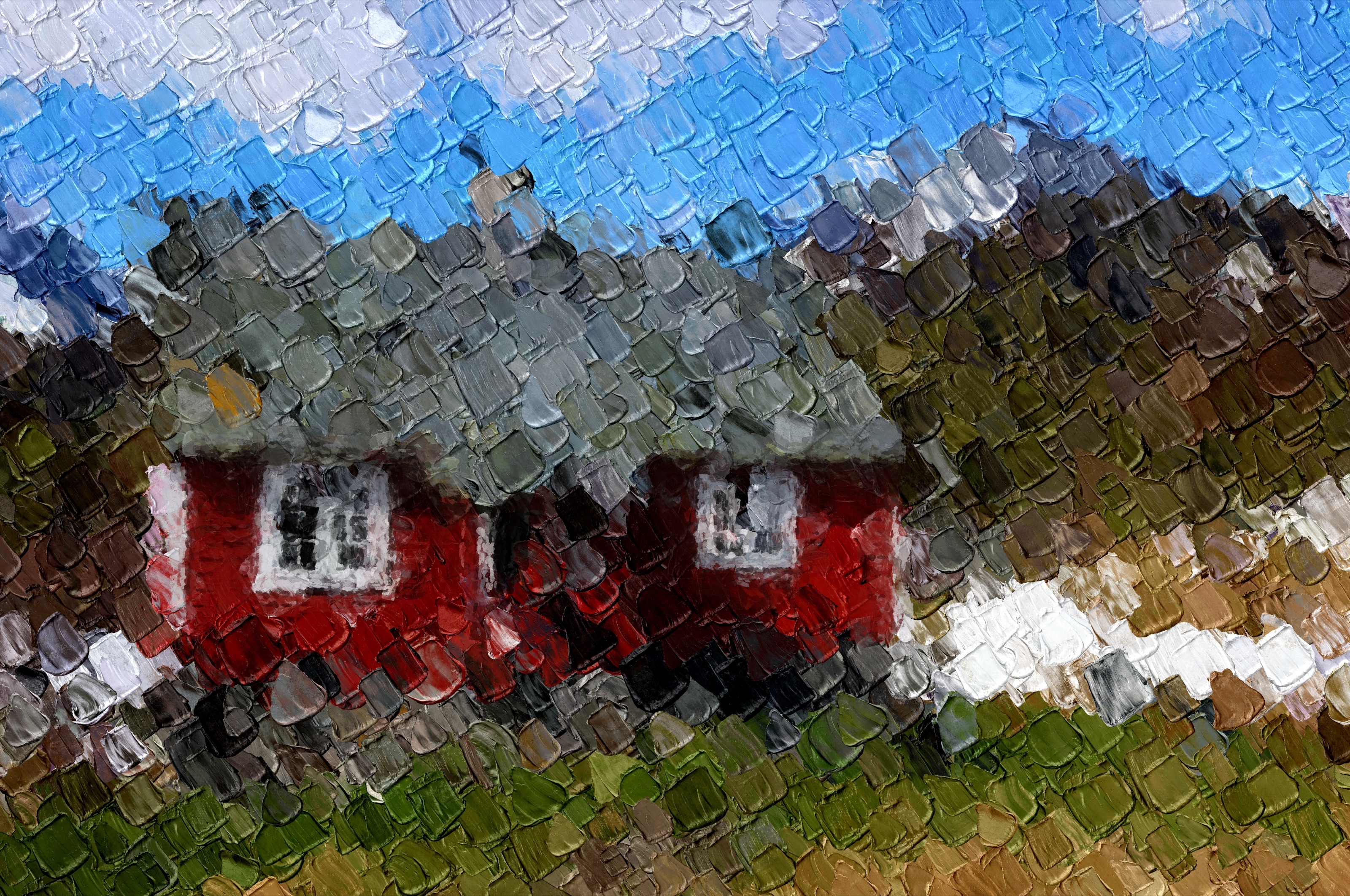
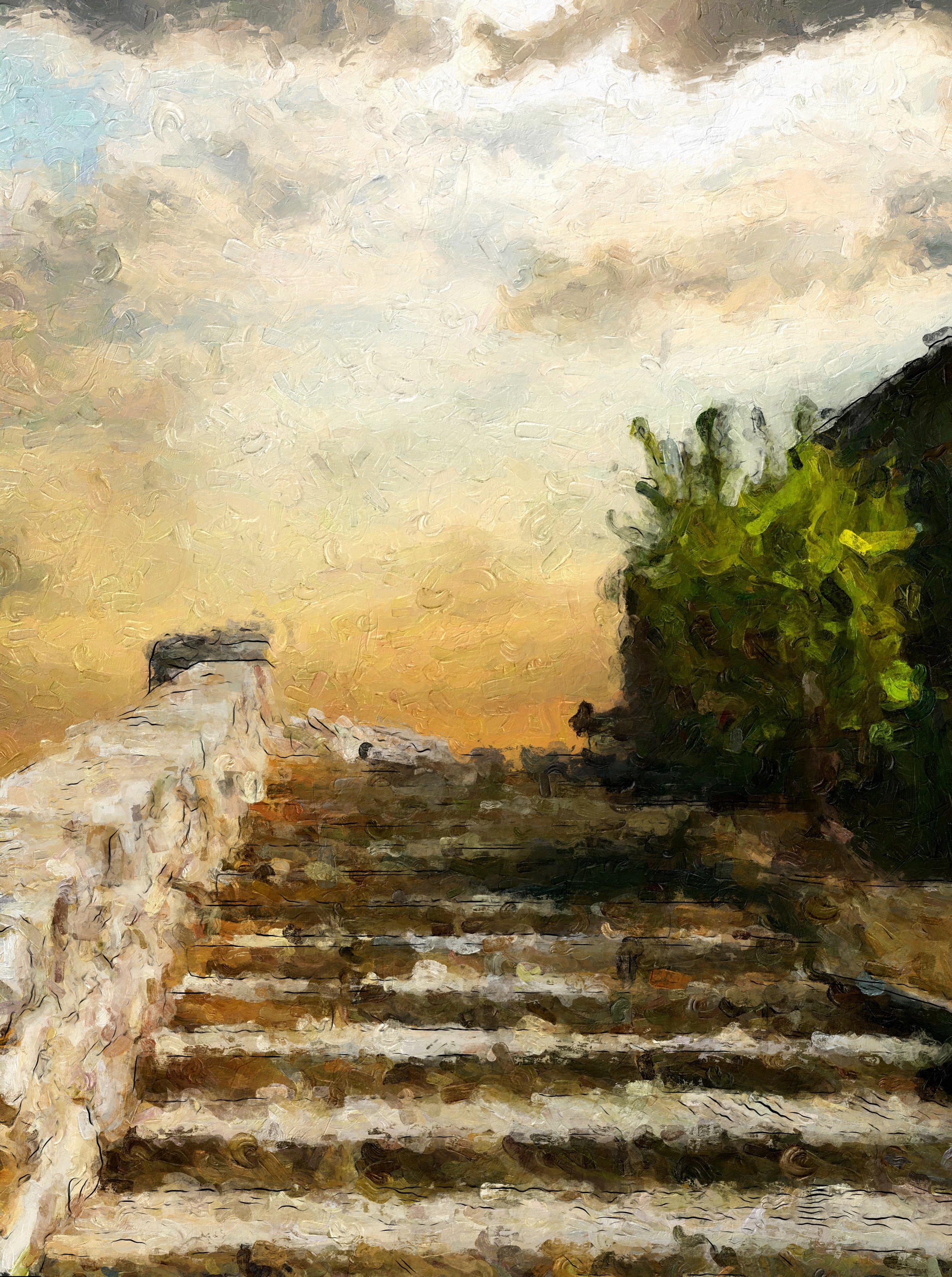
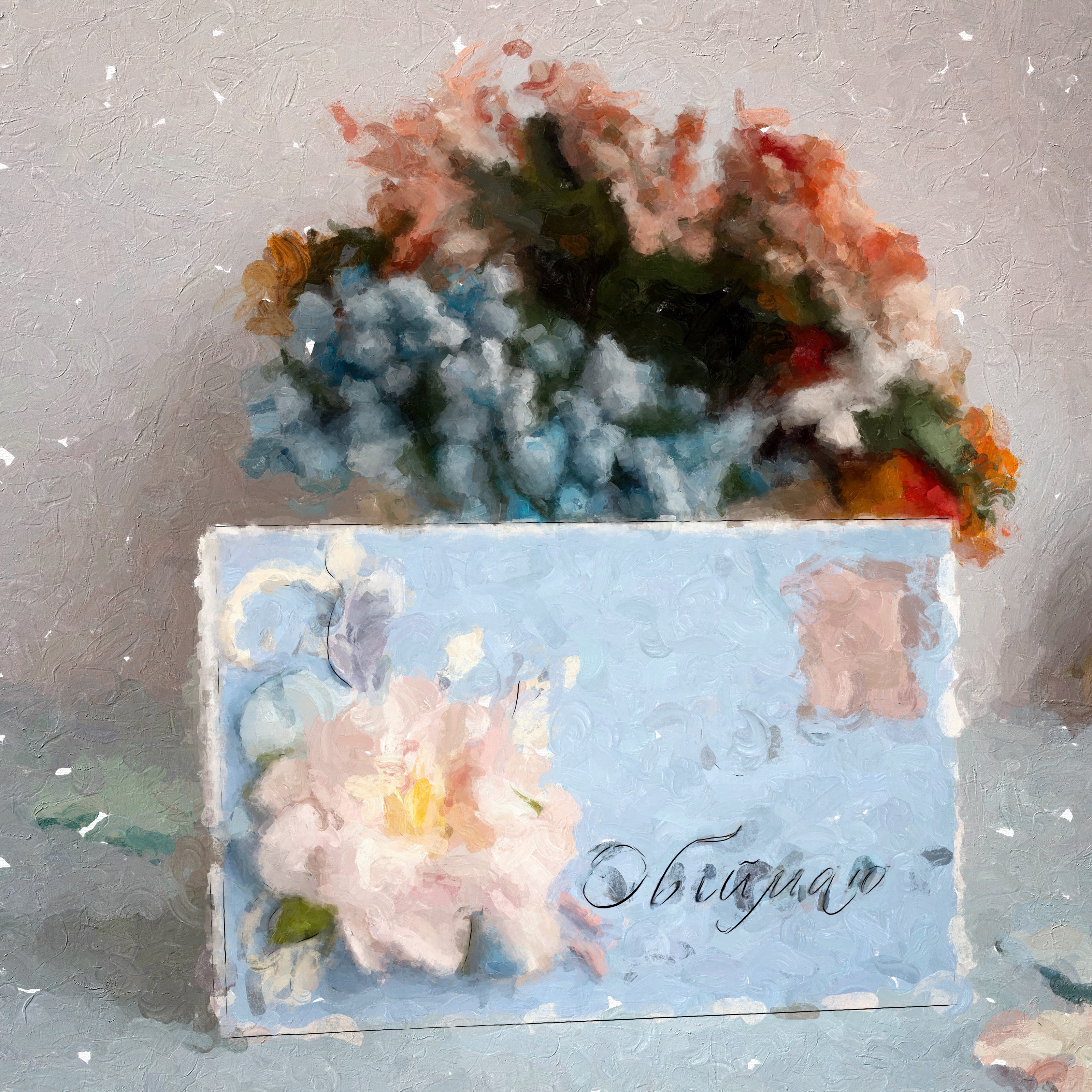
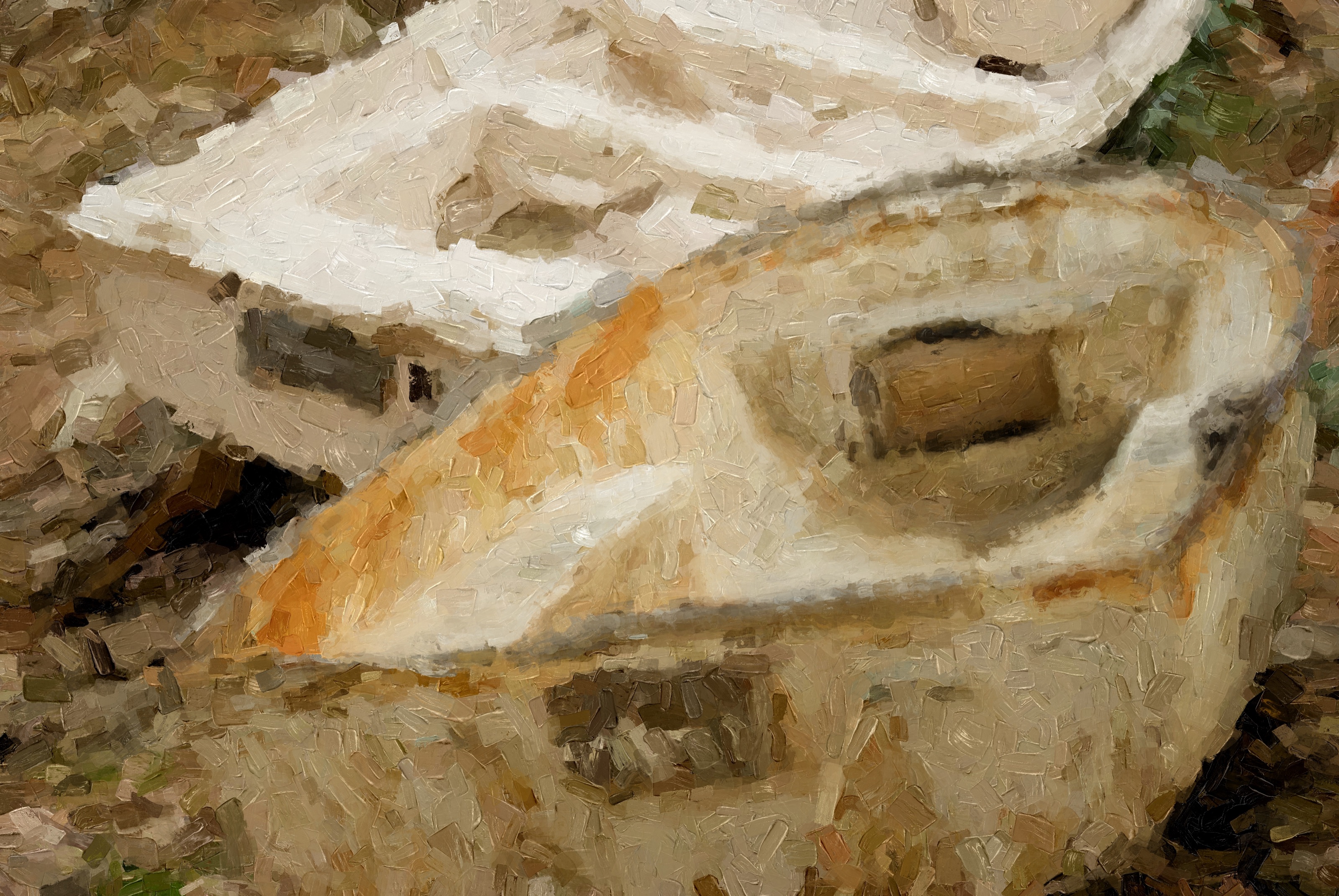
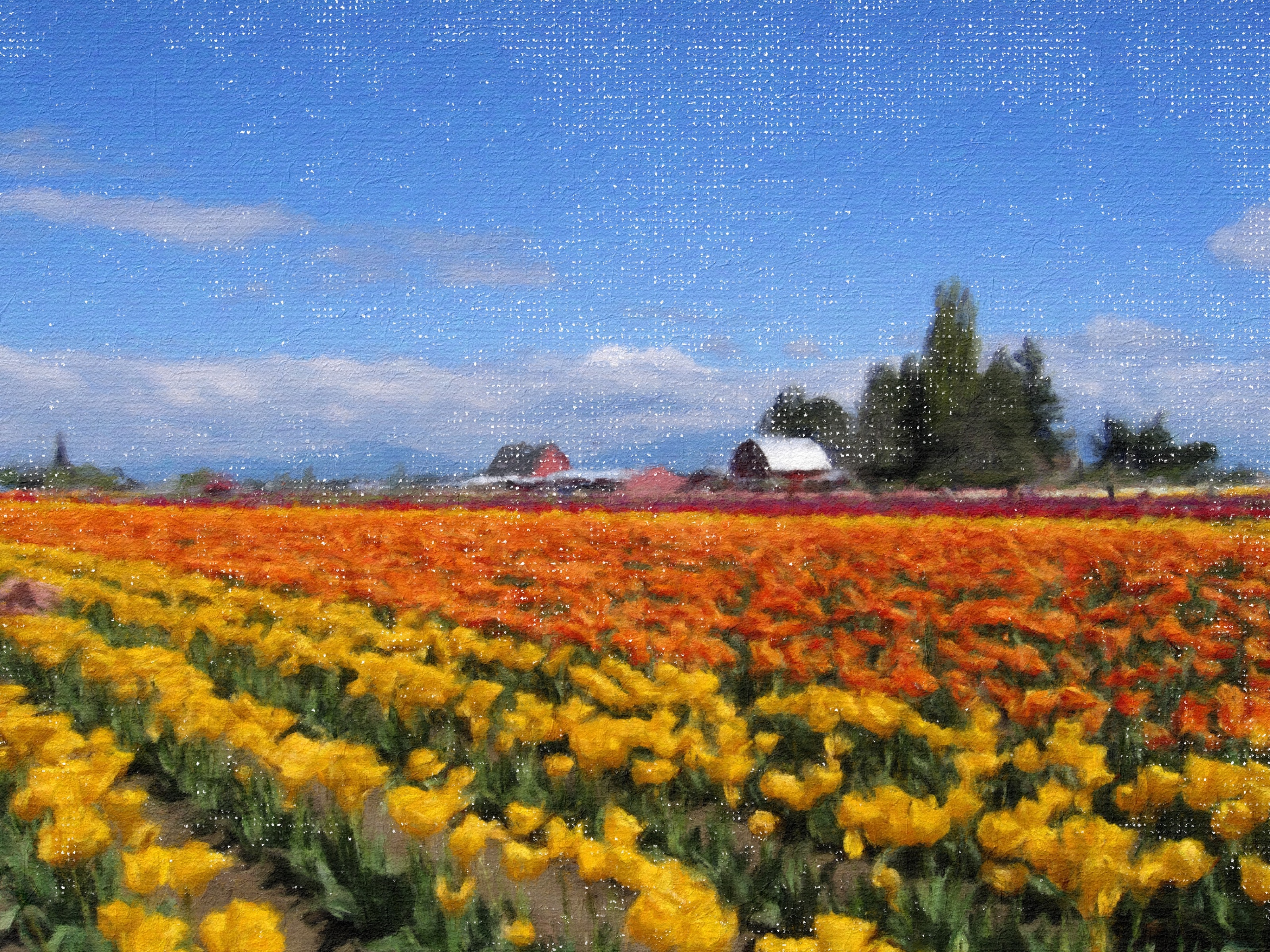
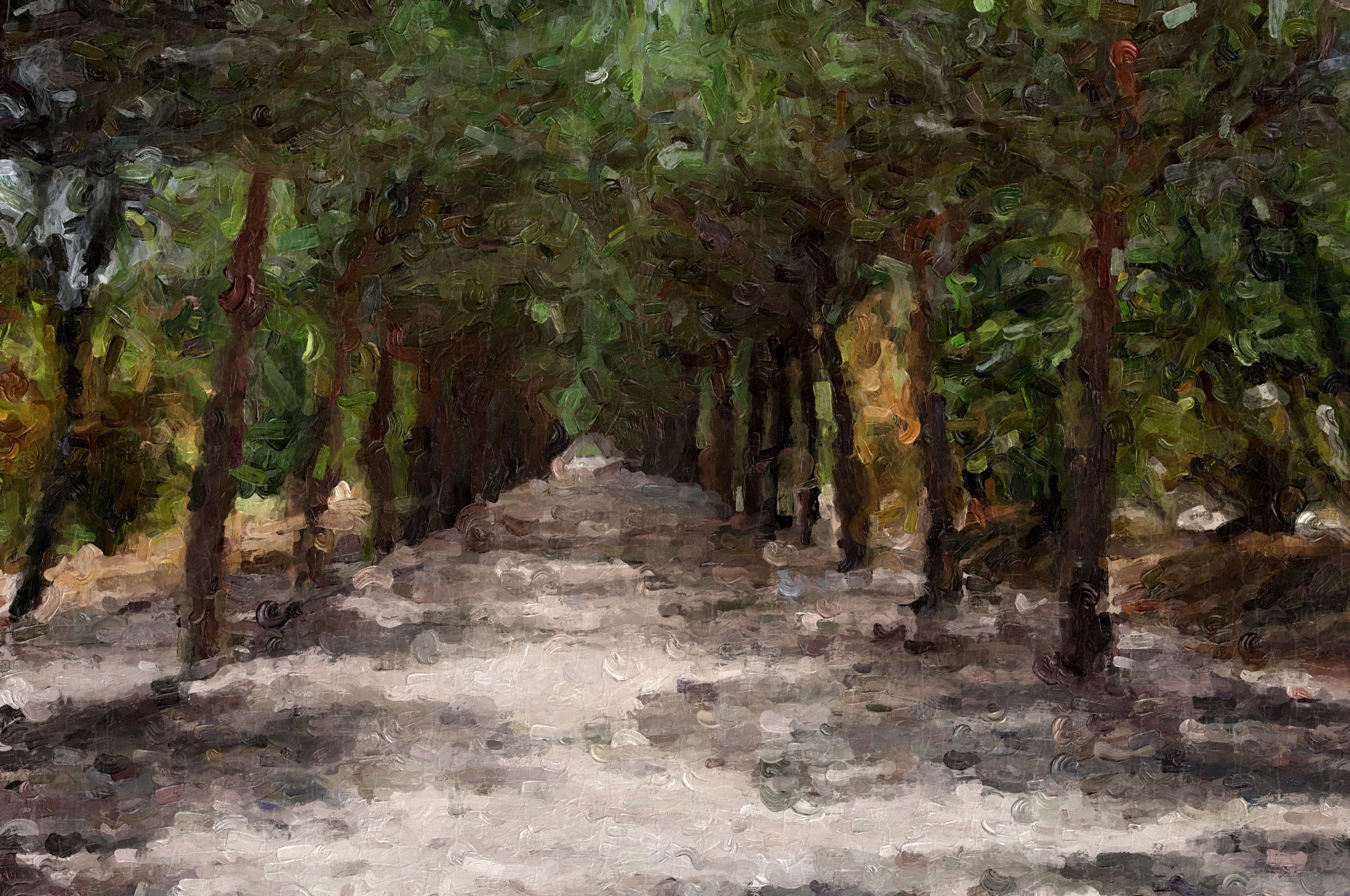
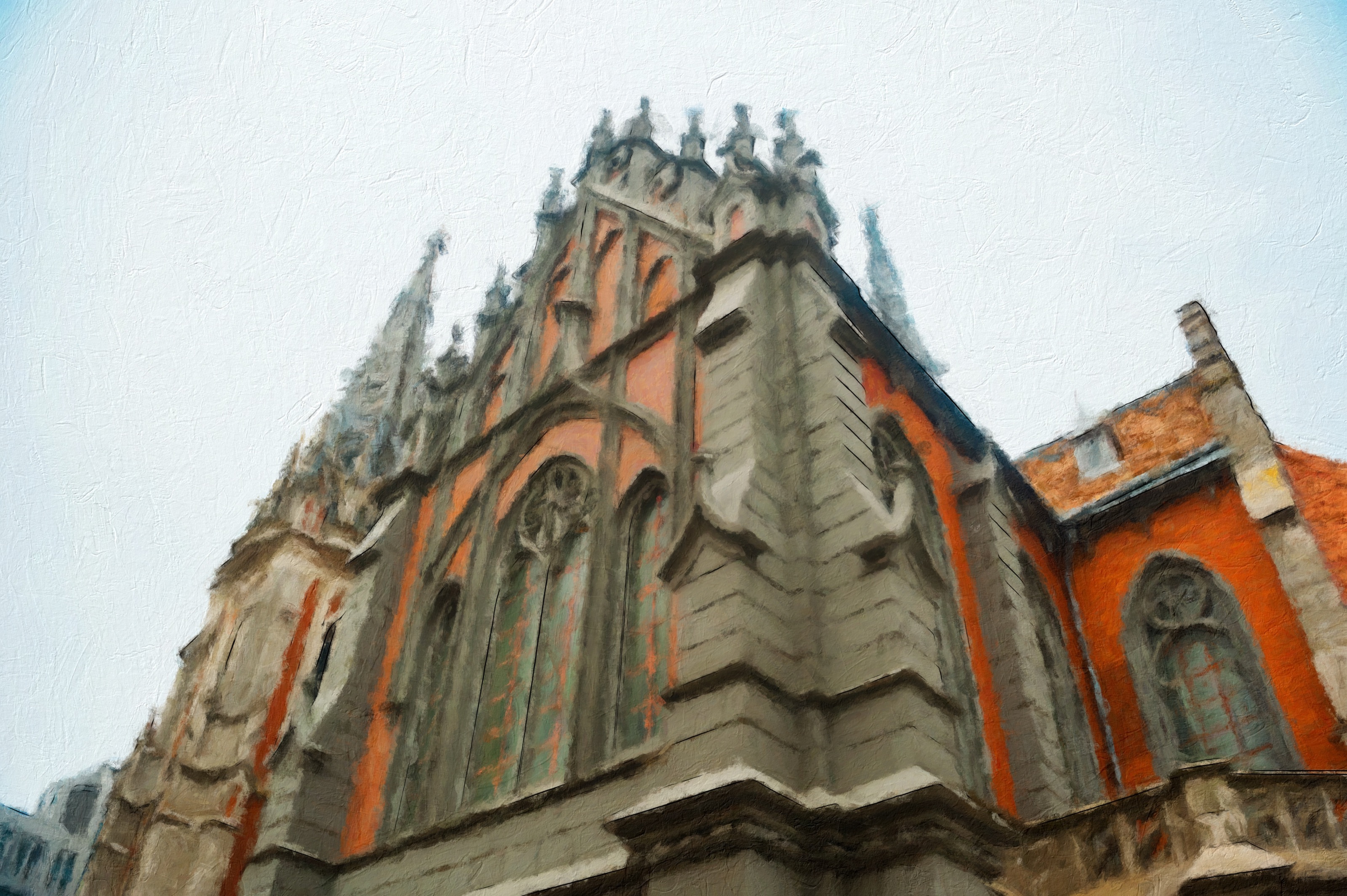
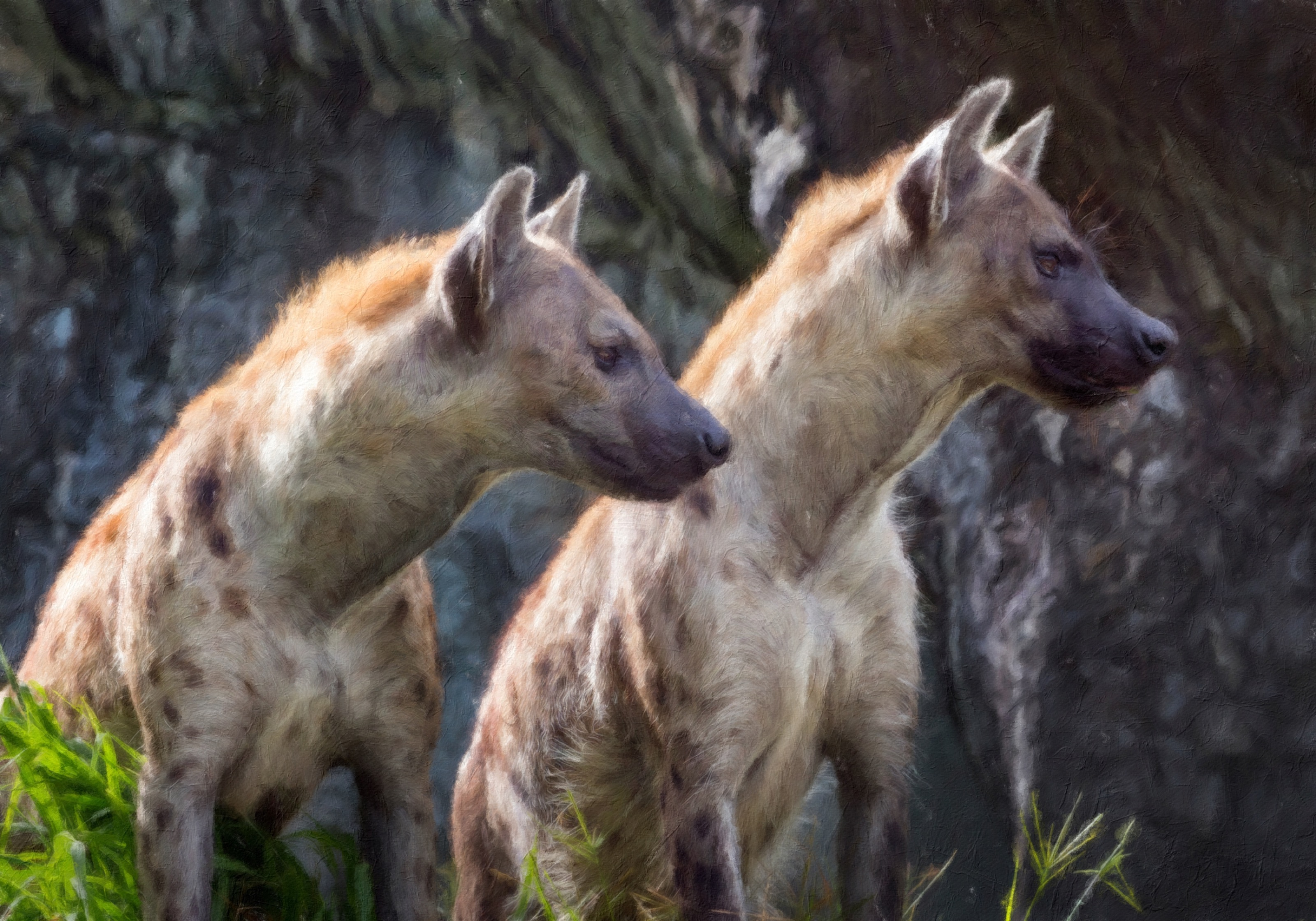
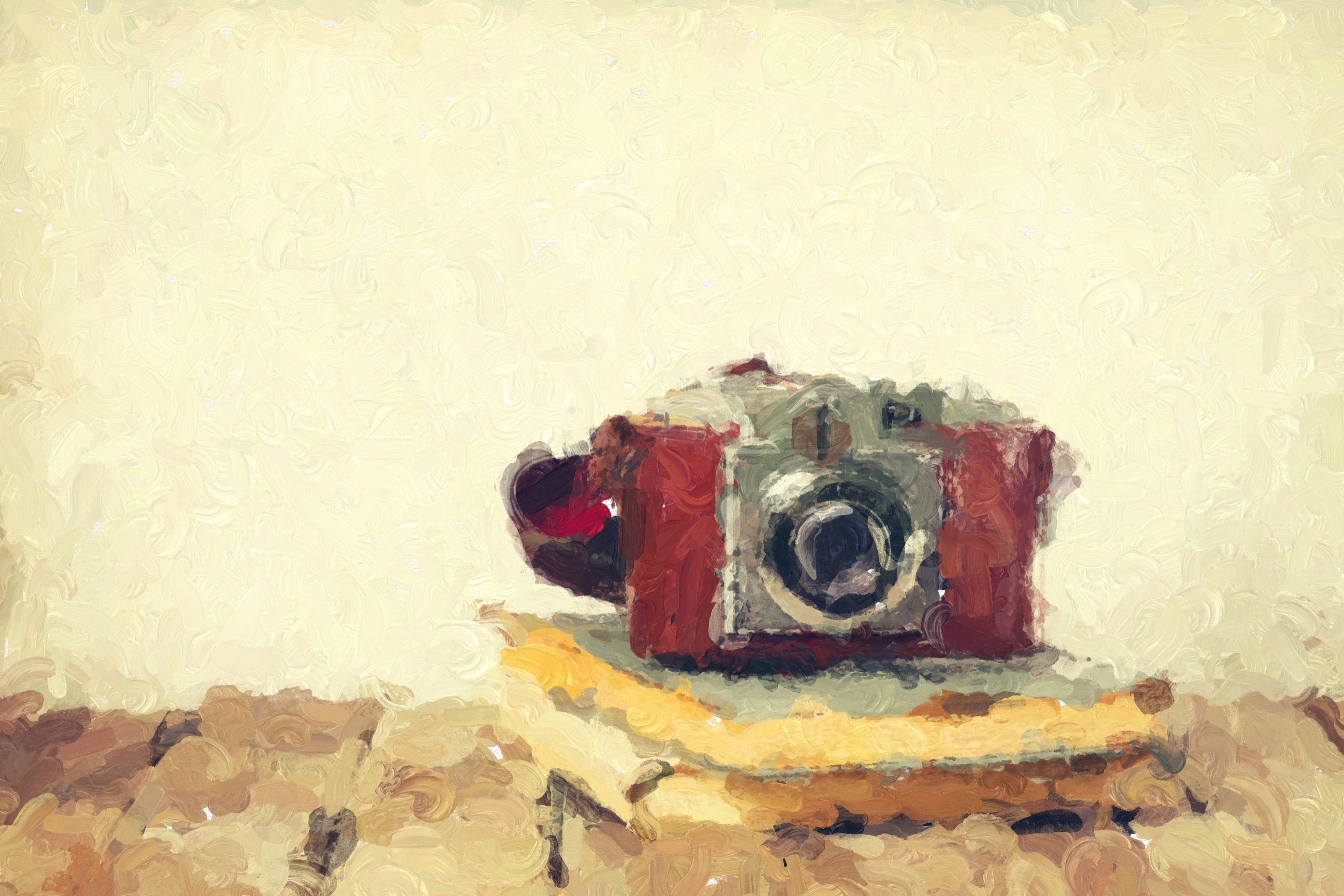
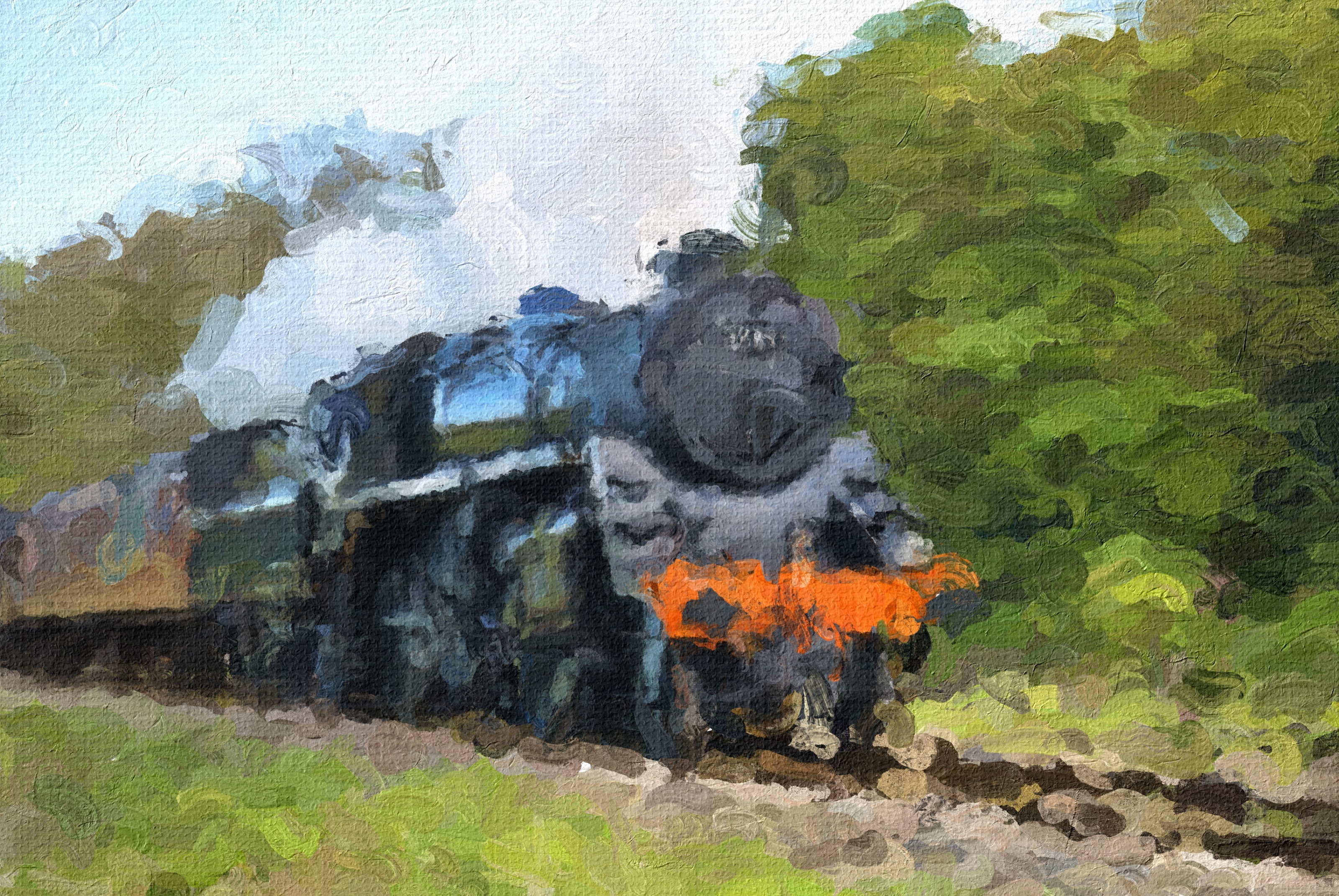
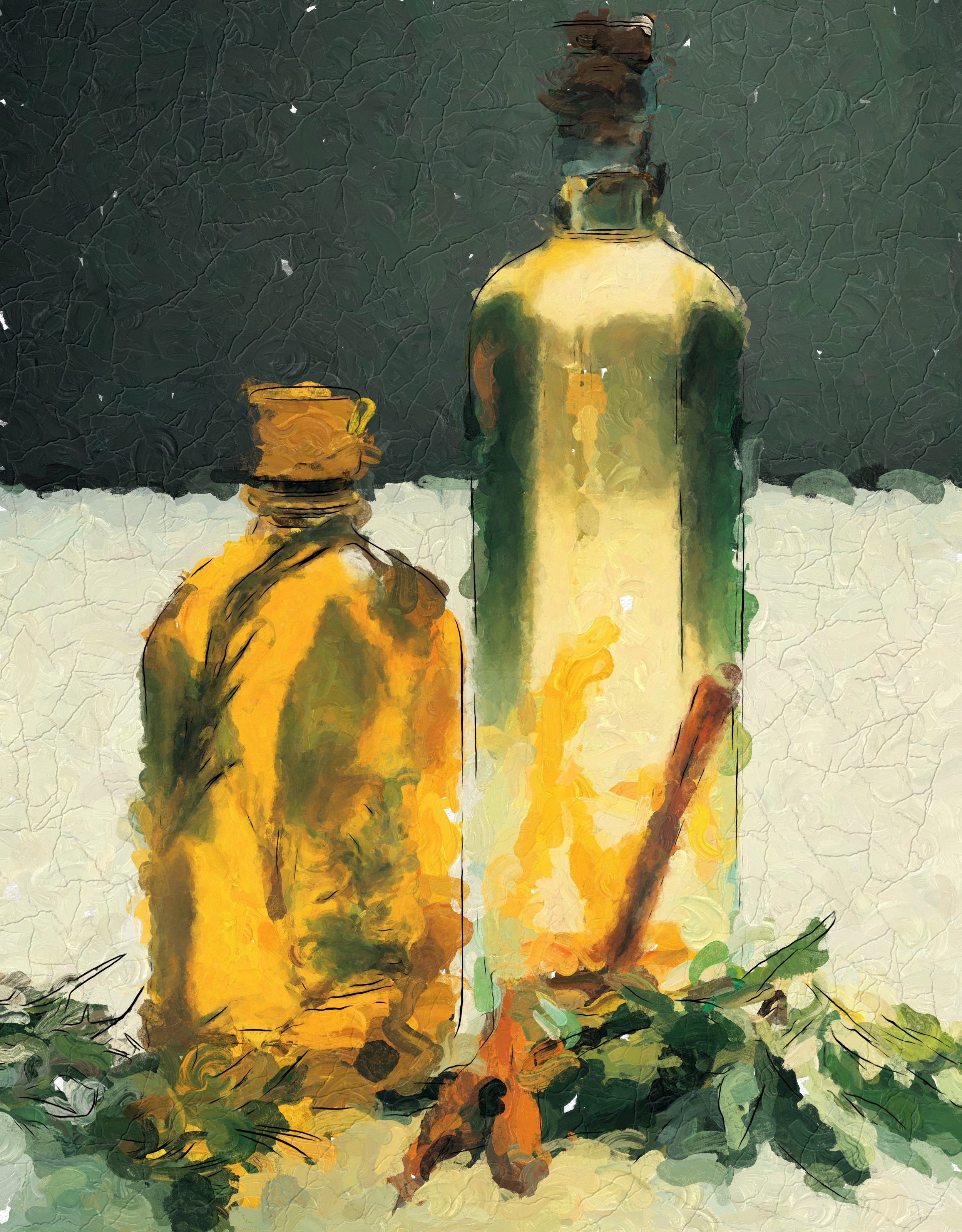
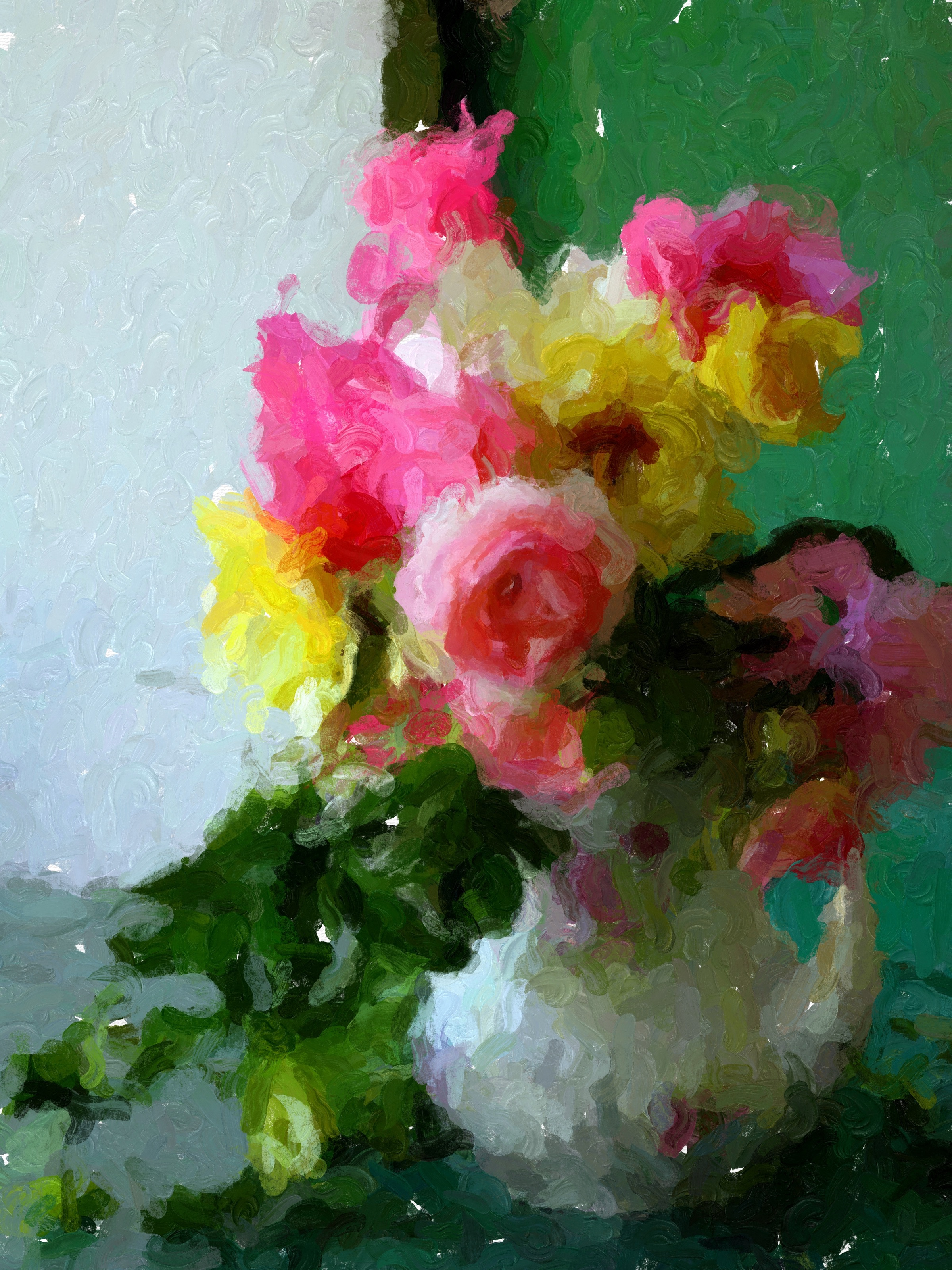
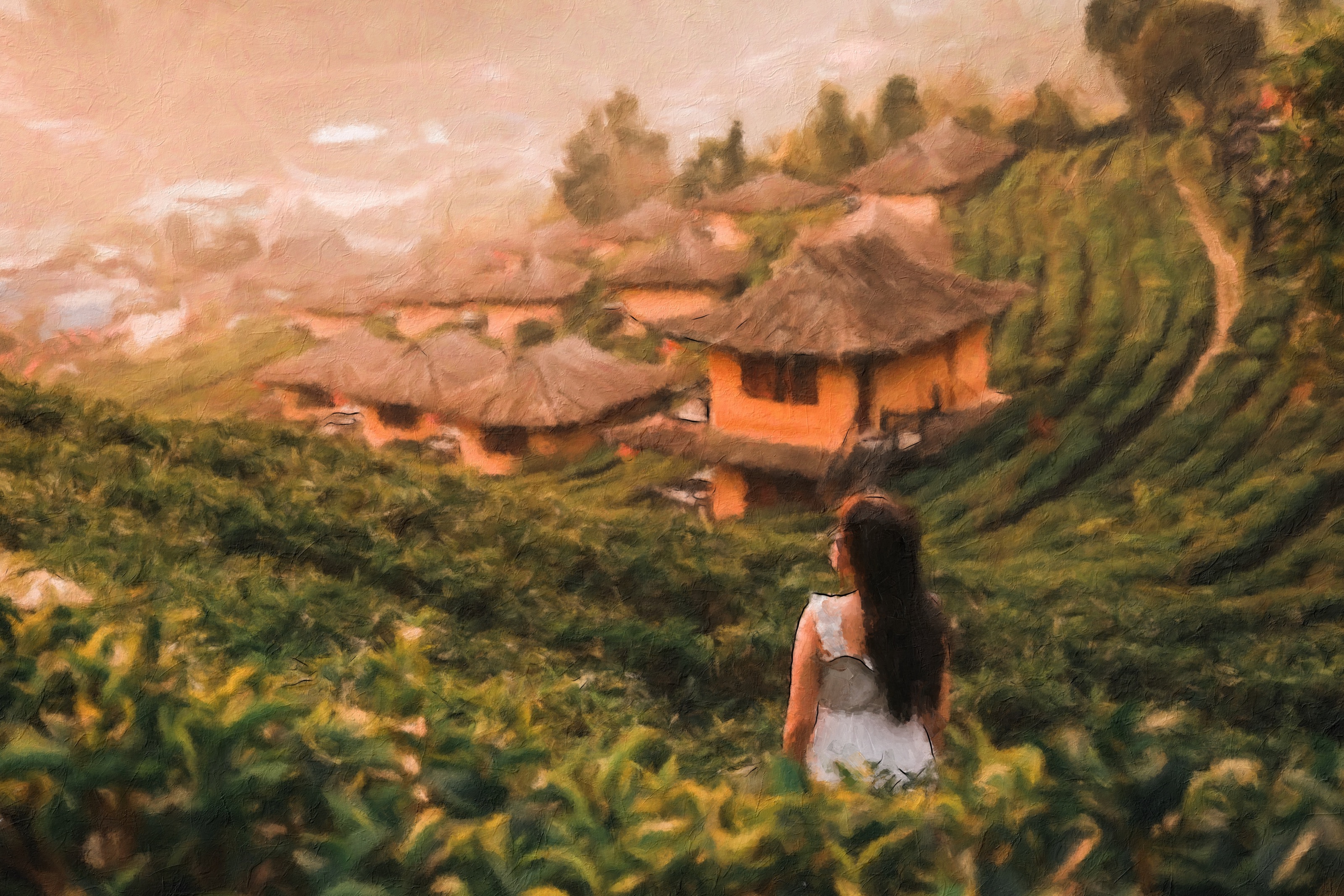
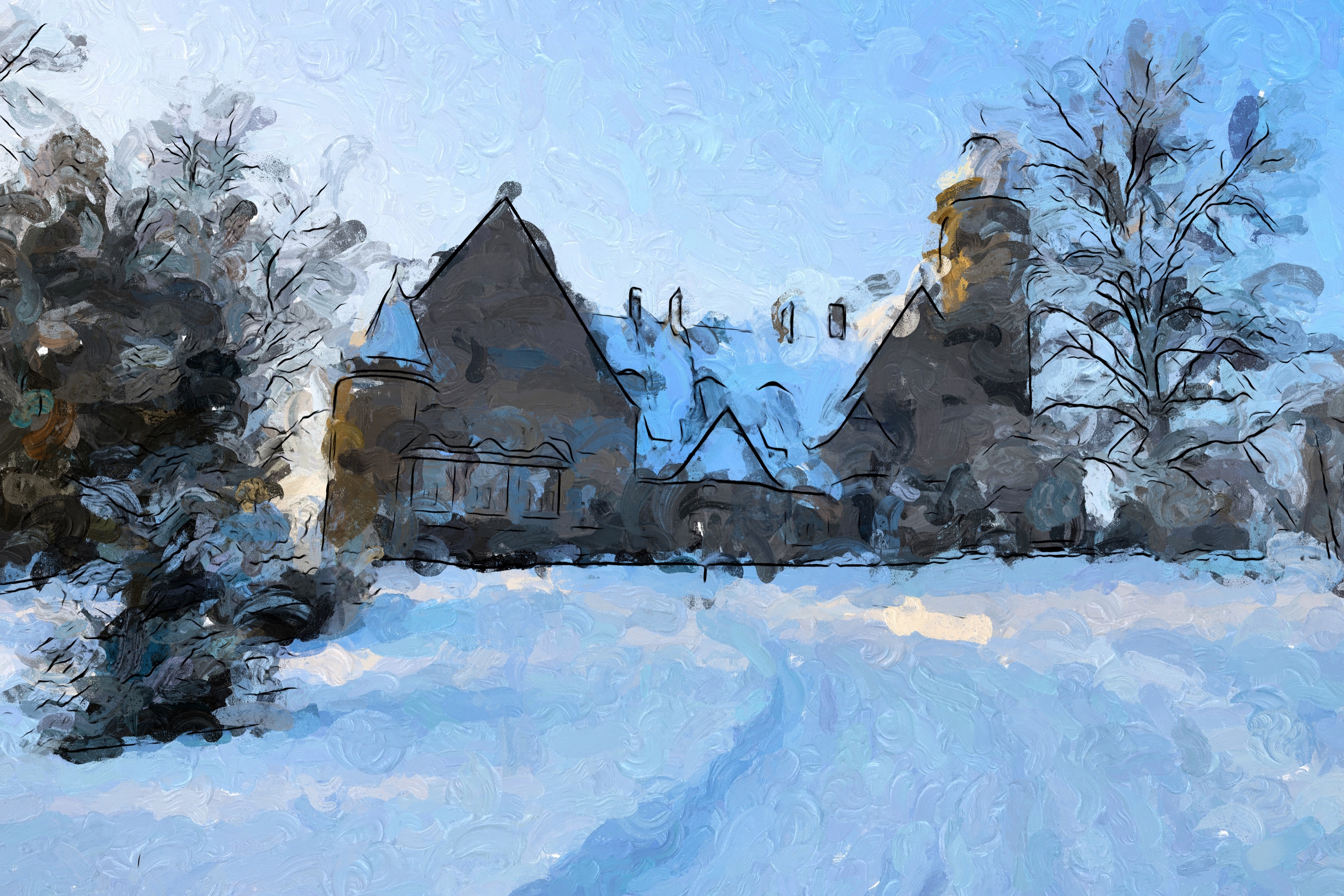
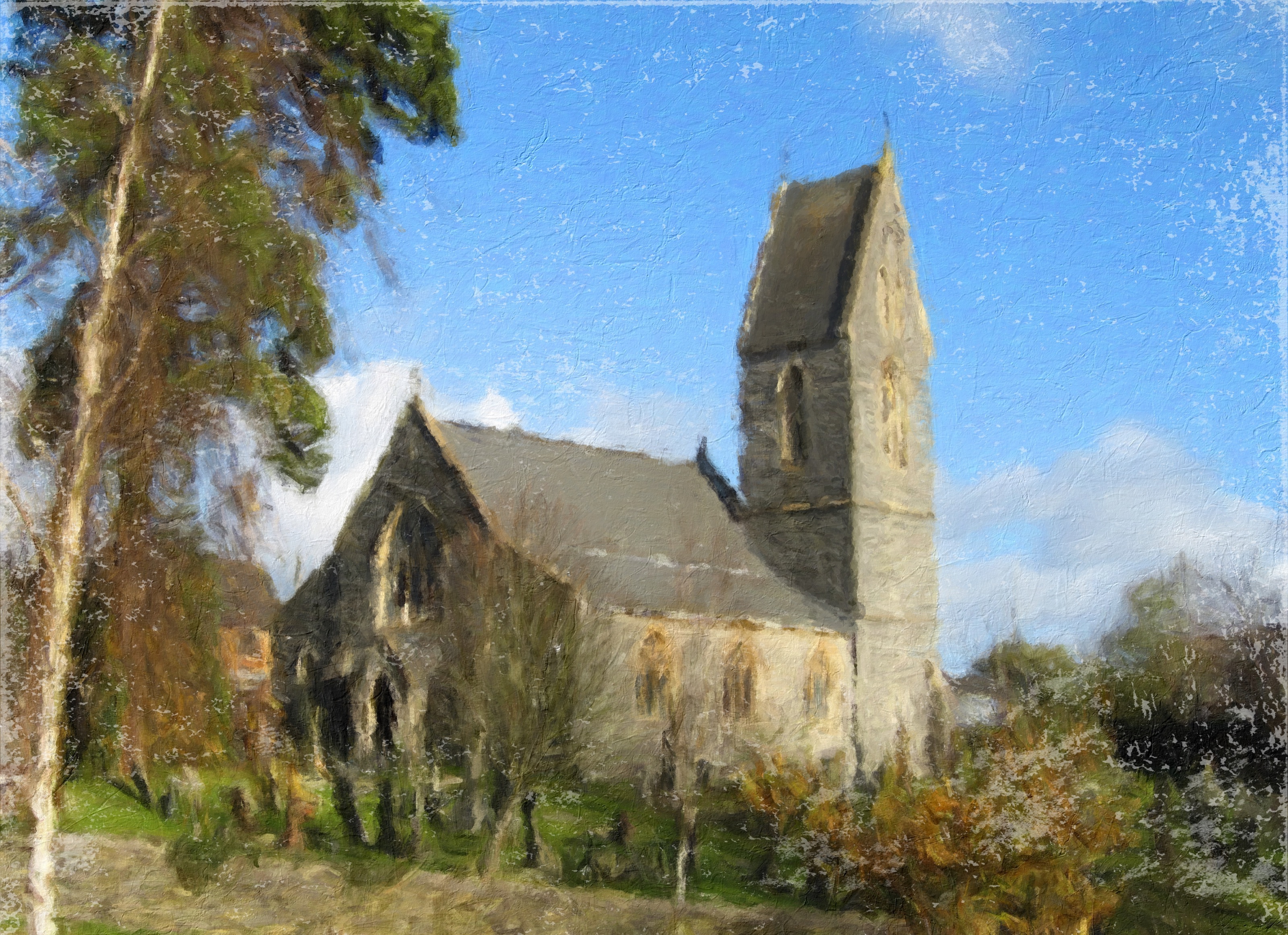
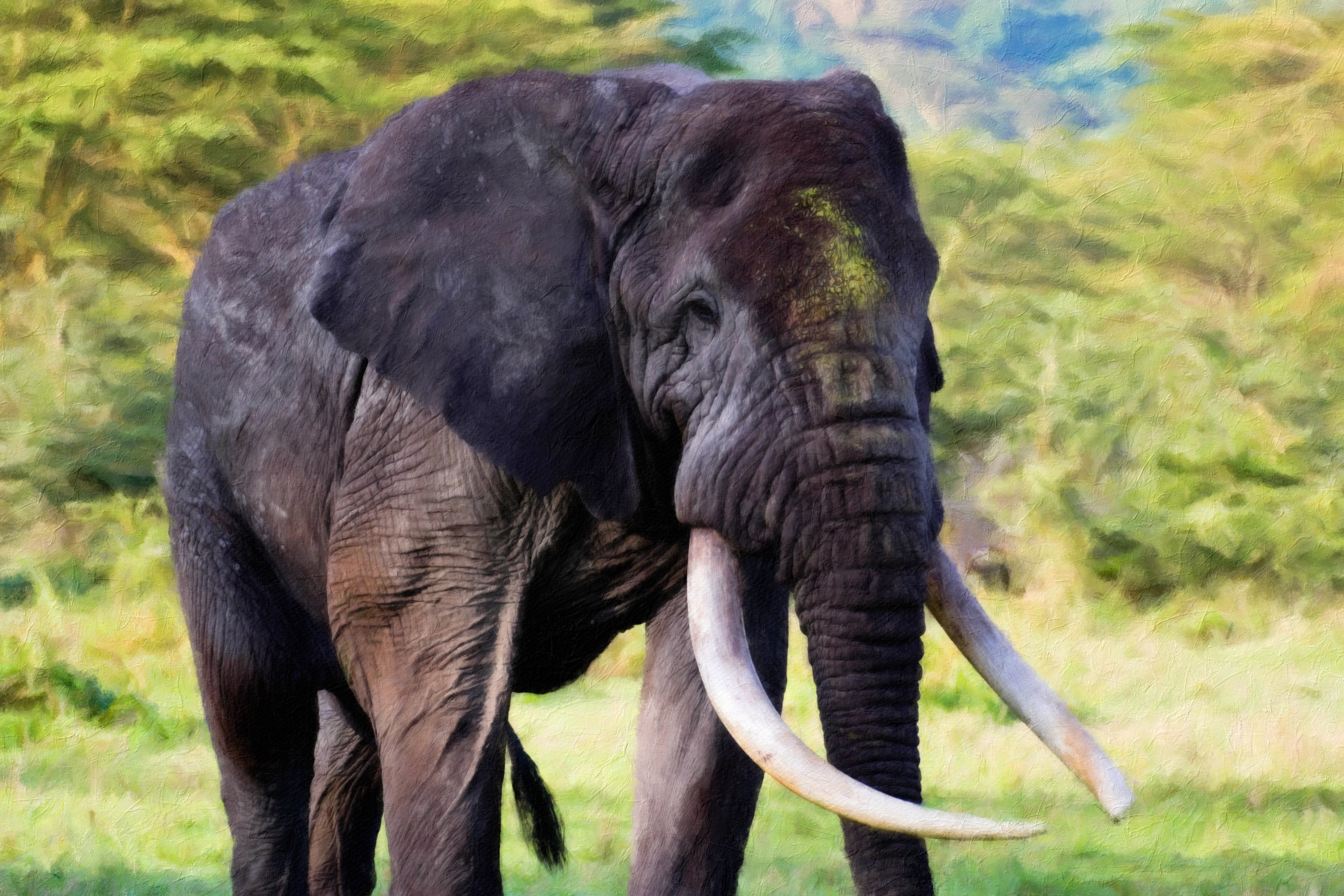
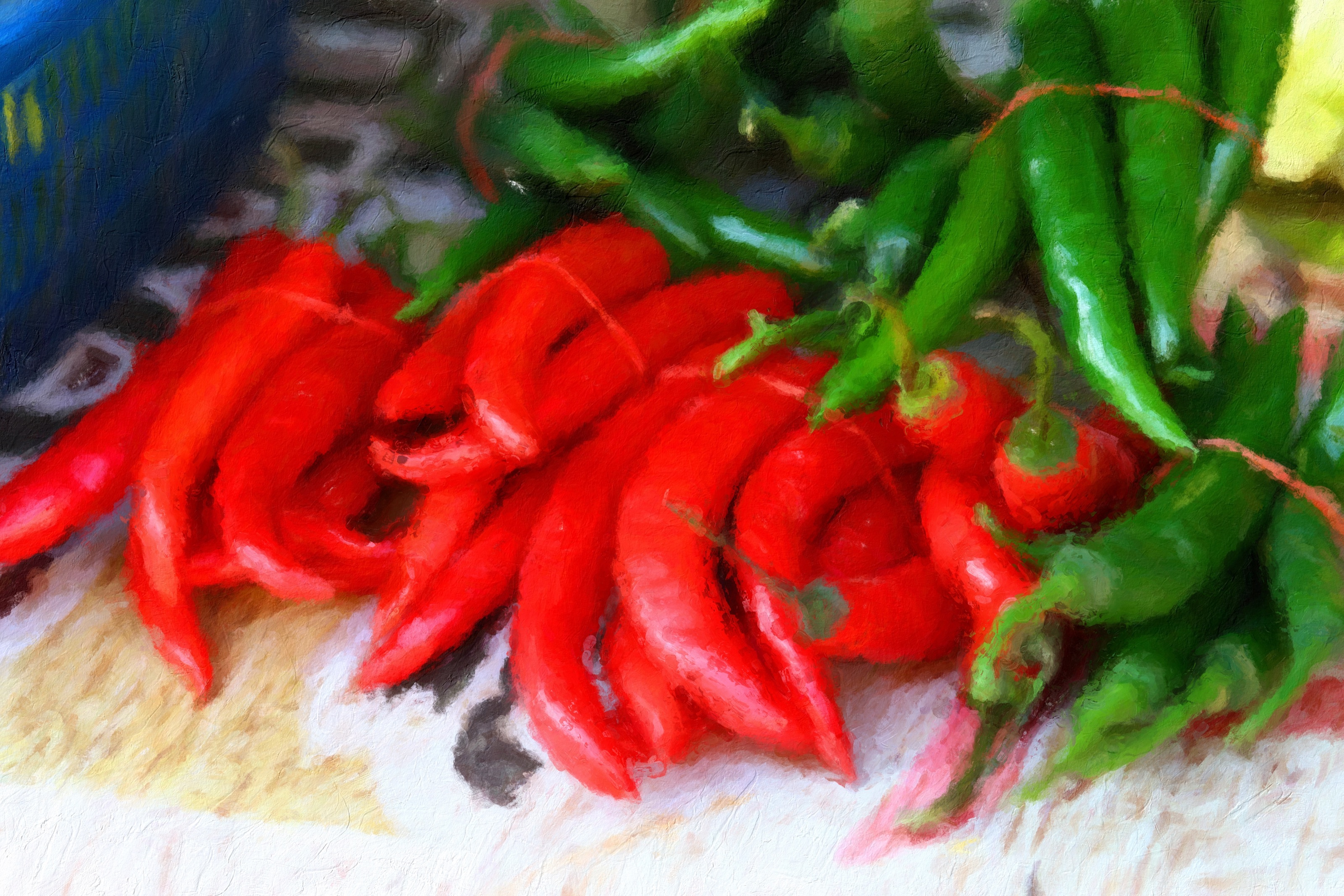
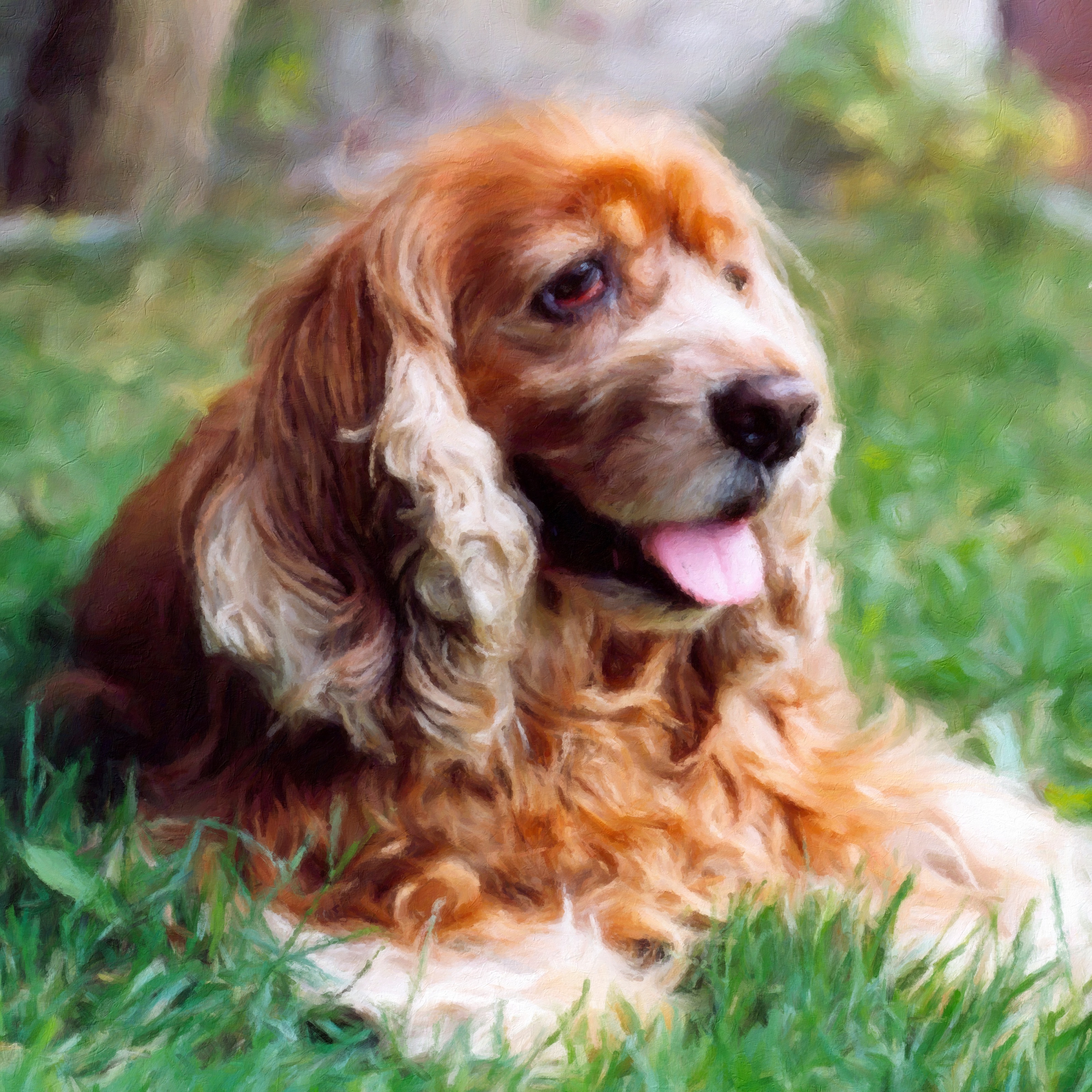
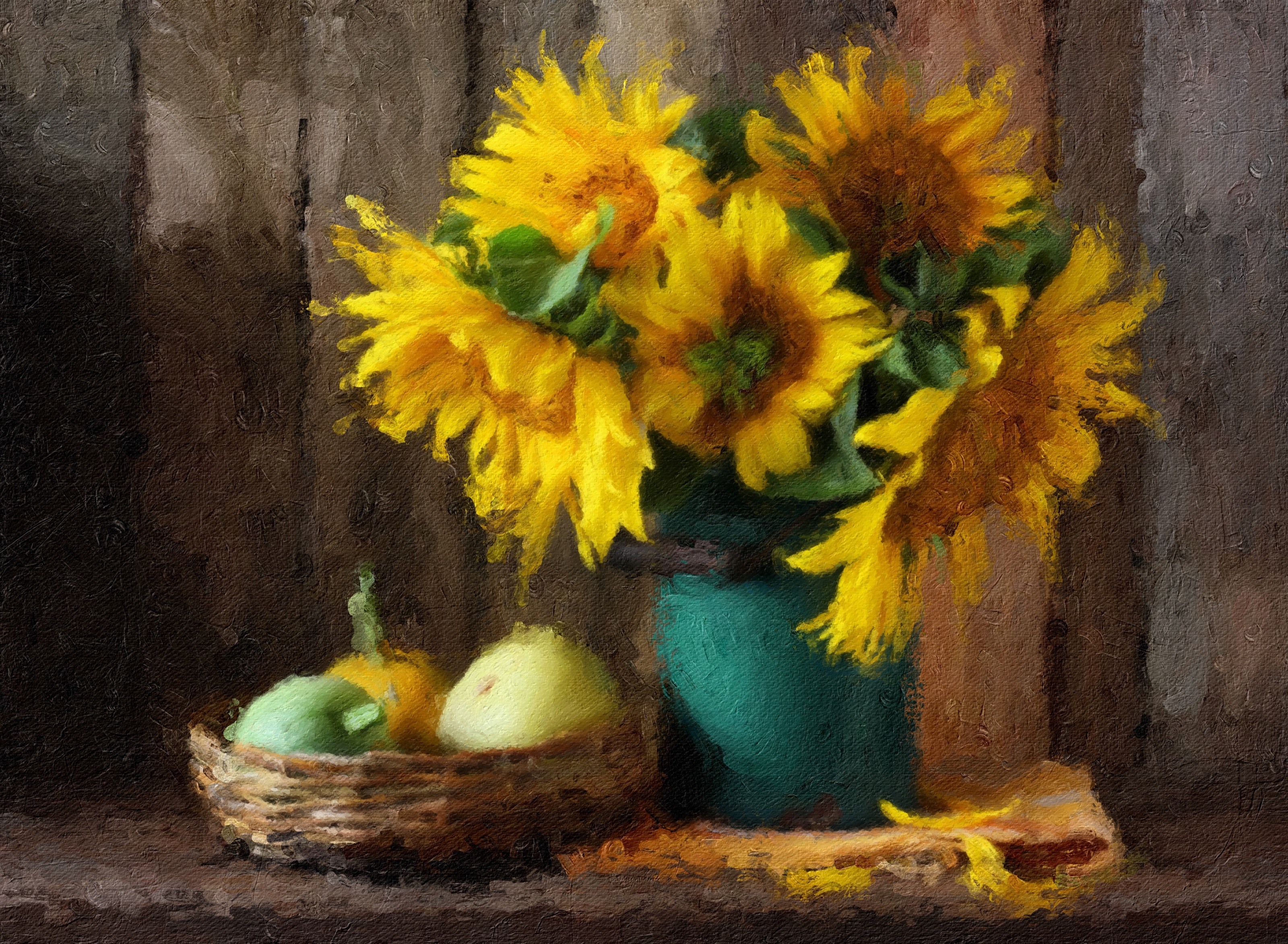
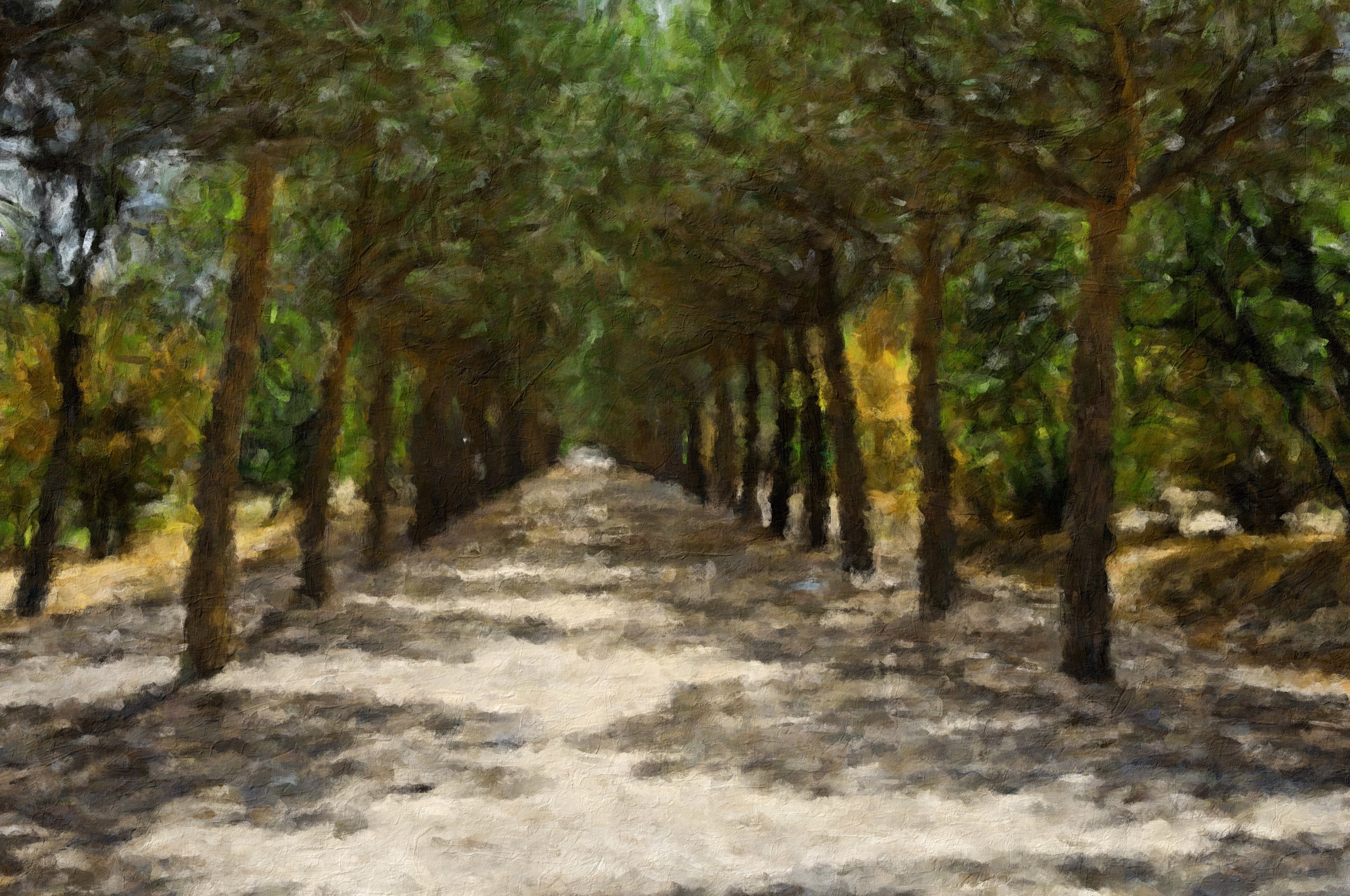
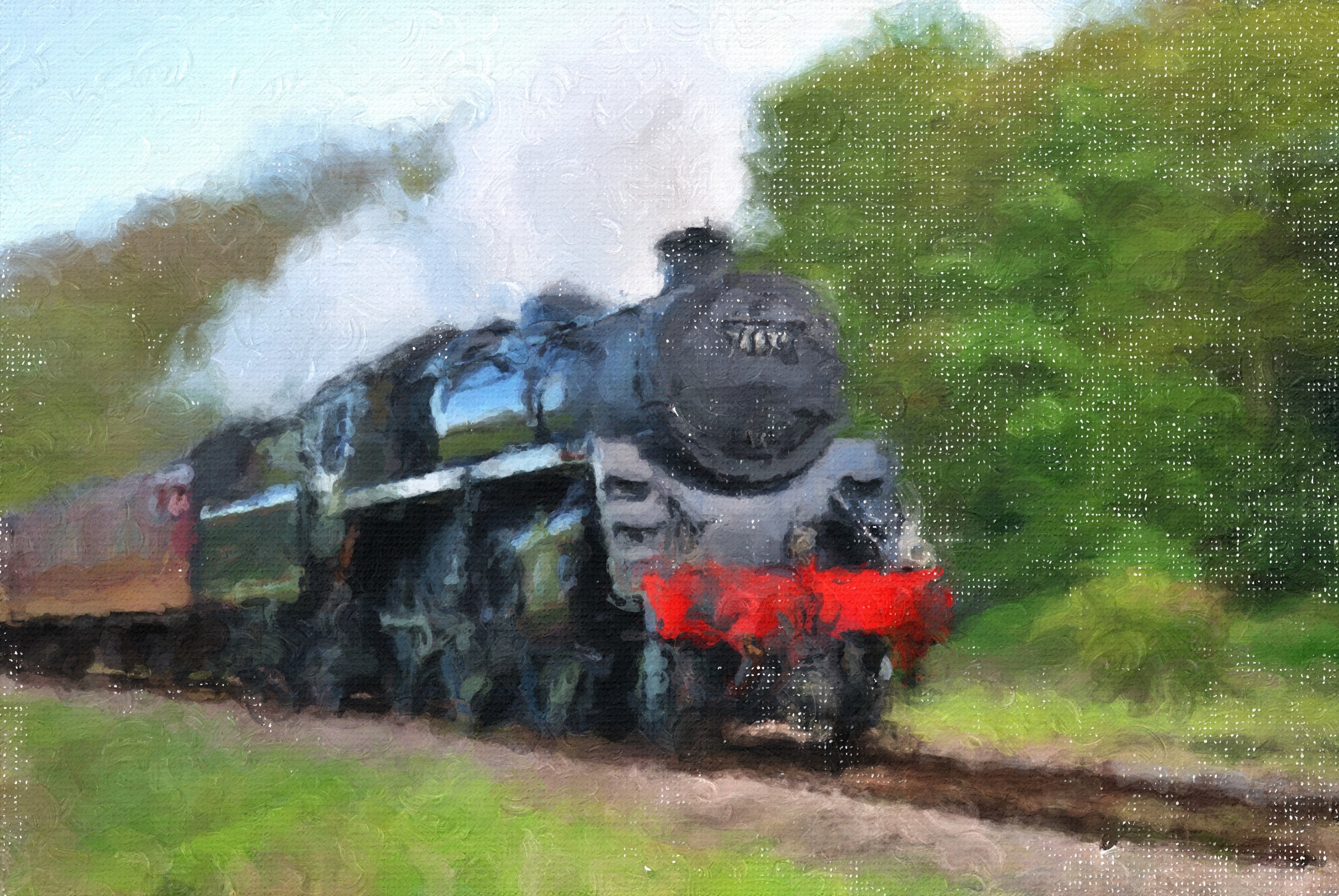
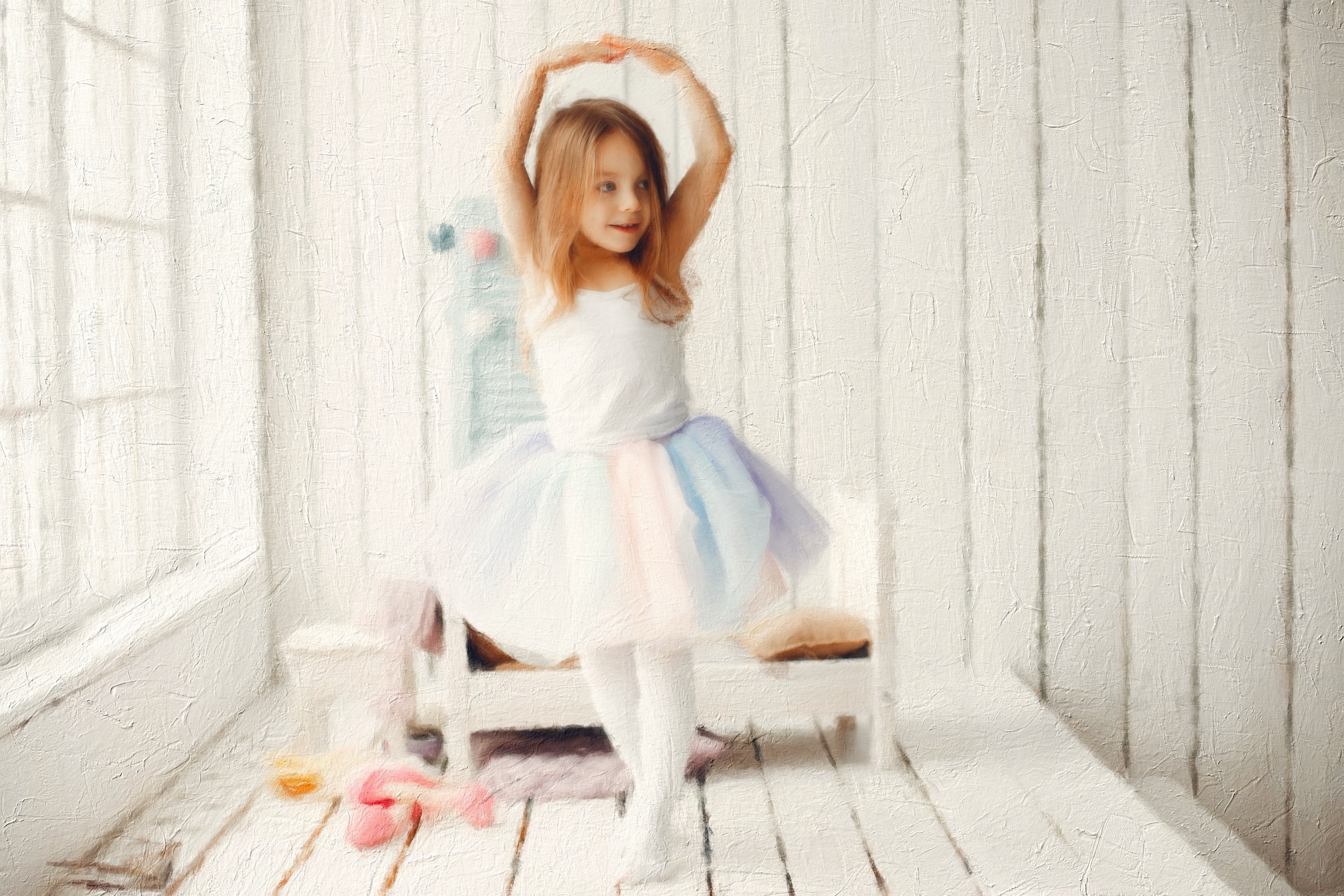
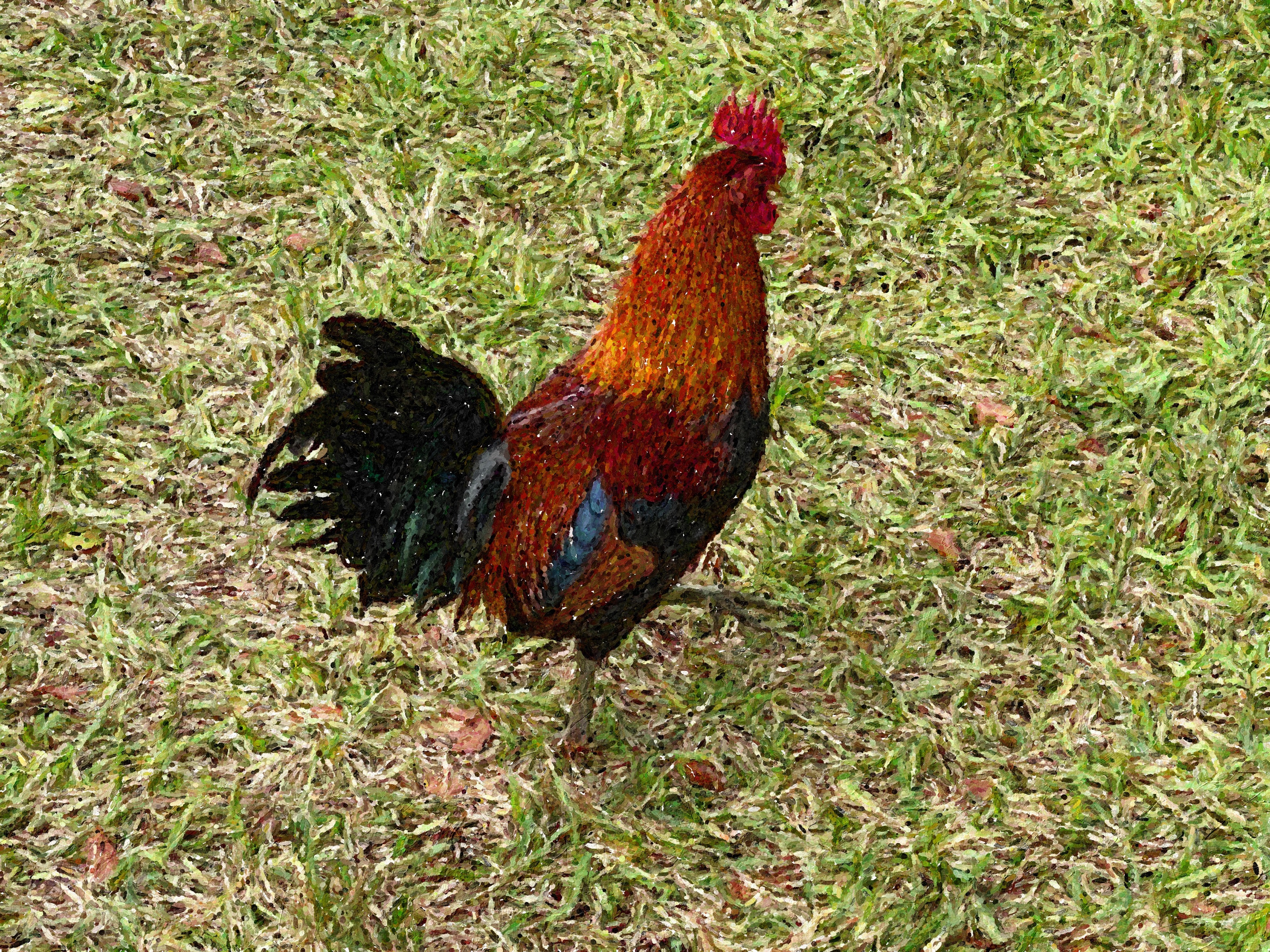
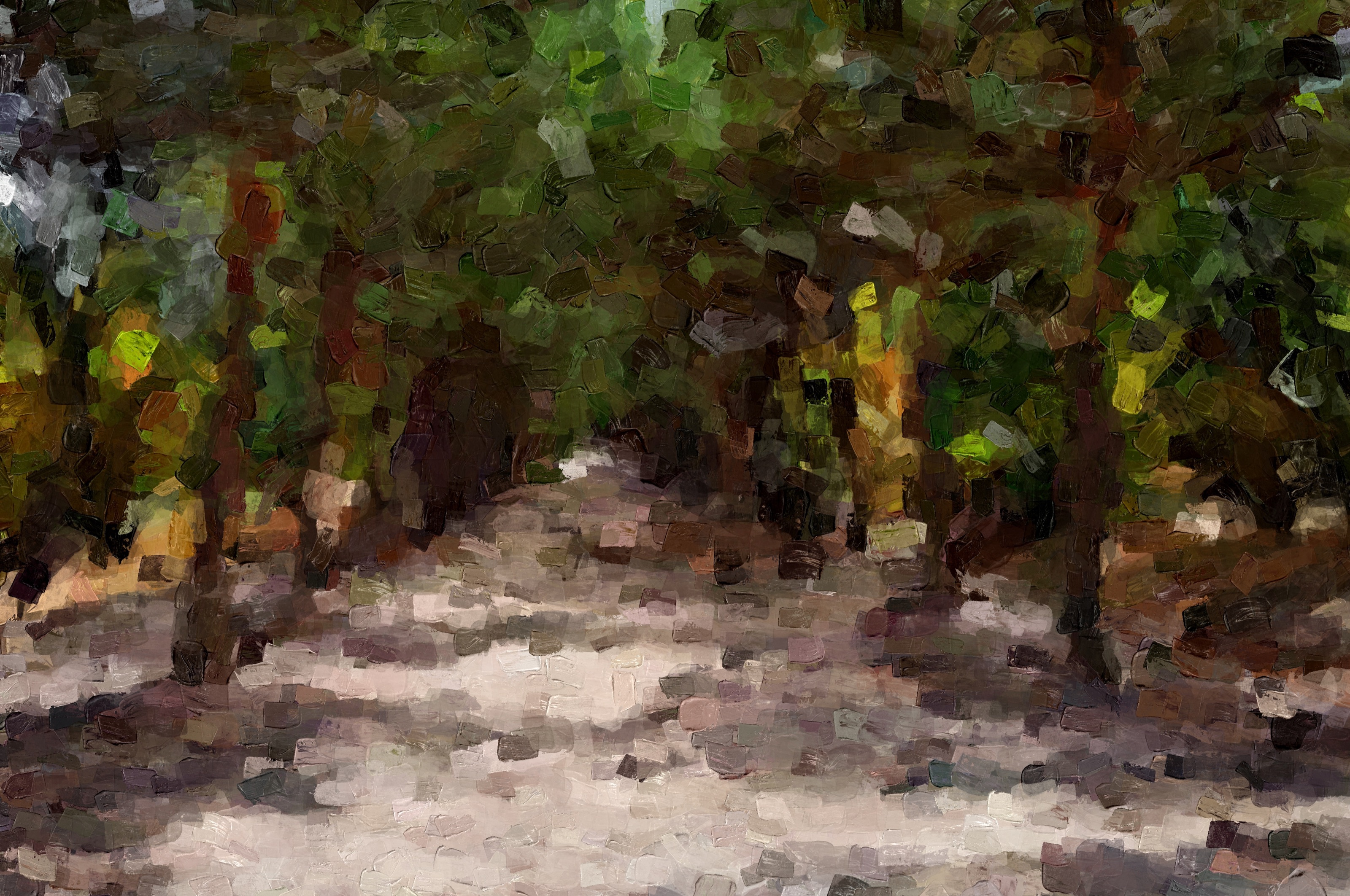
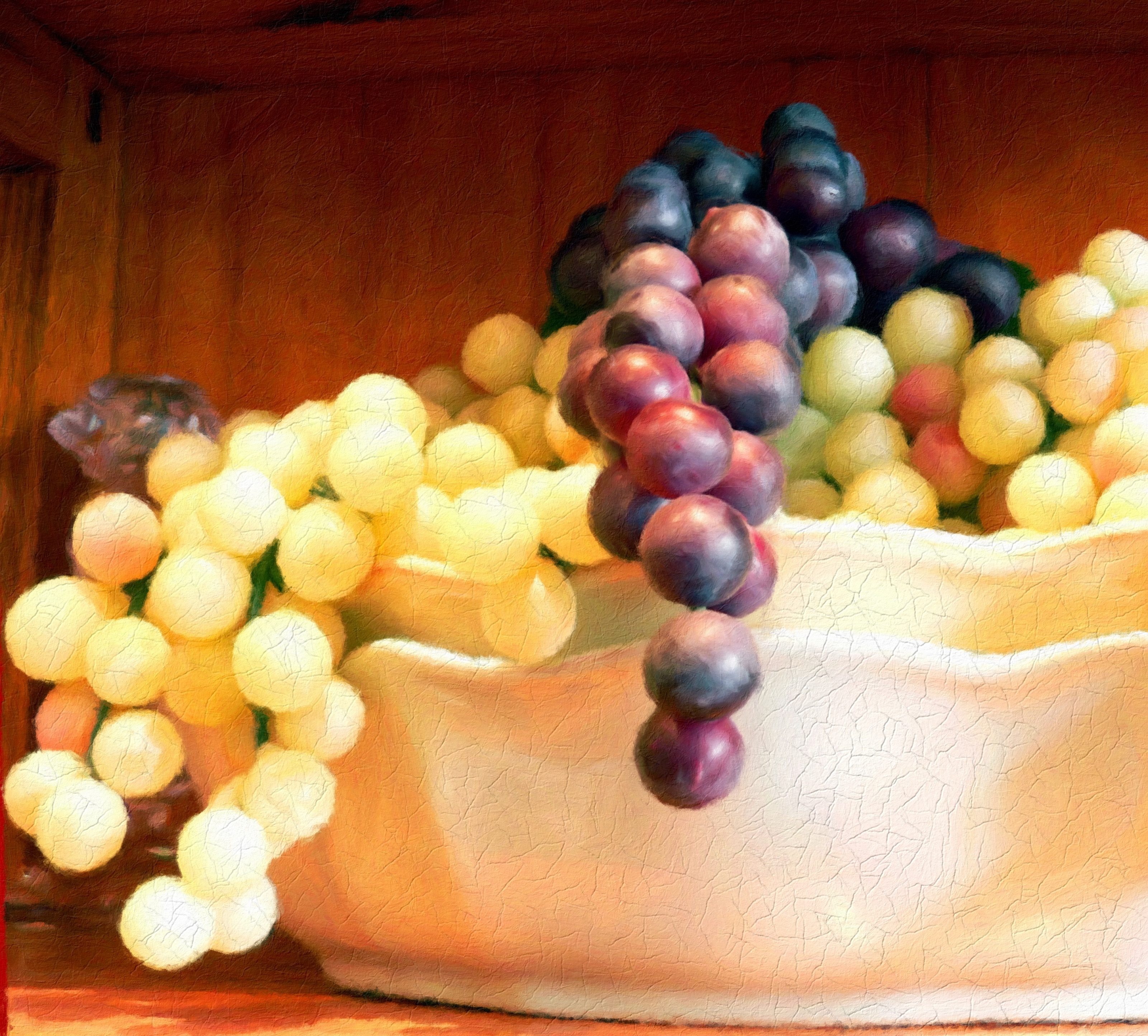
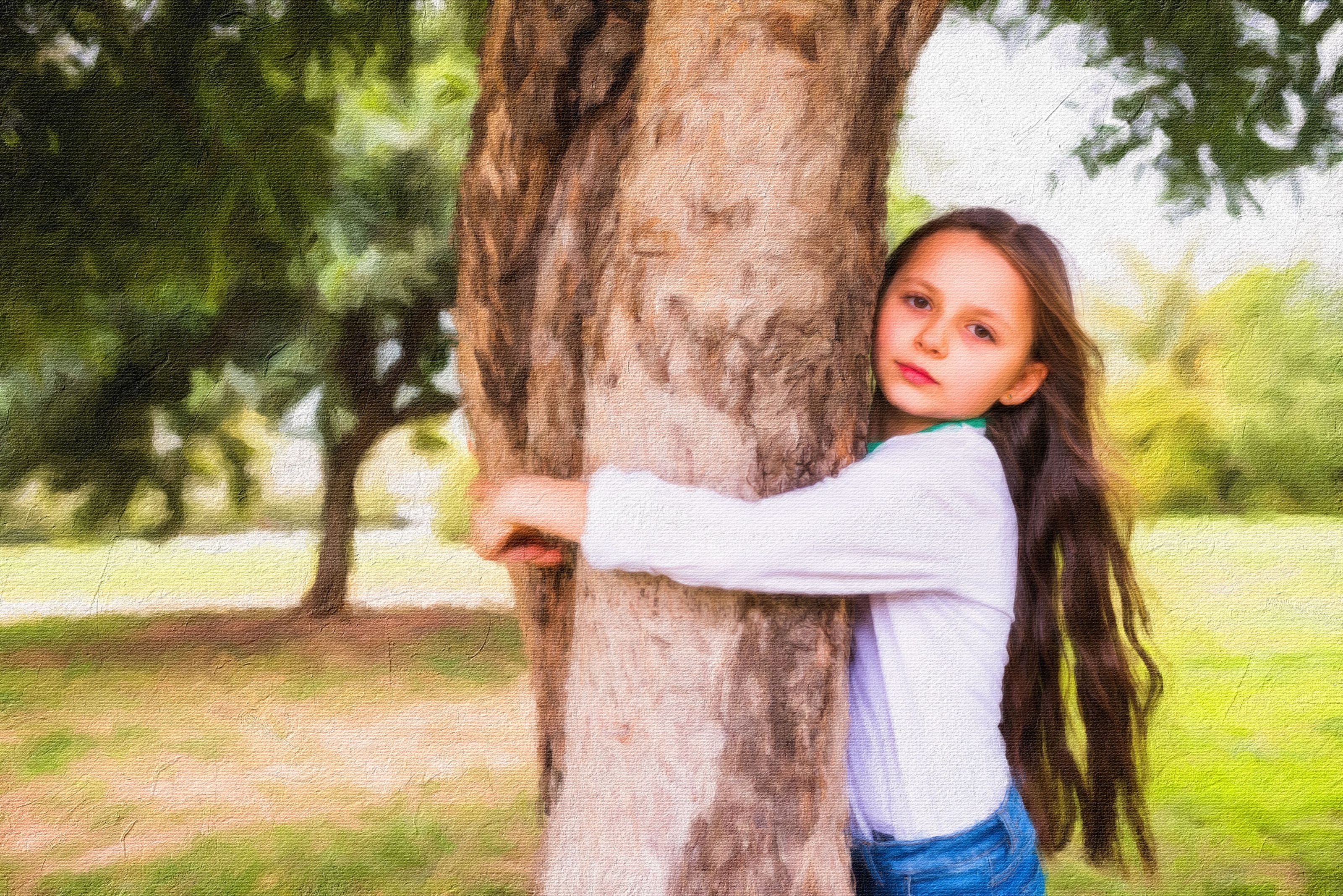
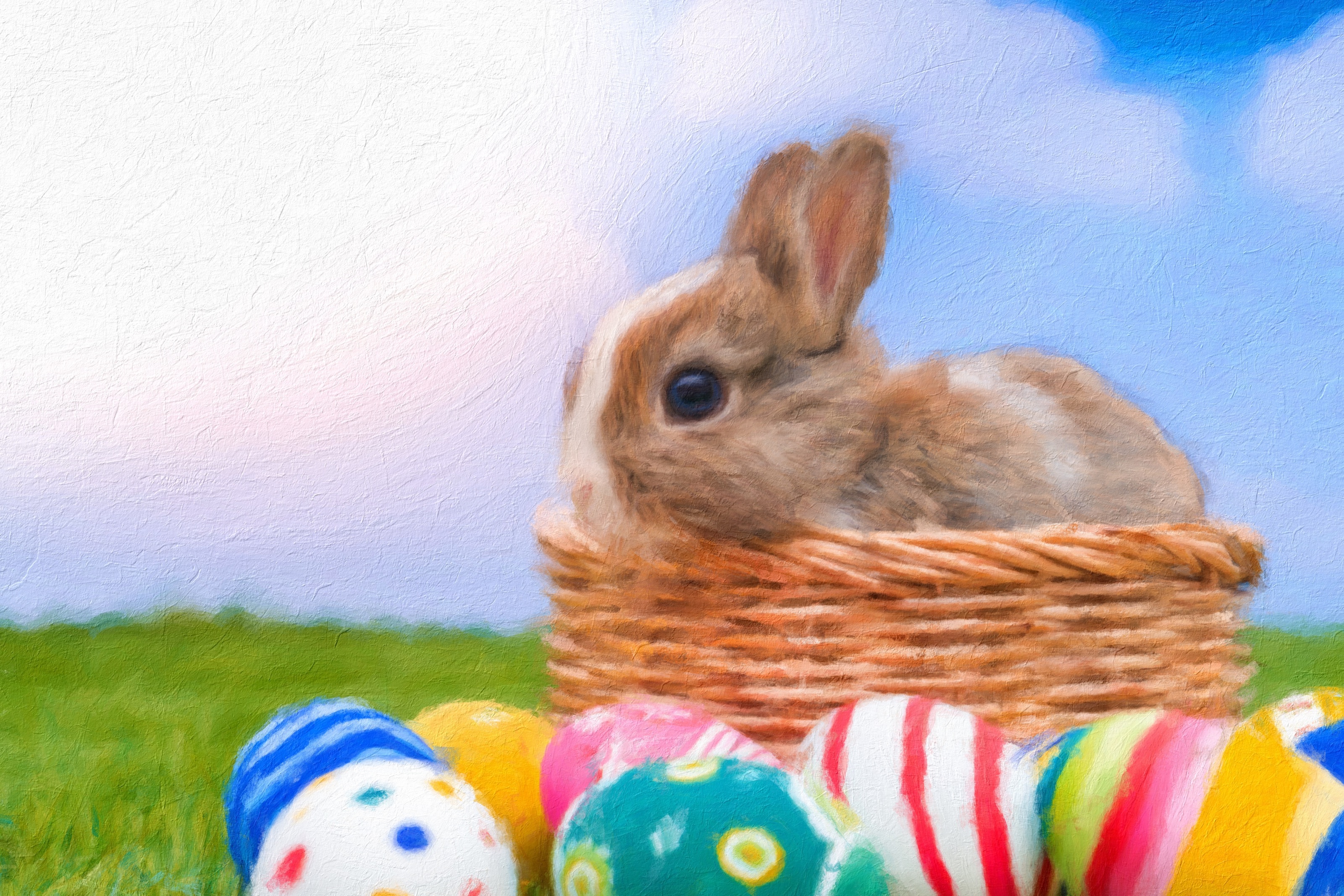
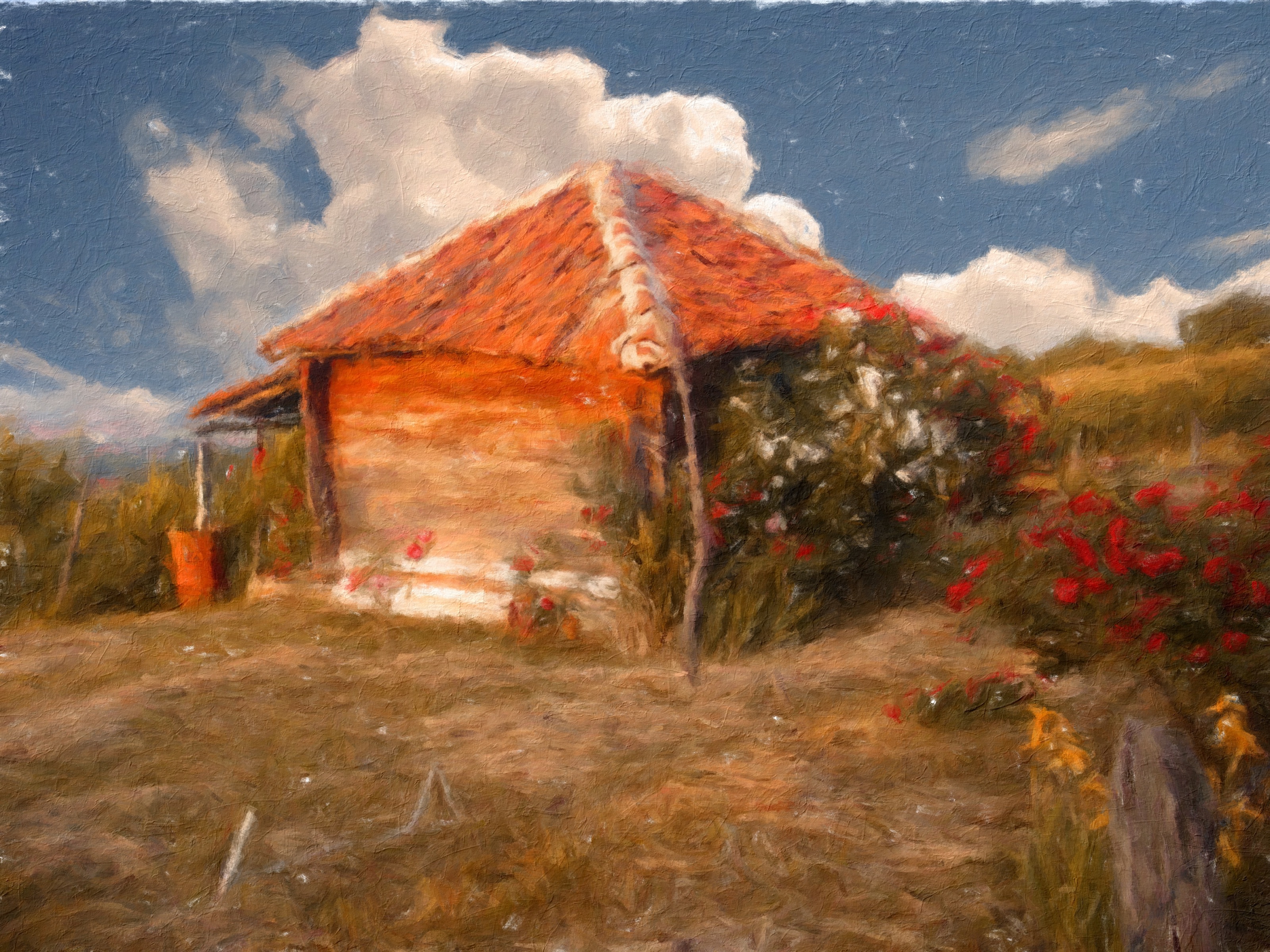
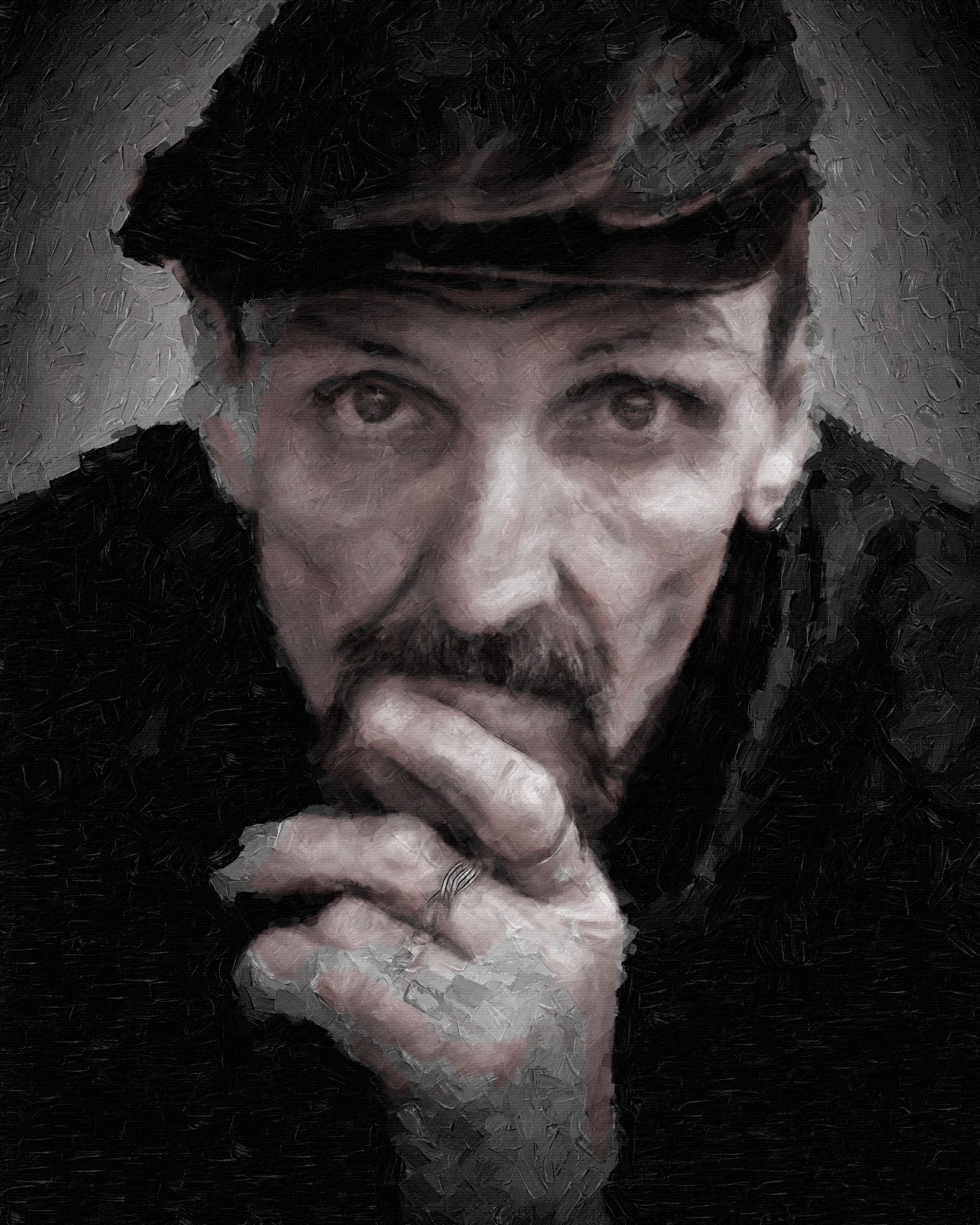
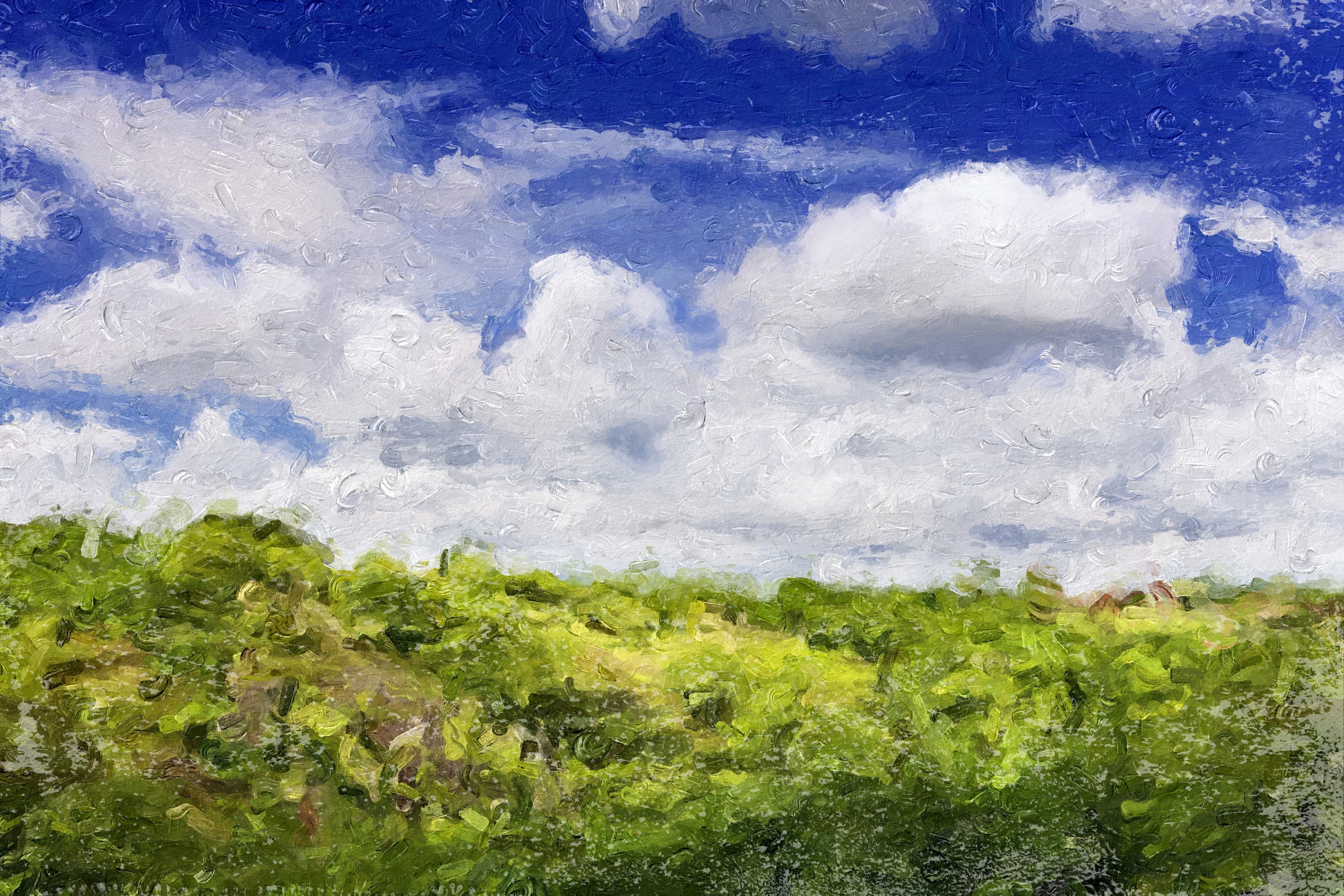
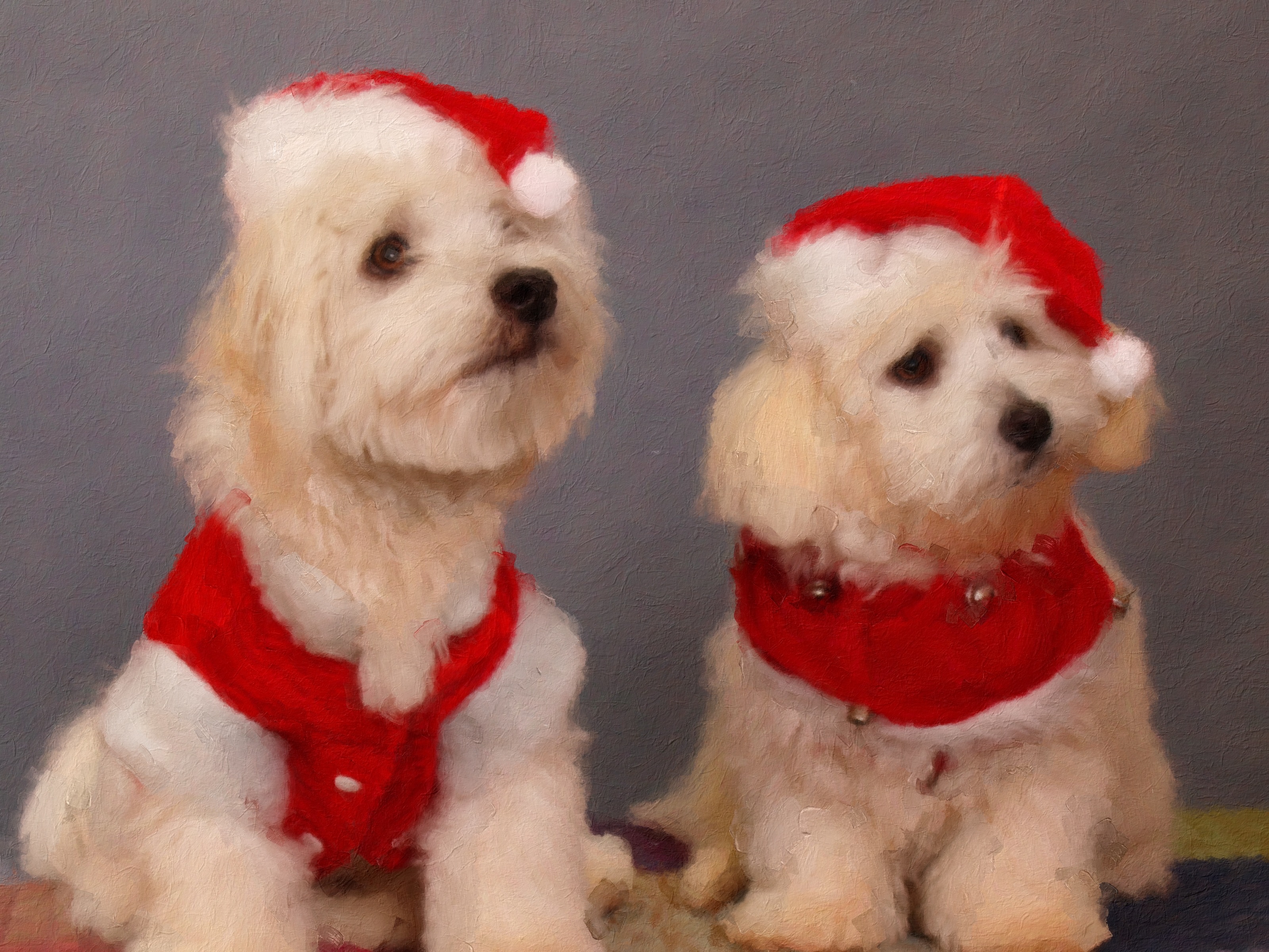
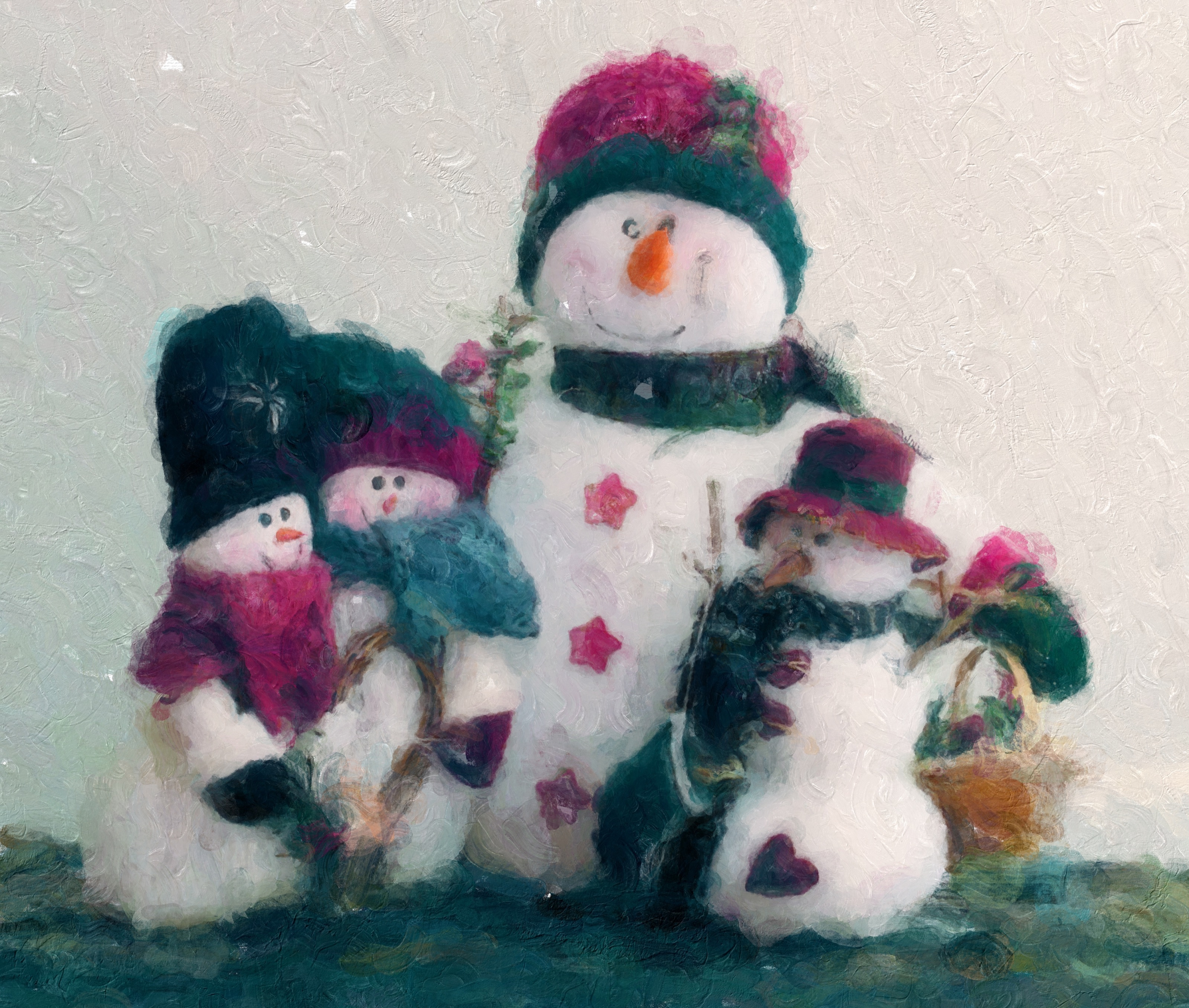
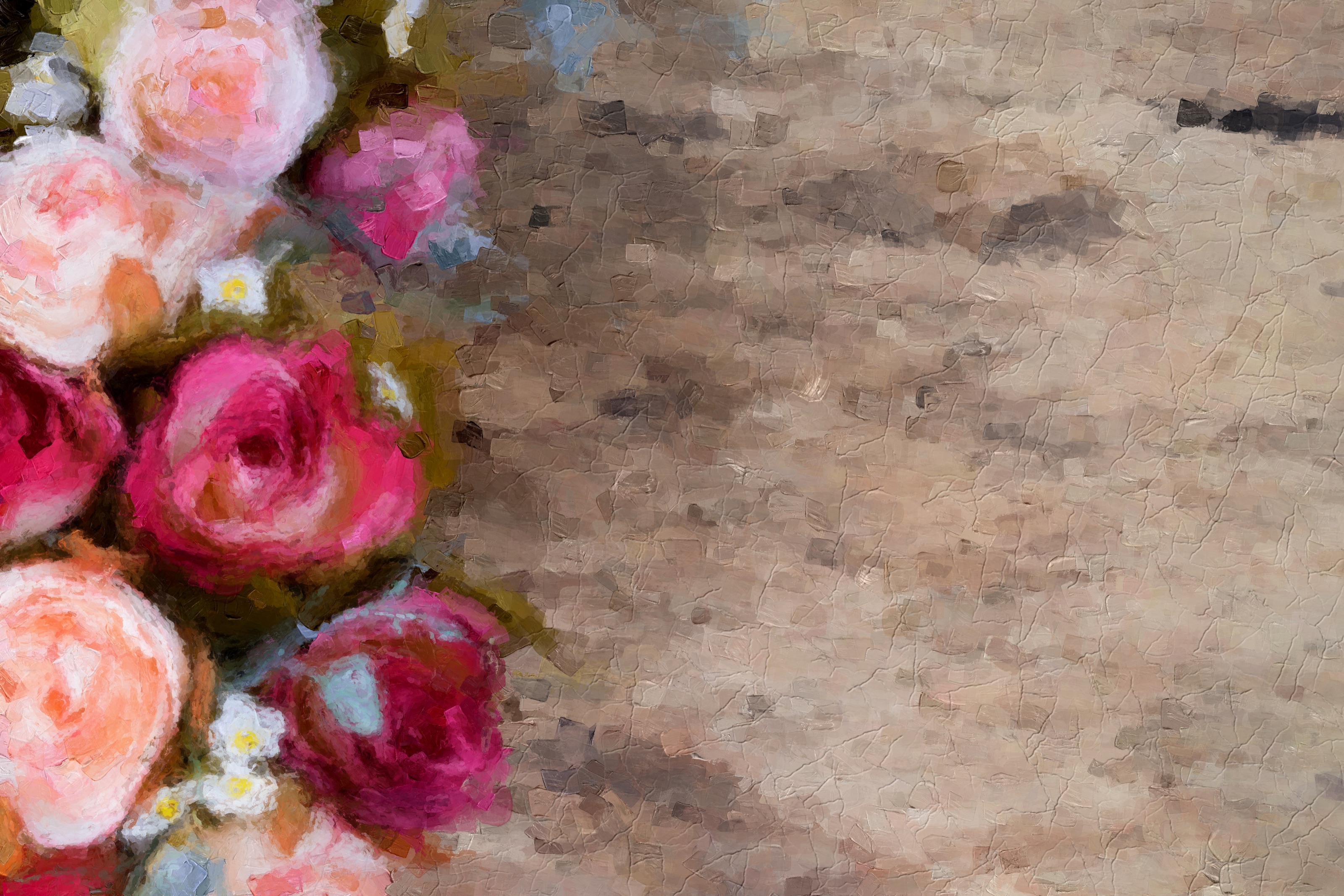
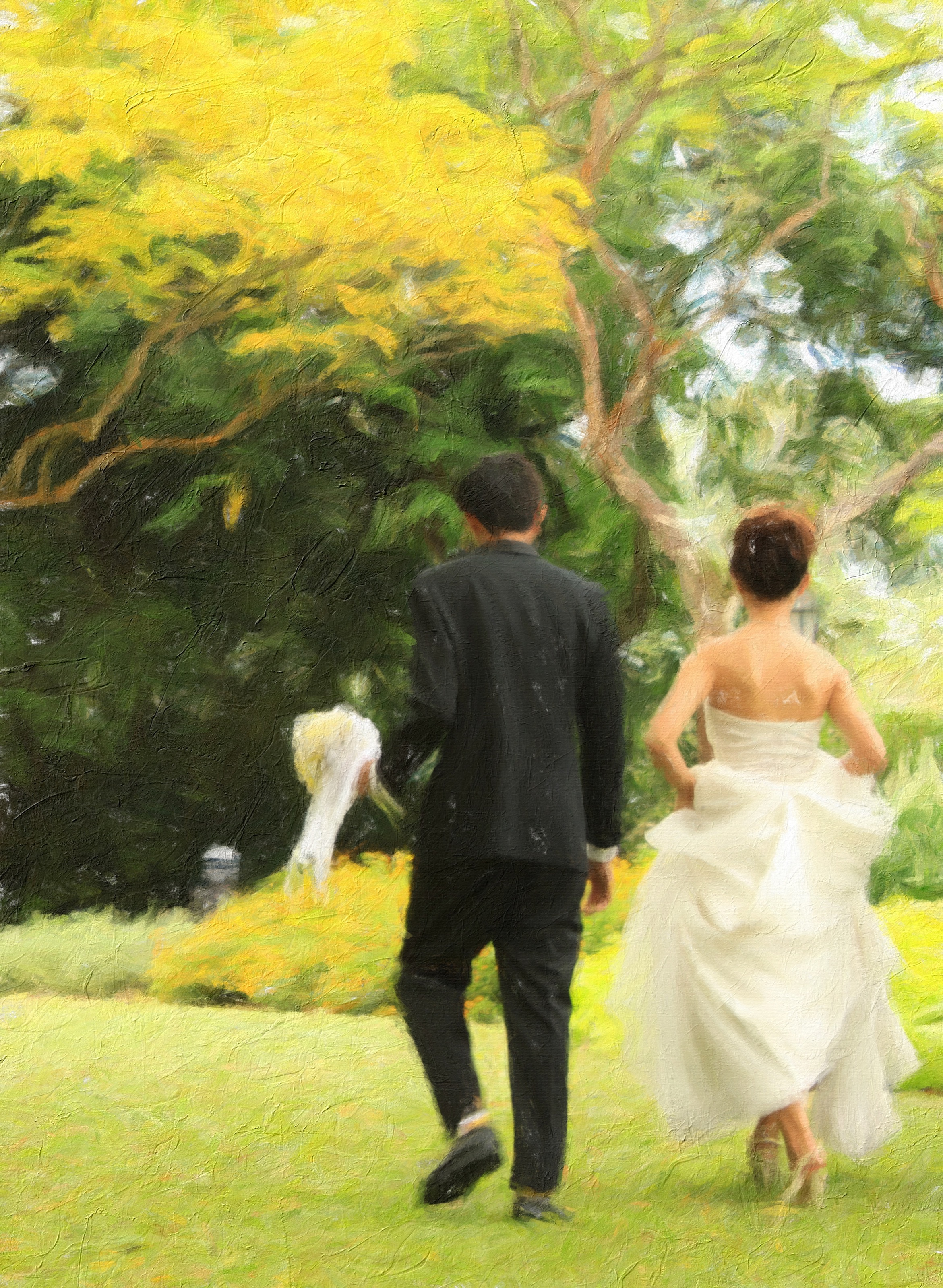
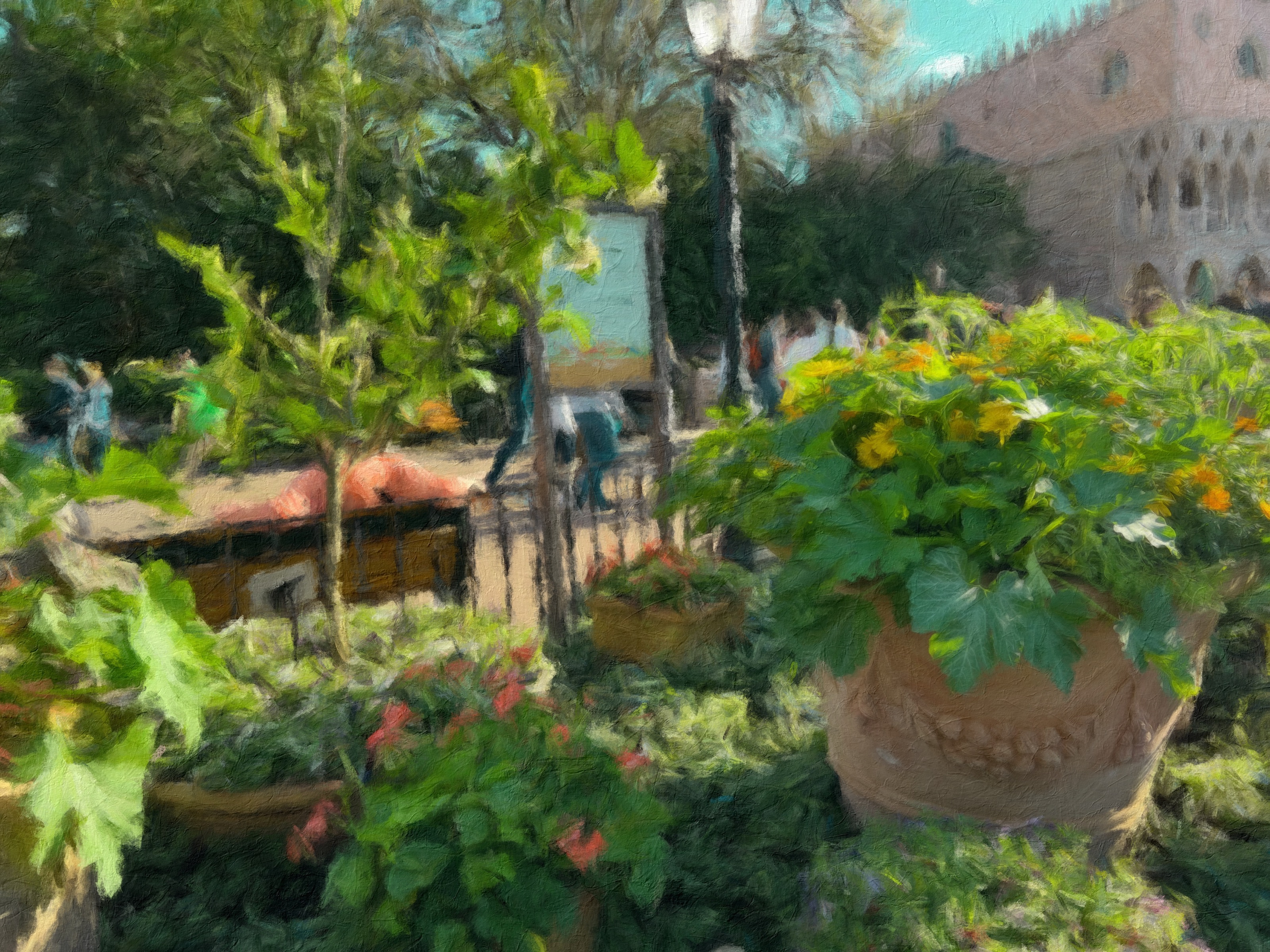
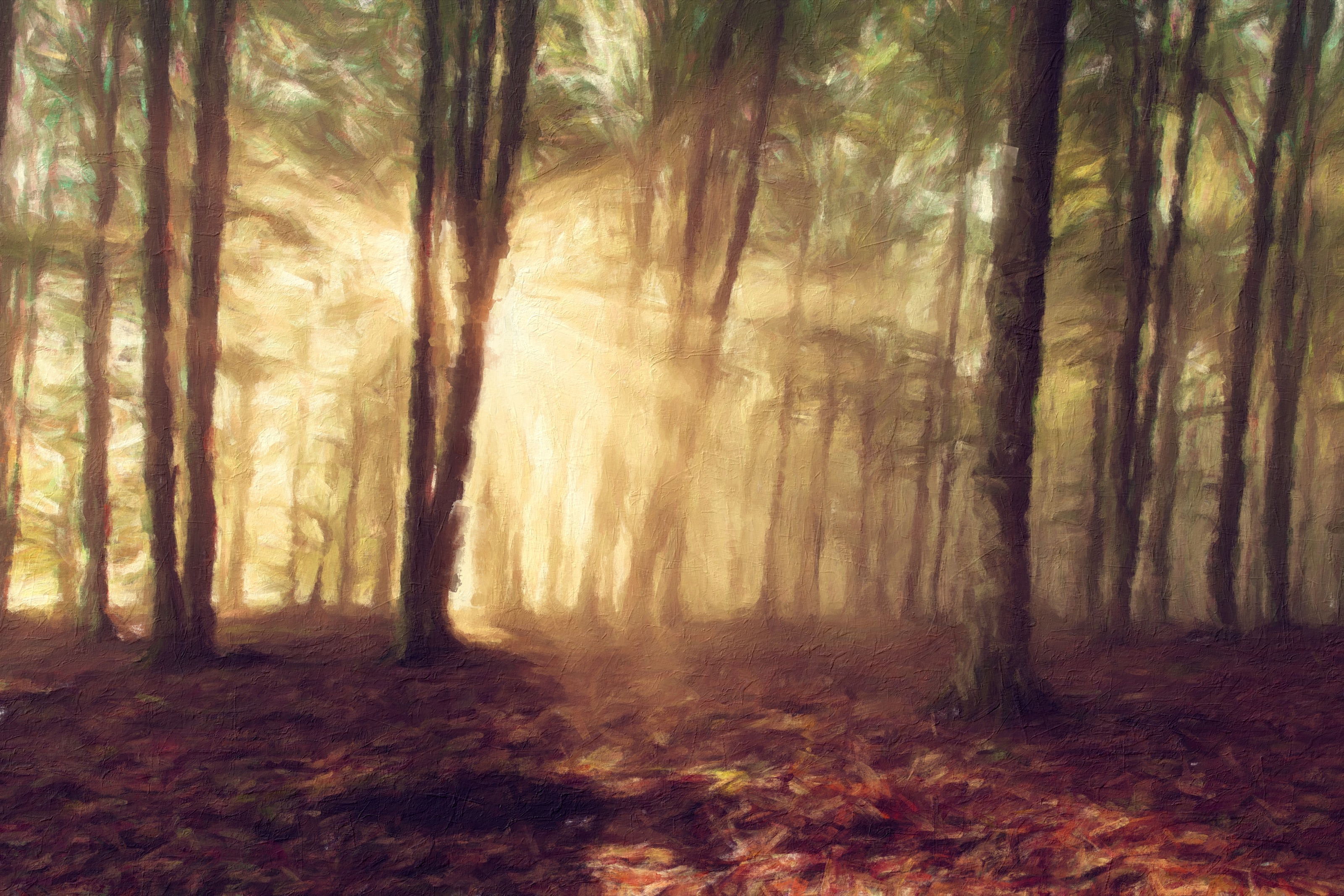
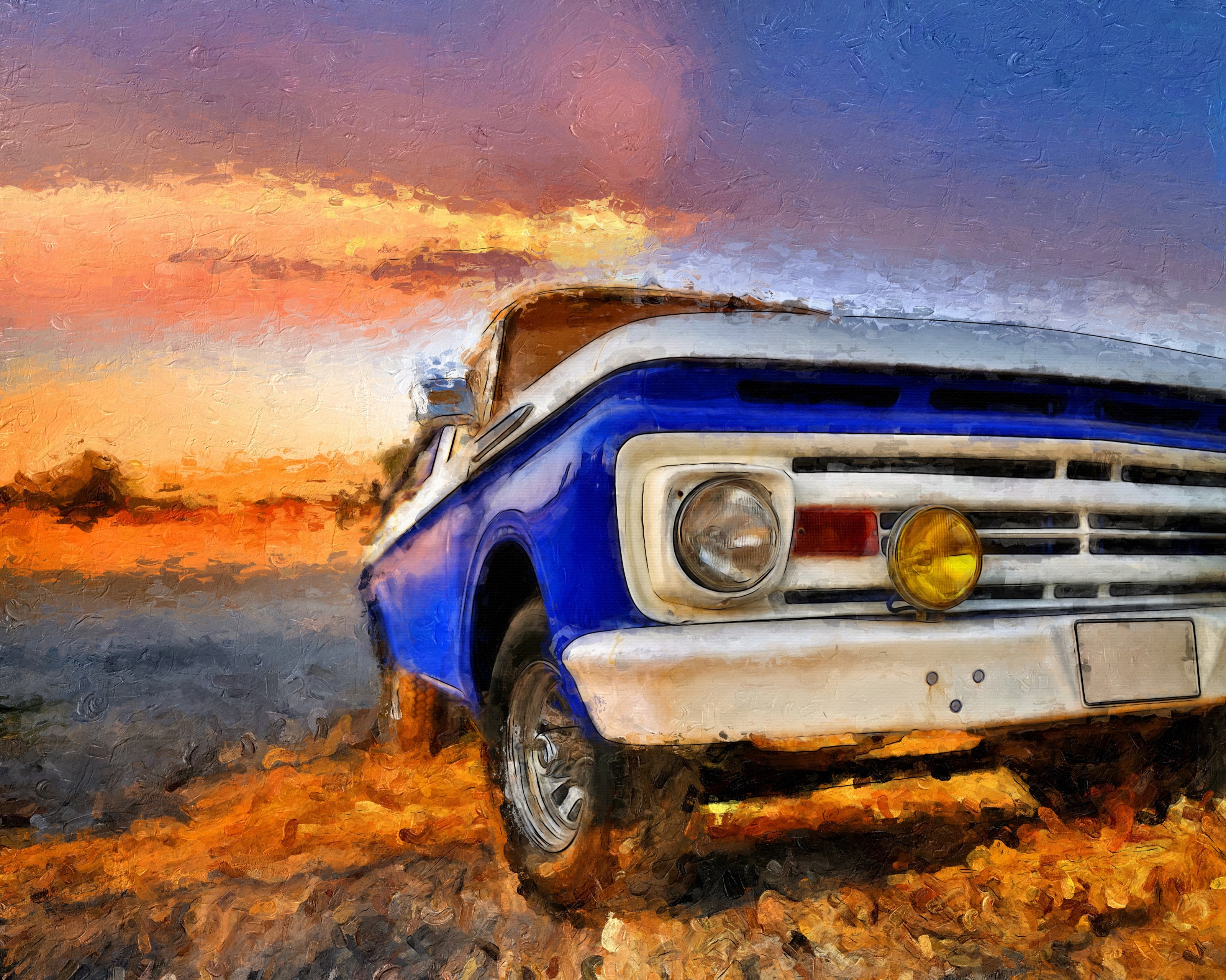
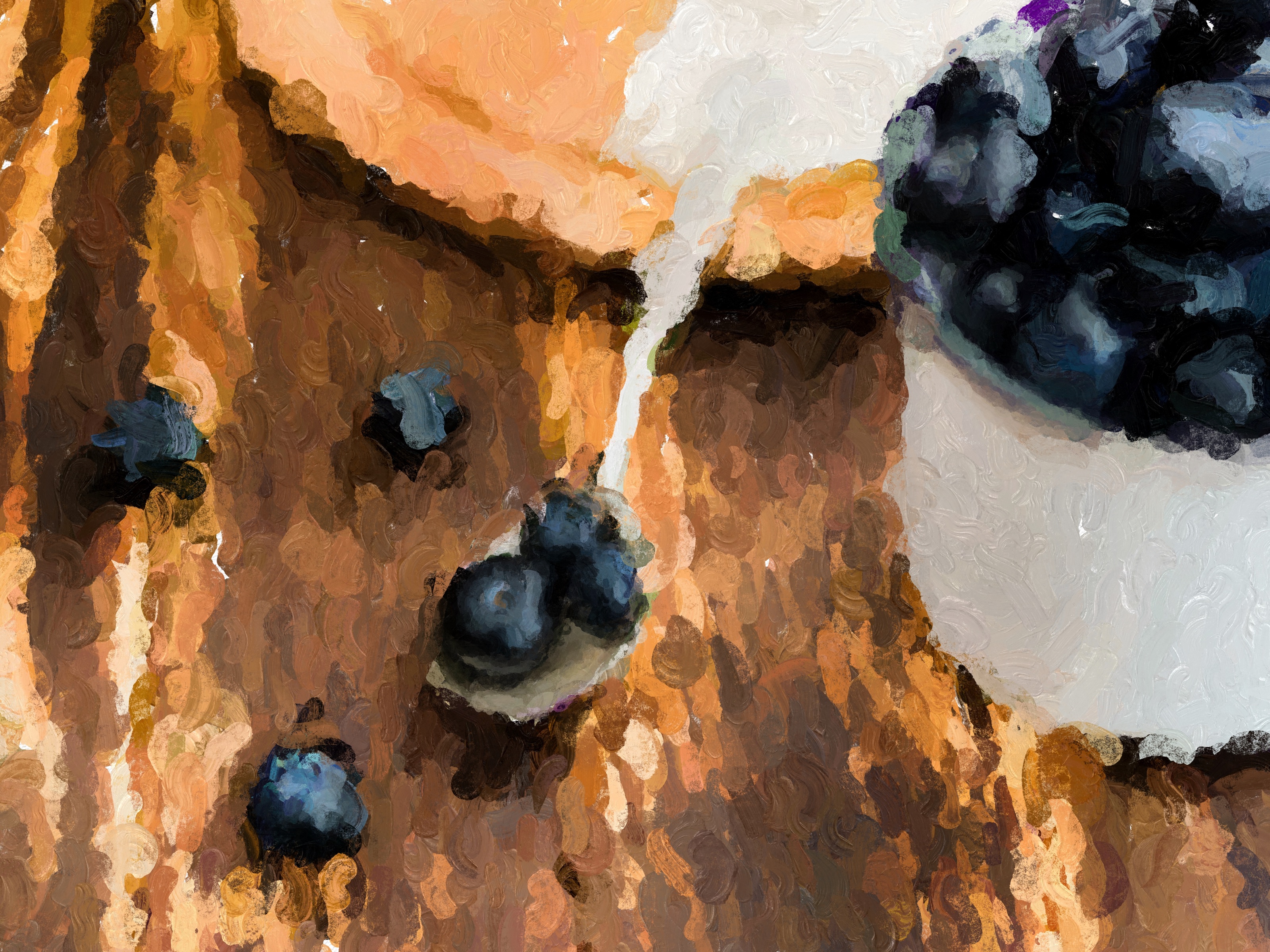
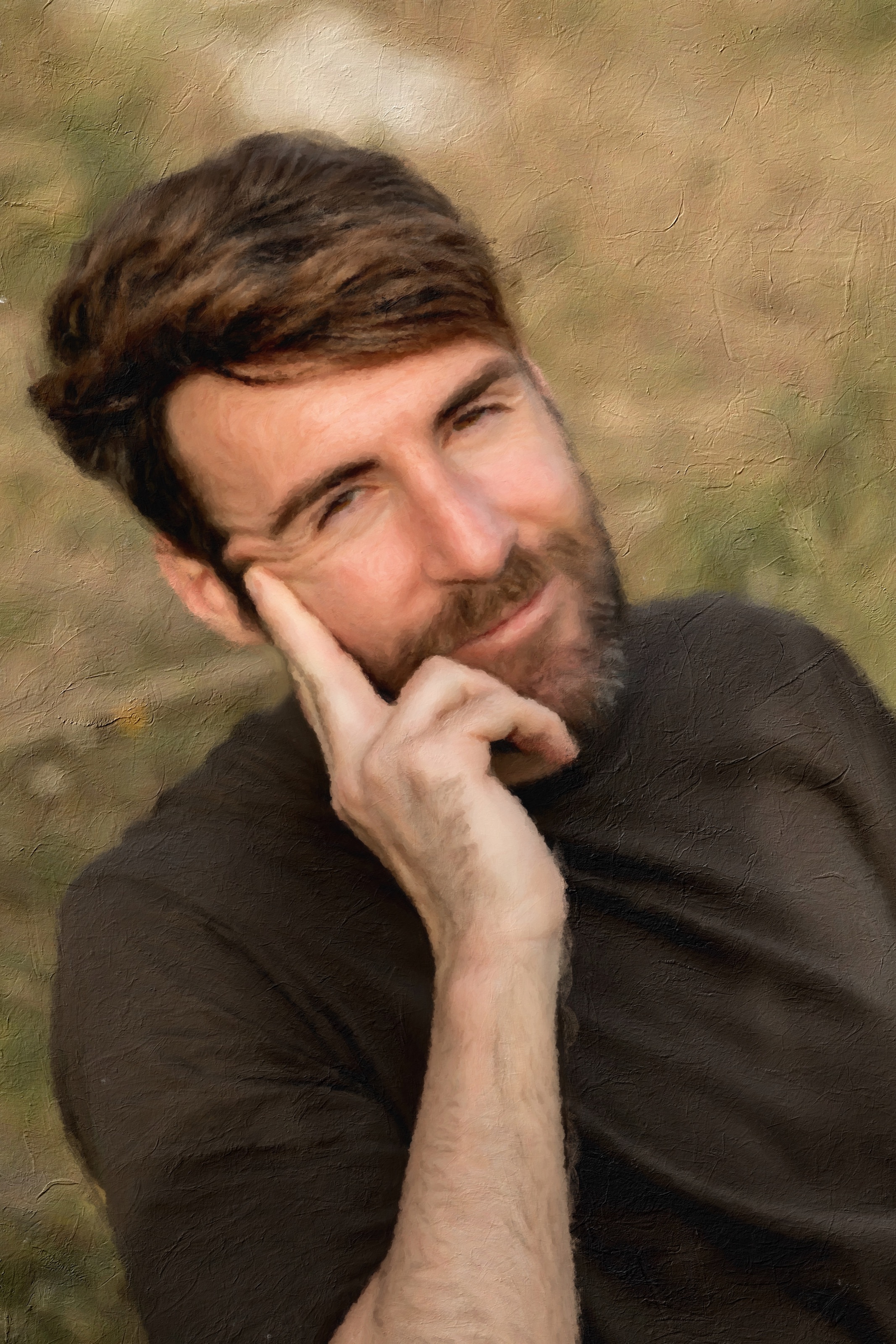
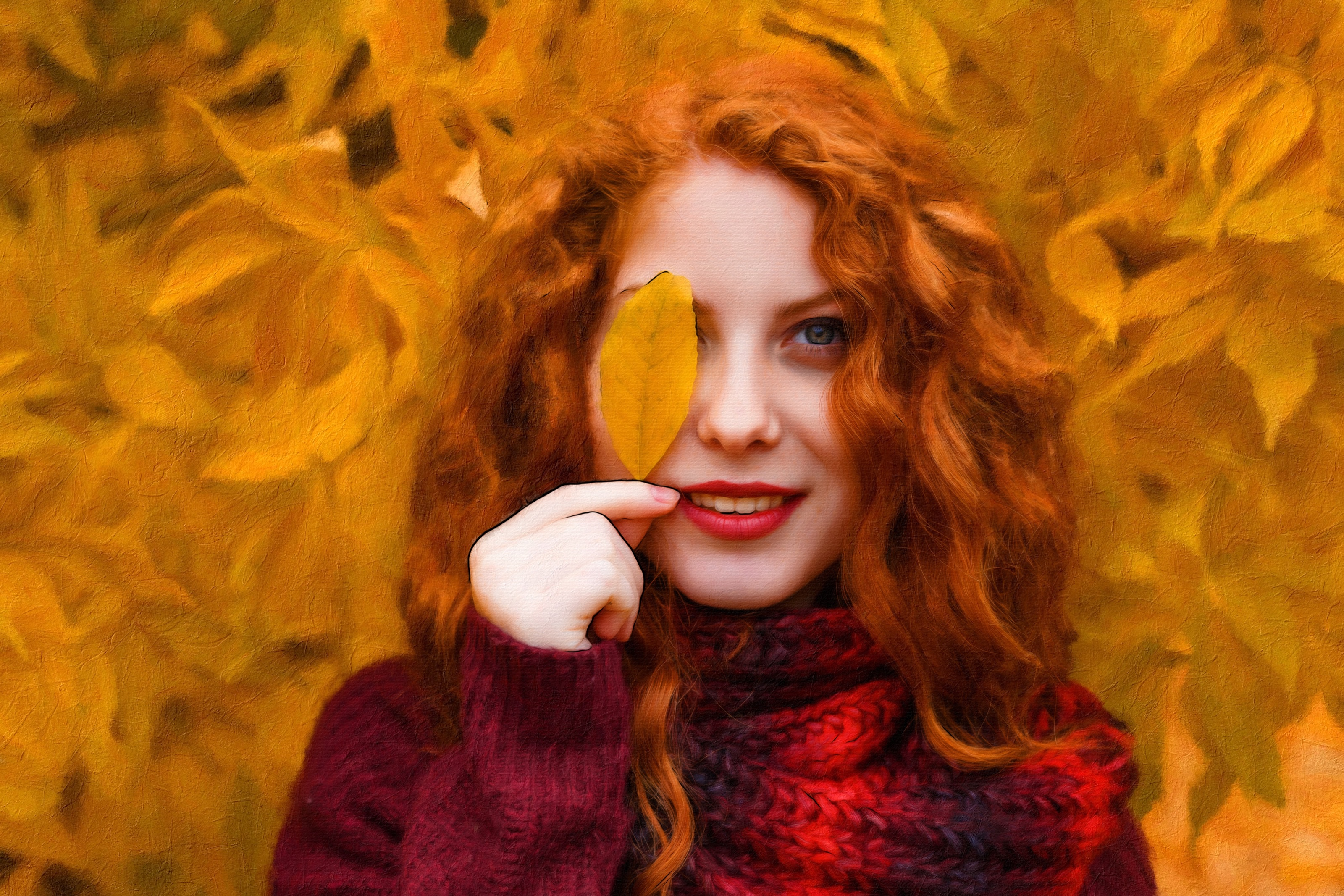
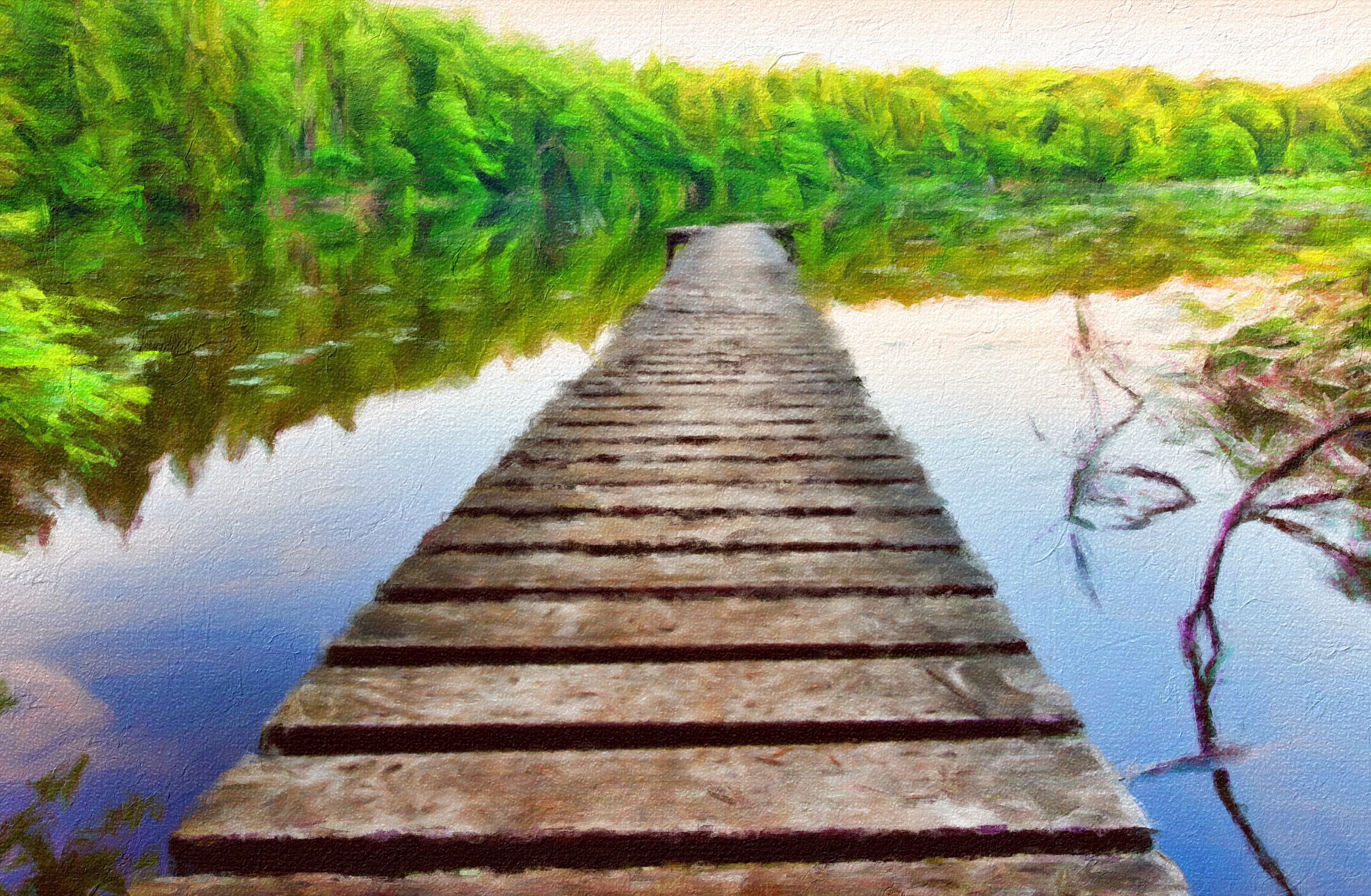
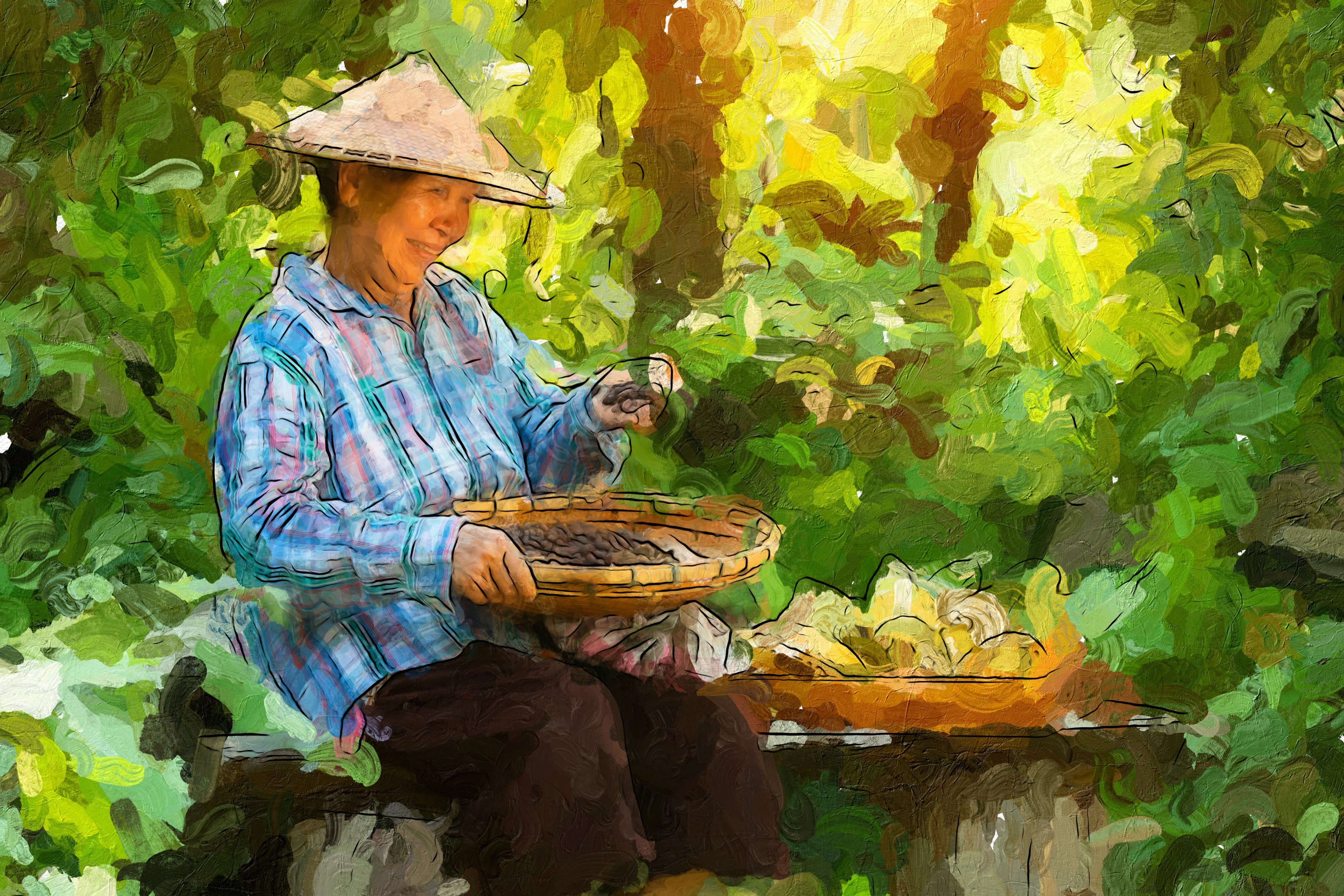
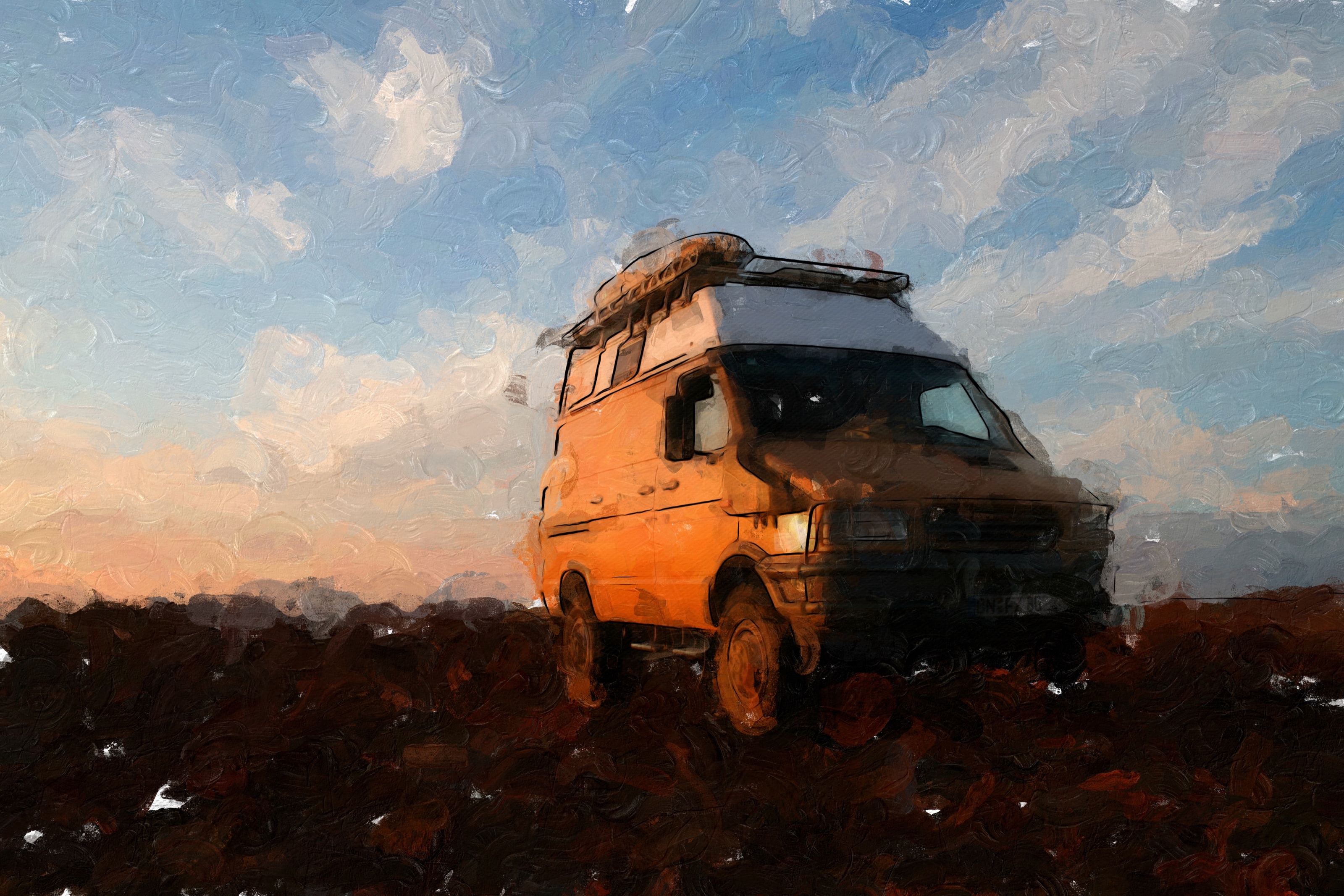
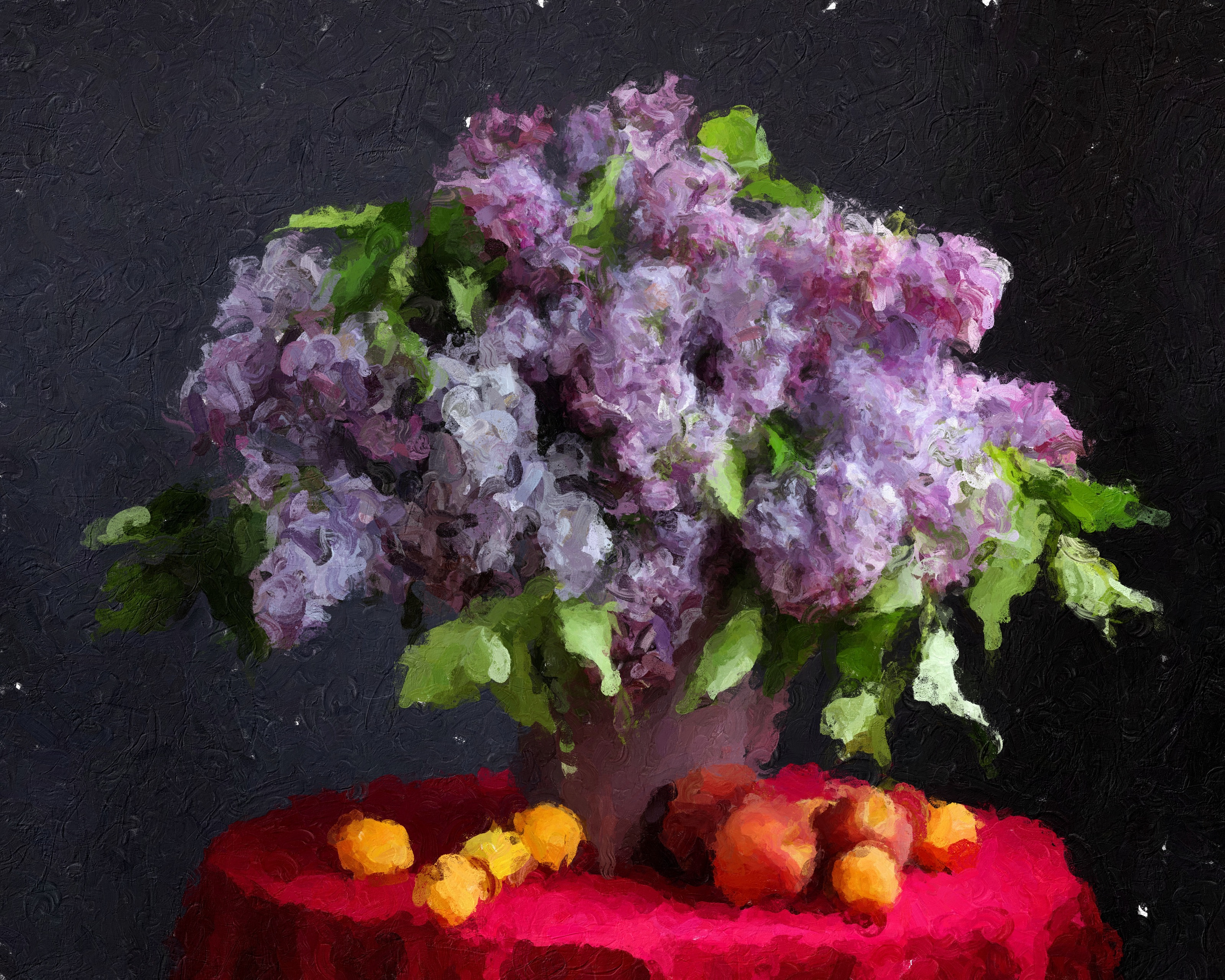
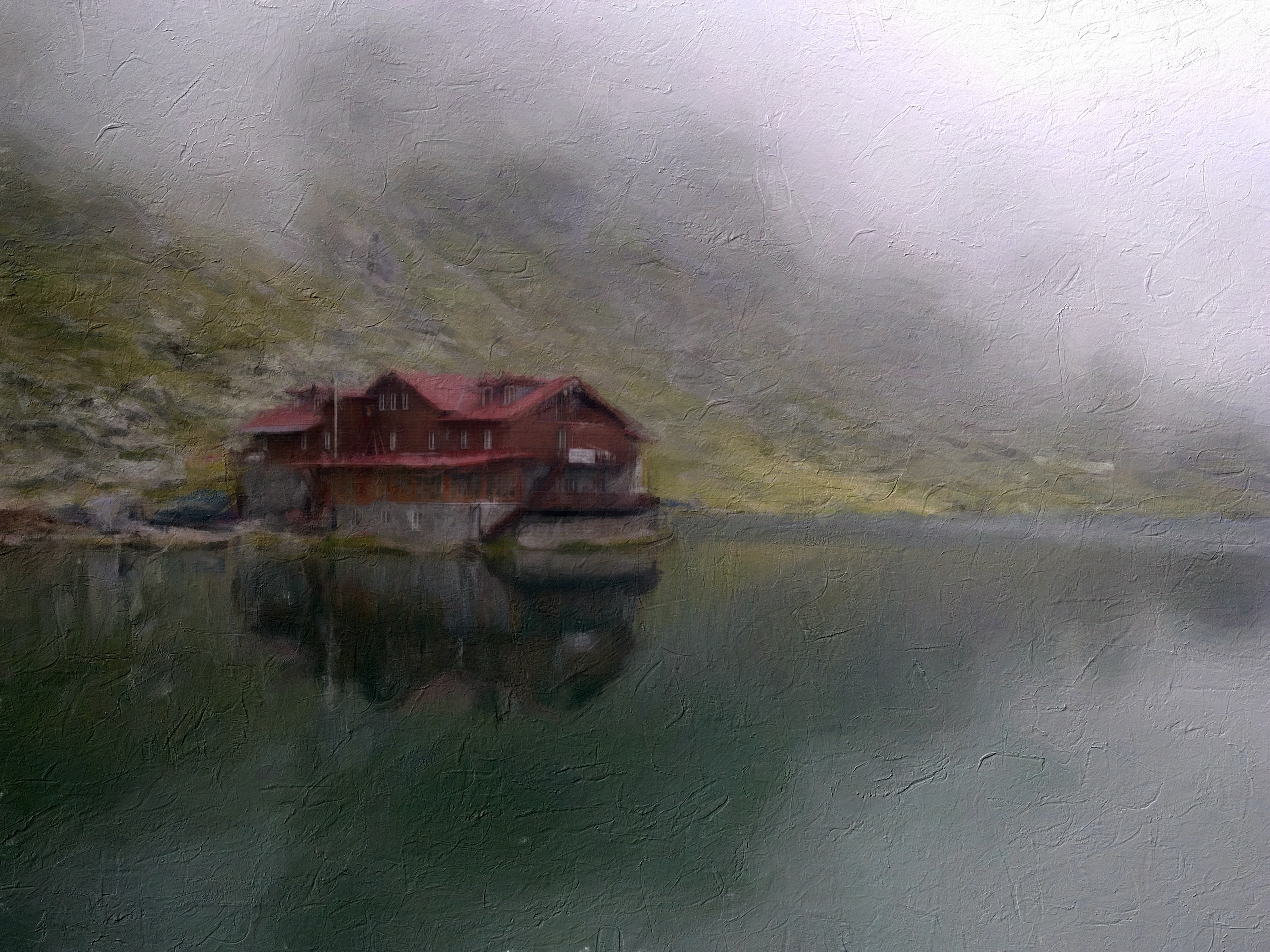
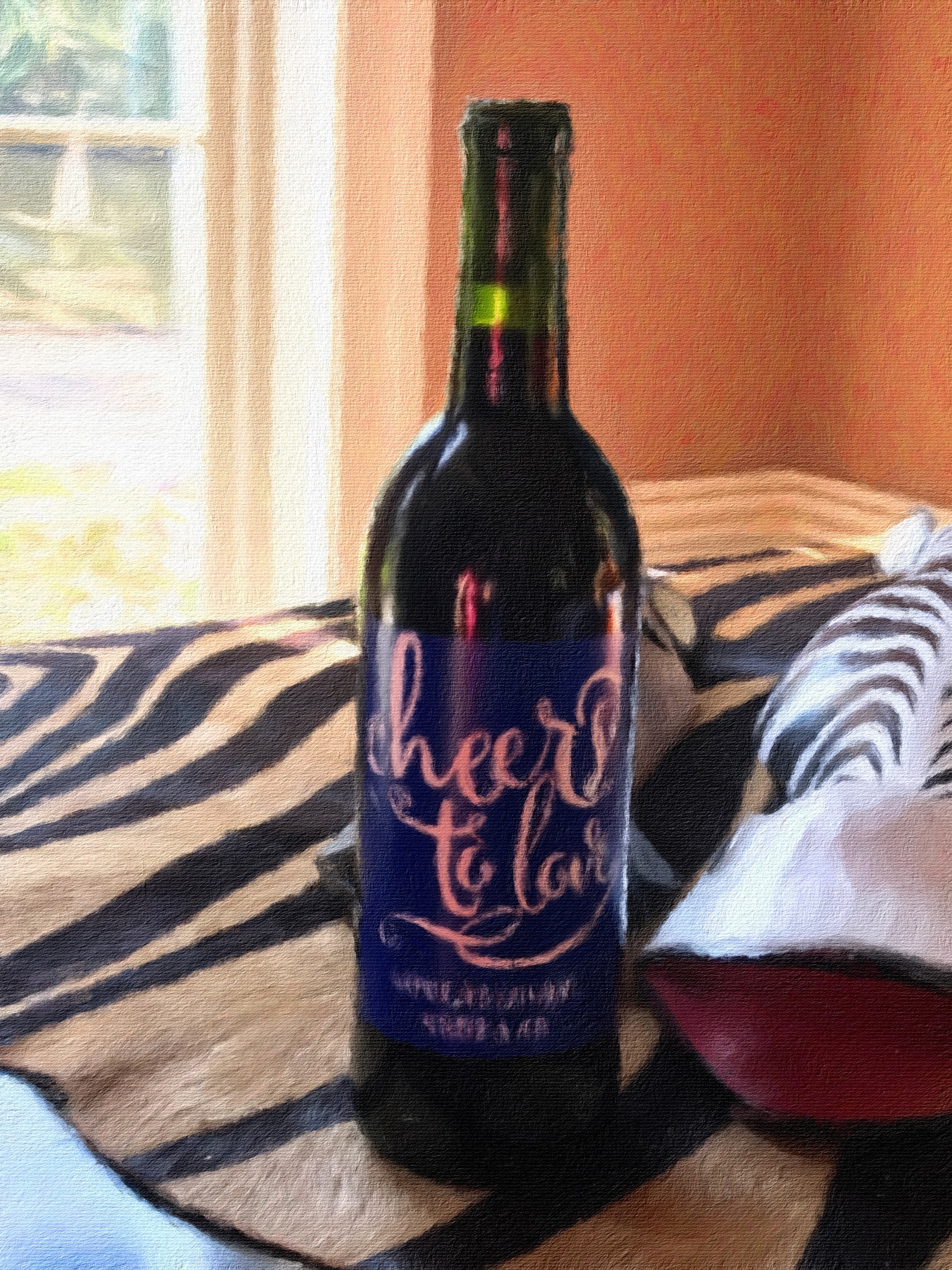
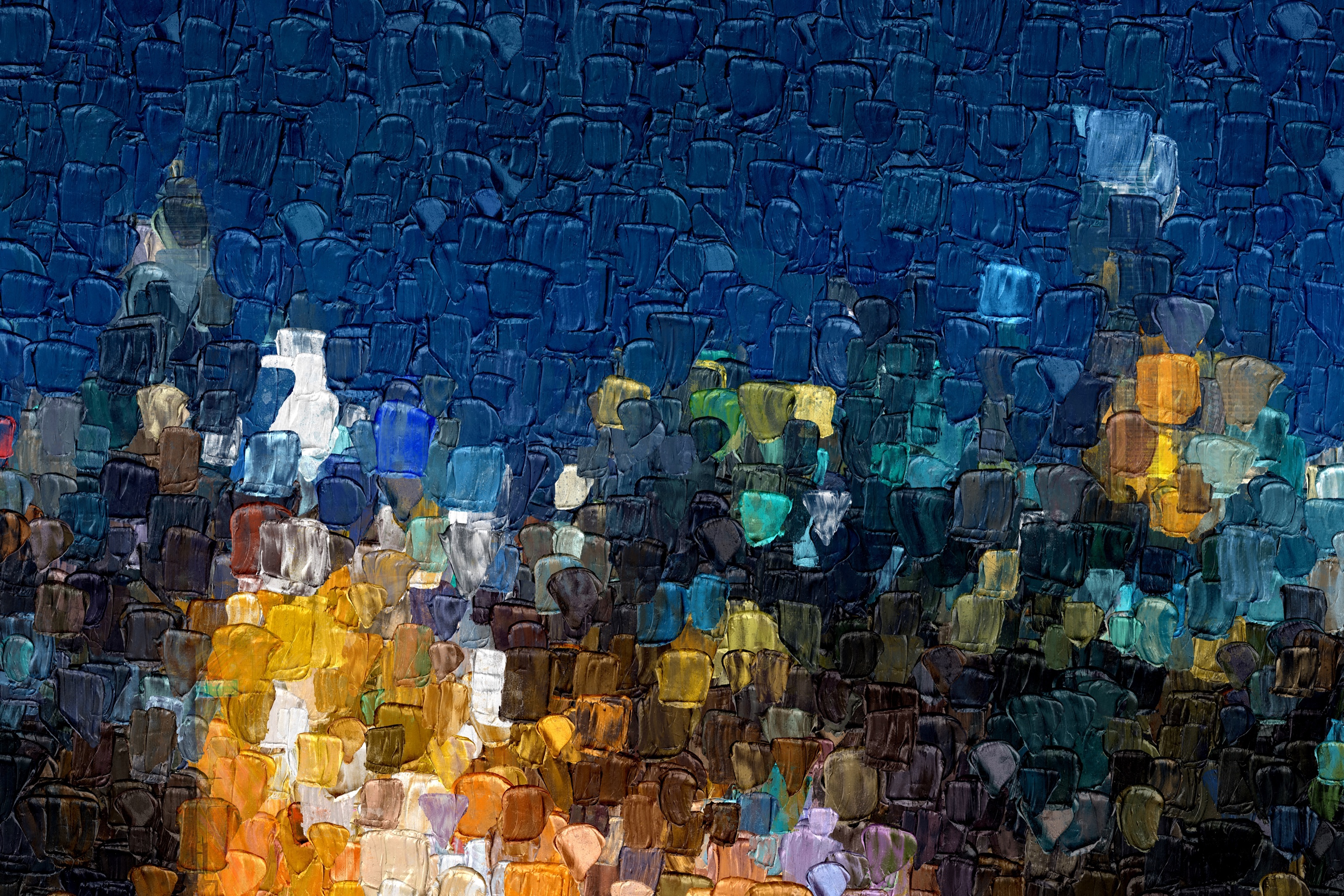
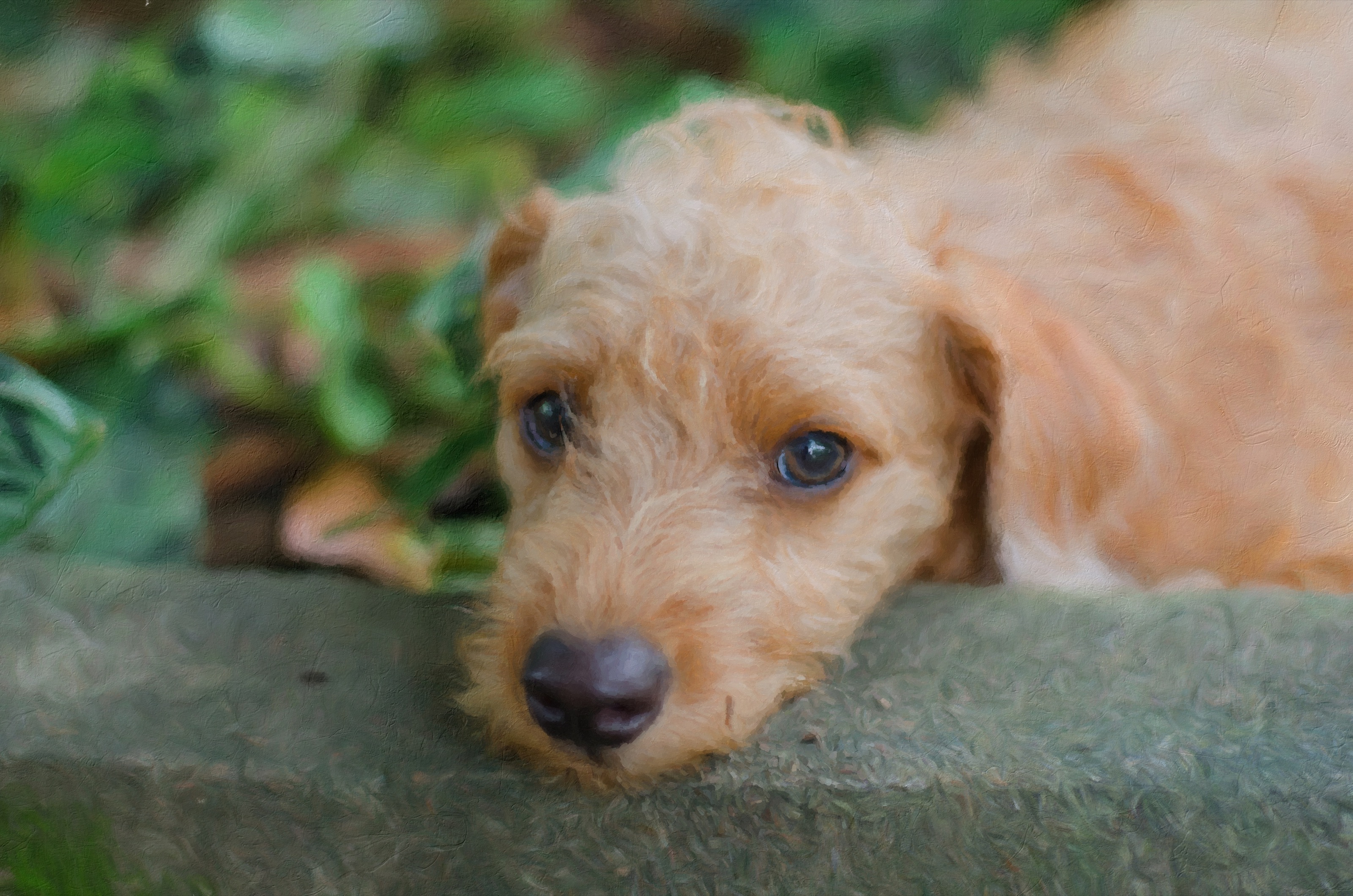
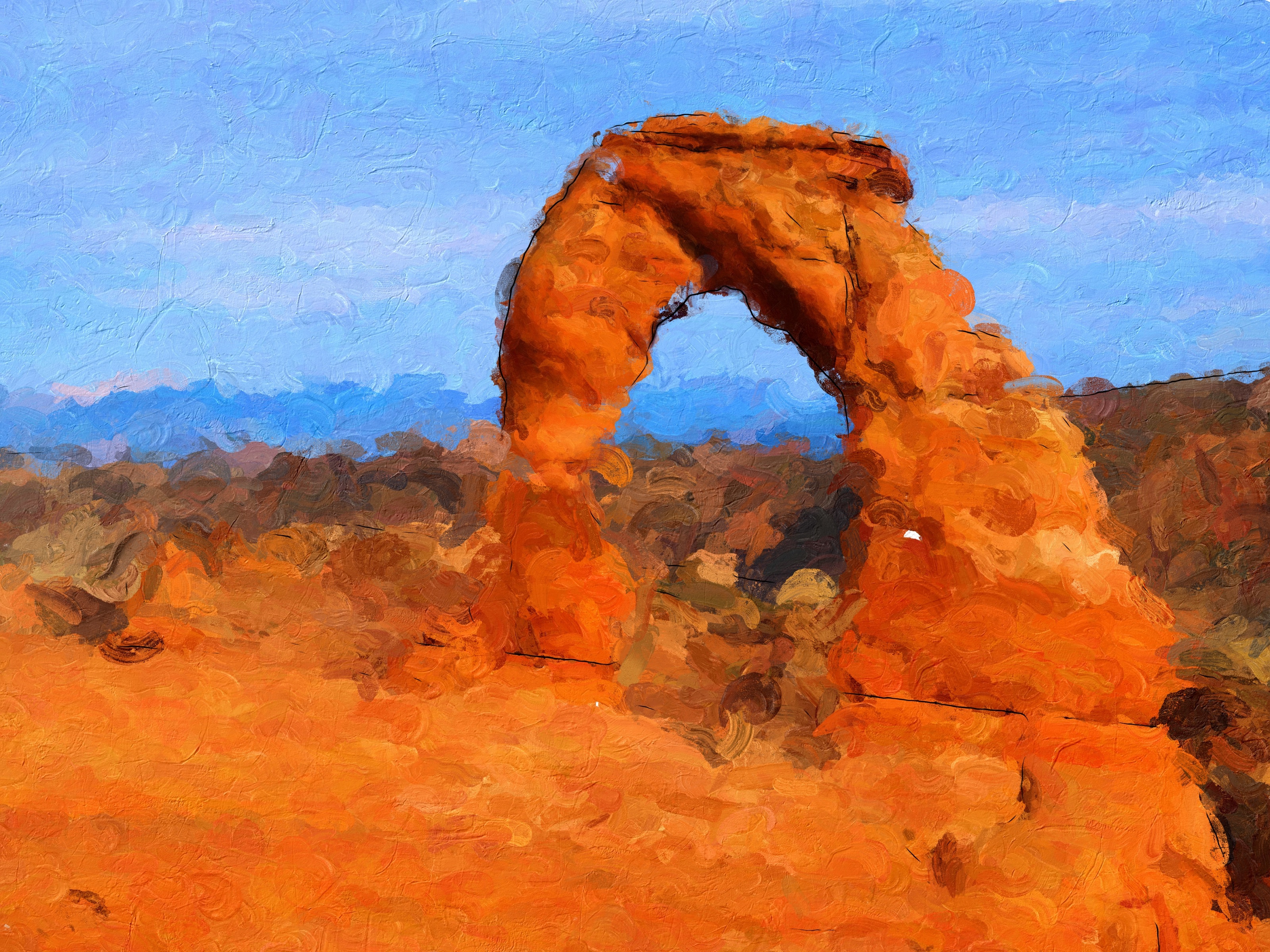
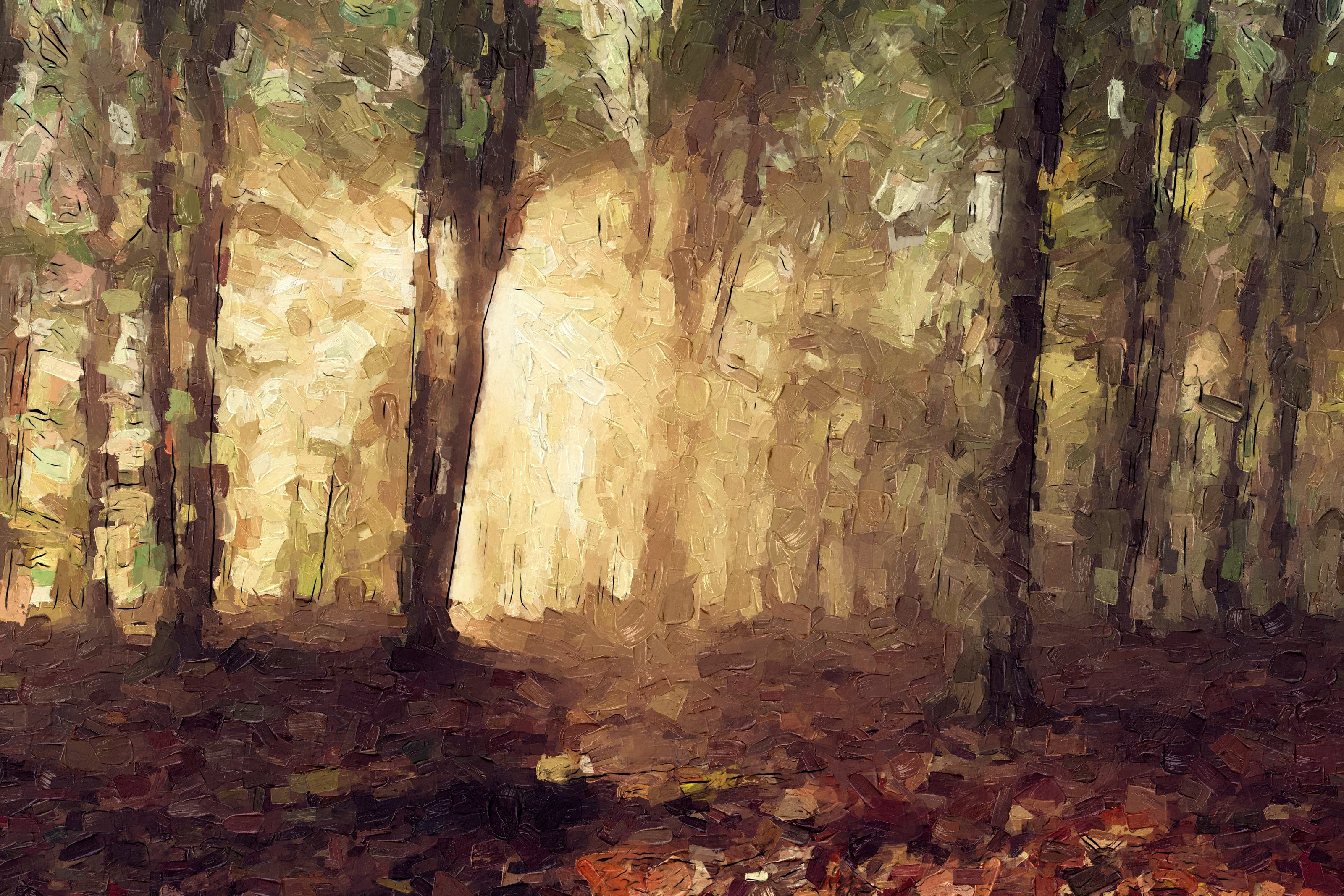
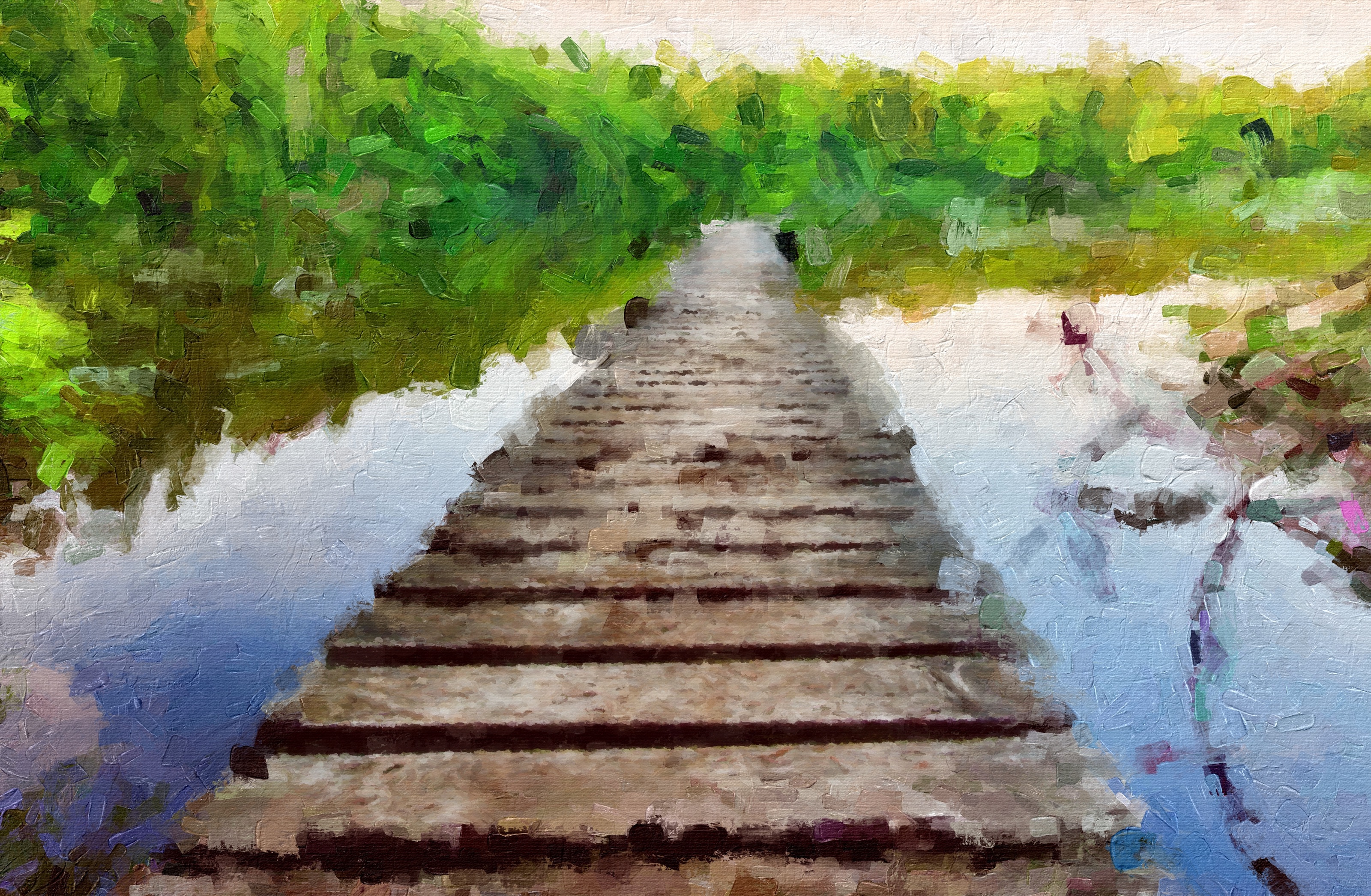
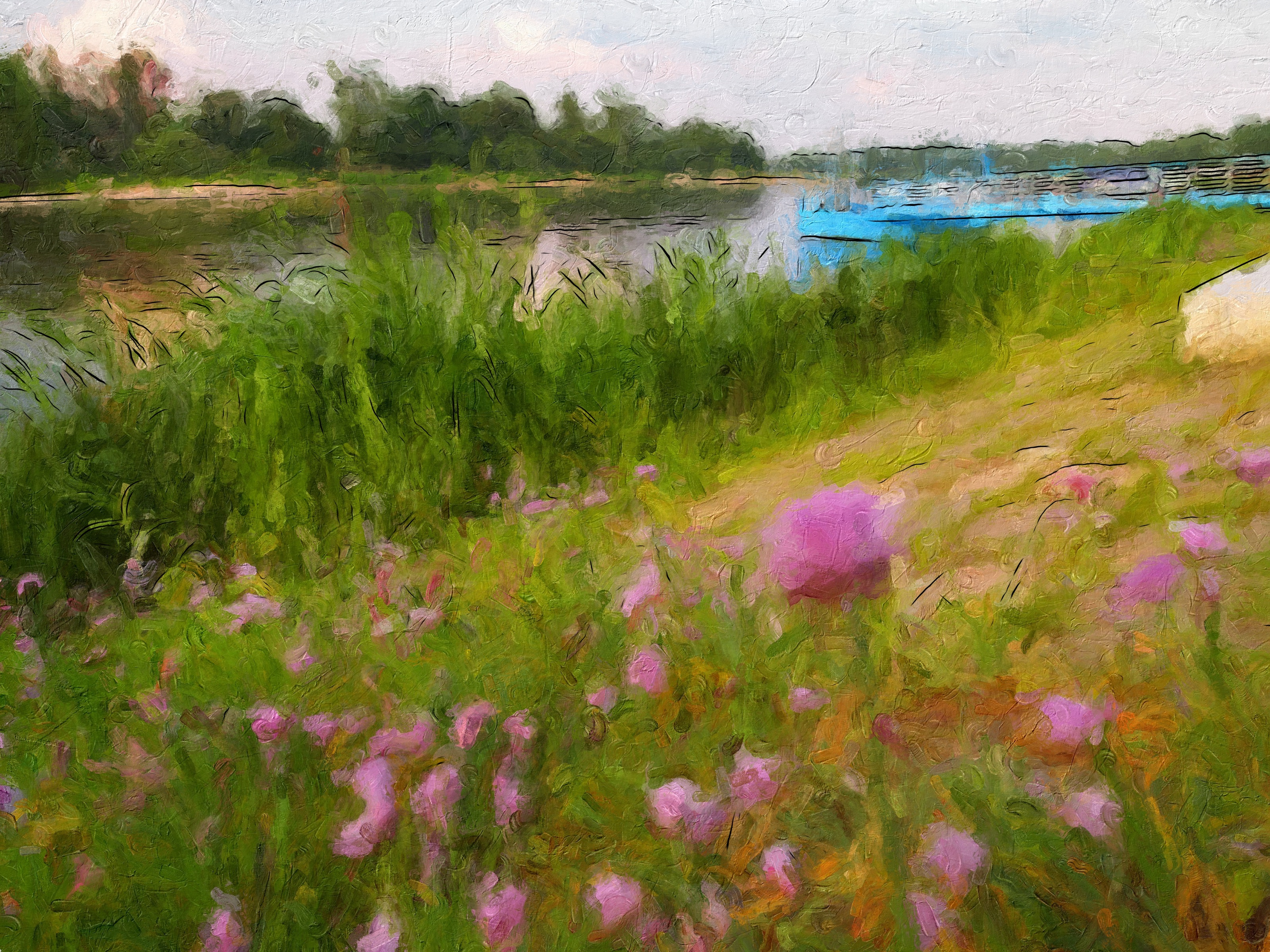
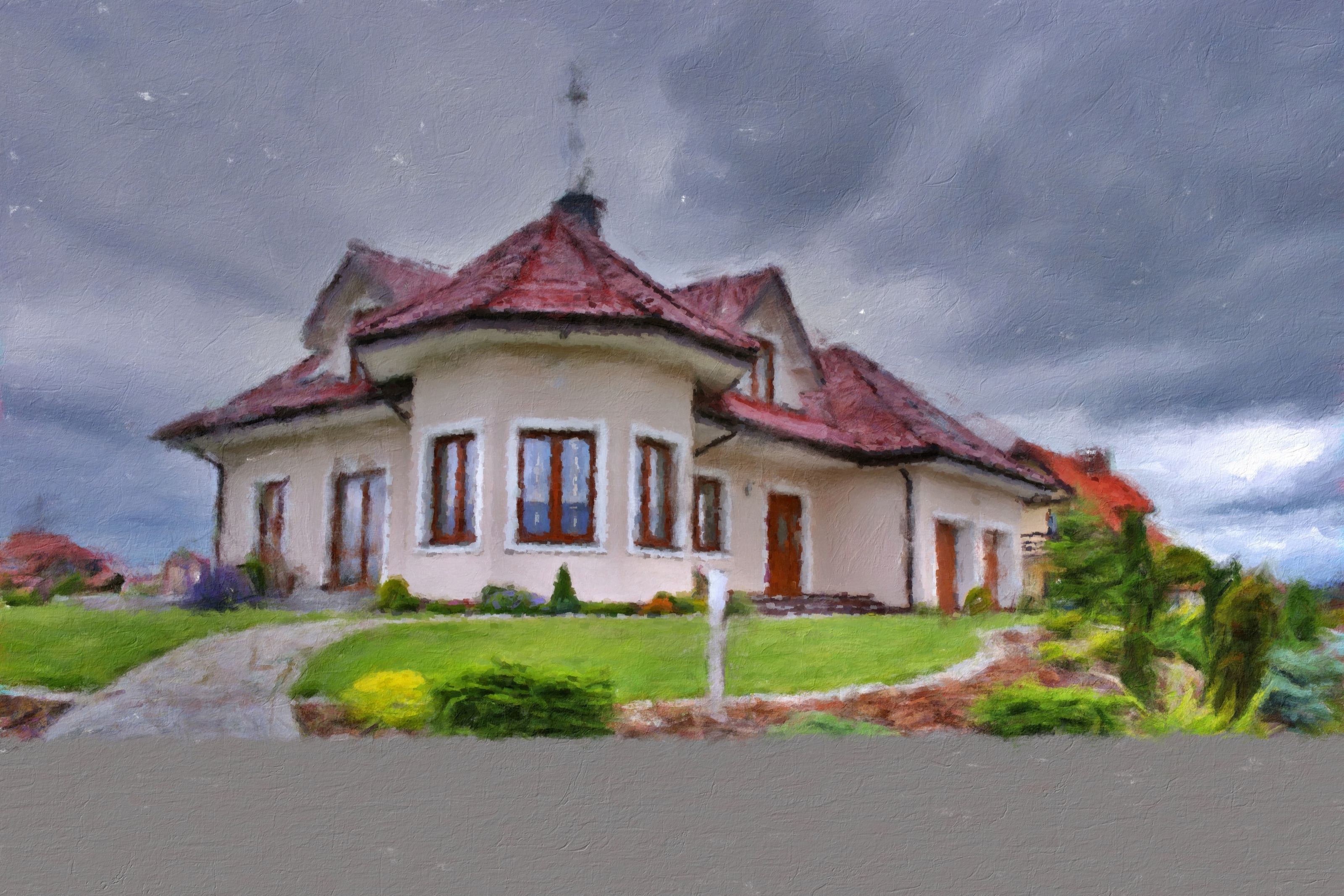
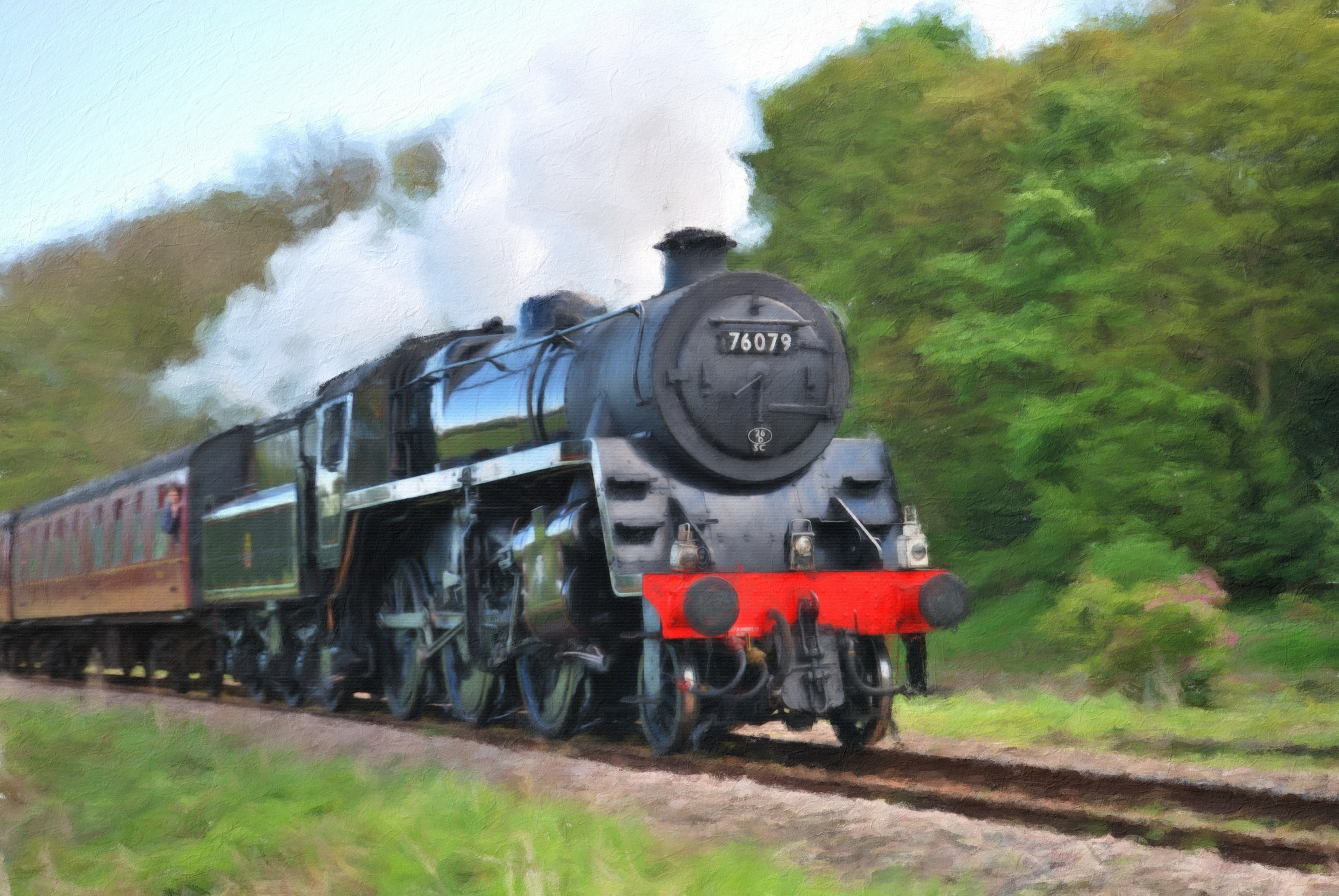
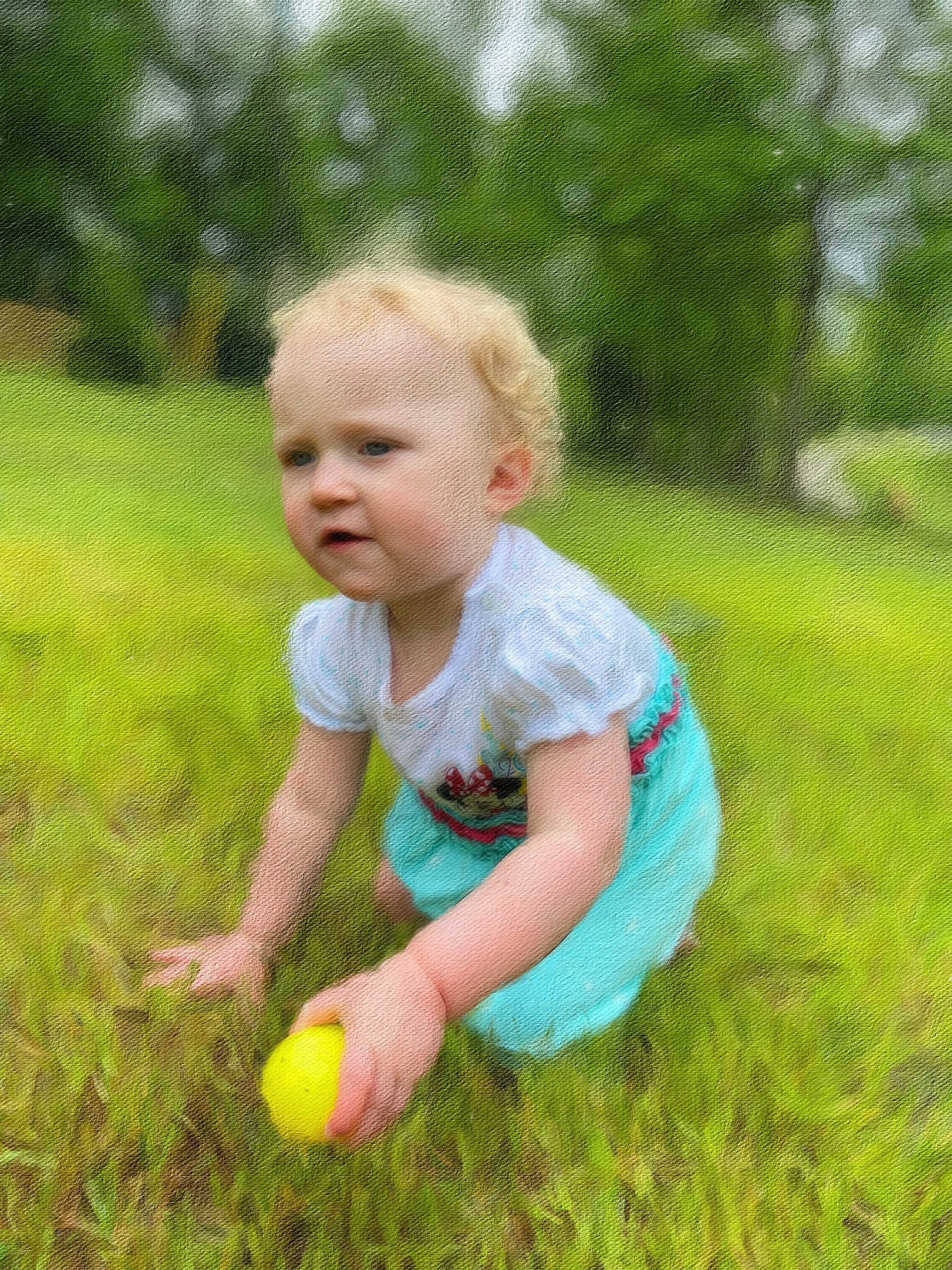
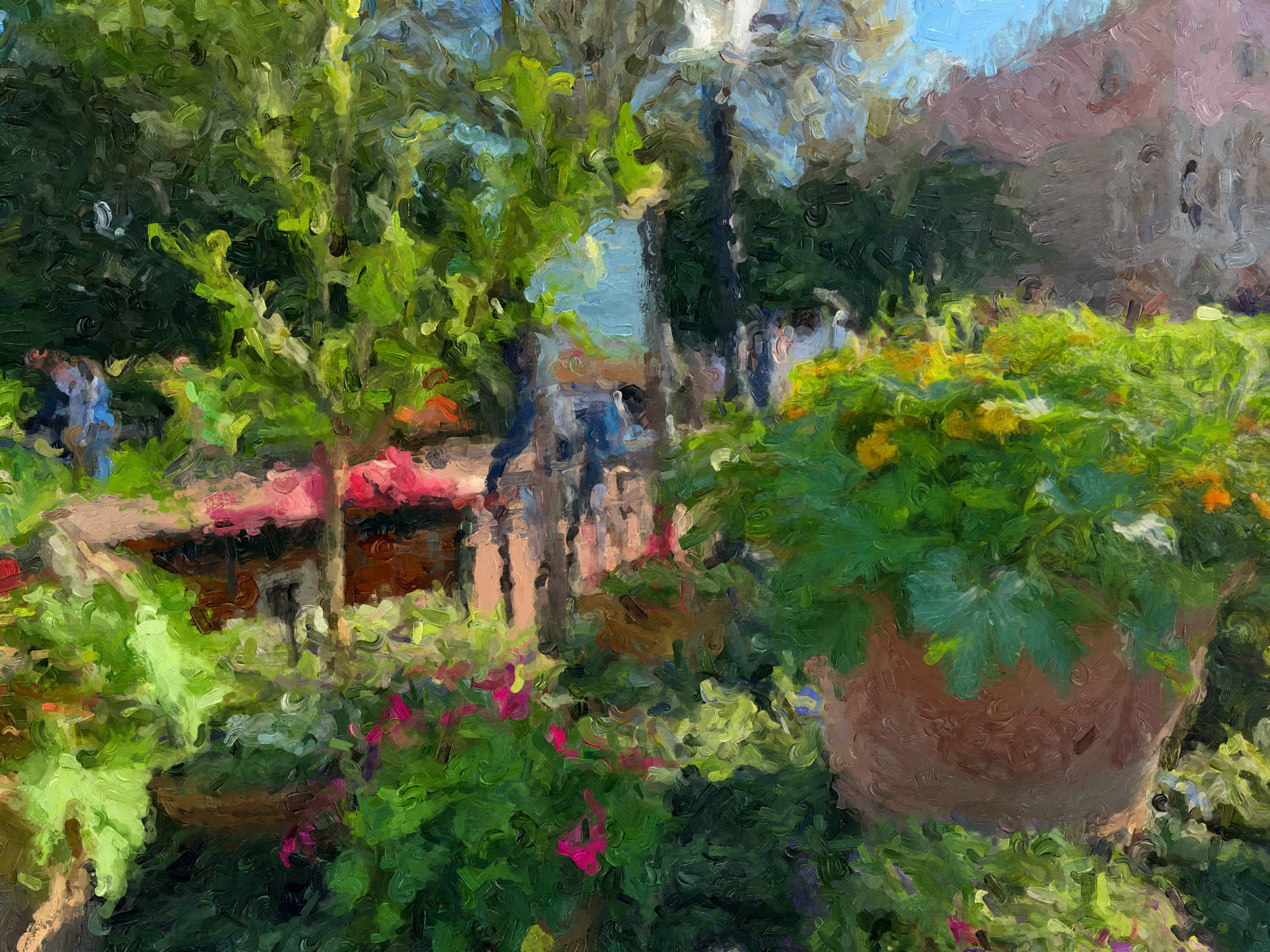
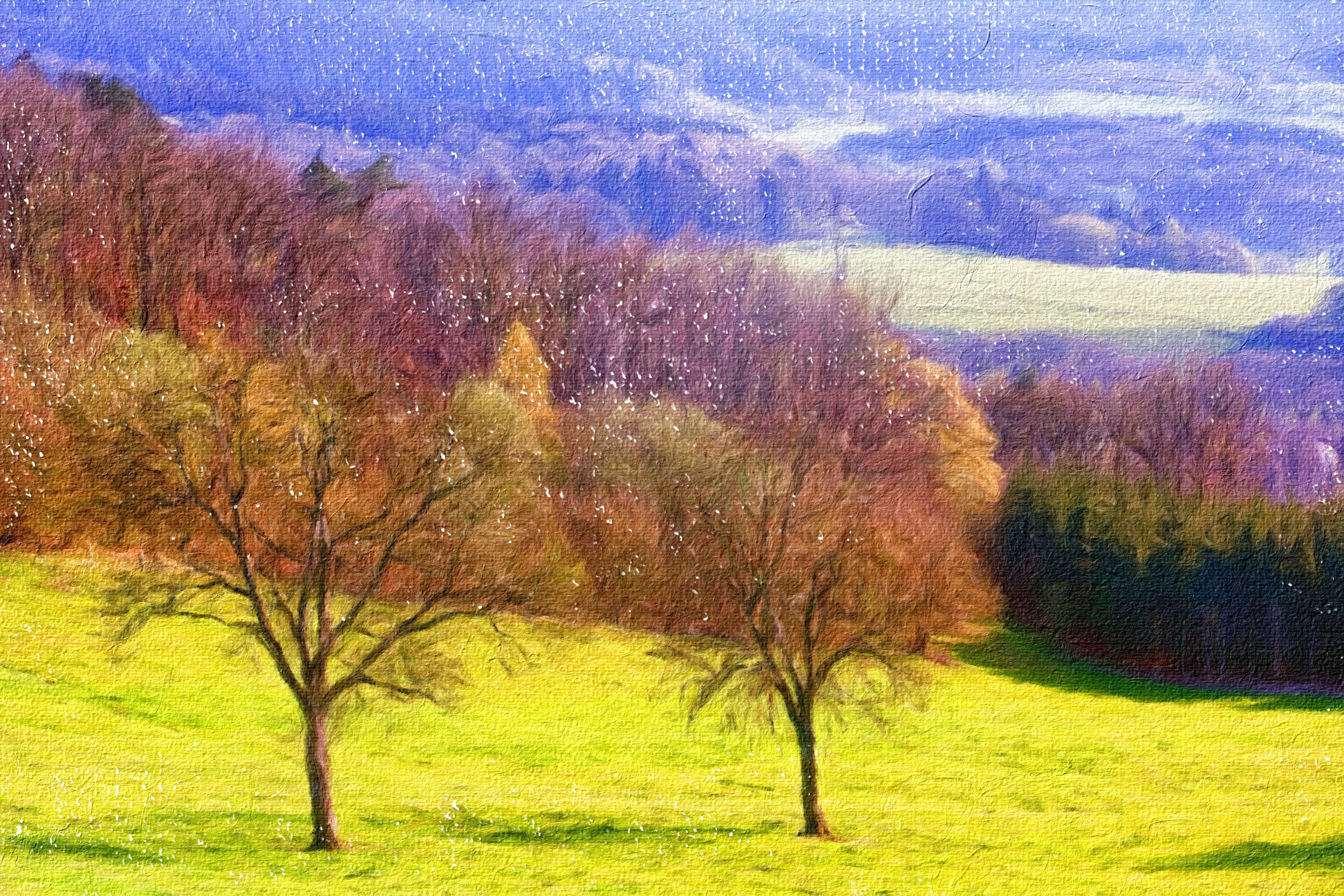
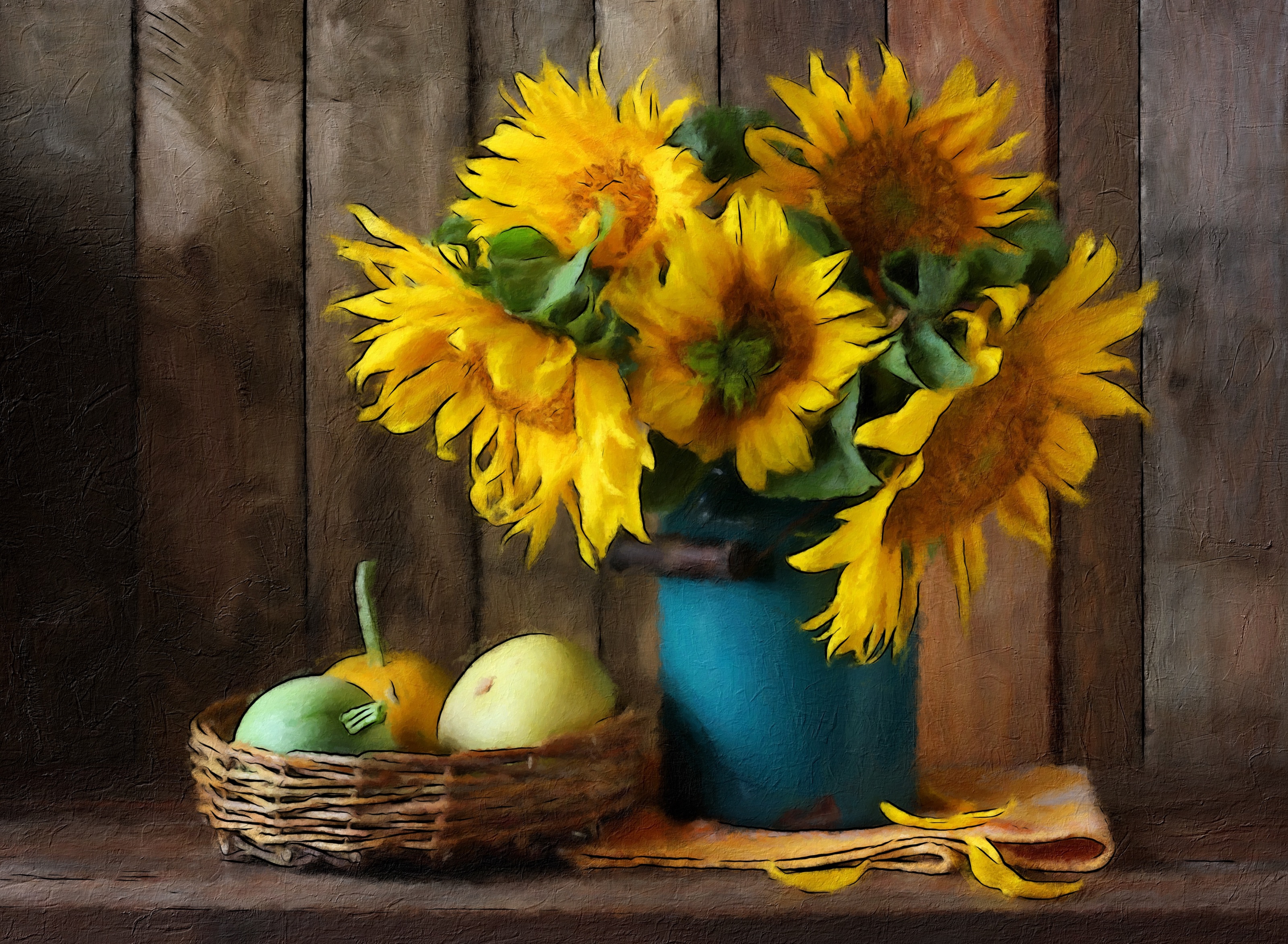
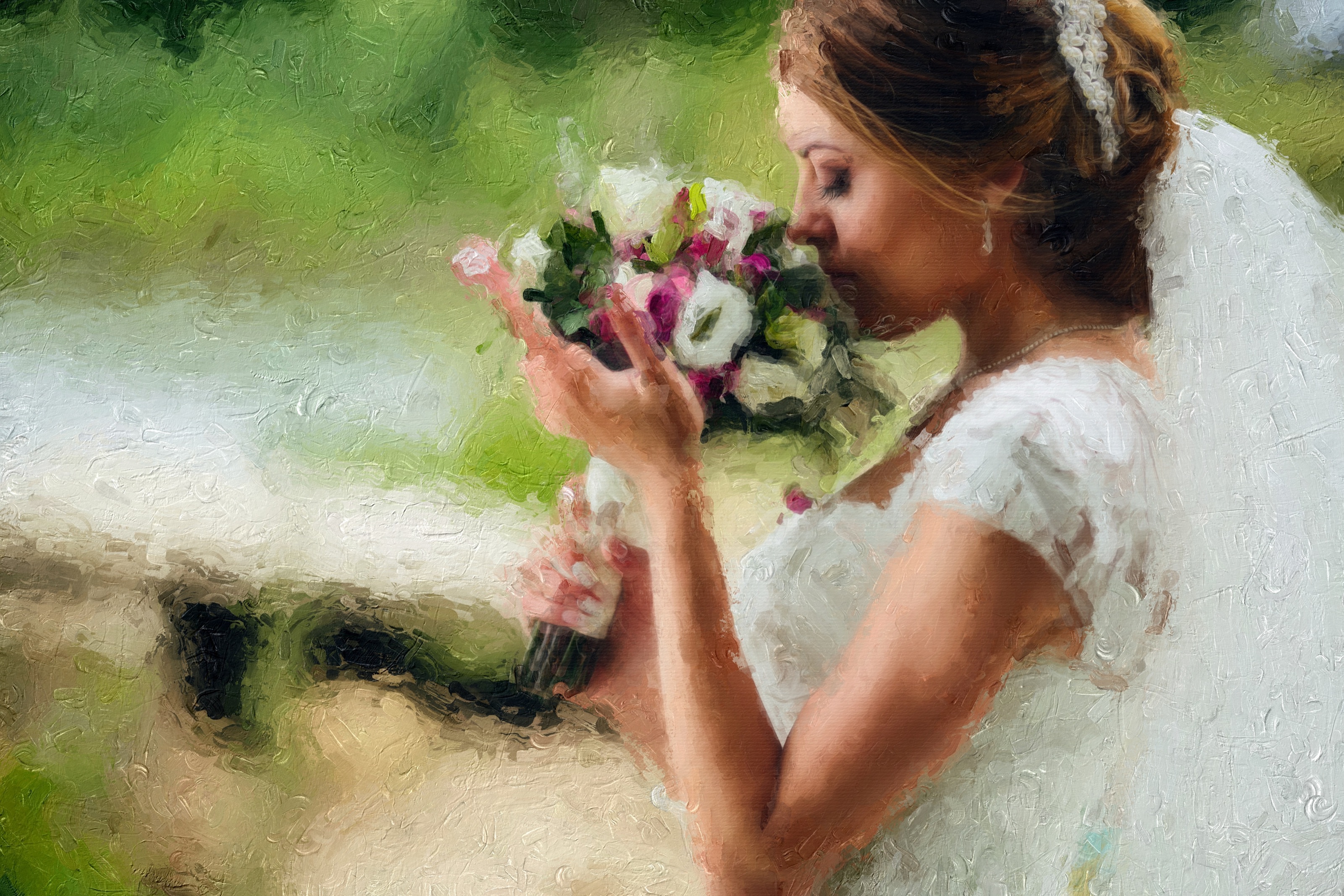
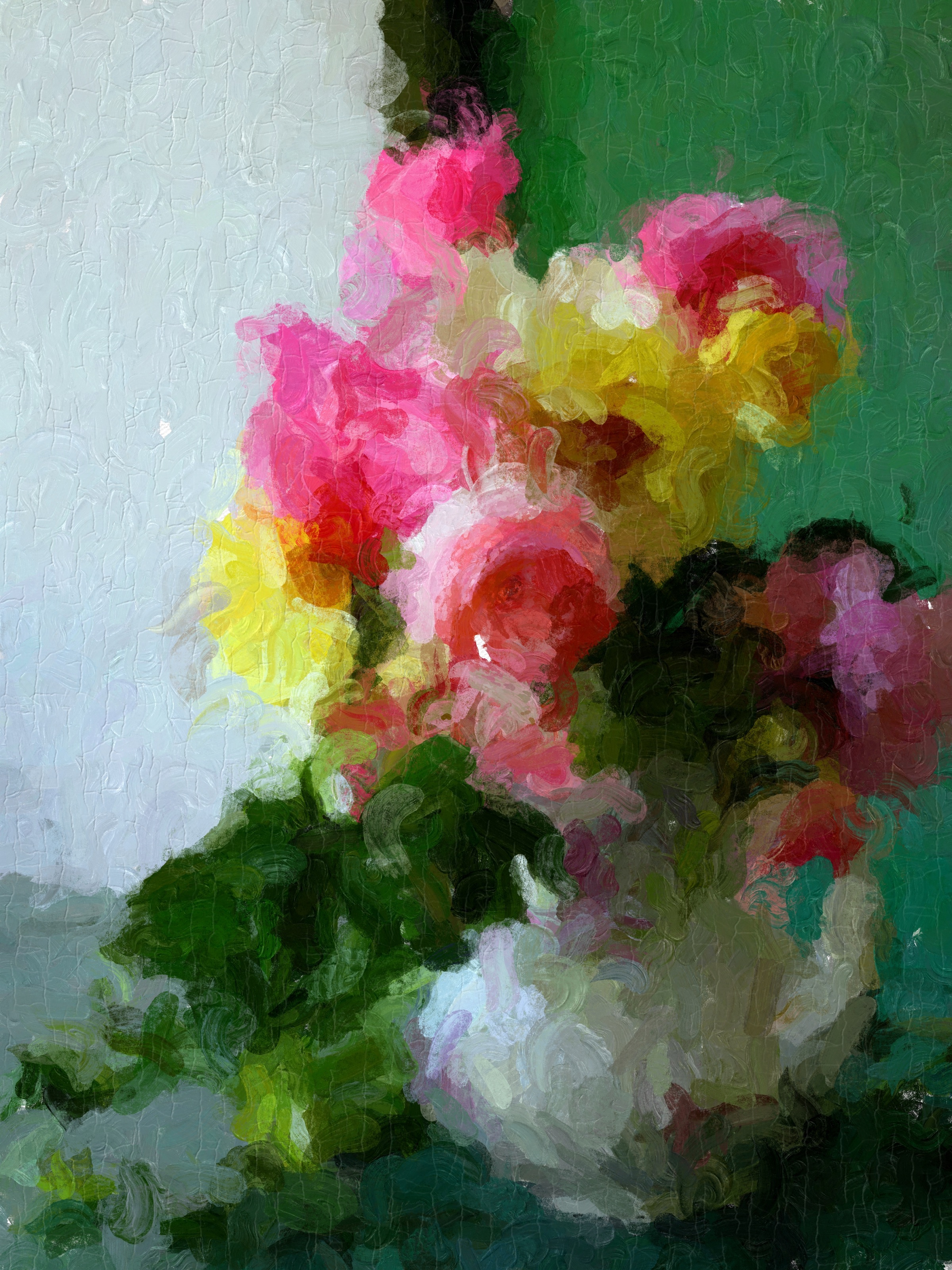
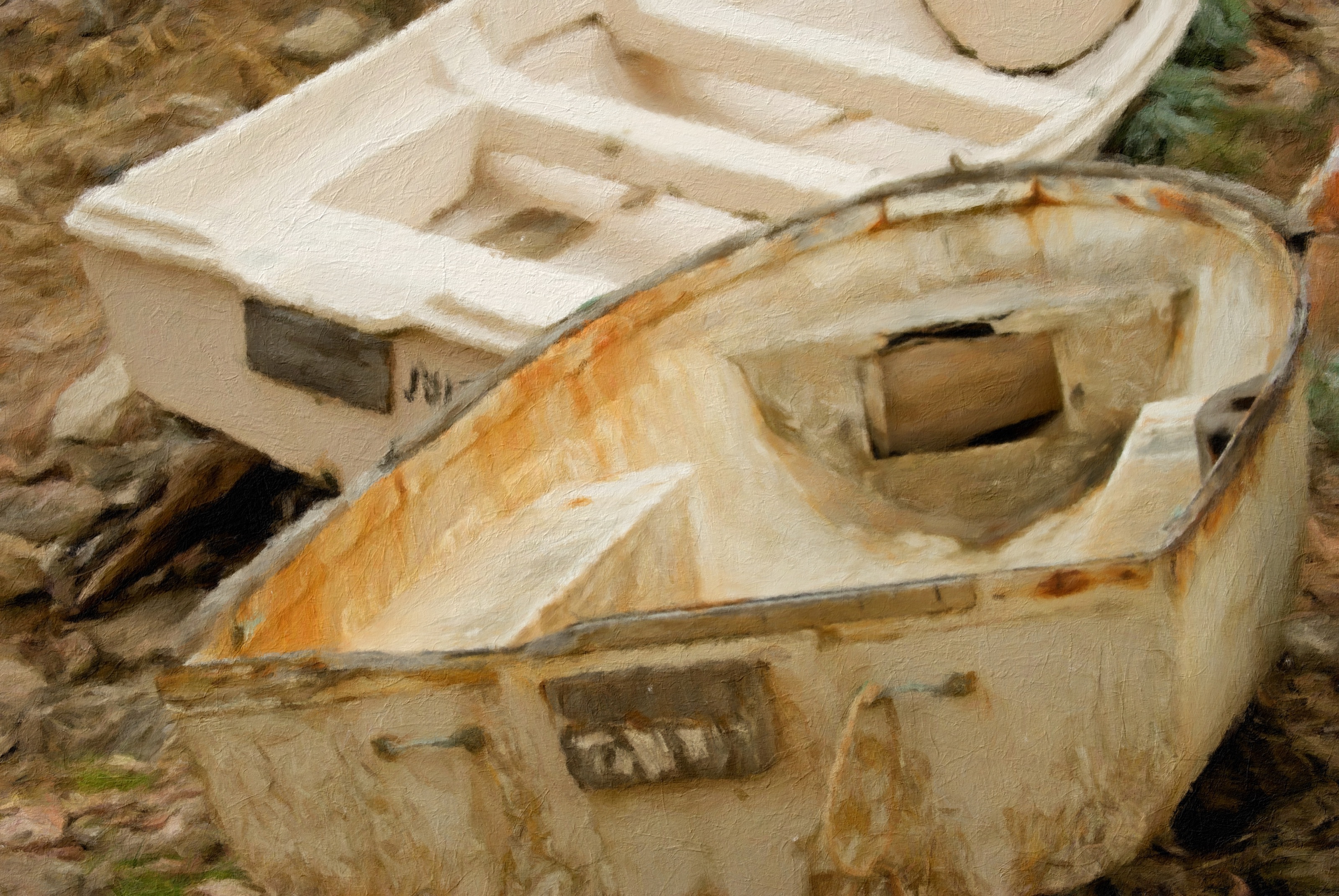
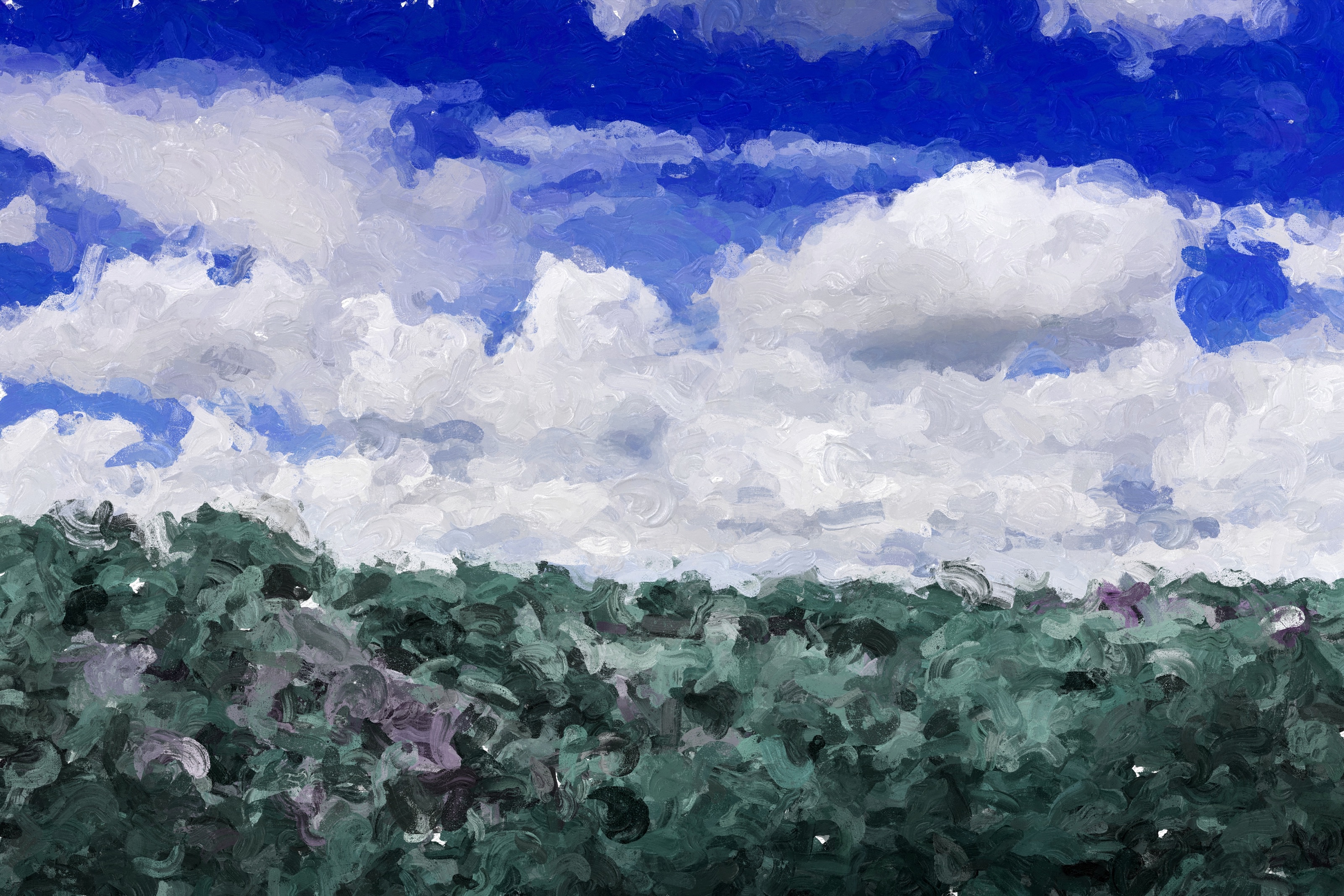
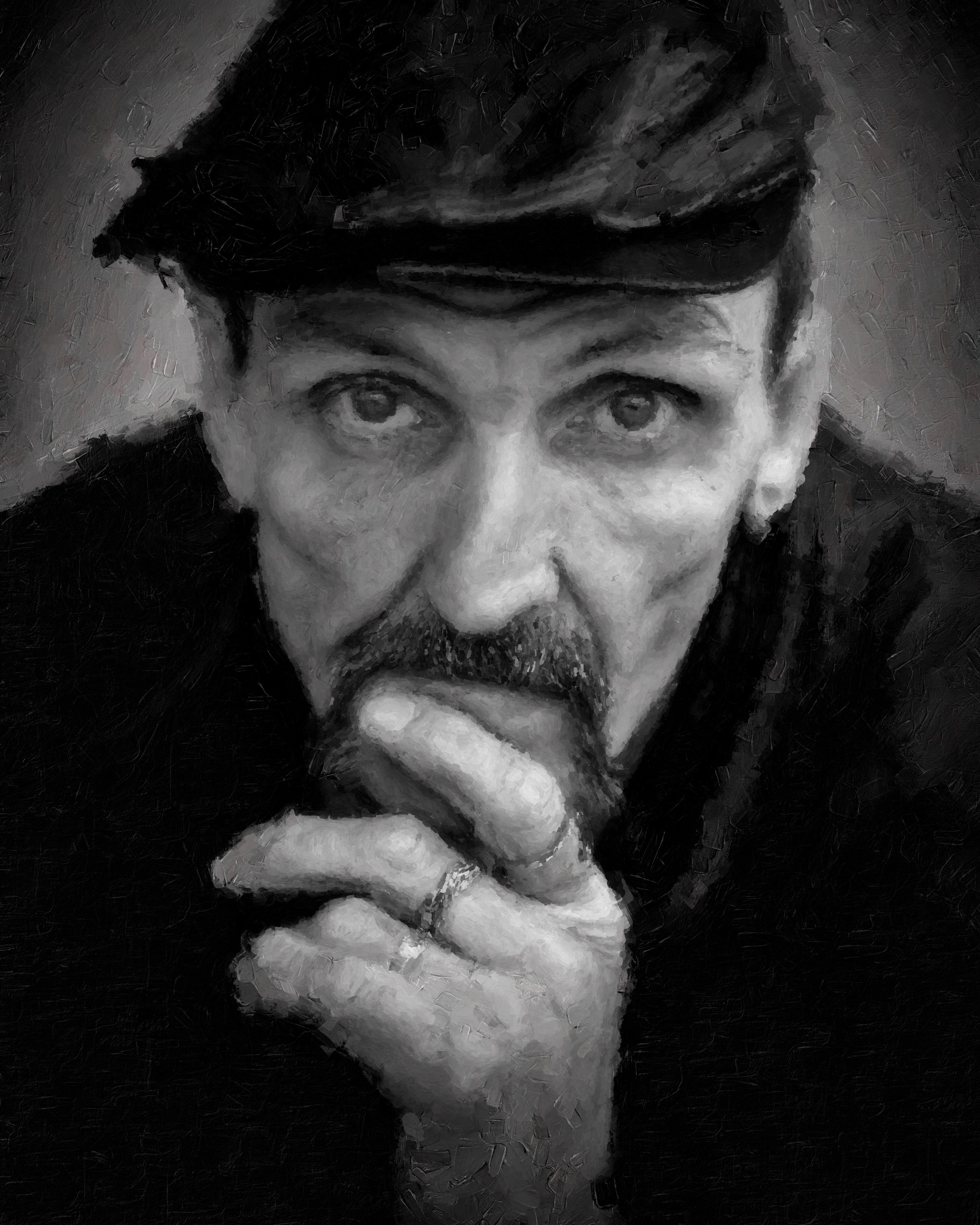
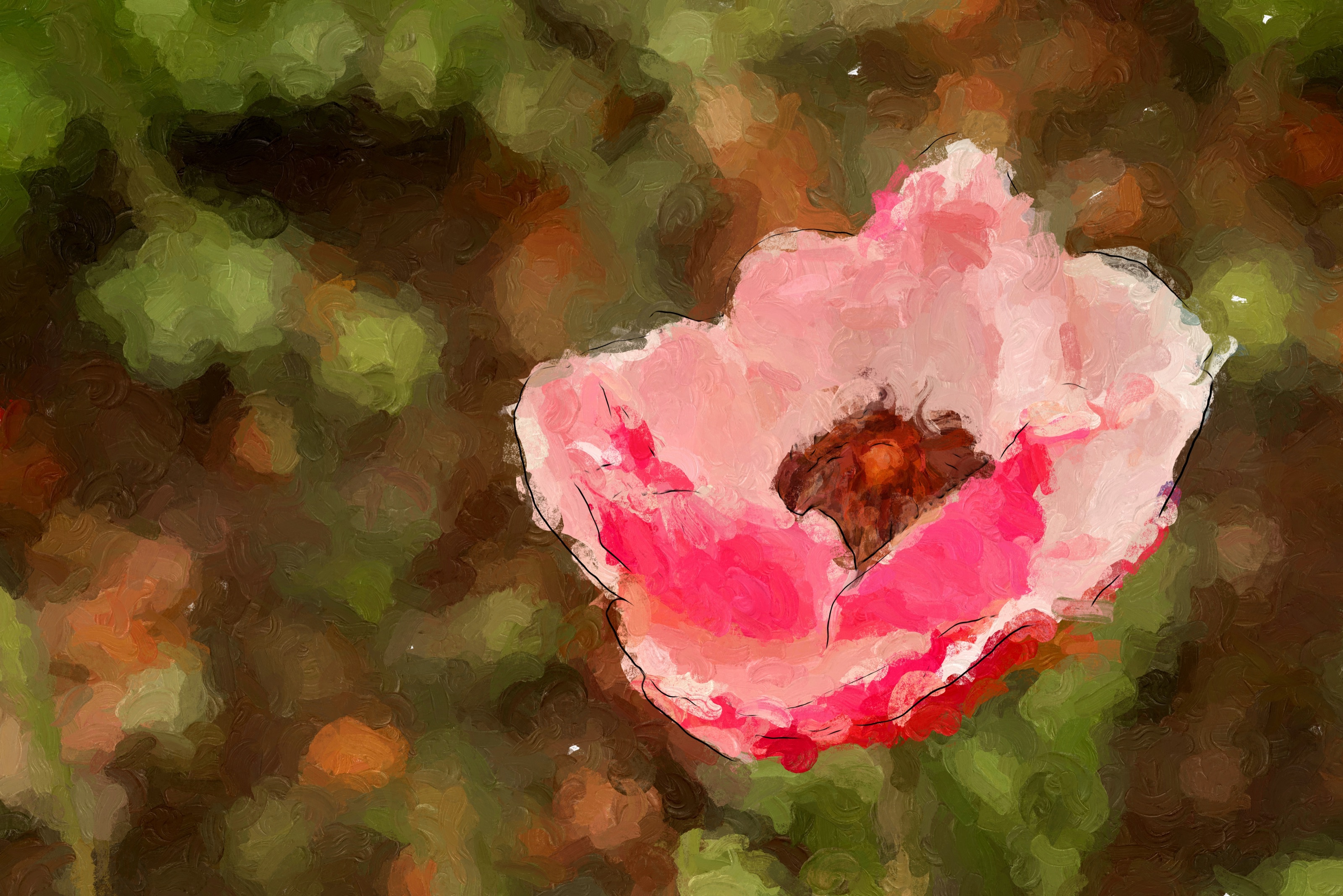
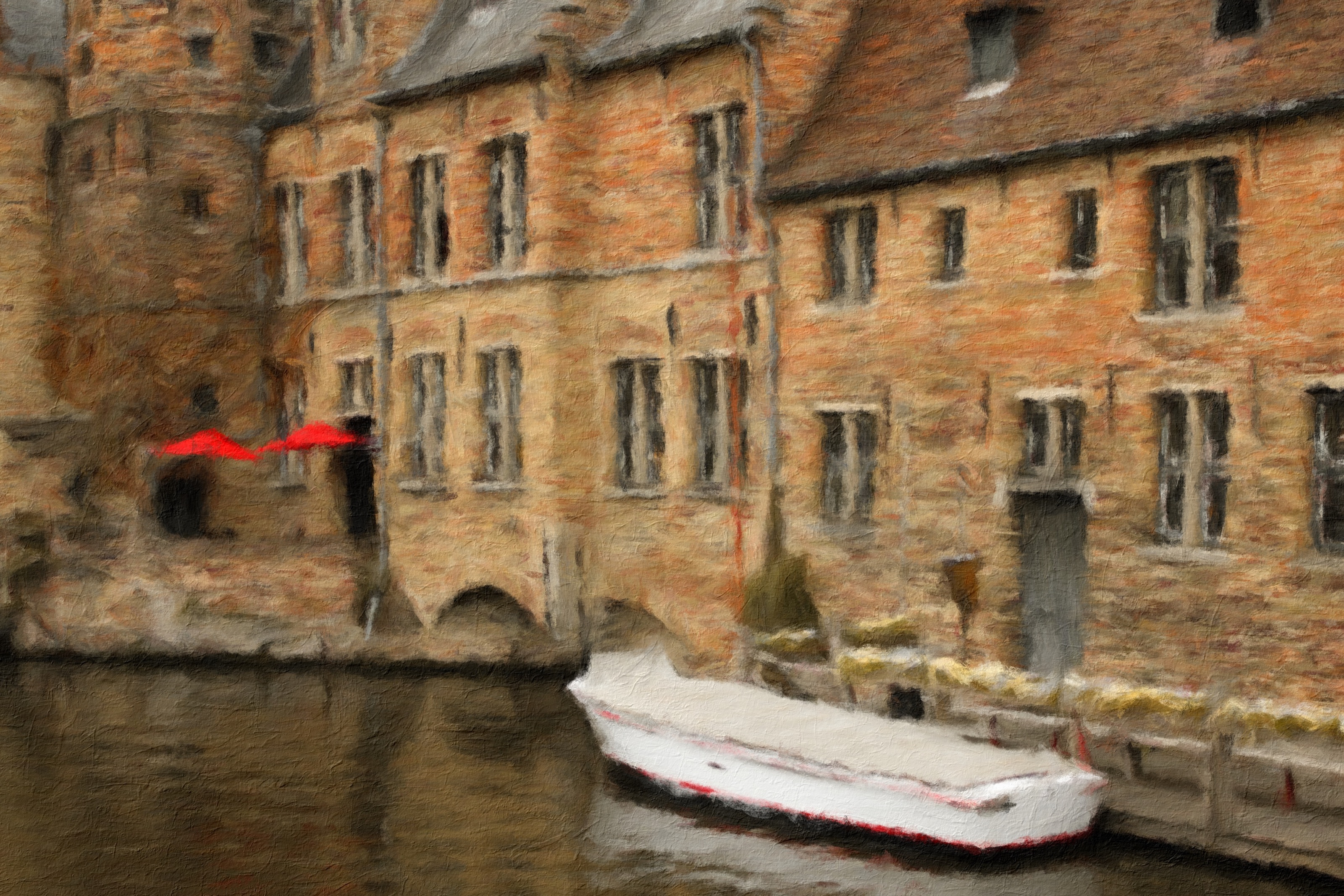
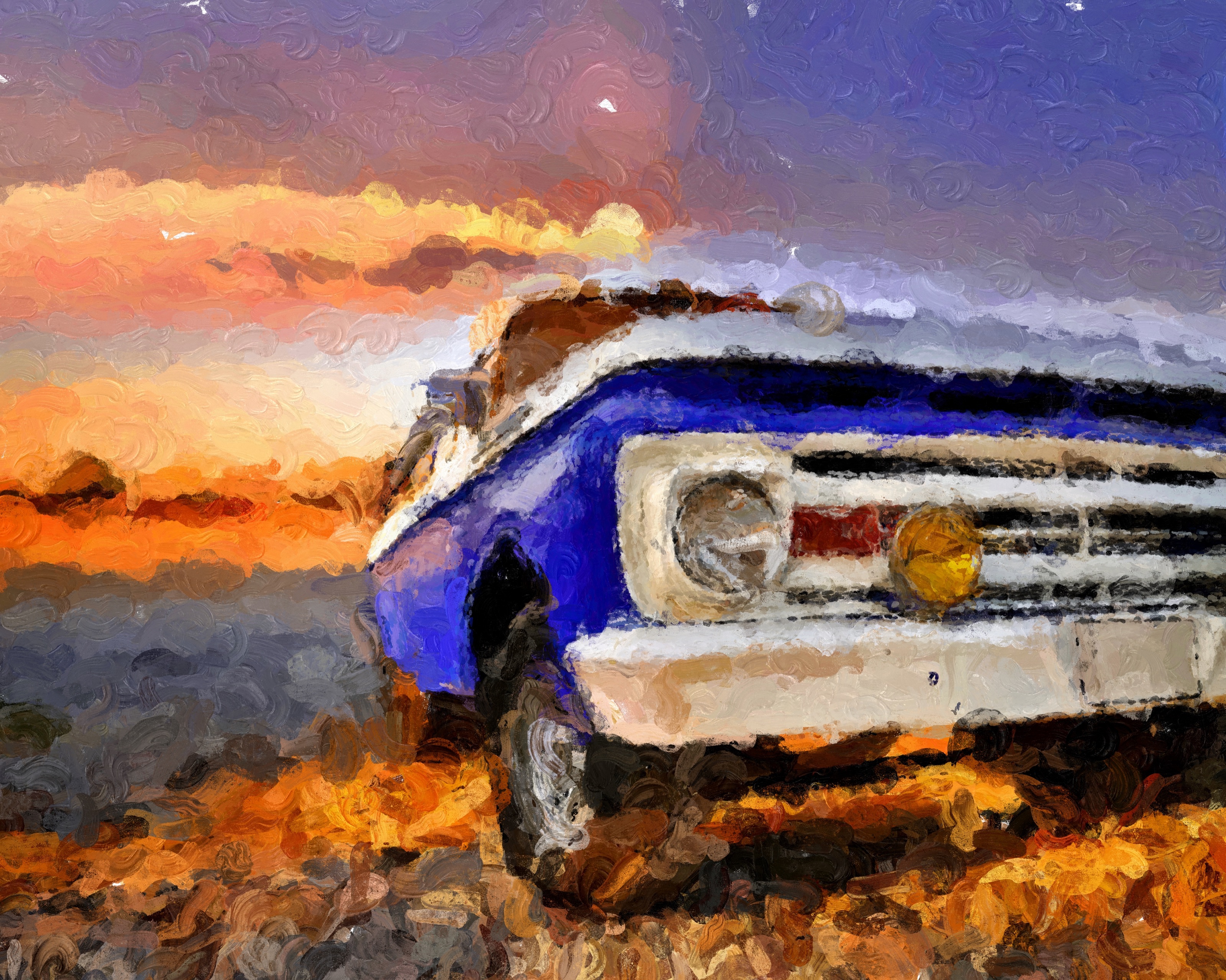
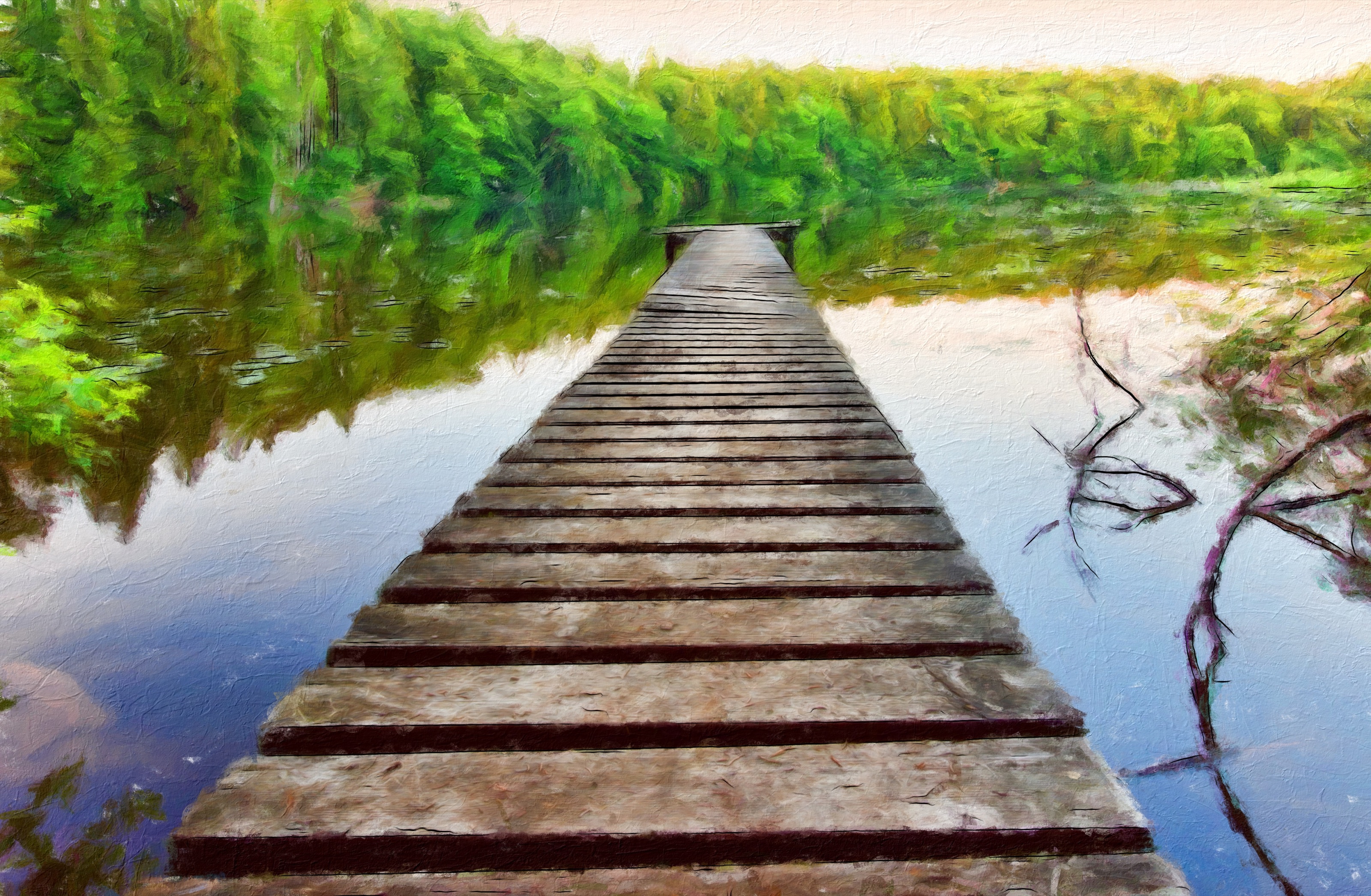
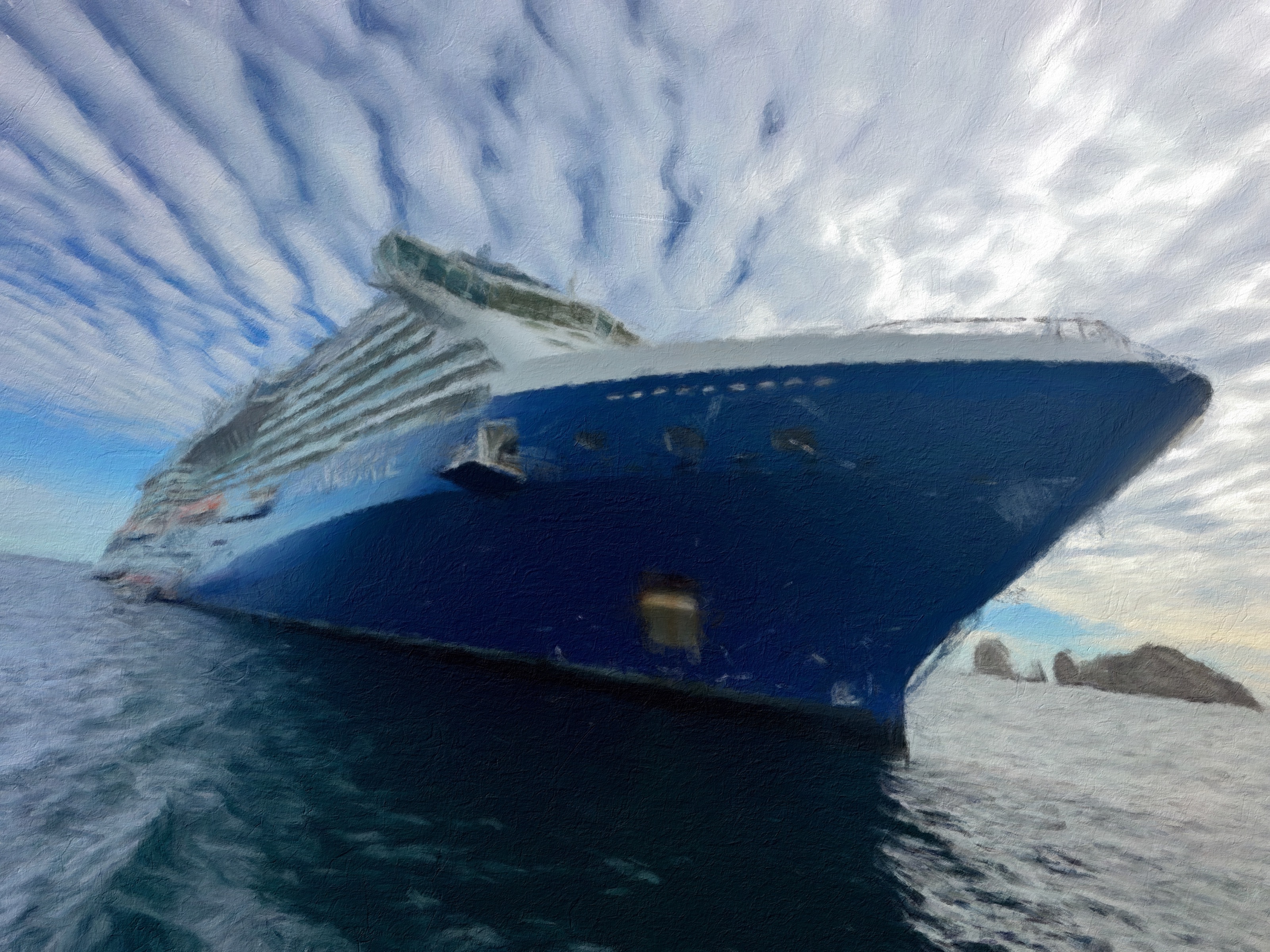
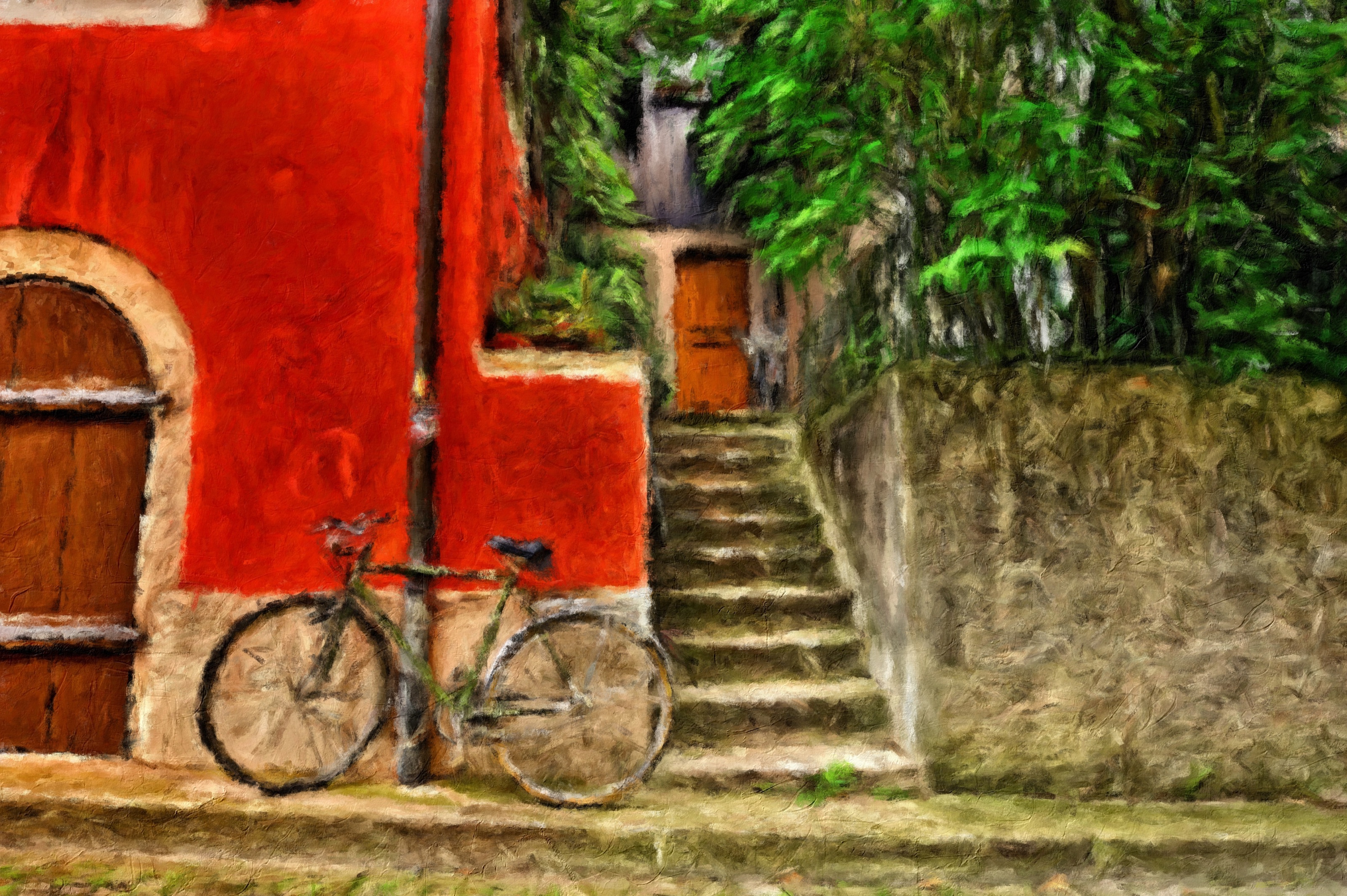
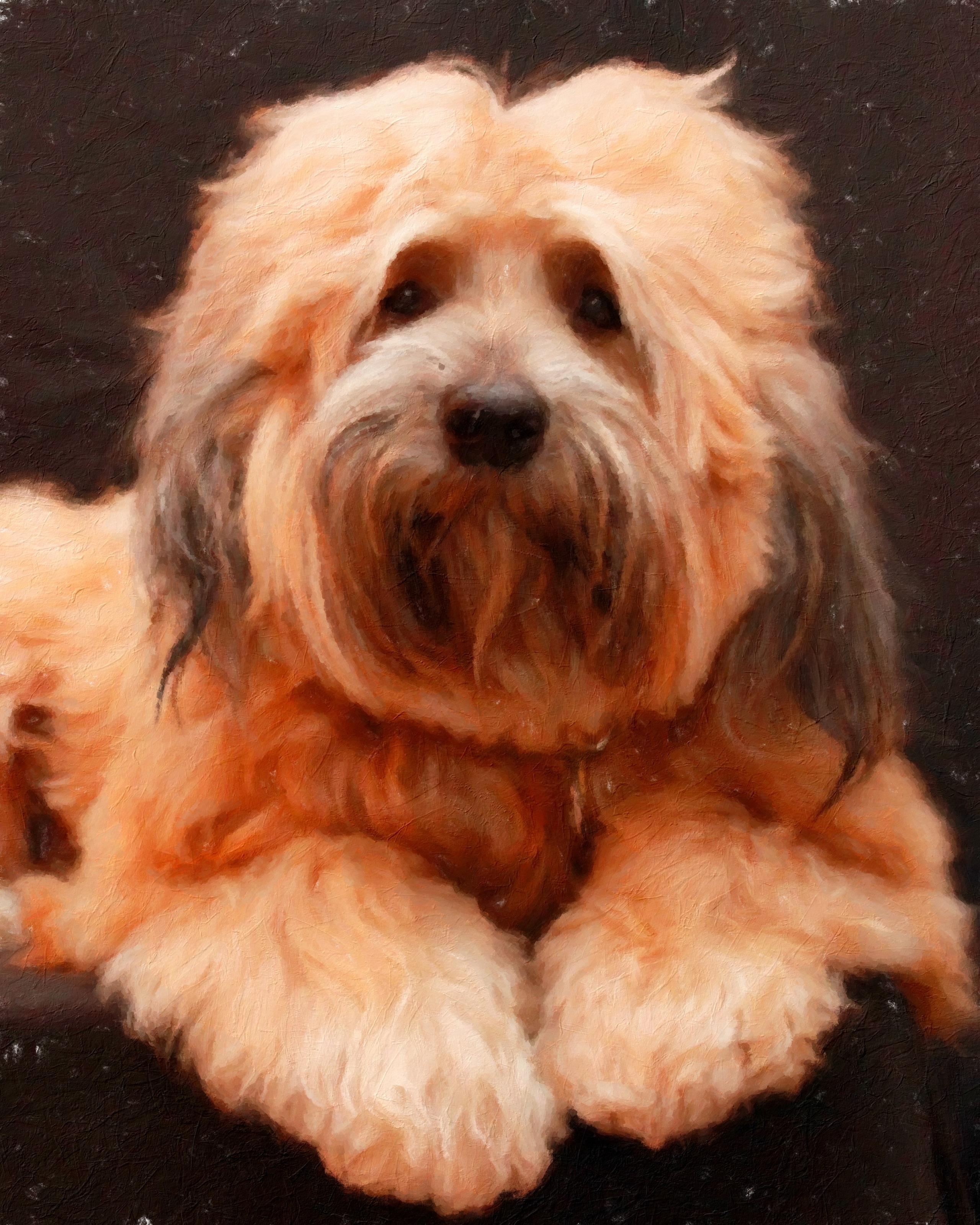
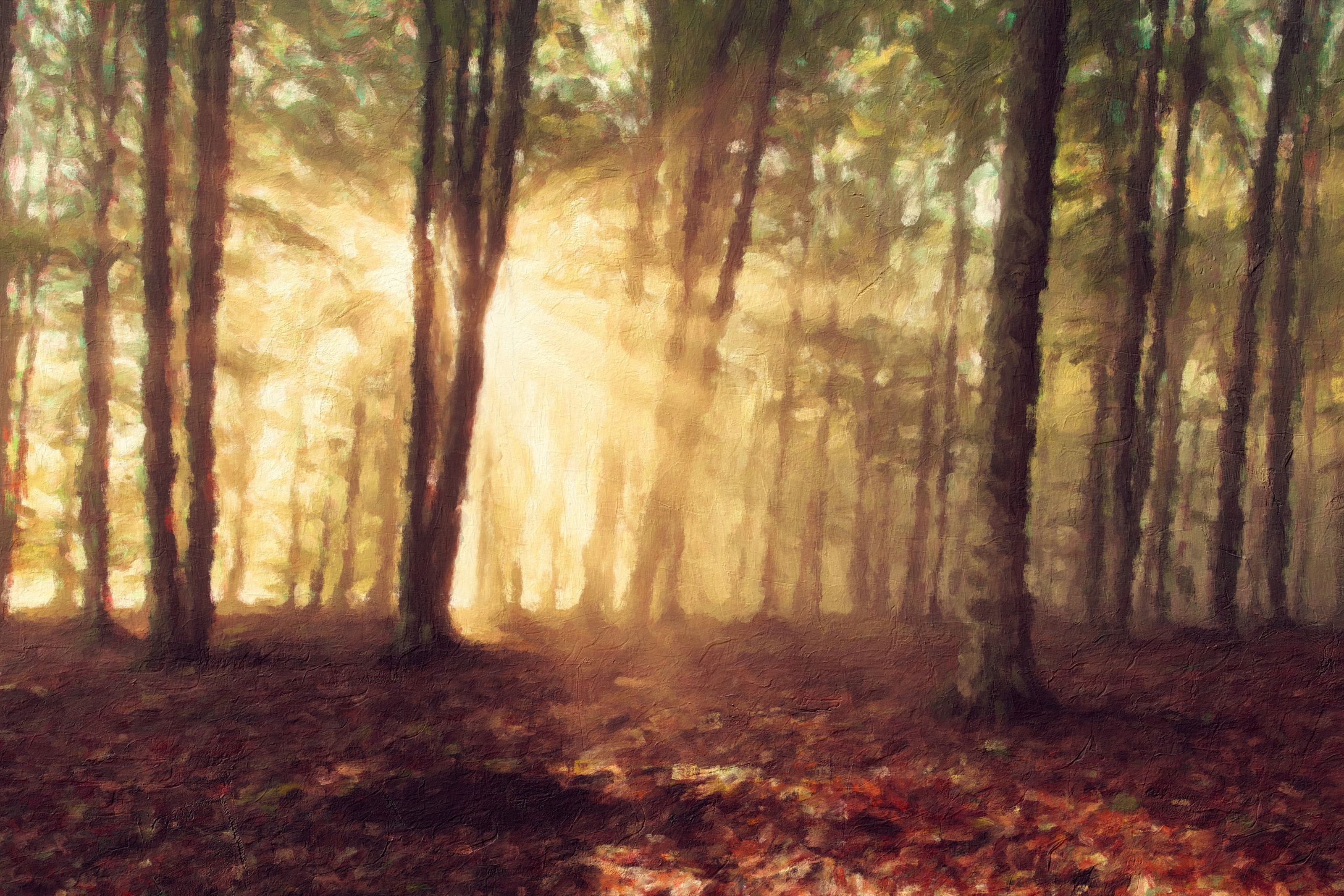
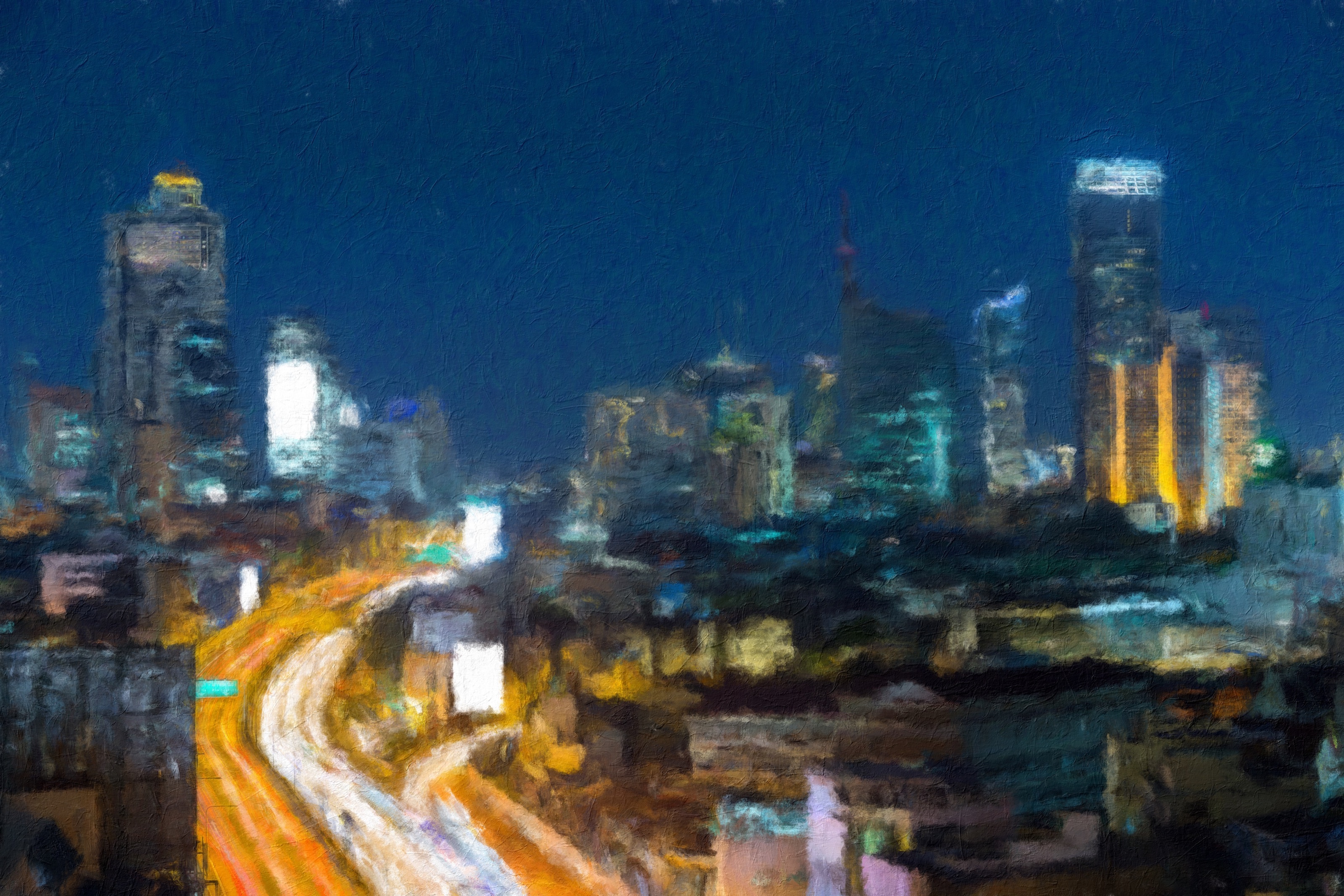
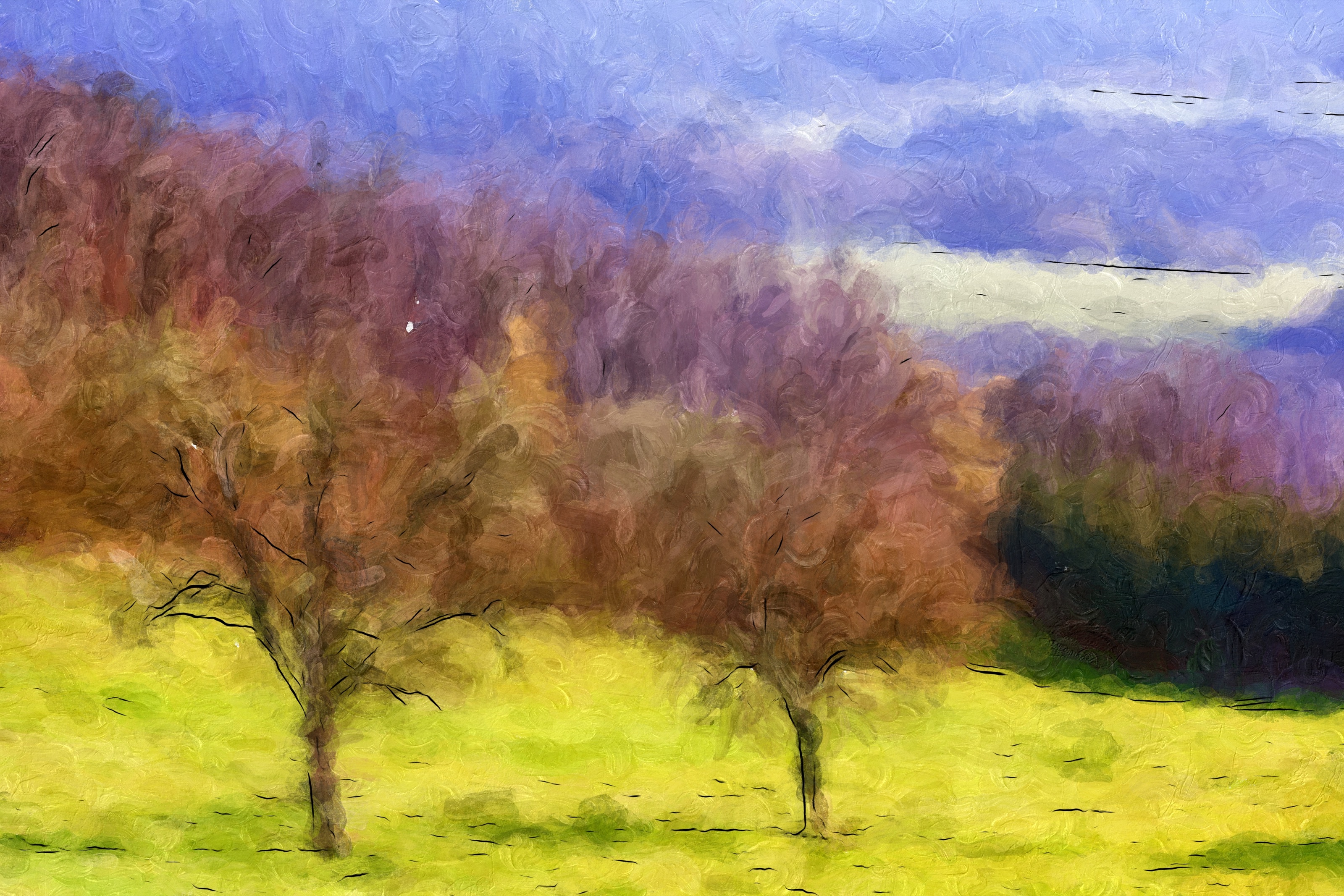
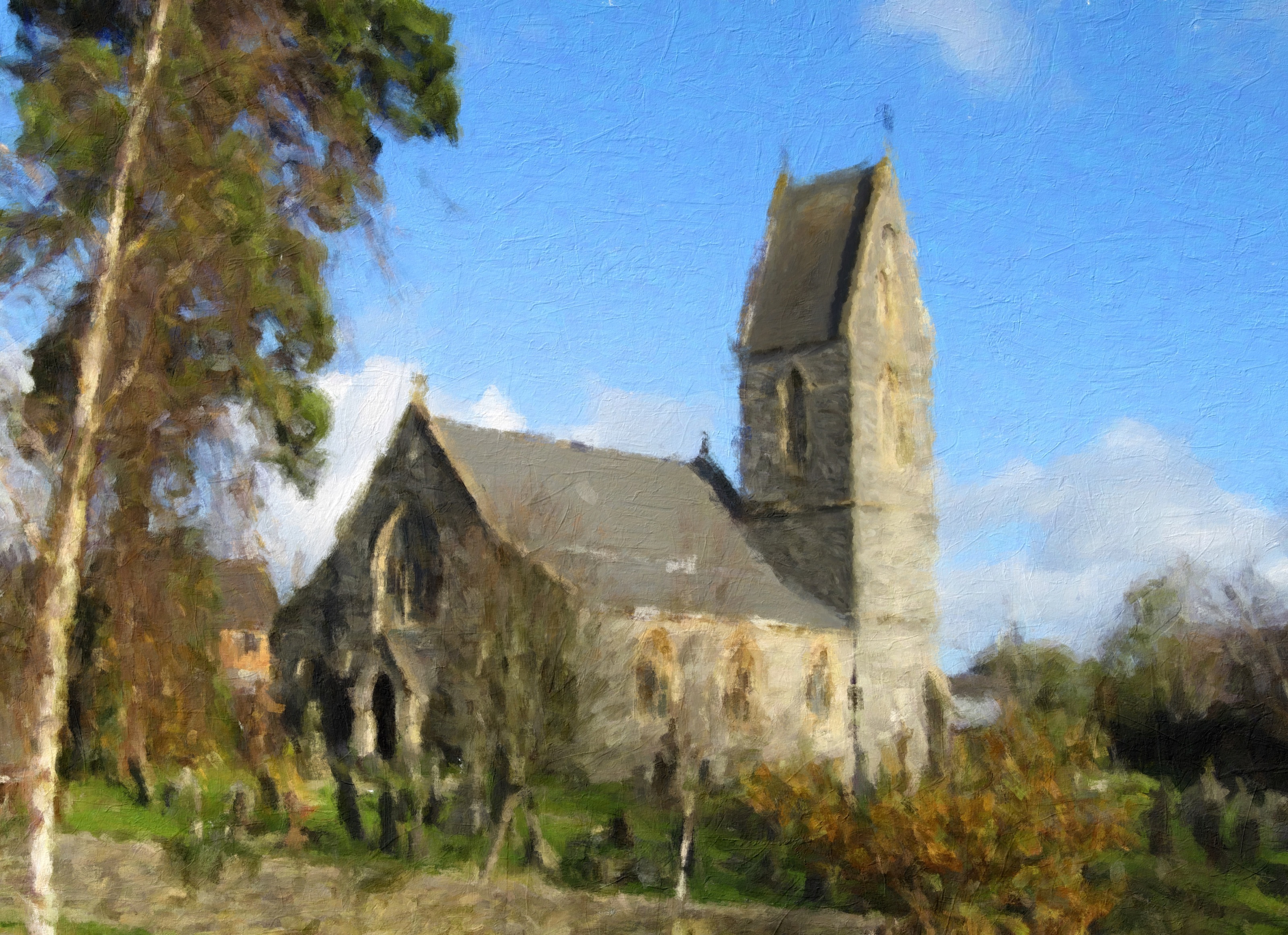
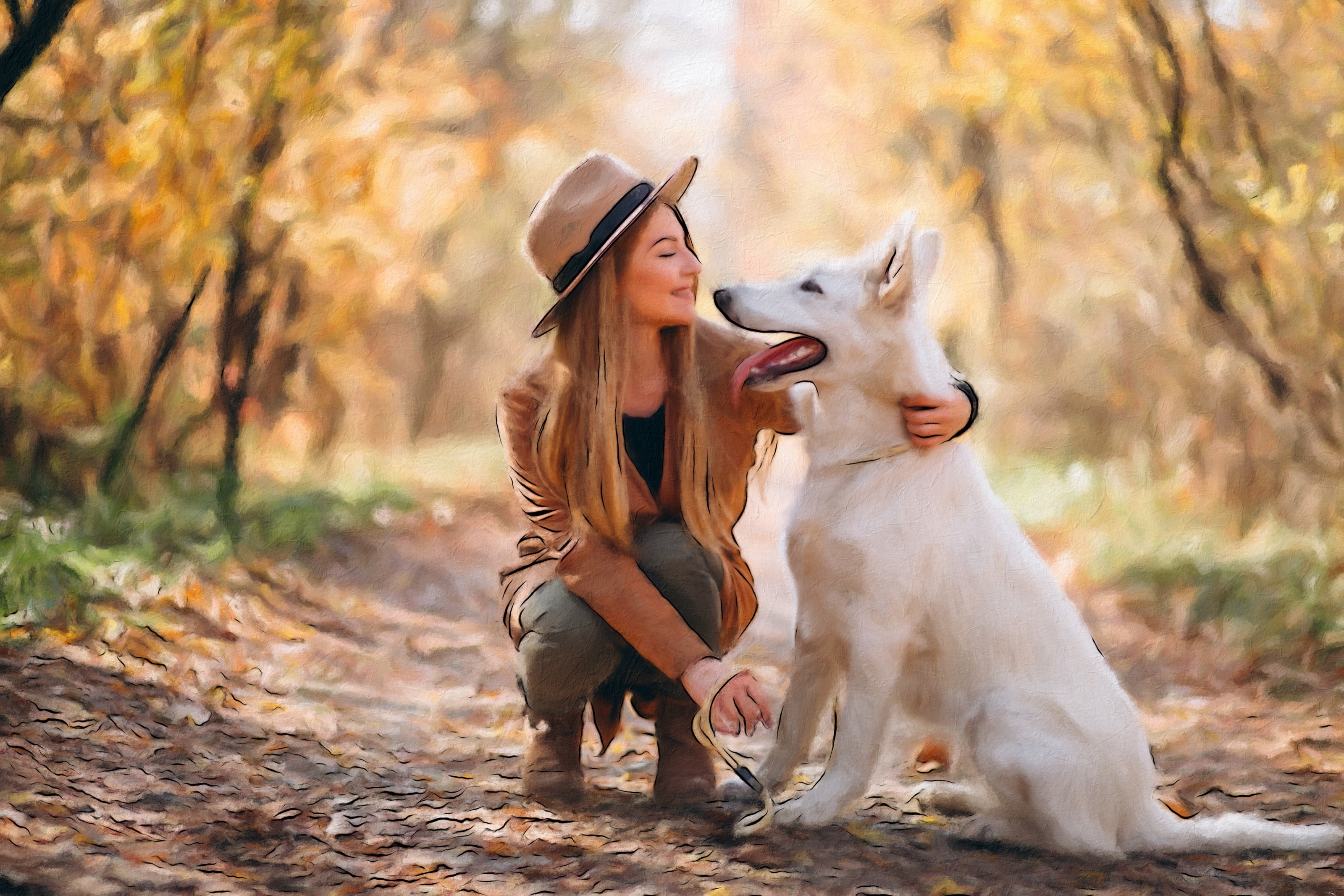
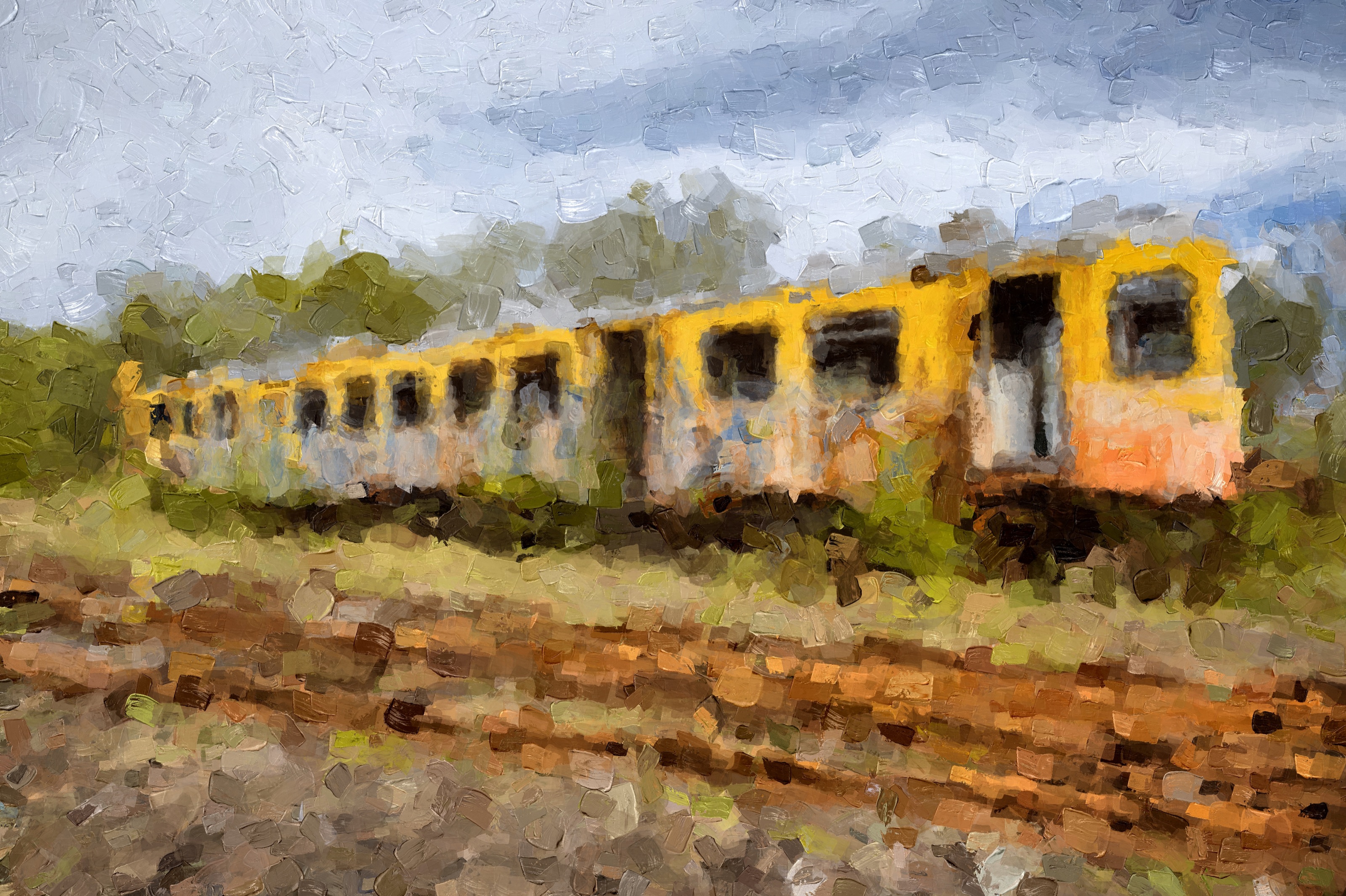
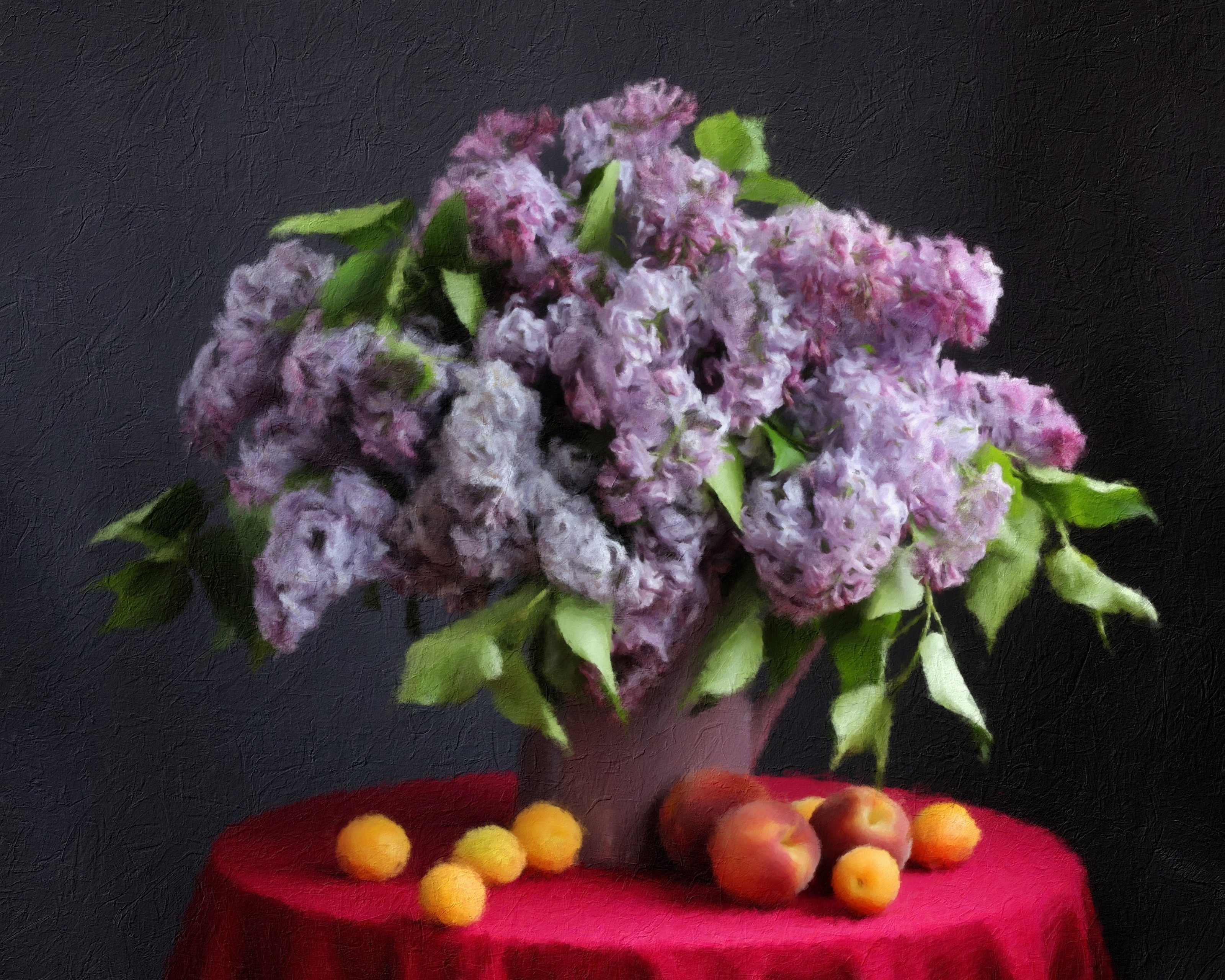
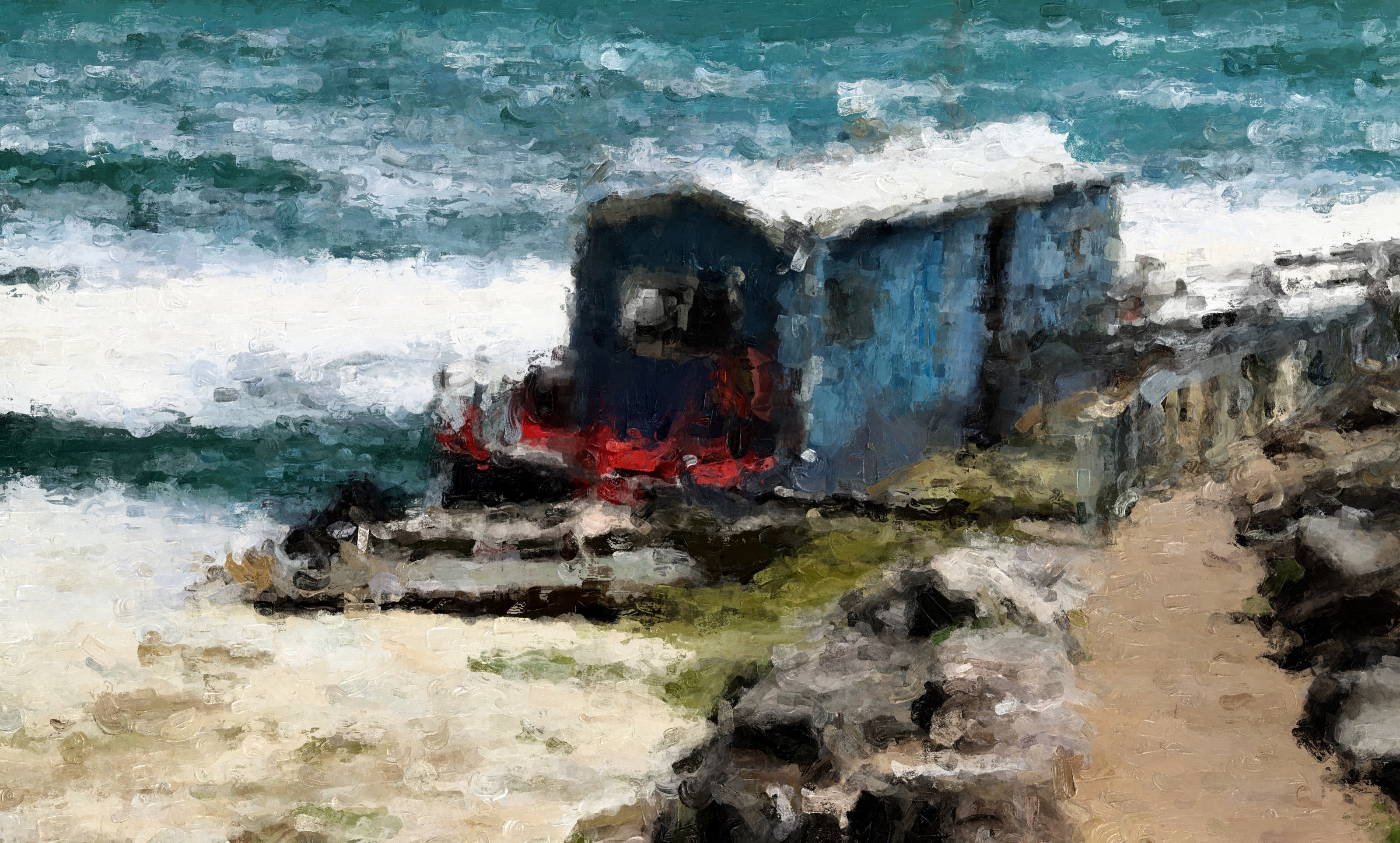
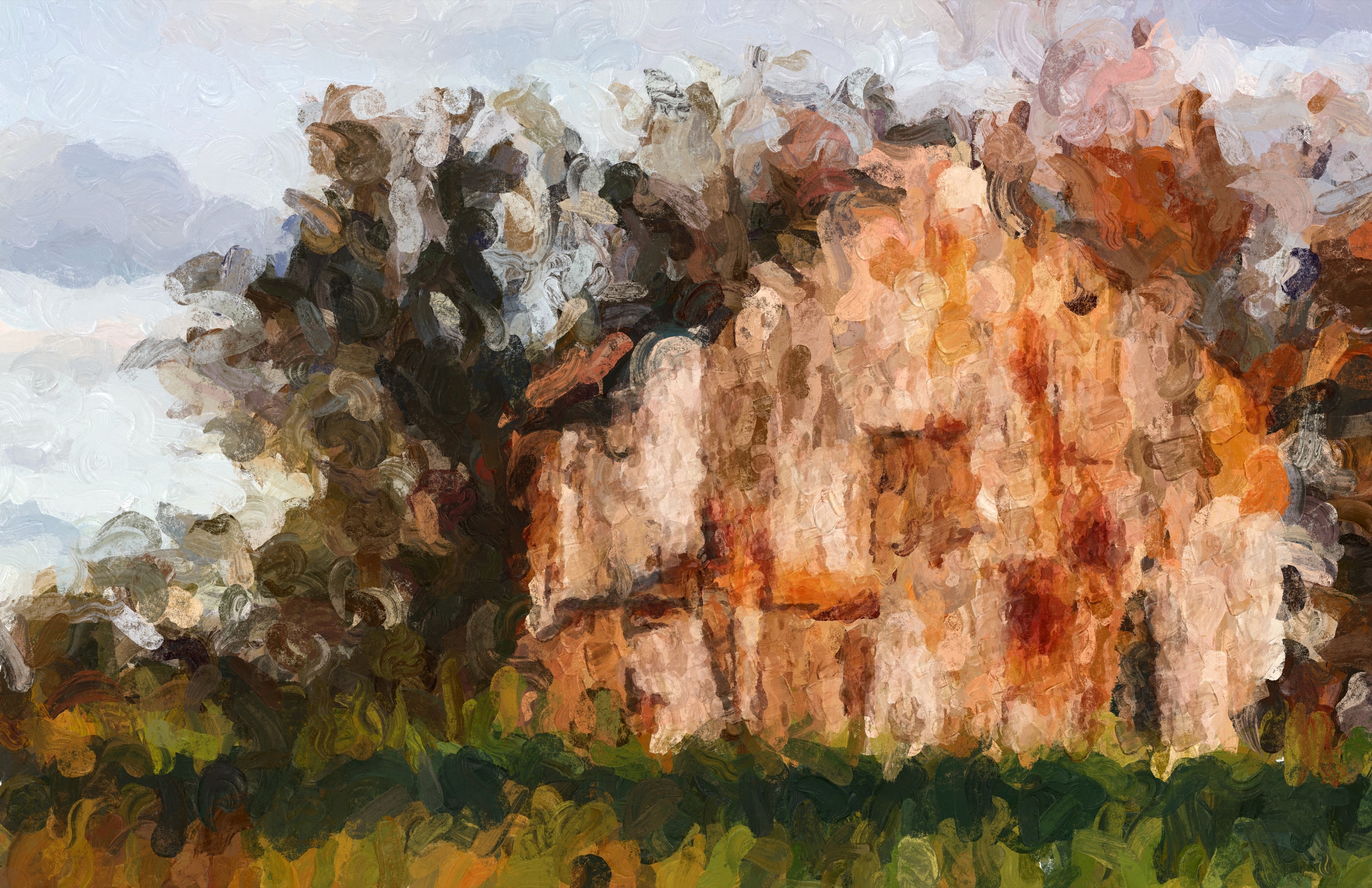
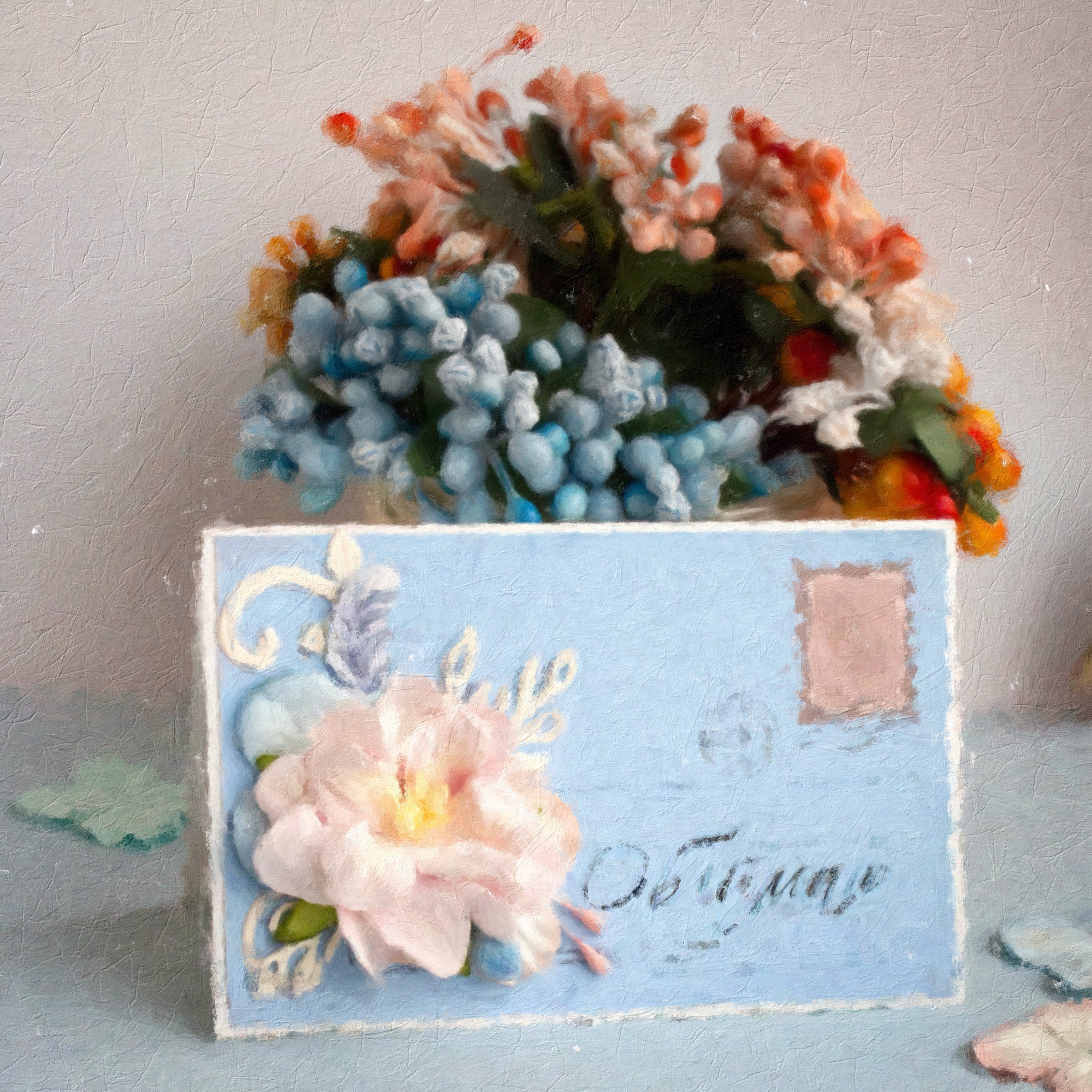
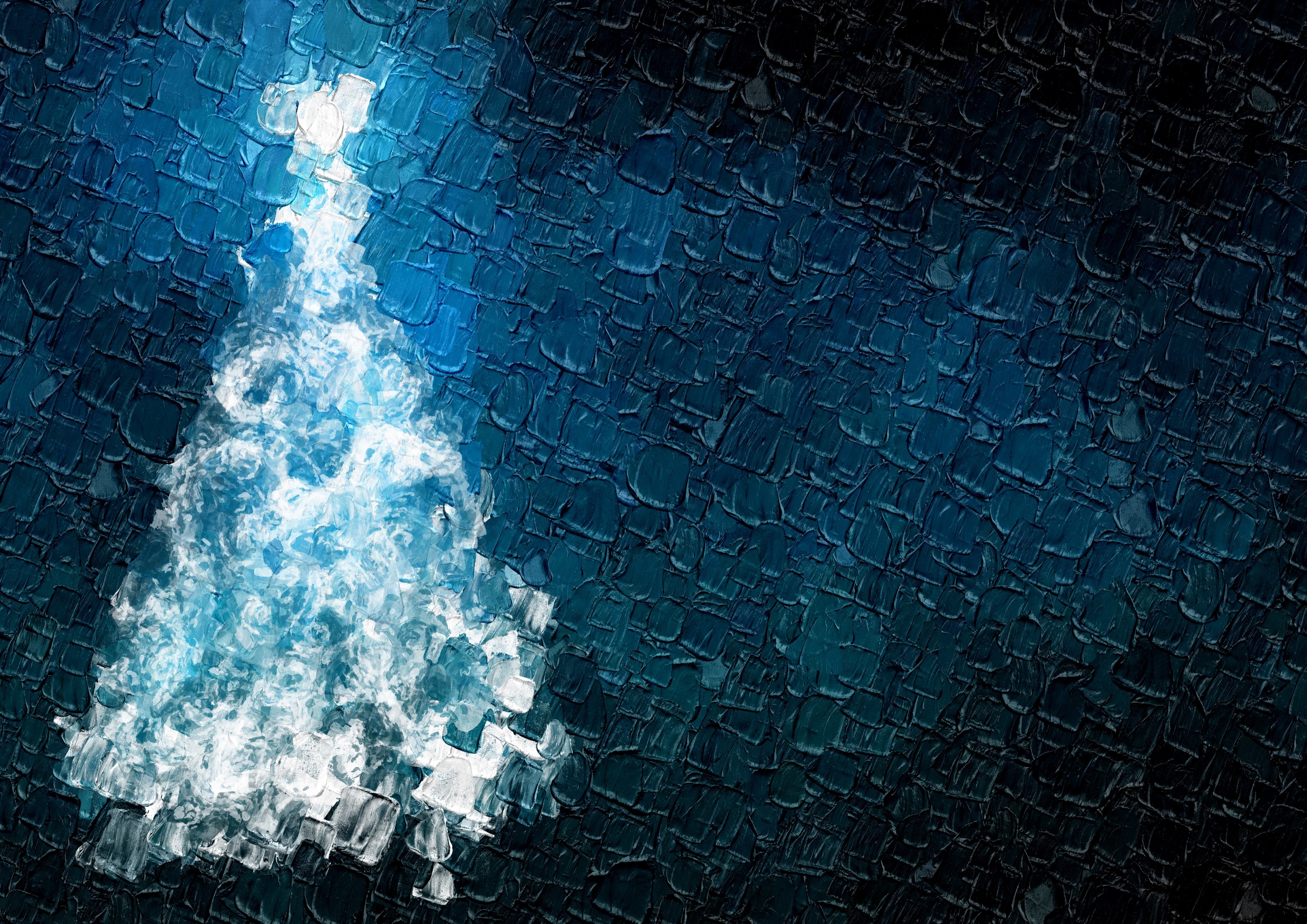
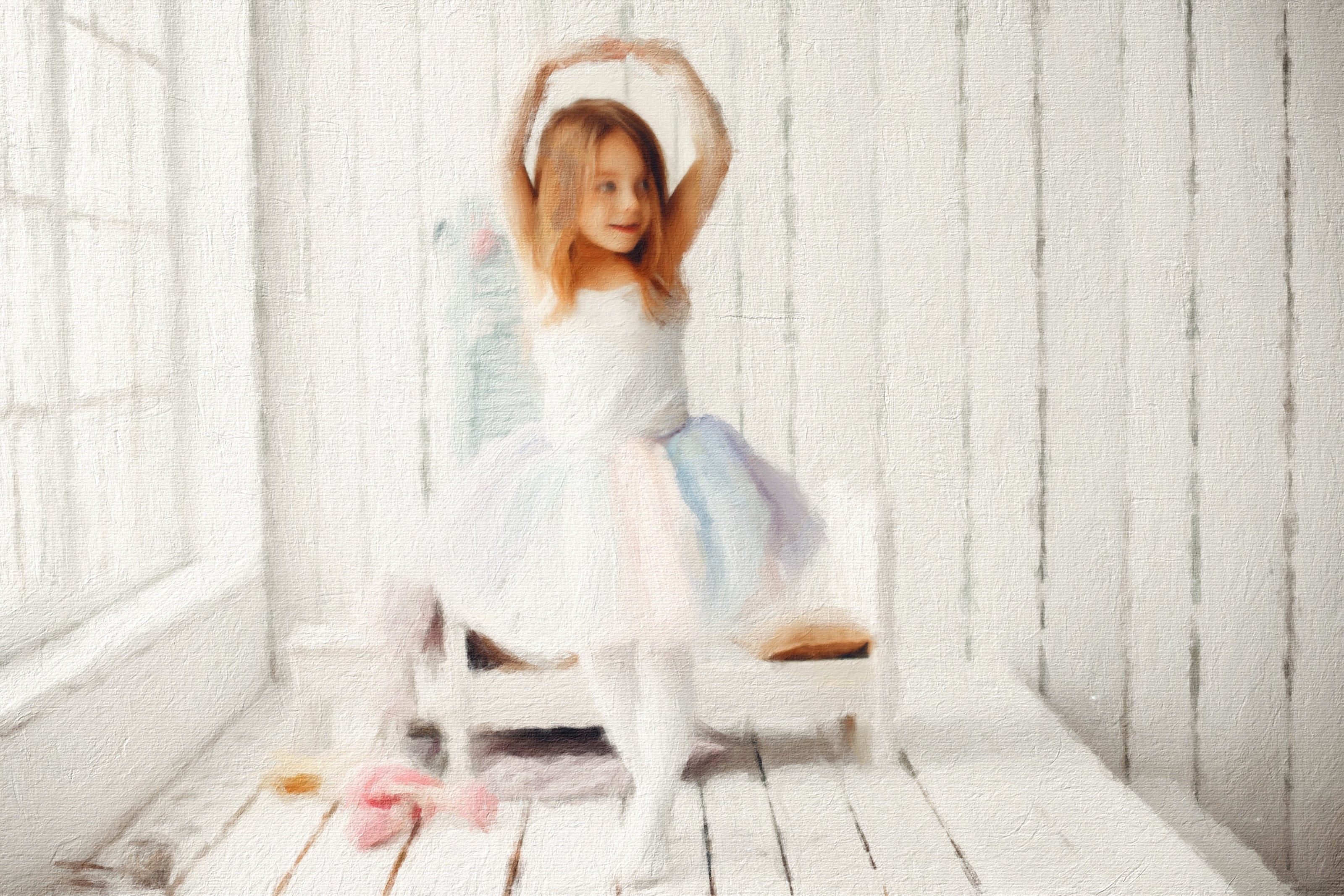
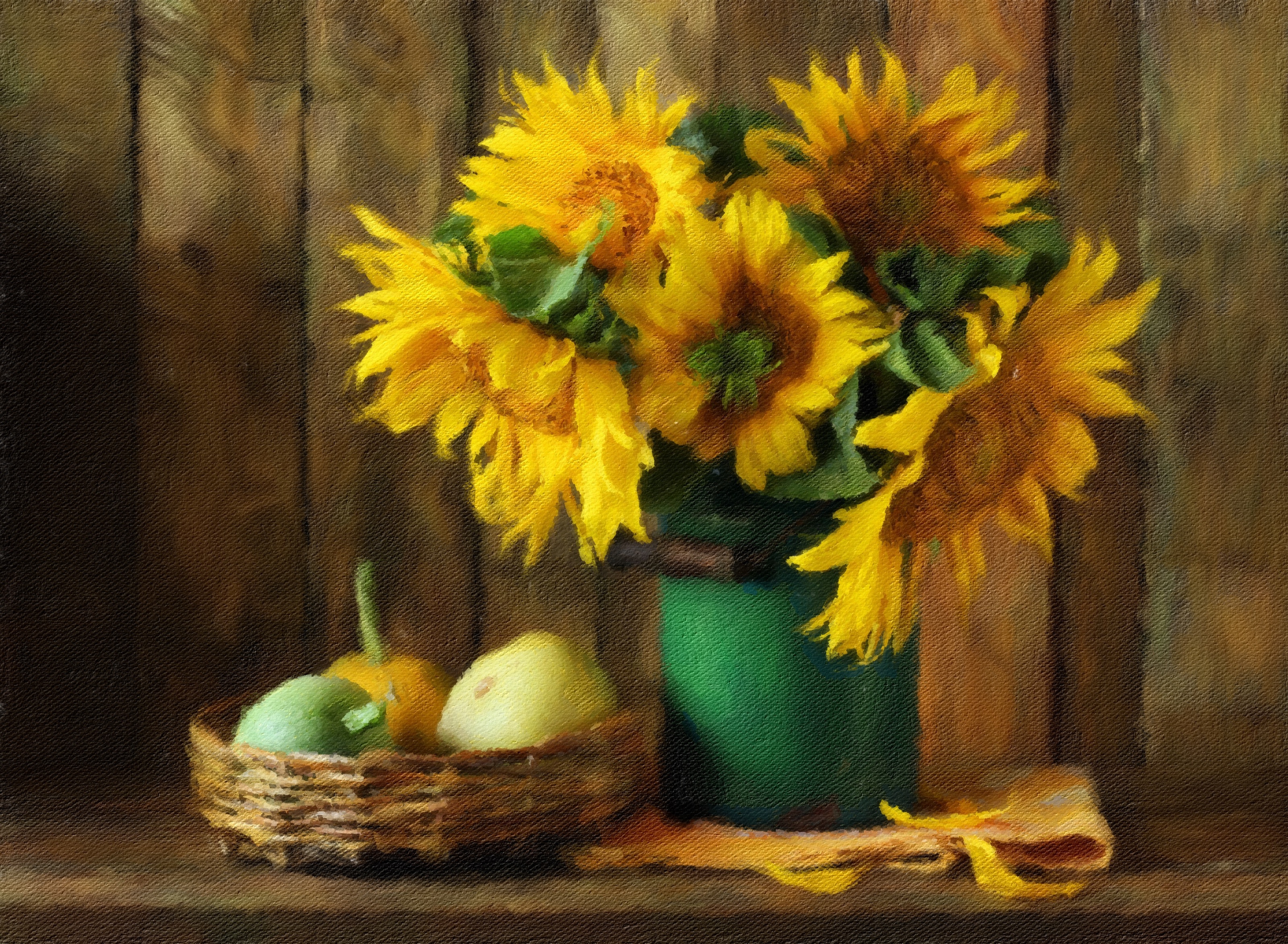
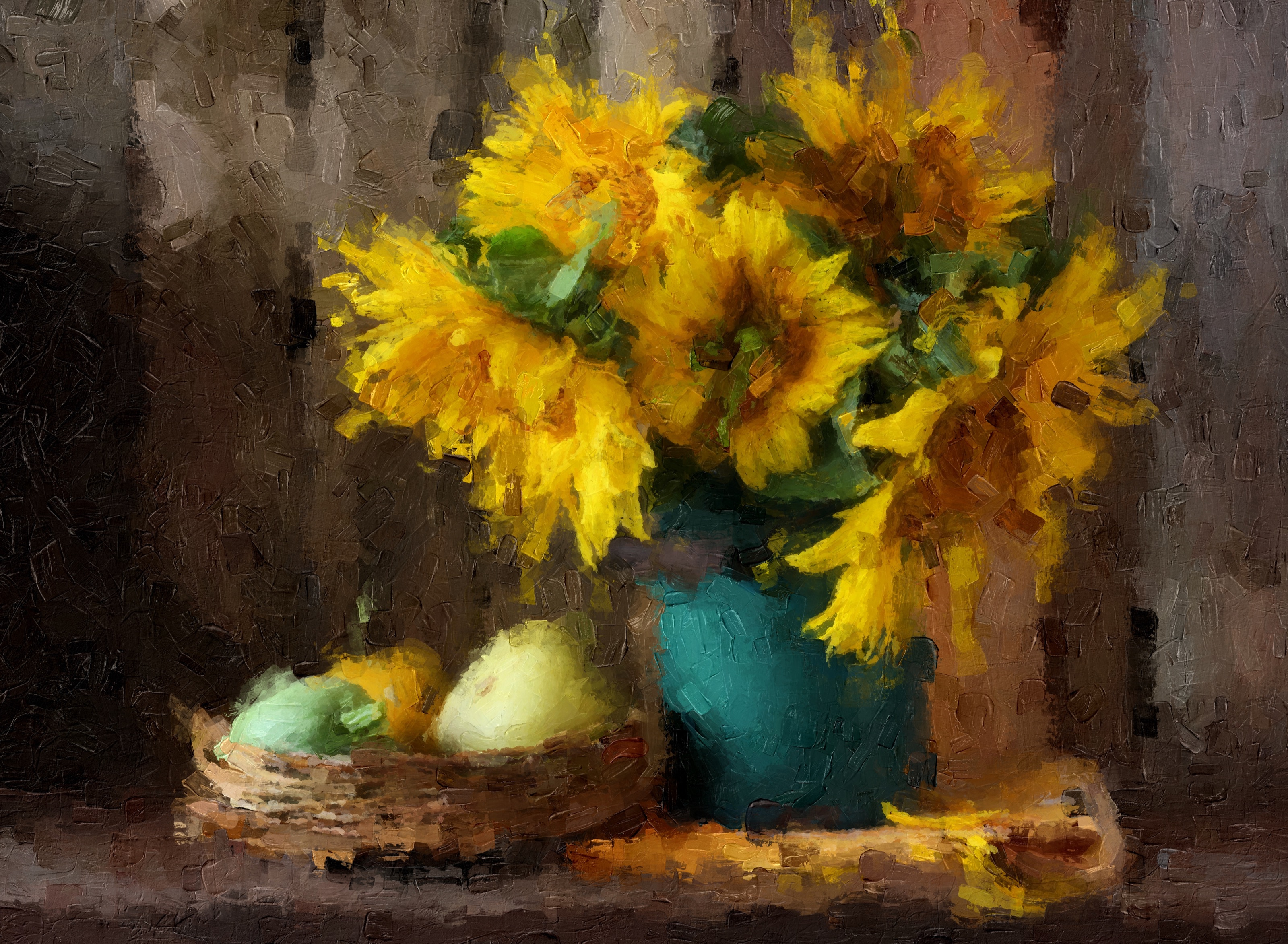
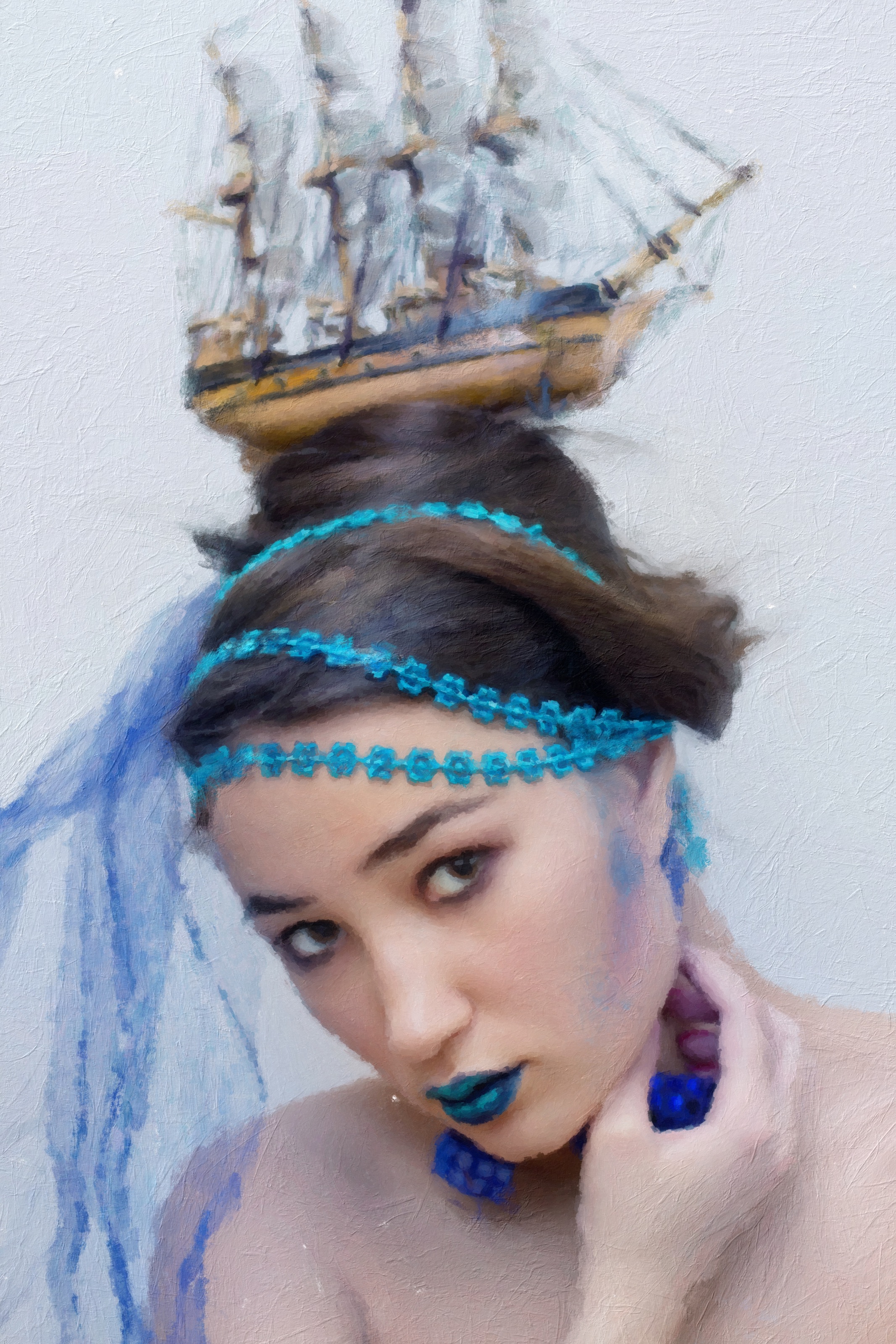
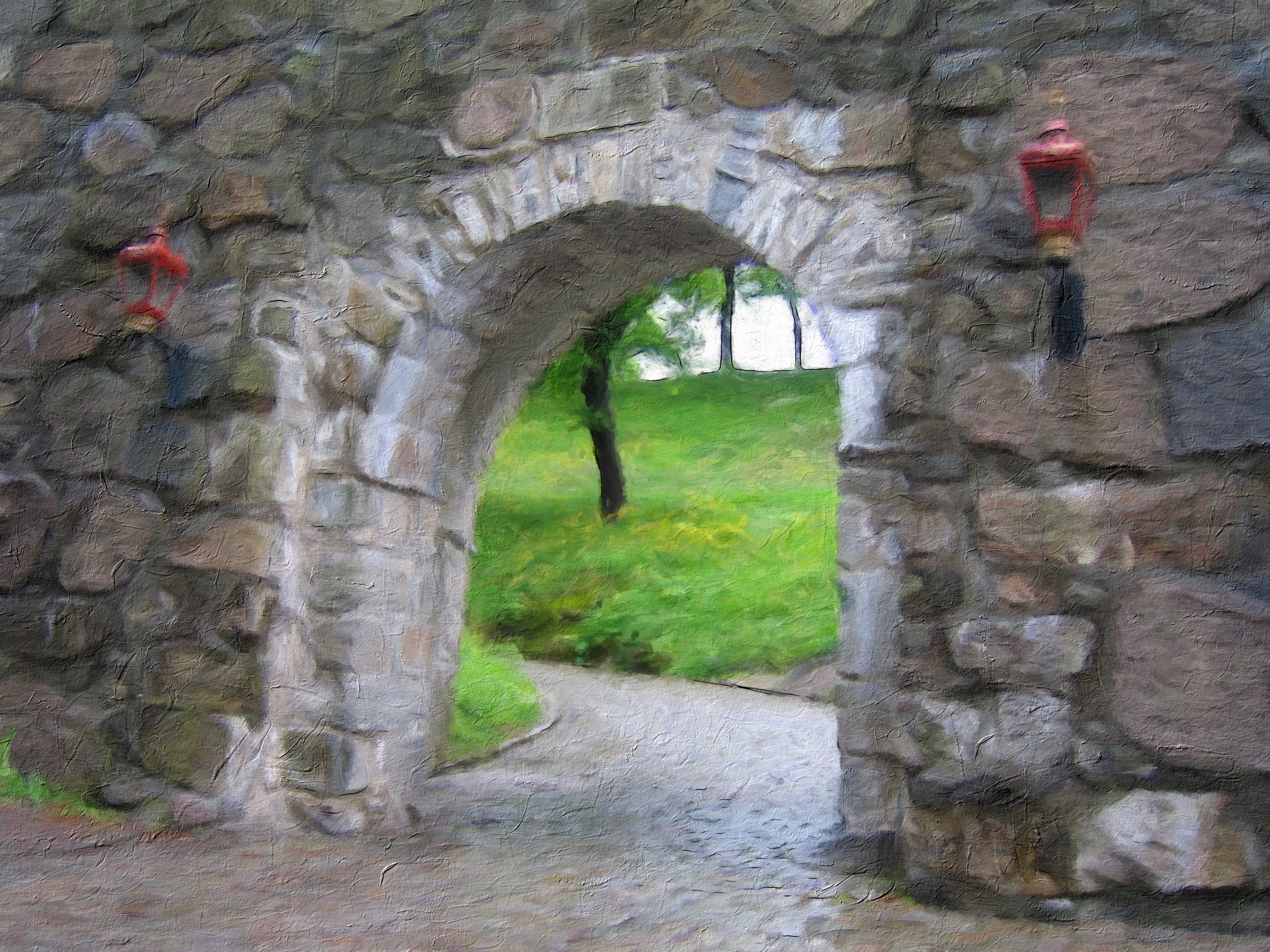
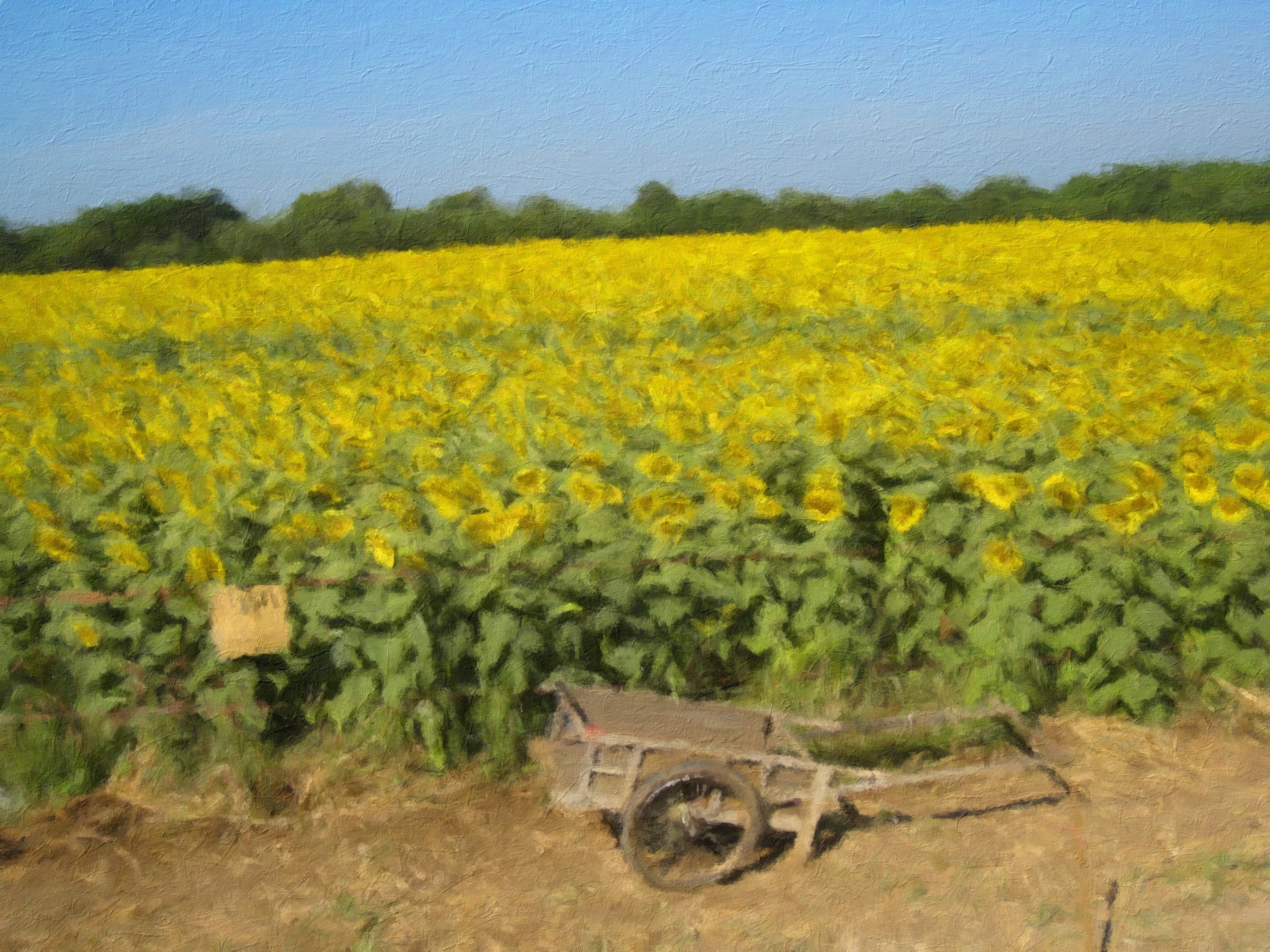
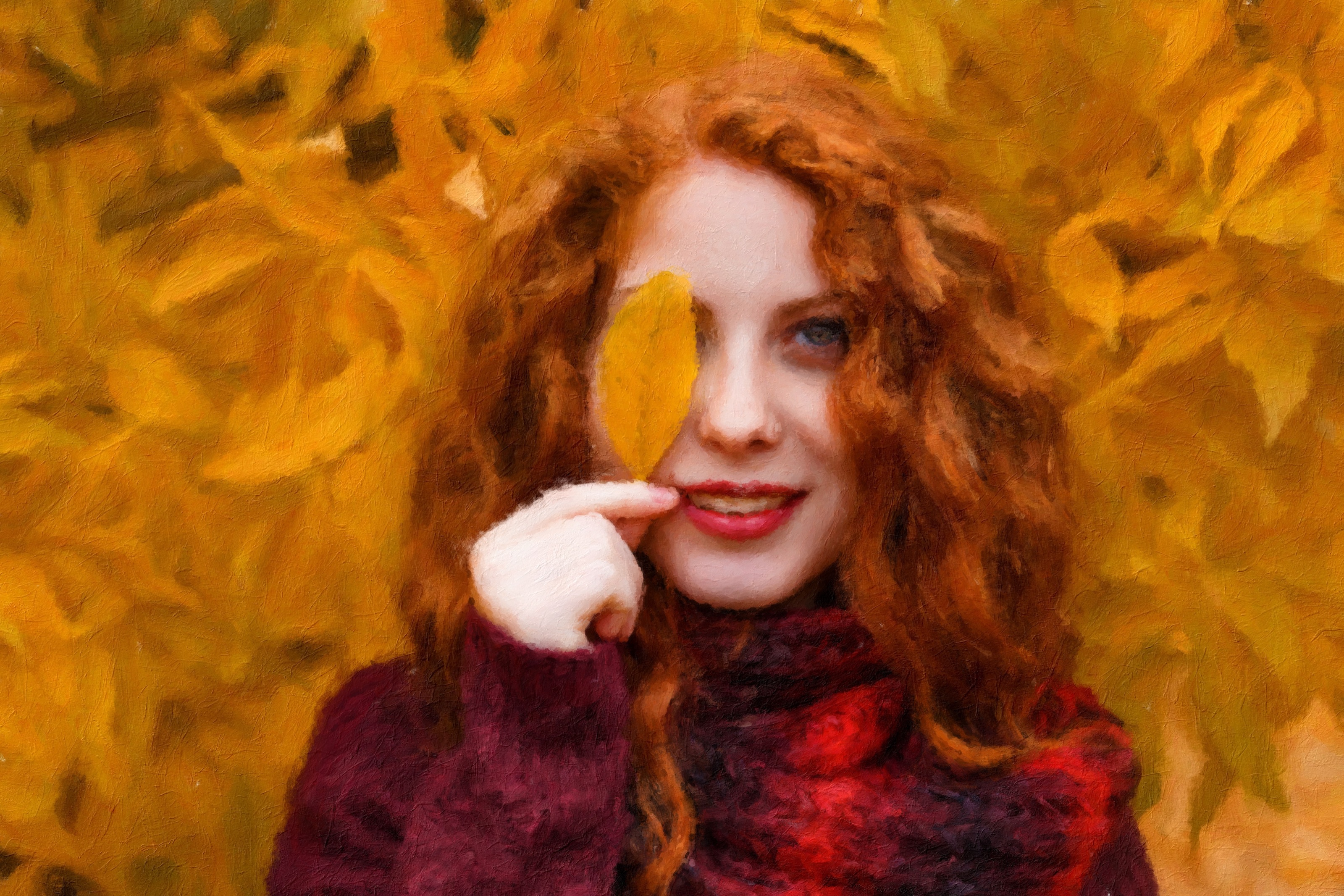
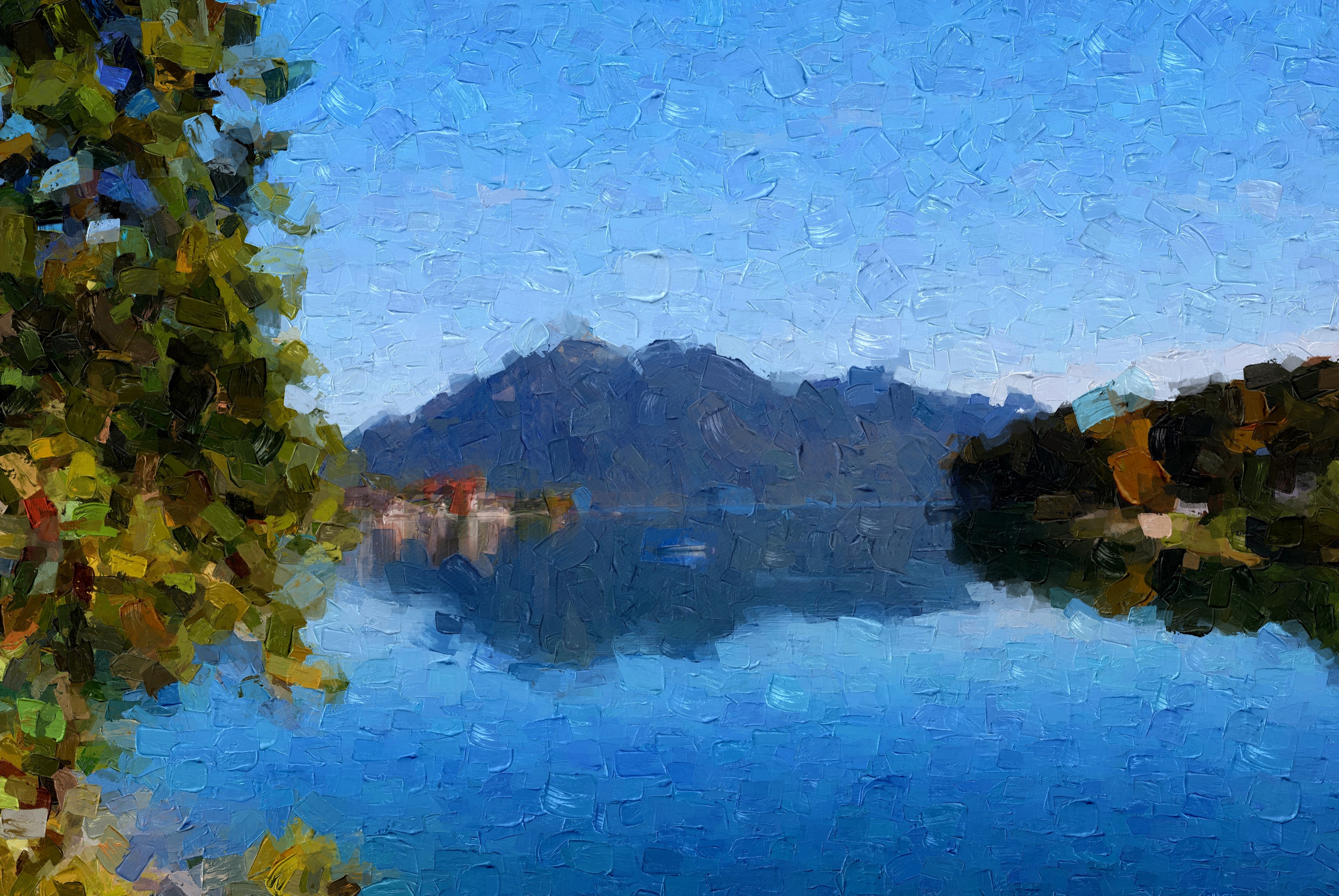
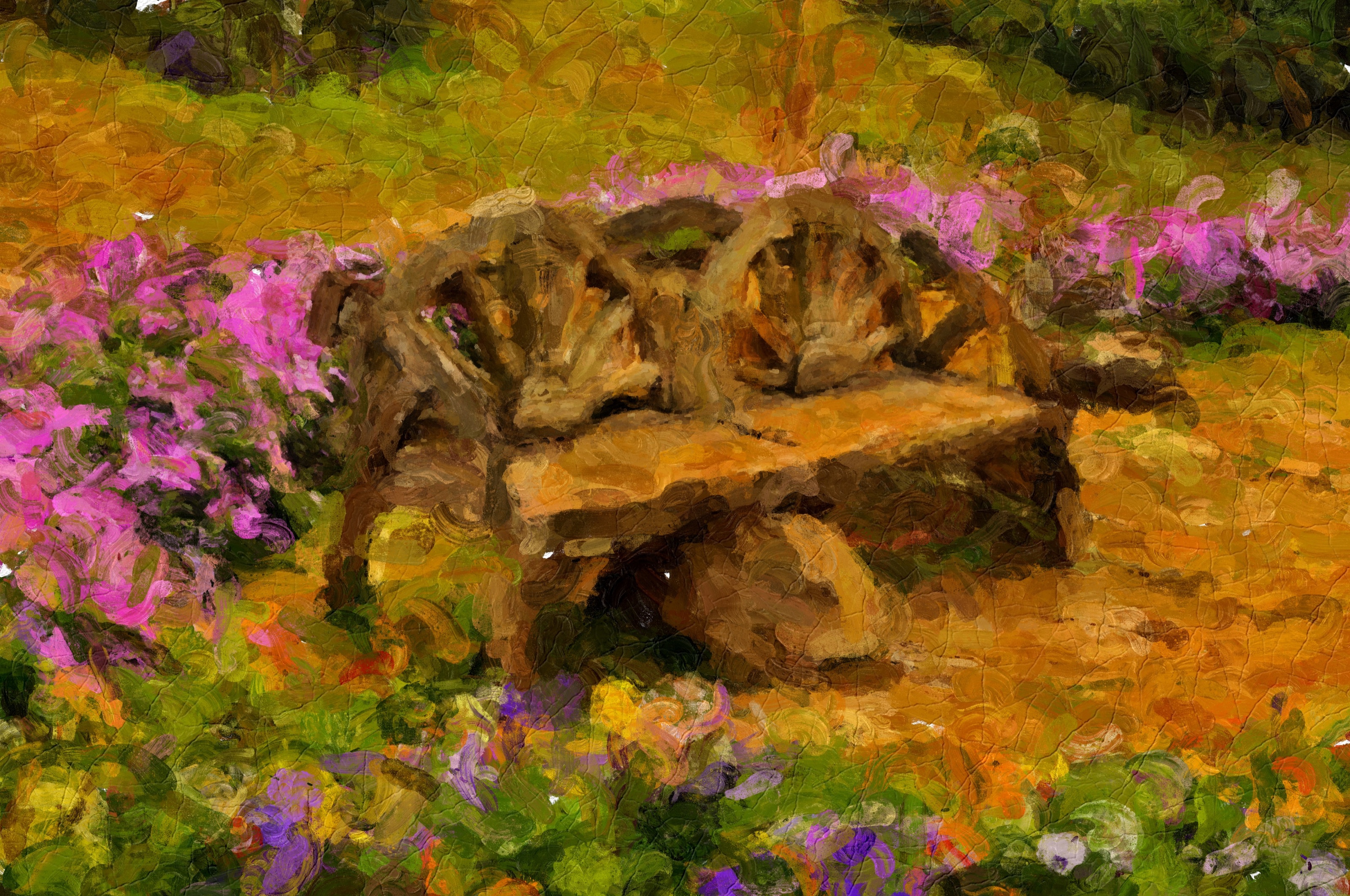
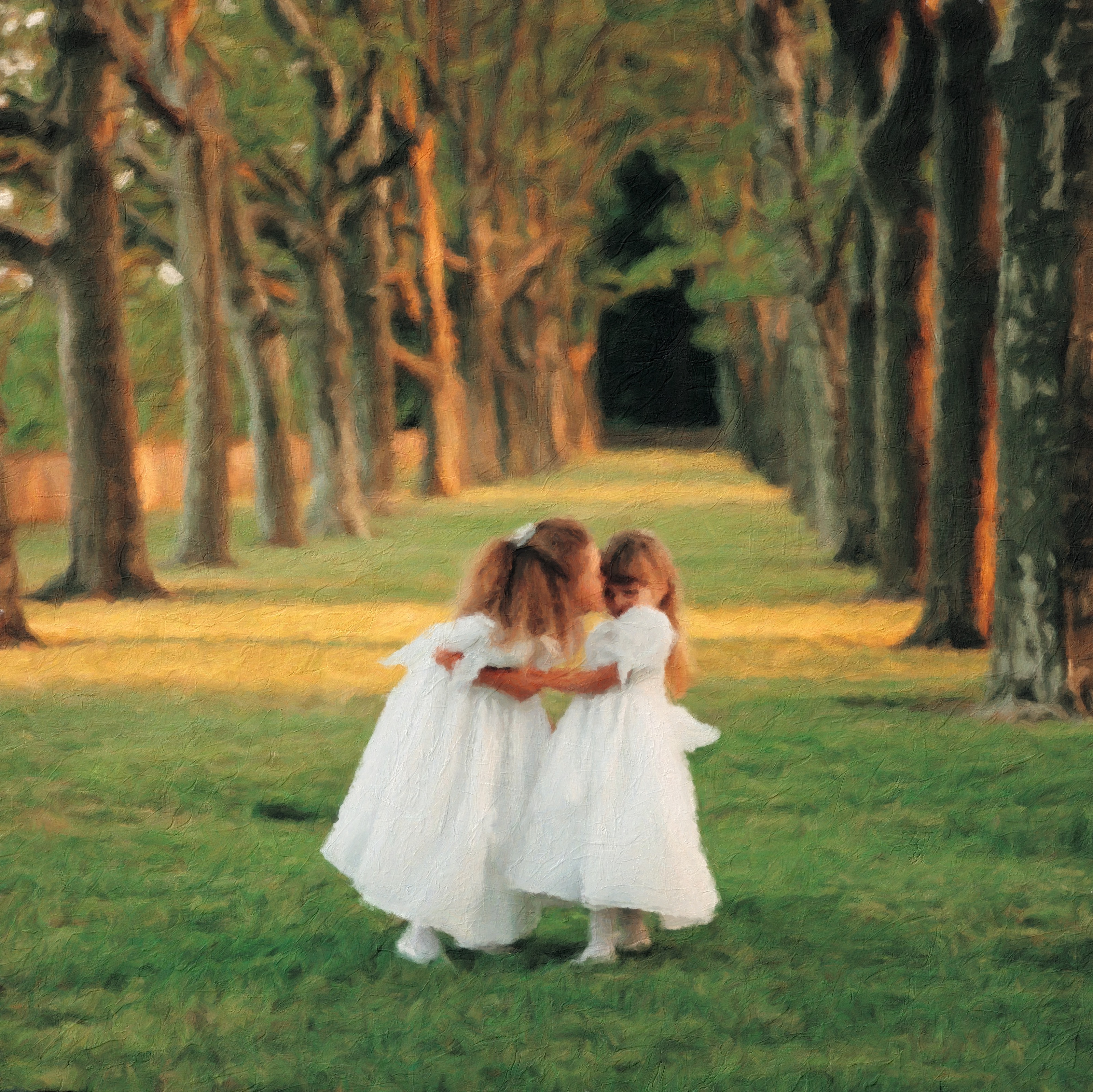
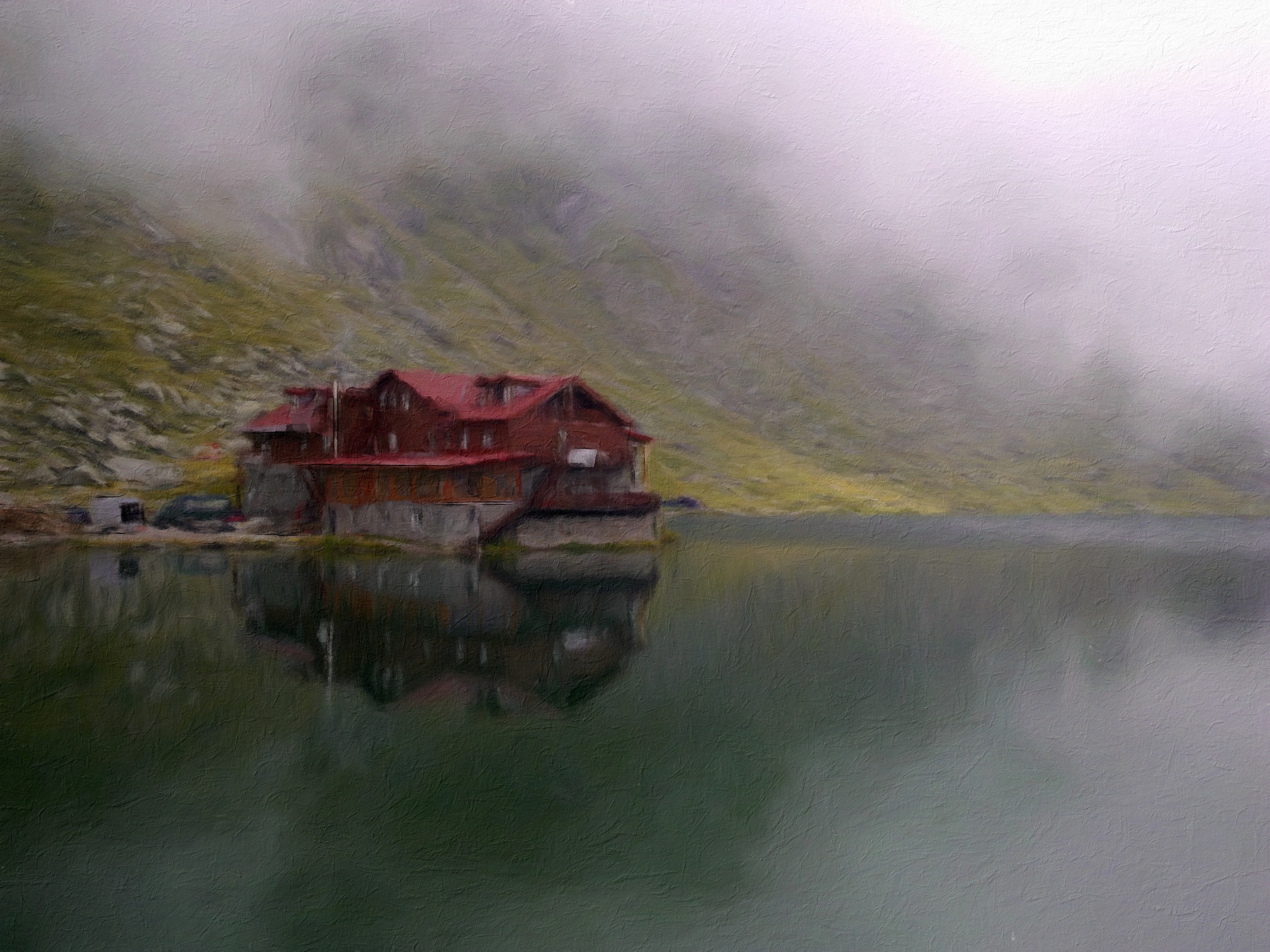
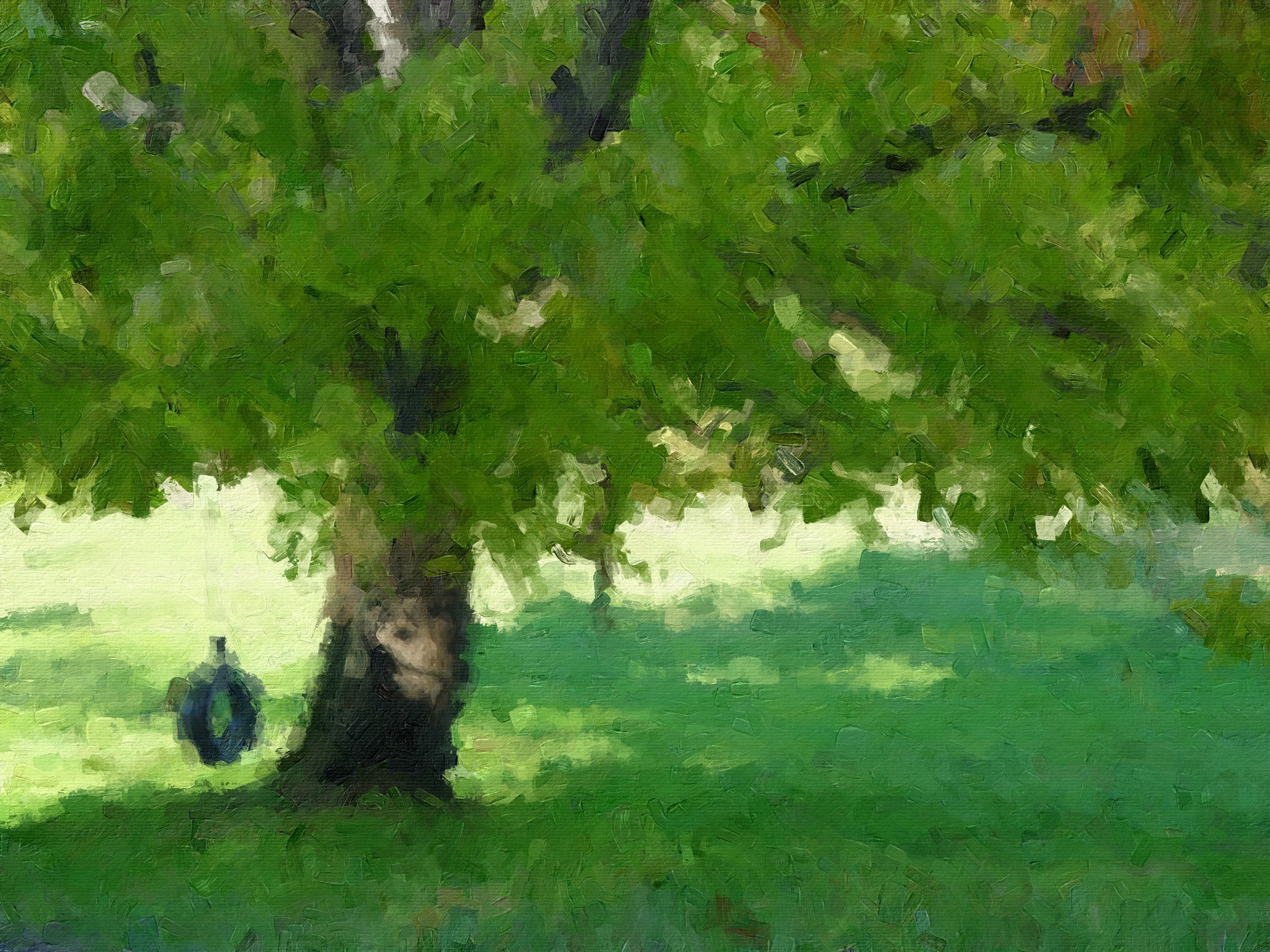
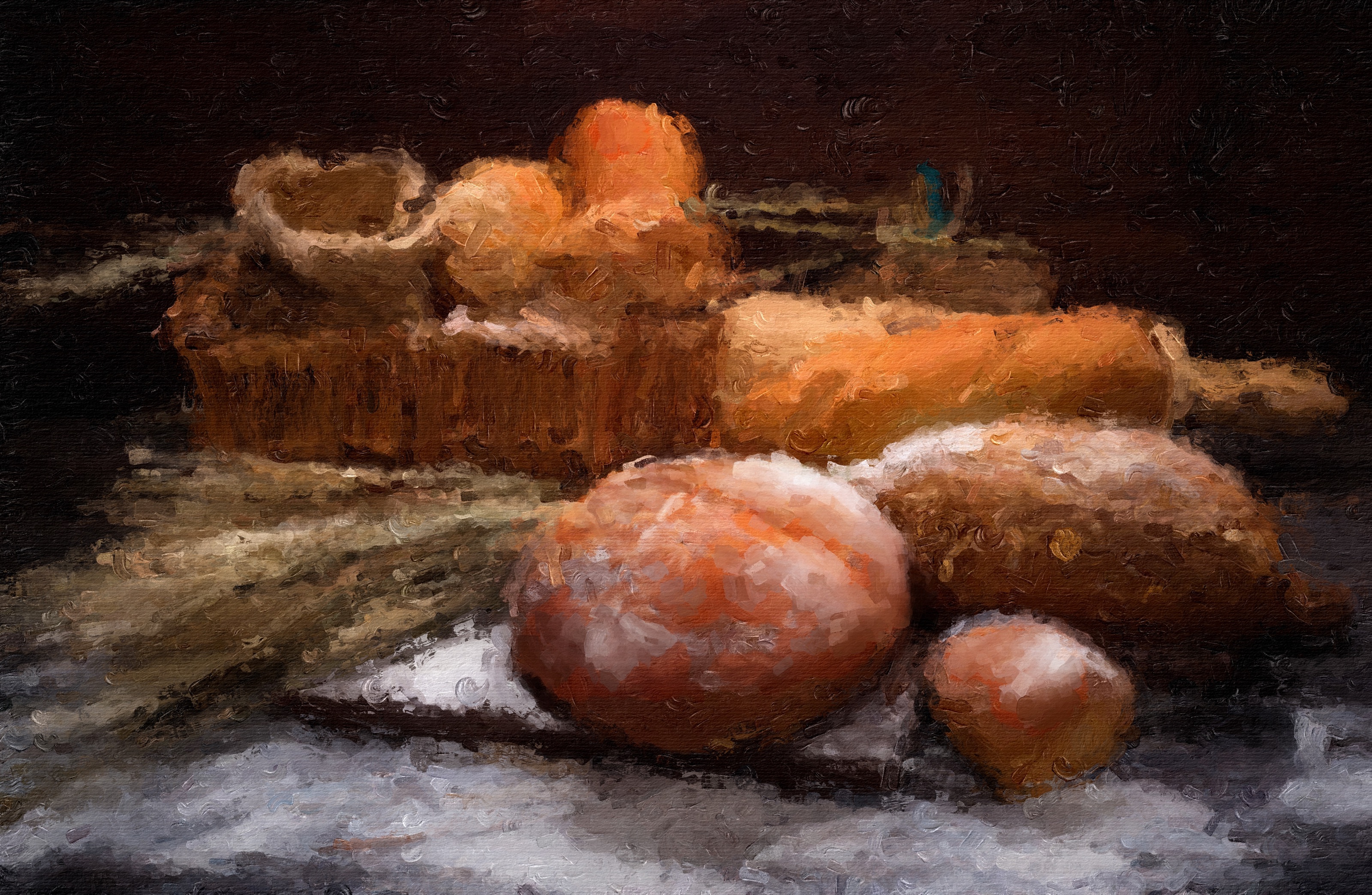
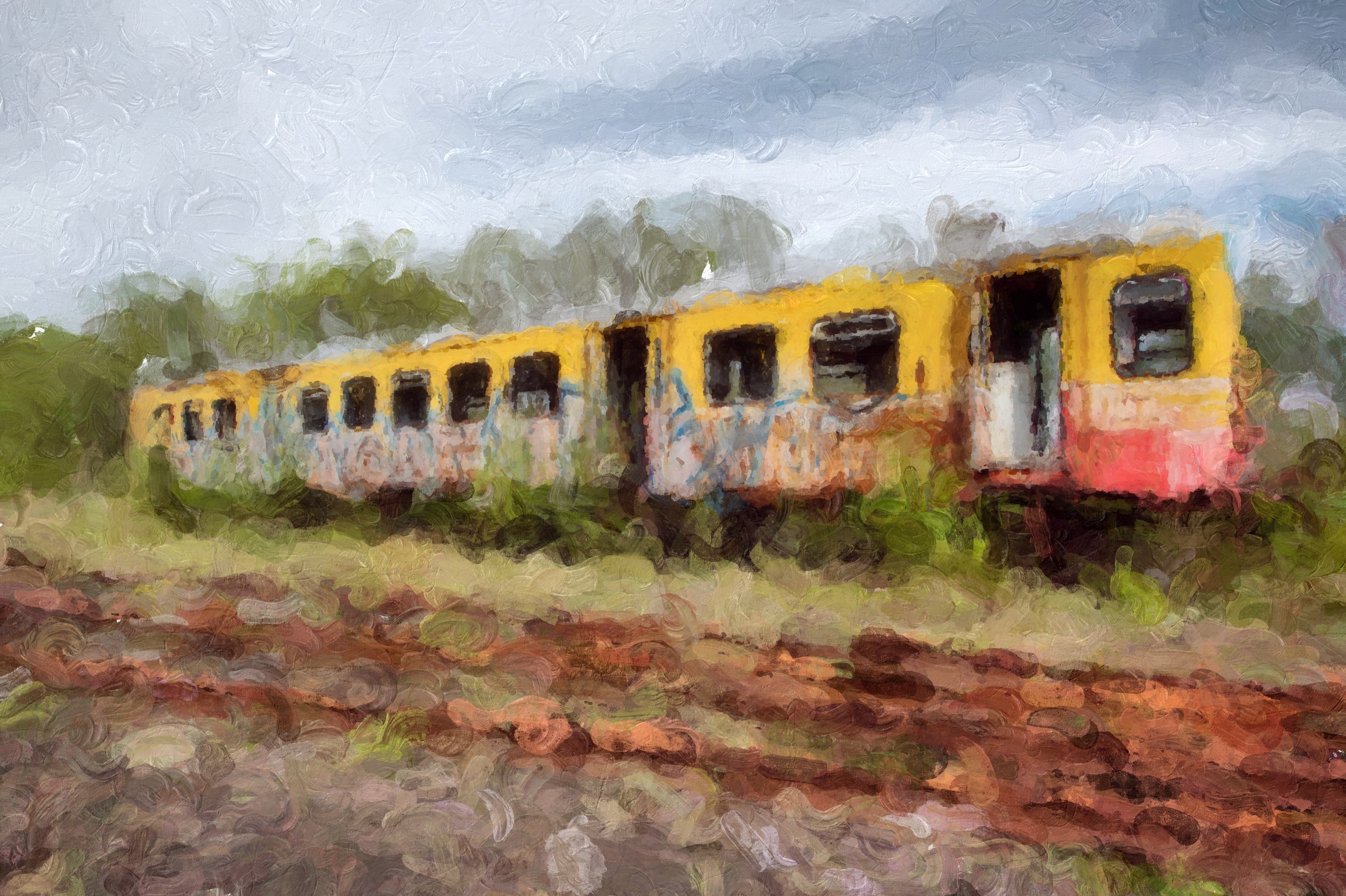
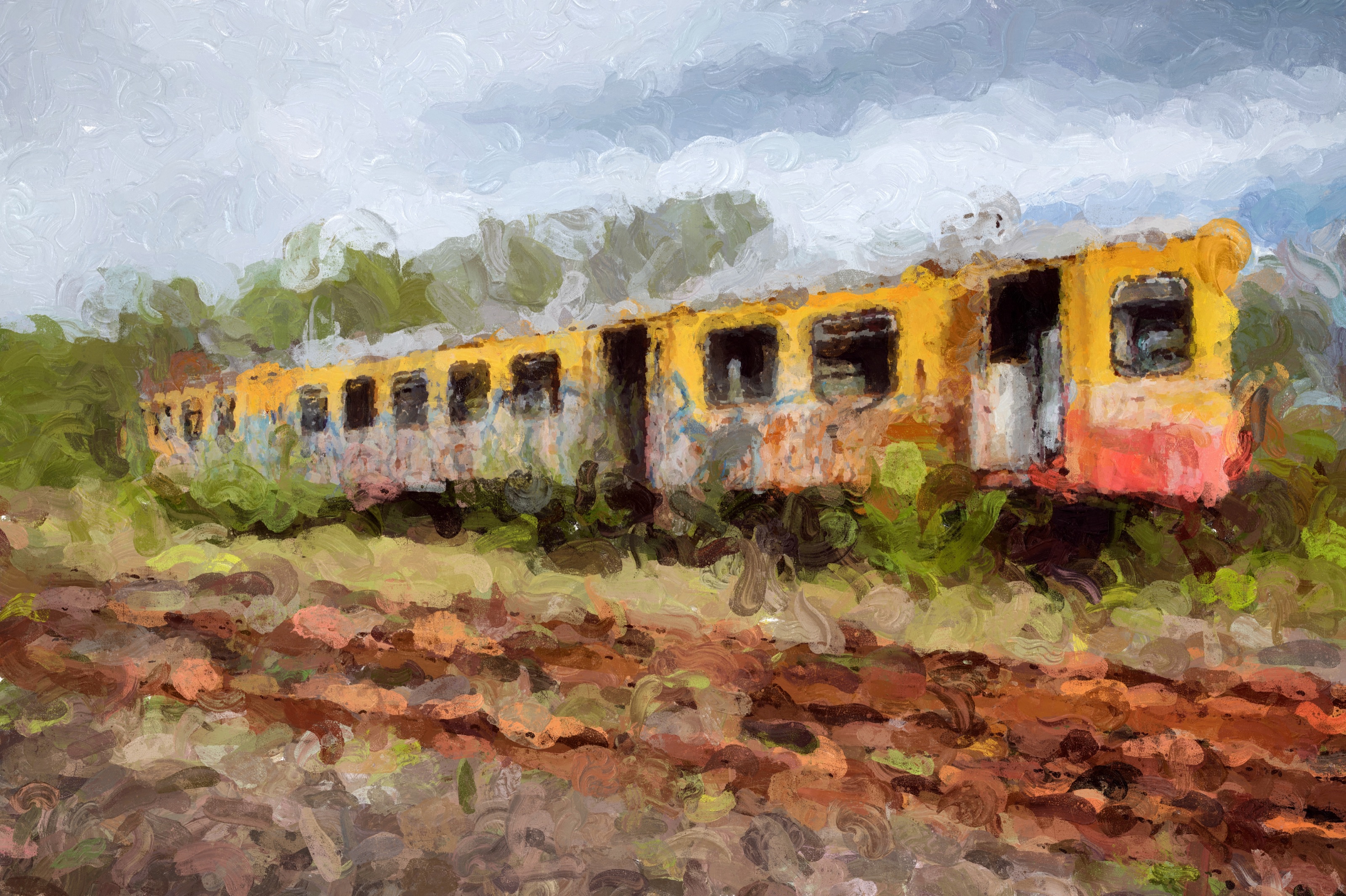
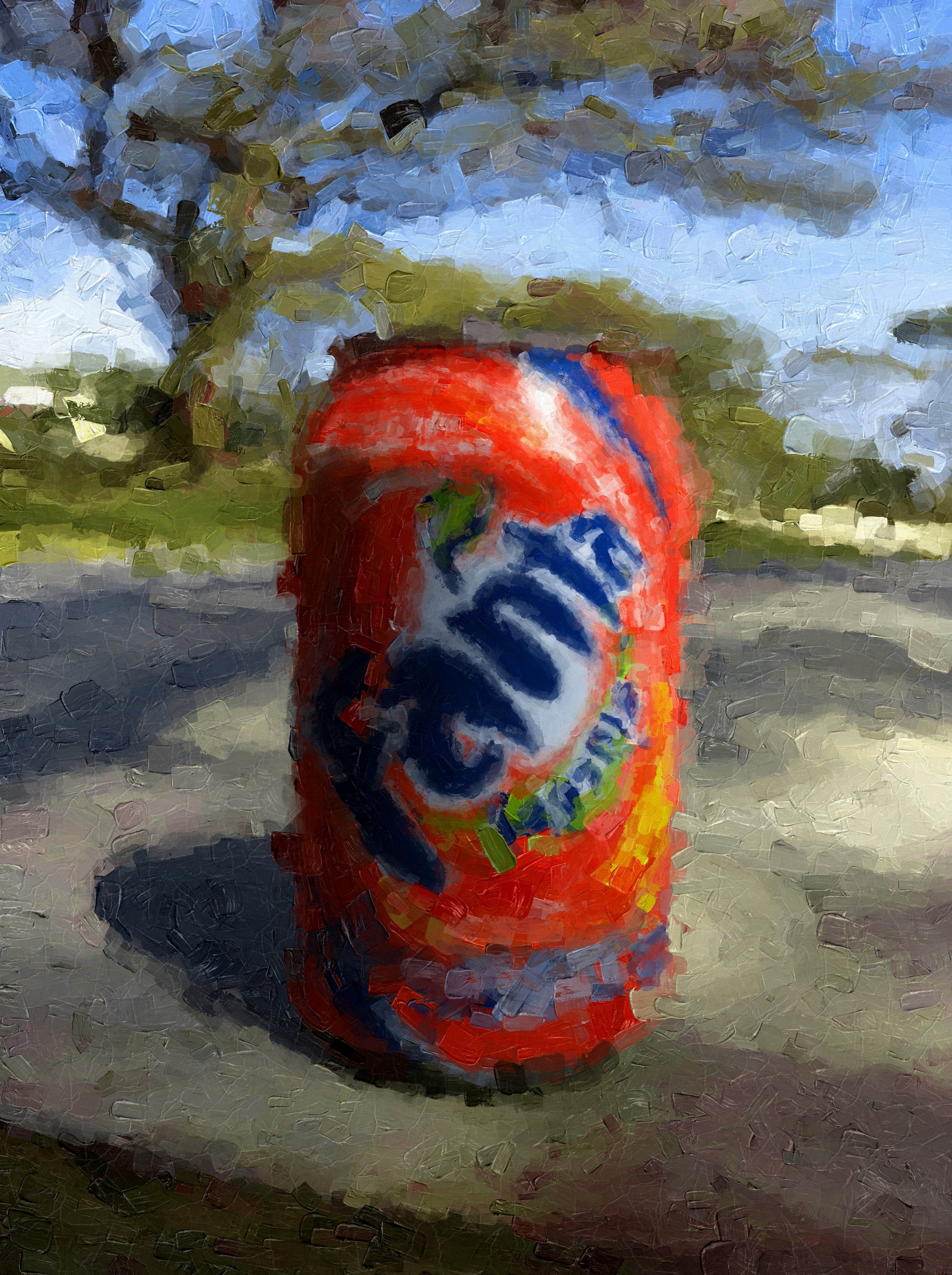
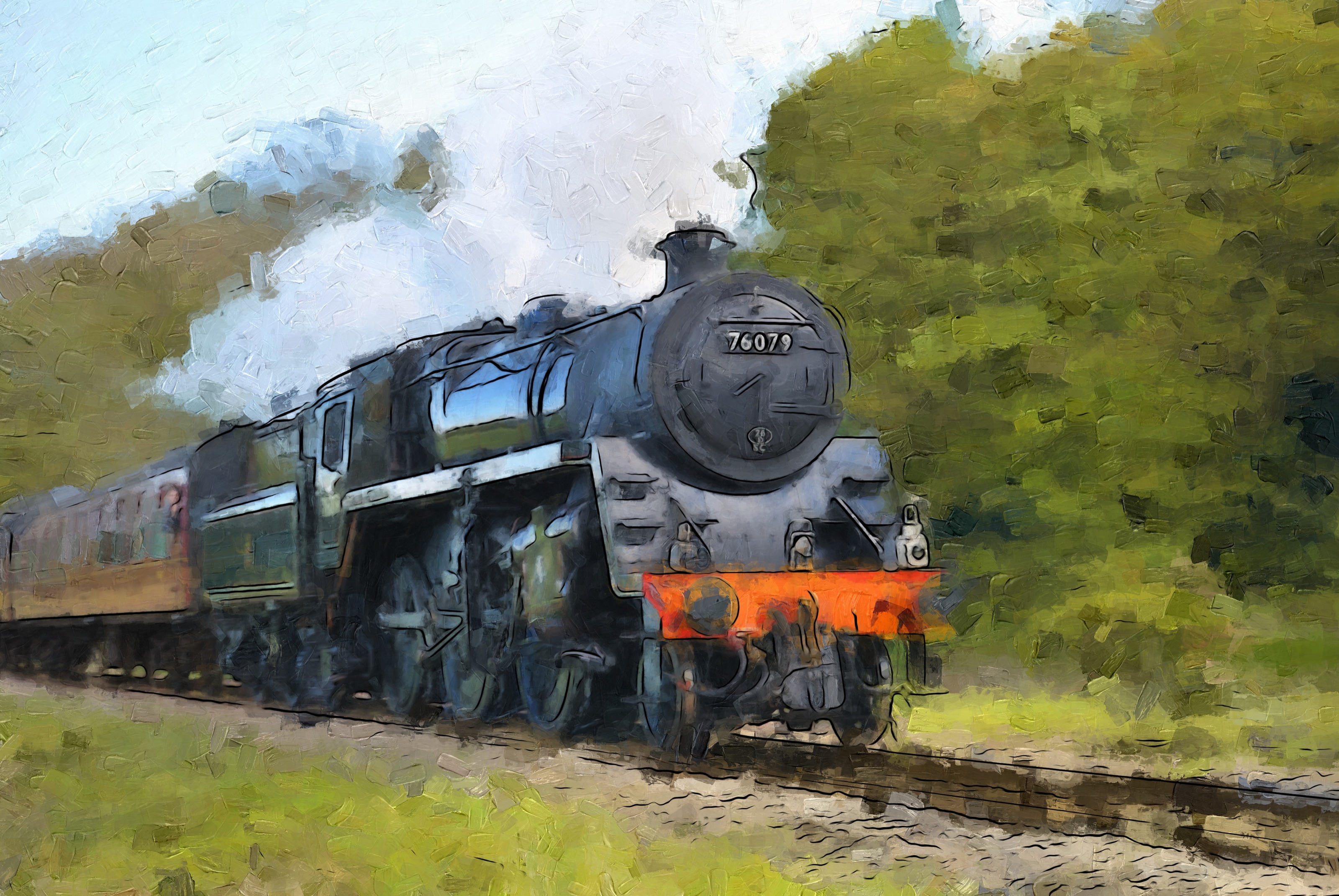
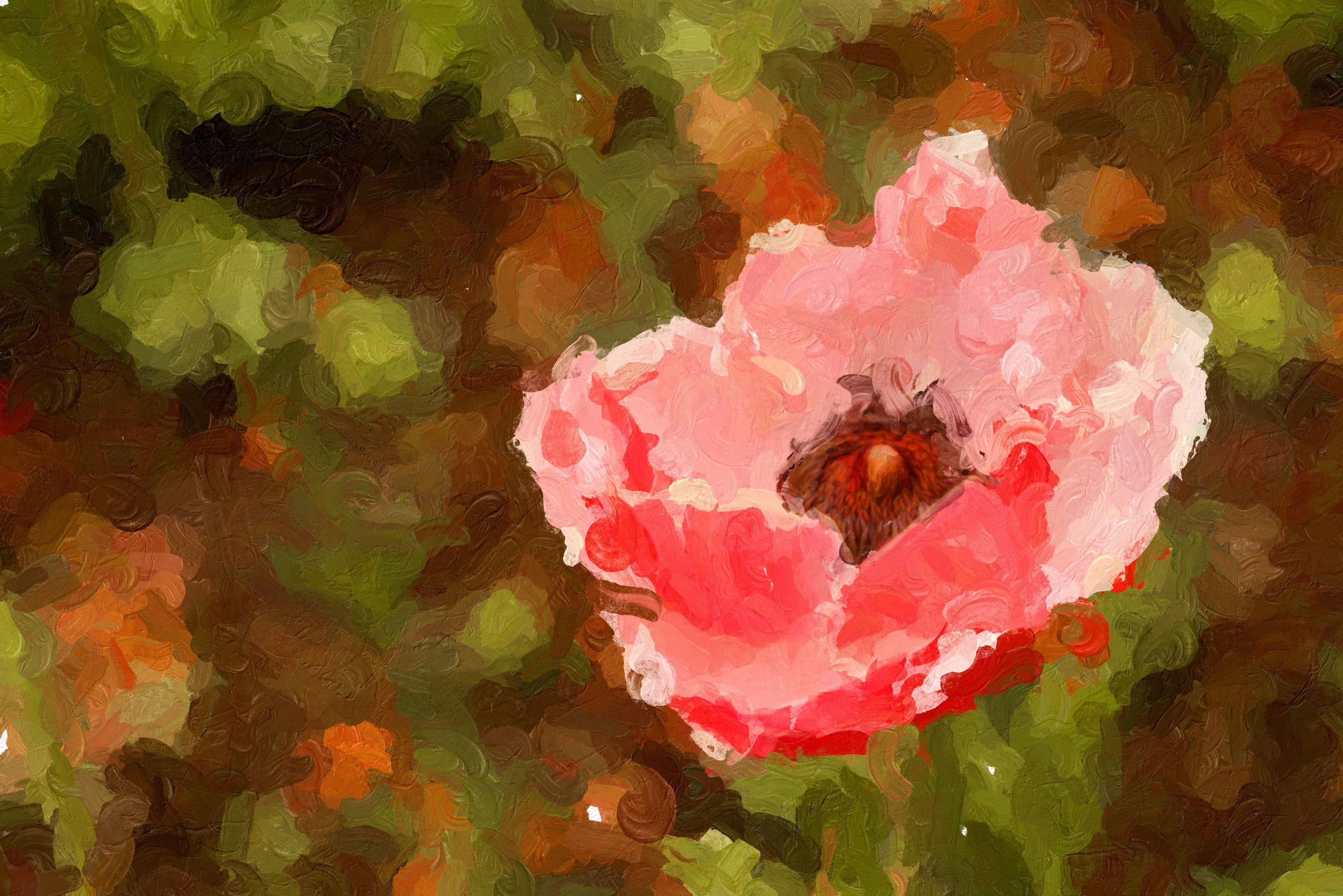
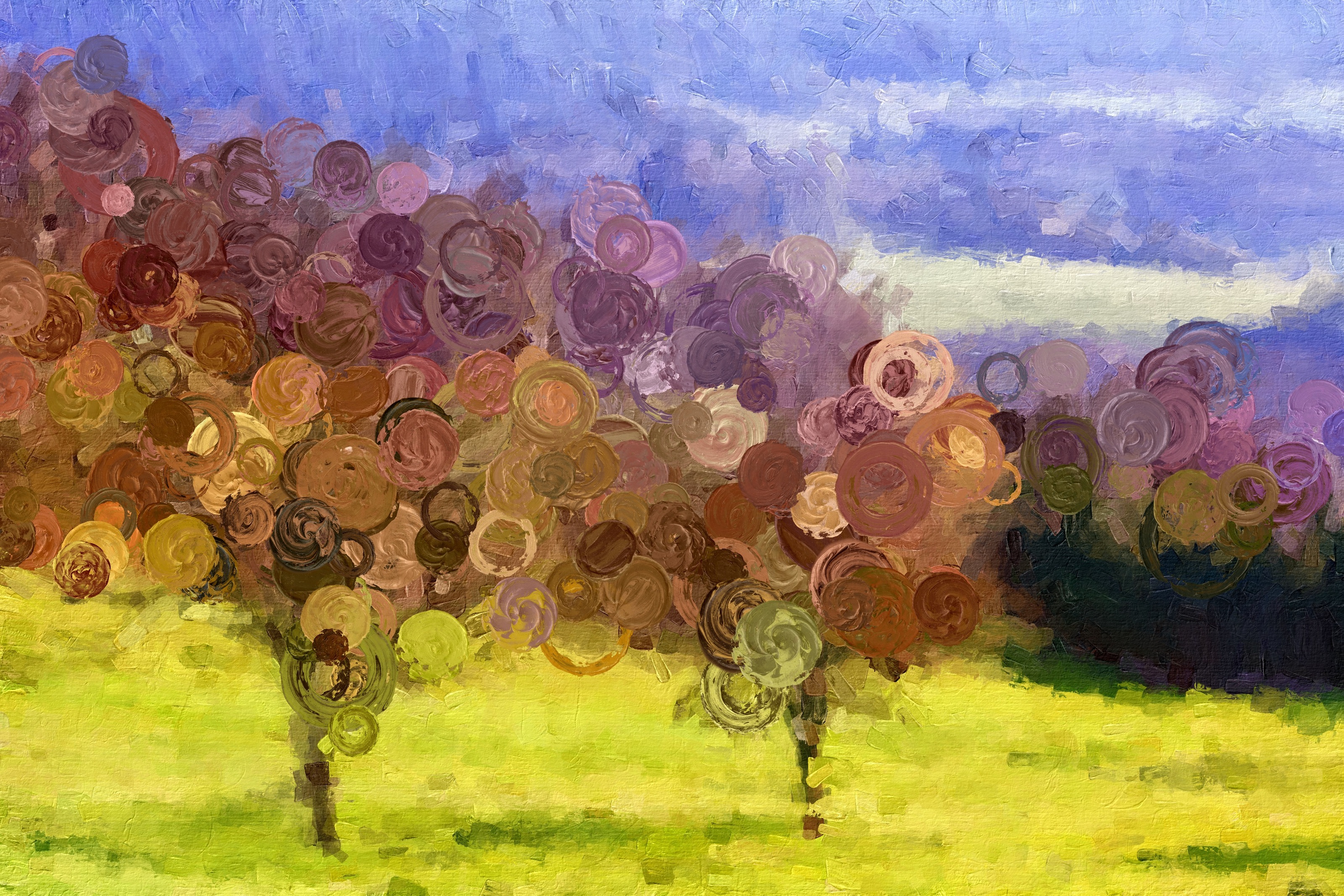
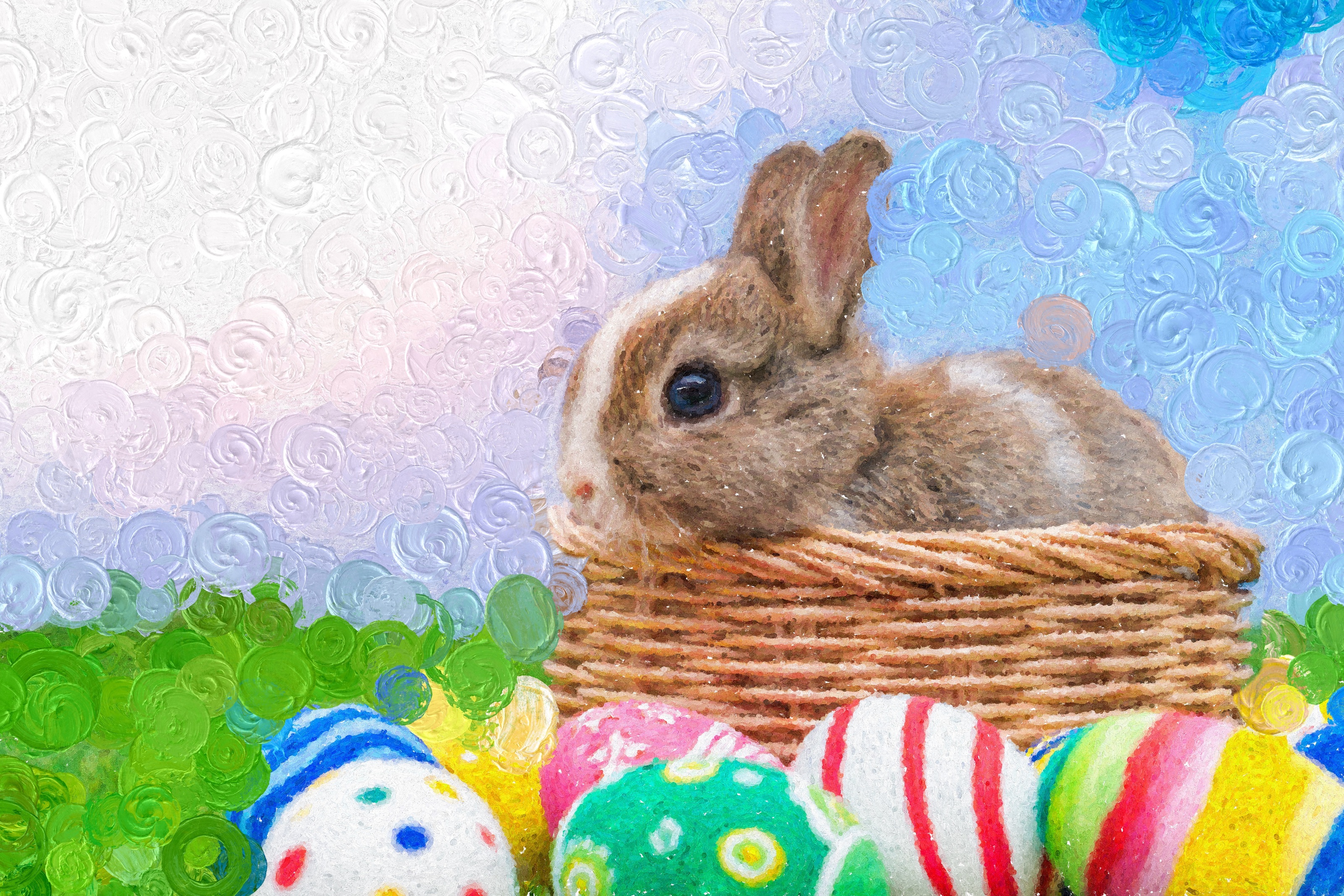
System Requirements
Standalone Product
Mac macOS 10.15 or later, 64-bit
Windows 64-bit
Plugin Host Requirements
Adobe Photoshop CS3+, All Photoshop CC (Mac/Win), Photoshop Elements 10+ (Mac/Win), Lightroom 4+ (Mac/Win)
Serif Affinity Photo (Mac/Win)
Corel PaintShop Pro X7+ (Win)
×
$99.99$74.99
Mac | Windows
Impresso Studio
Mac | Windows