Impresso Studio
1. Set Photo Style and Painting Style
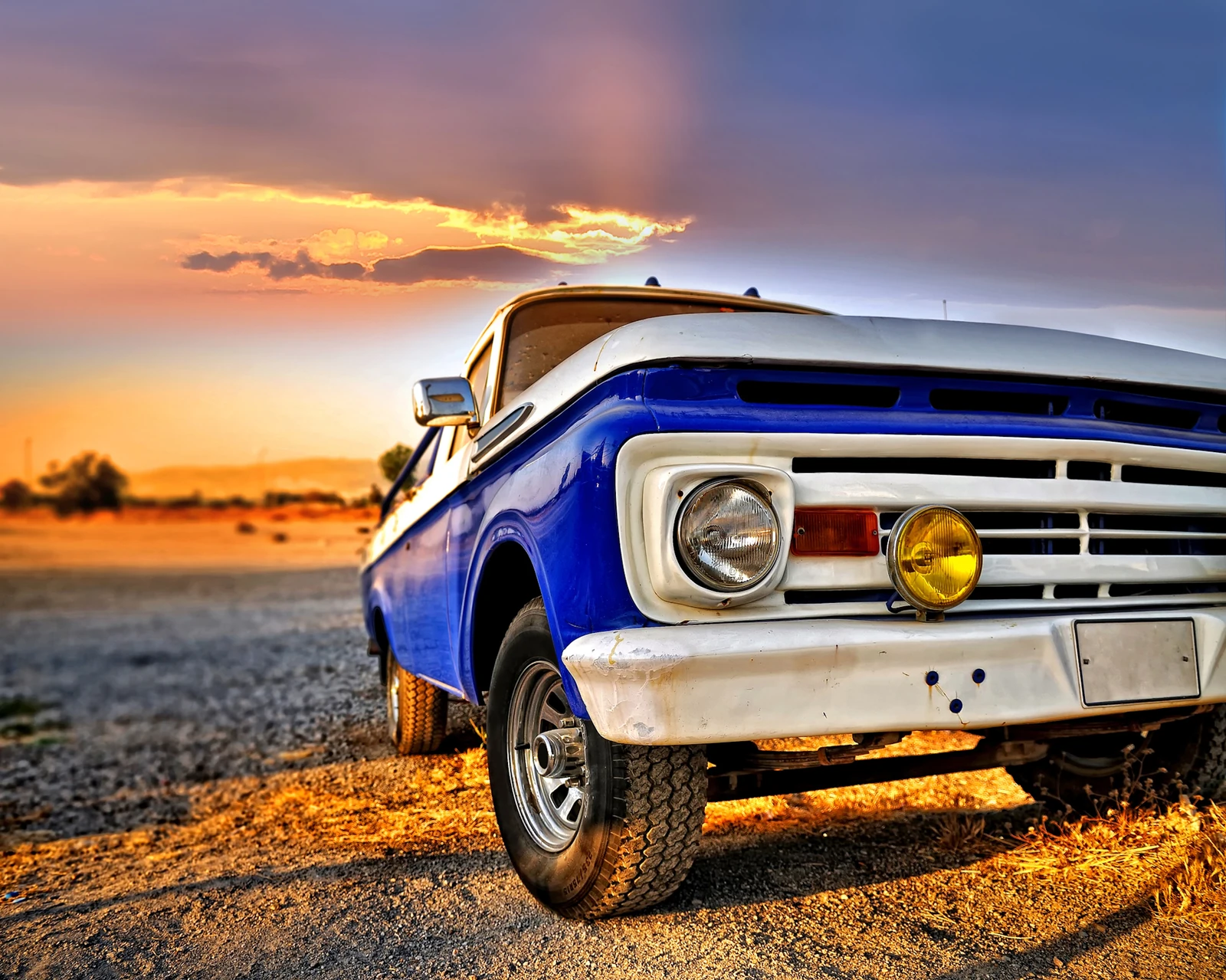
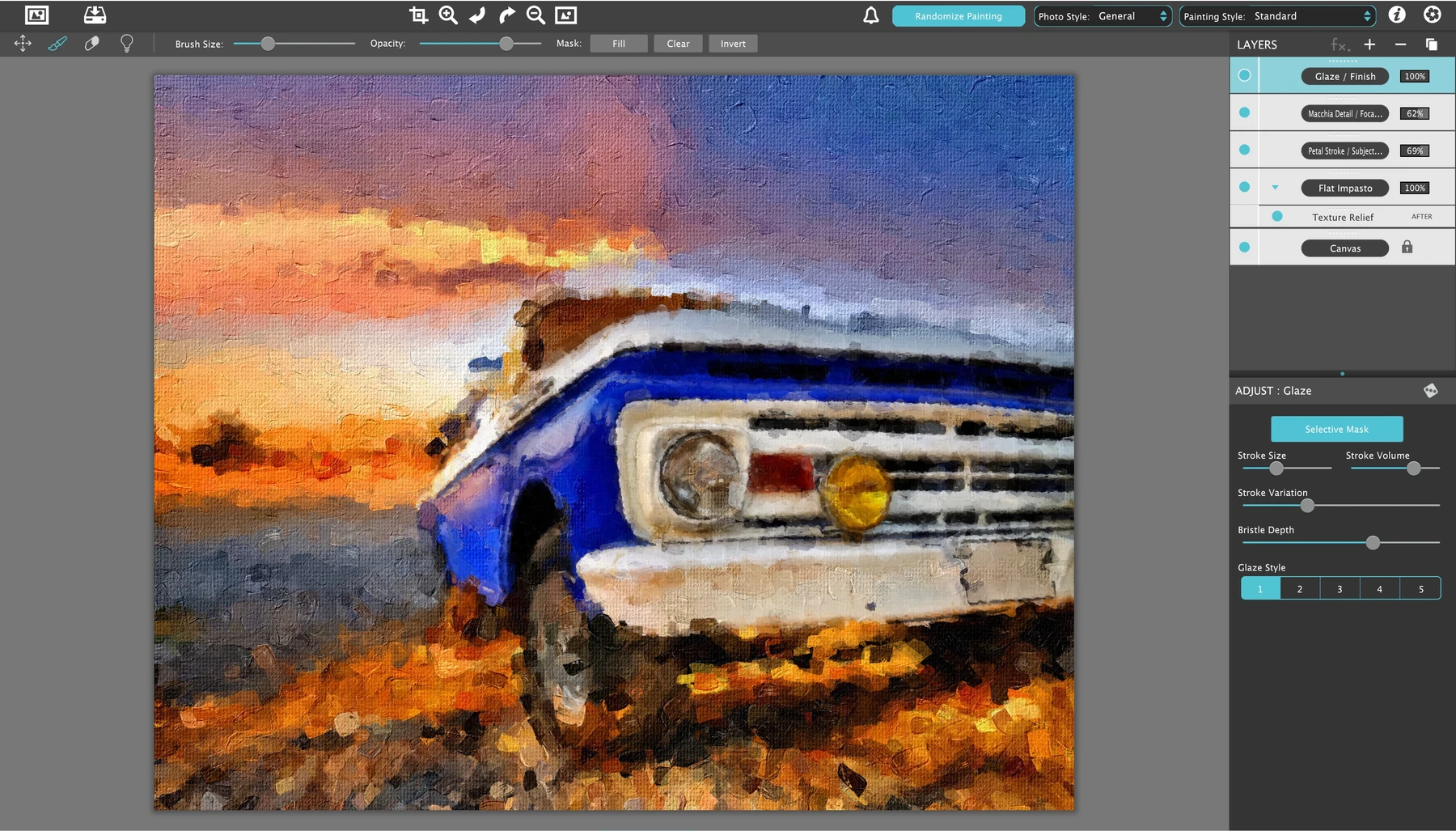
Use Get Photo to open the blue car photo. Find the two style menus to the right of Randomize Painting in the top toolbar.
- Choose General in Photo Style. This menu describes the subject and guides where the app puts detail. The car and the sunset both have room to shape the painting in General.
- Choose Standard in Painting Style. This is the sub-style. It guides the brushwork, color, or surface texture in the next painting.
- Click Randomize Painting to apply the choices. The app builds a complete painting with a fresh set of layers.



2. Try another painting with the same settings
Keep General and Standard selected and click Randomize Painting a few times. Let each result finish rendering. Look at the grille, the sky, and the ground to see which details the brushwork picks up.
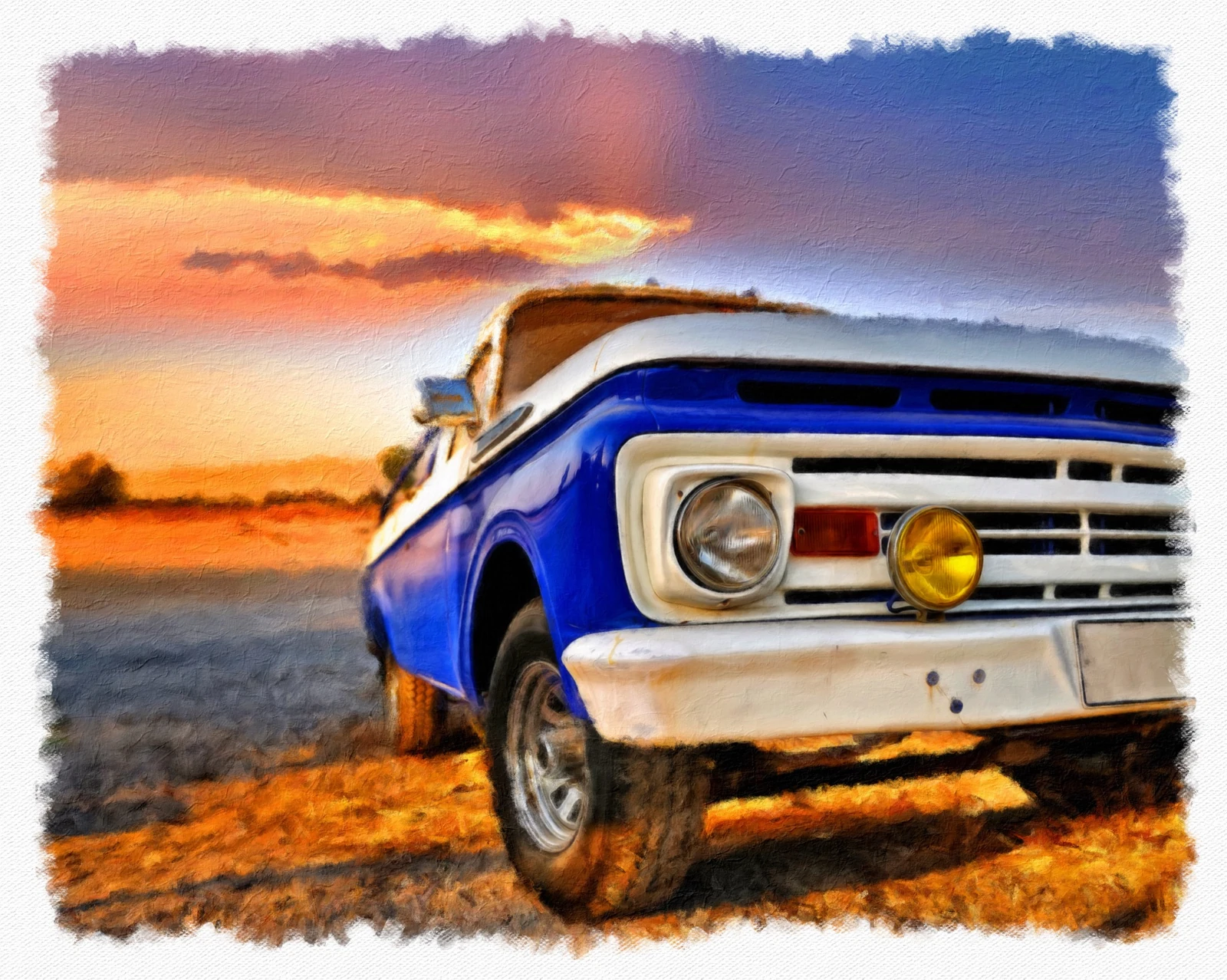
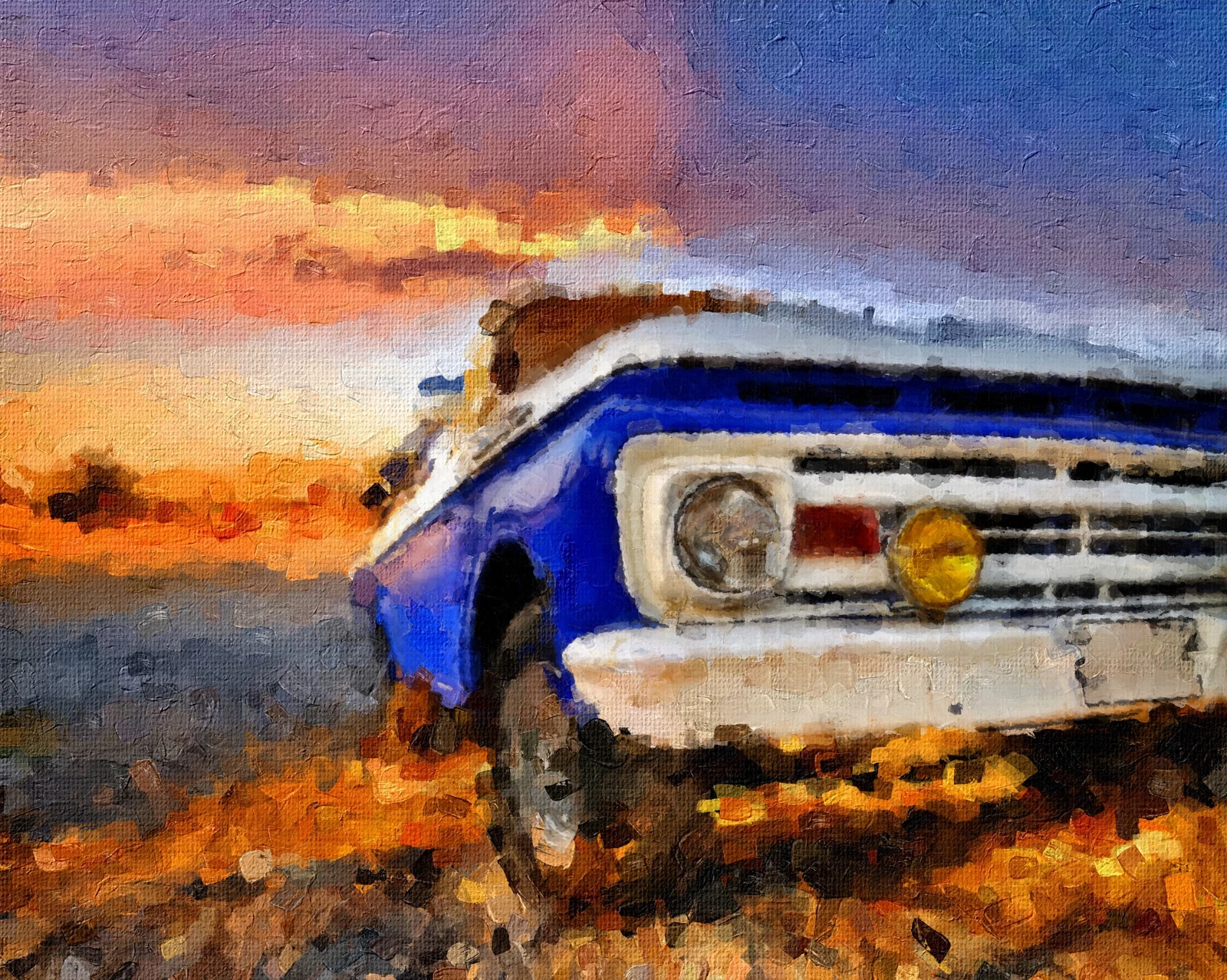
3. Change the sub-style and randomize again
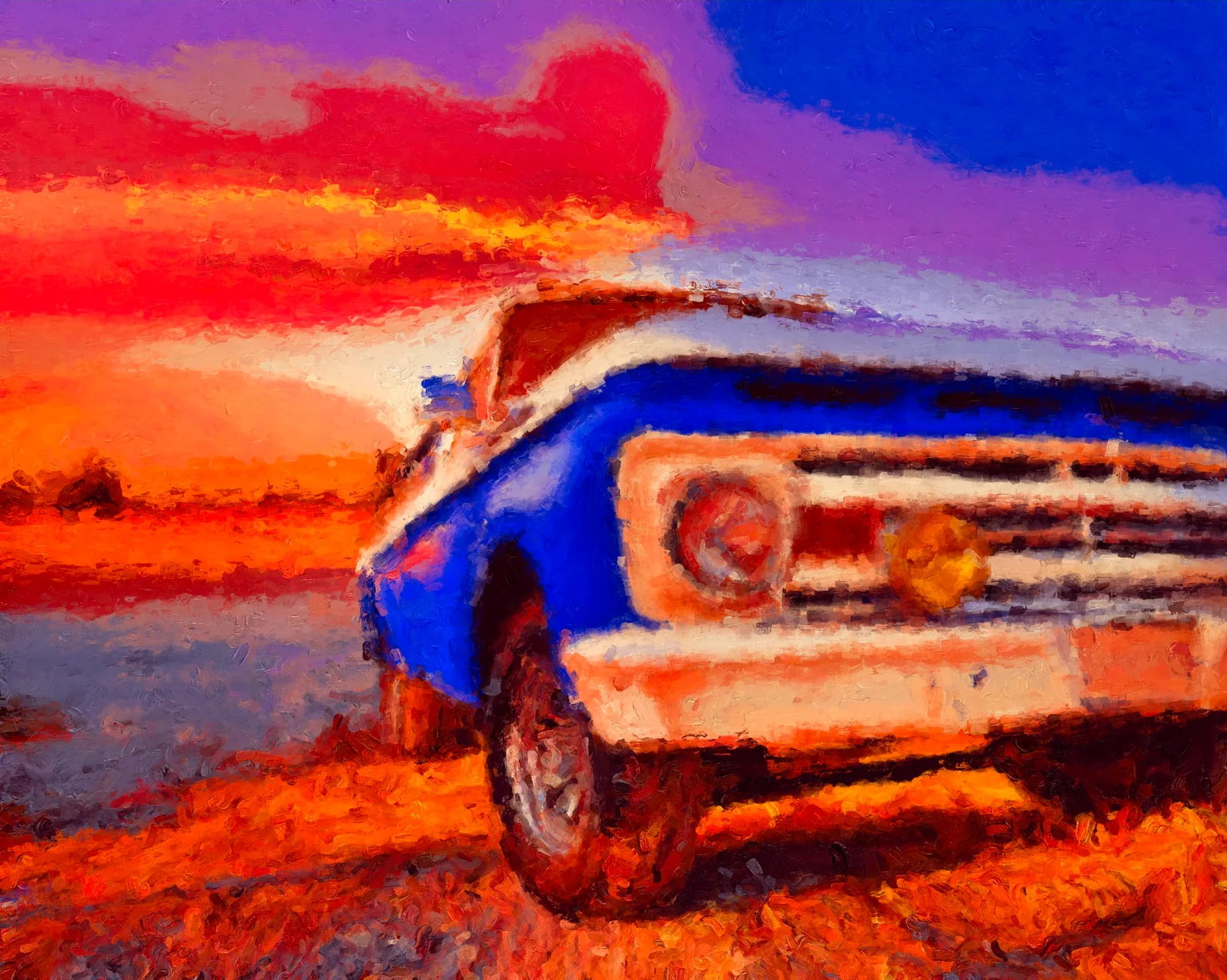
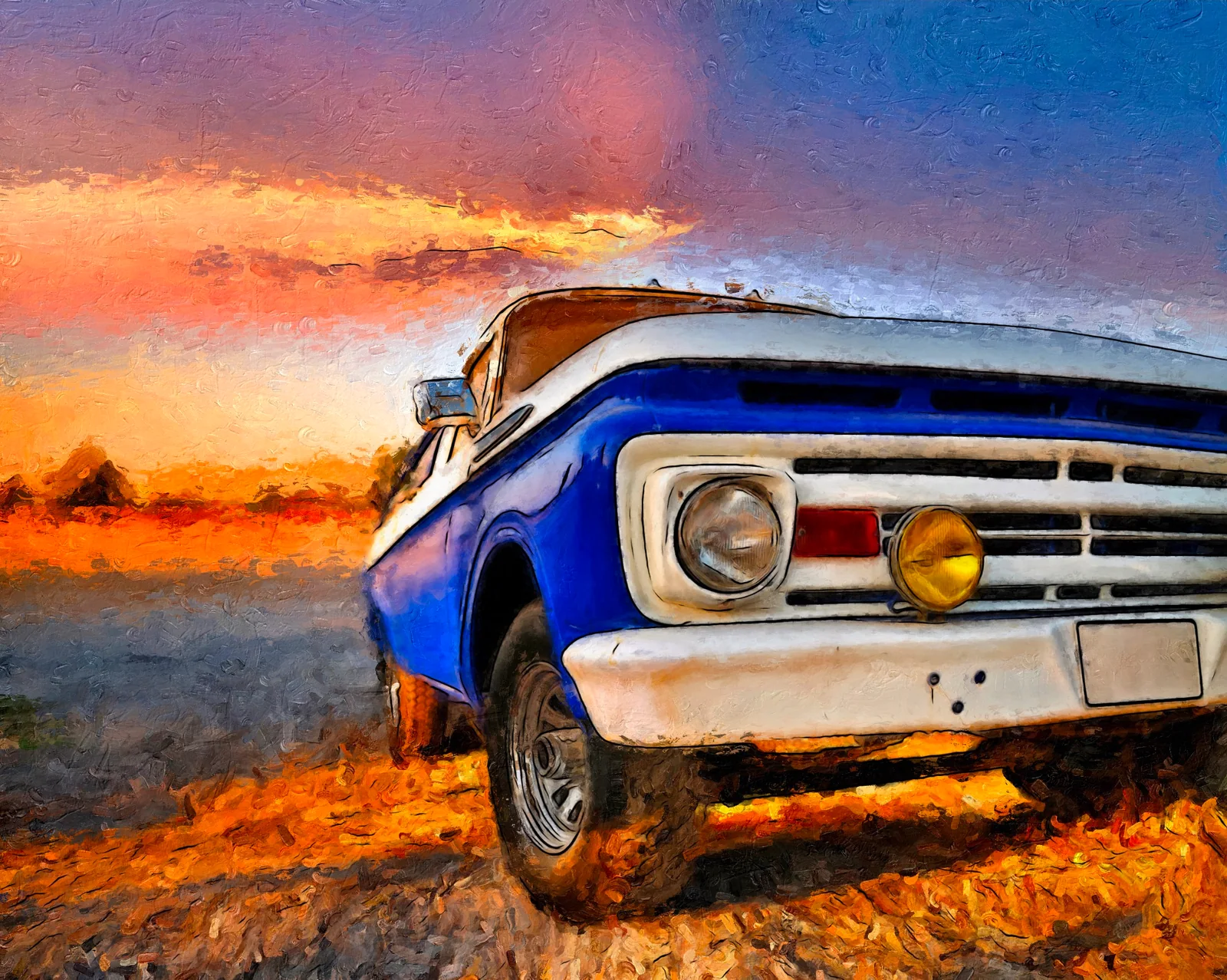
Keep Photo Style on General. Change Painting Style, then click Randomize Painting again. The examples below came straight from the button with those settings.
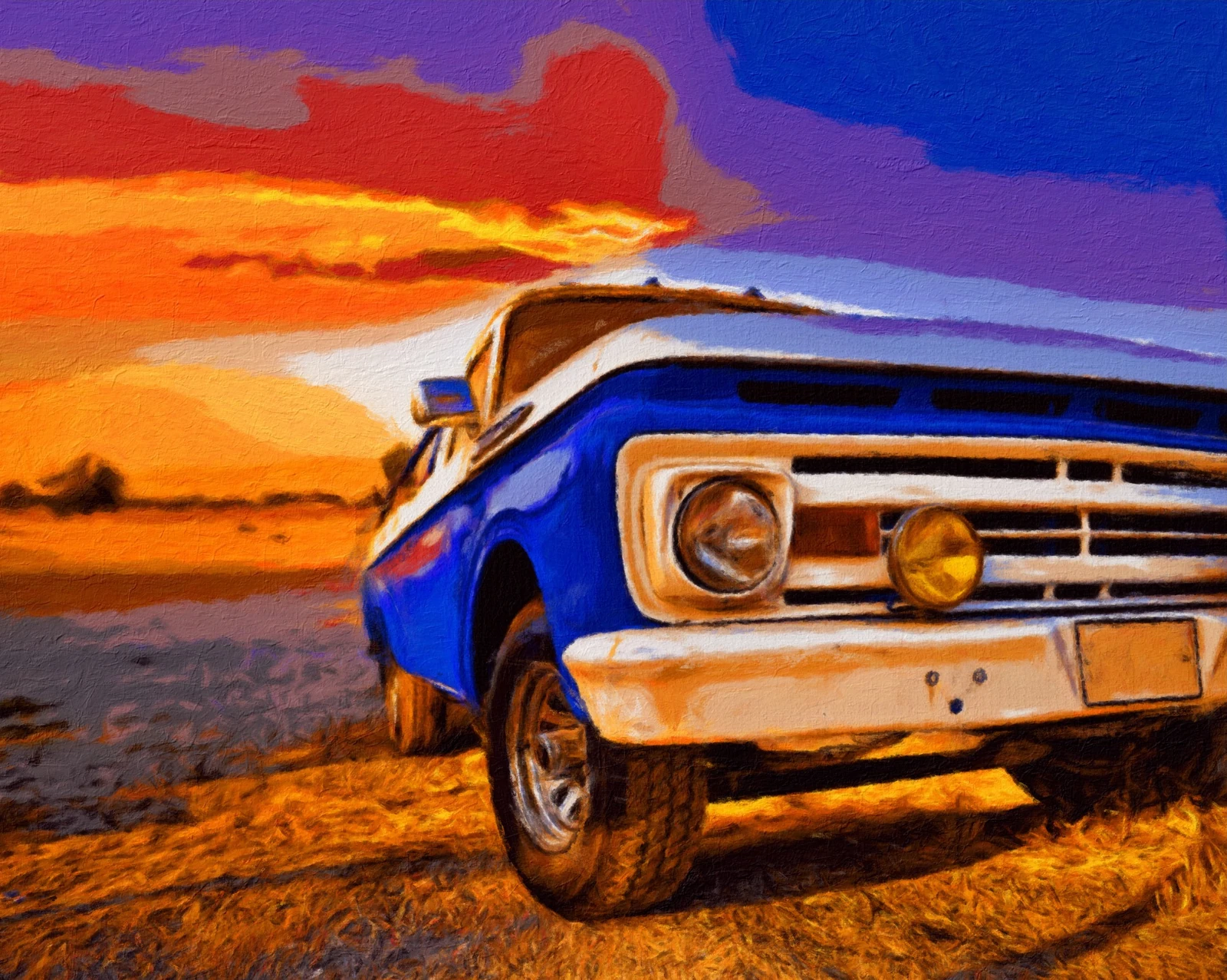
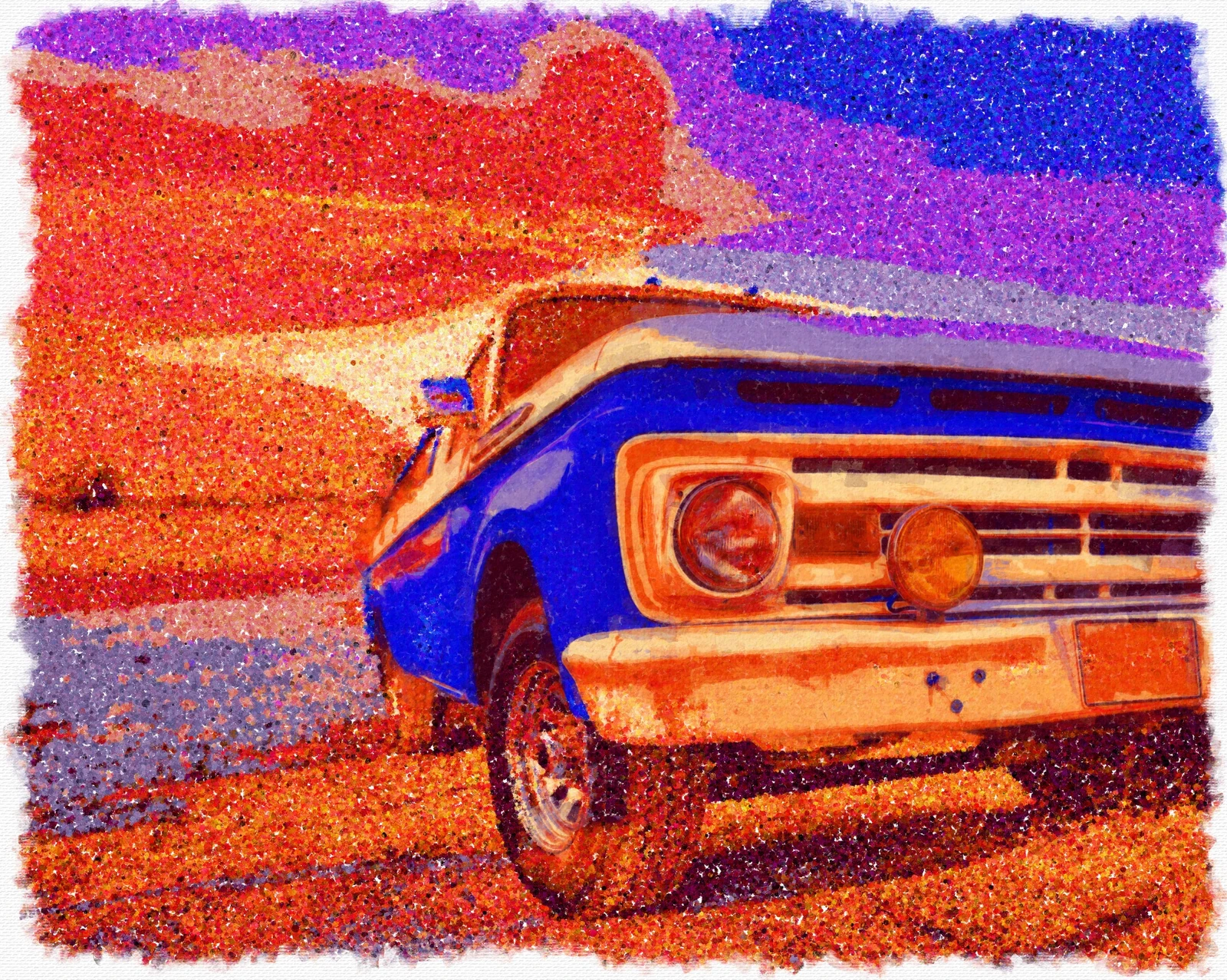
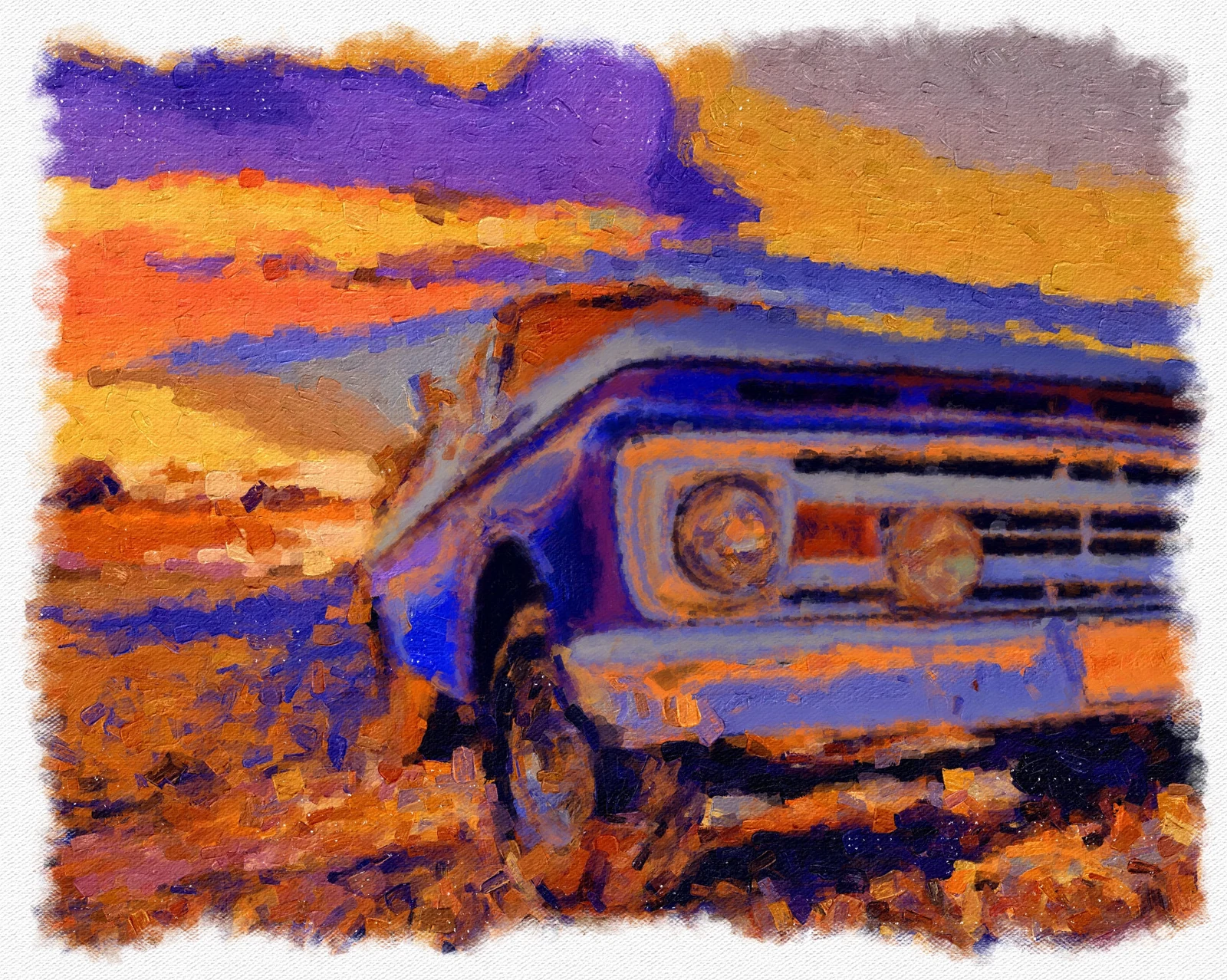
What the two menus change
Photo Style guides the subject
- General
- Uses a broad range of treatments for mixed scenes and subjects such as the car.
- Portrait
- Favors recognizable facial features and finer painted detail.
- Pets
- Gives the pet and small details such as eyes and fur more attention.
- Animals
- Emphasizes the animal while allowing broader marks around it.
- Landscape
- Favors broader marks and lets scenery remain loose.
- Still Life
- Emphasizes the shapes and textures of objects.
Painting Style guides the treatment
- Standard
- Explores the app’s usual range of painting combinations.
- Colorful
- Favors stronger saturation and moderate variation from stroke to stroke.
- Artistic Colors
- Lets colors vary more freely from stroke to stroke.
- Rich Impasto
- Favors thick, raised-looking paint with stronger highlights and shadows.
- Soft & Airy
- Favors gentle relief, quieter color, and a softer impressionist treatment.
- Loose & Expressive
- Uses broader marks and simplifies fine detail.
- Fine Detail
- Favors smaller strokes that describe more of the subject.
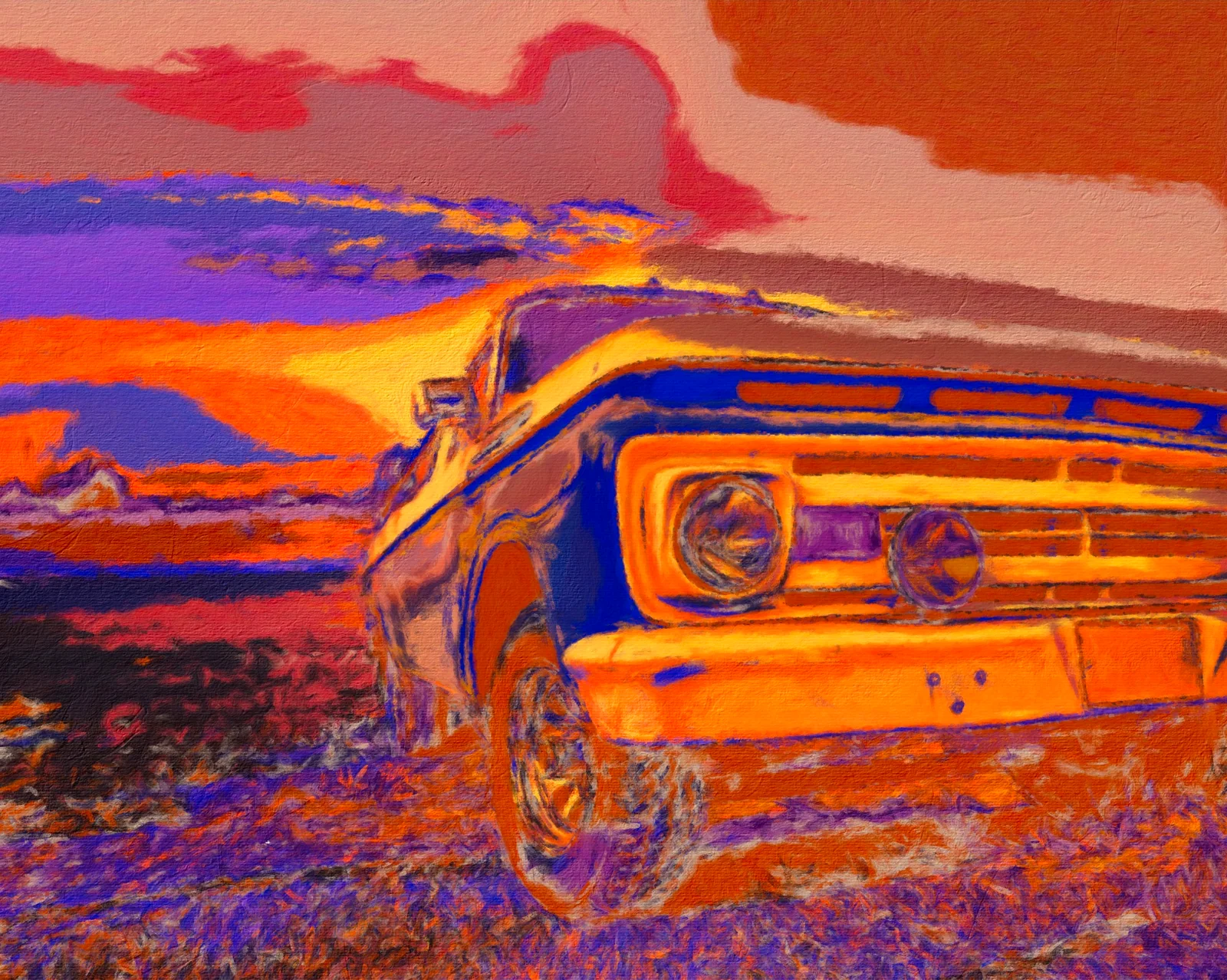
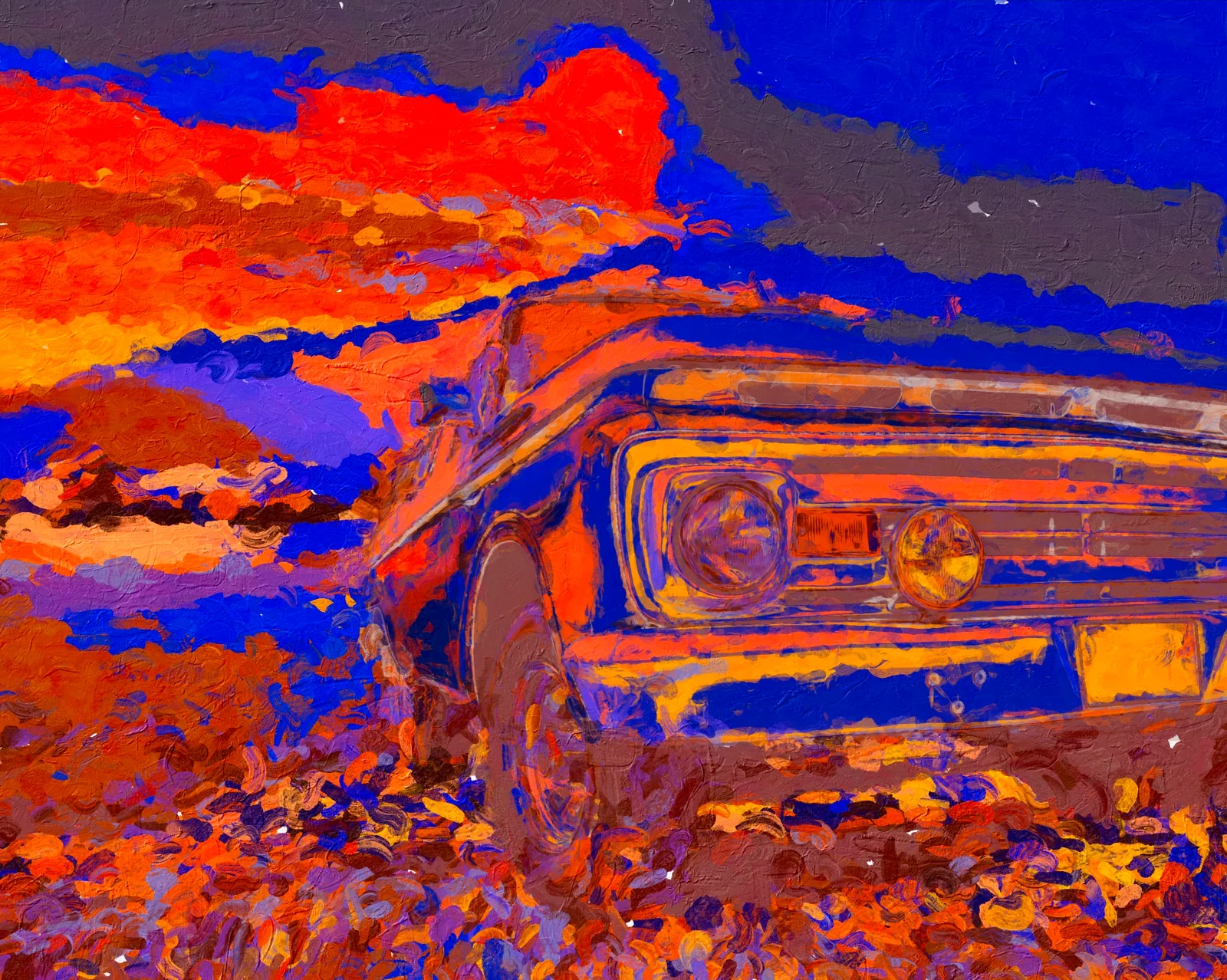
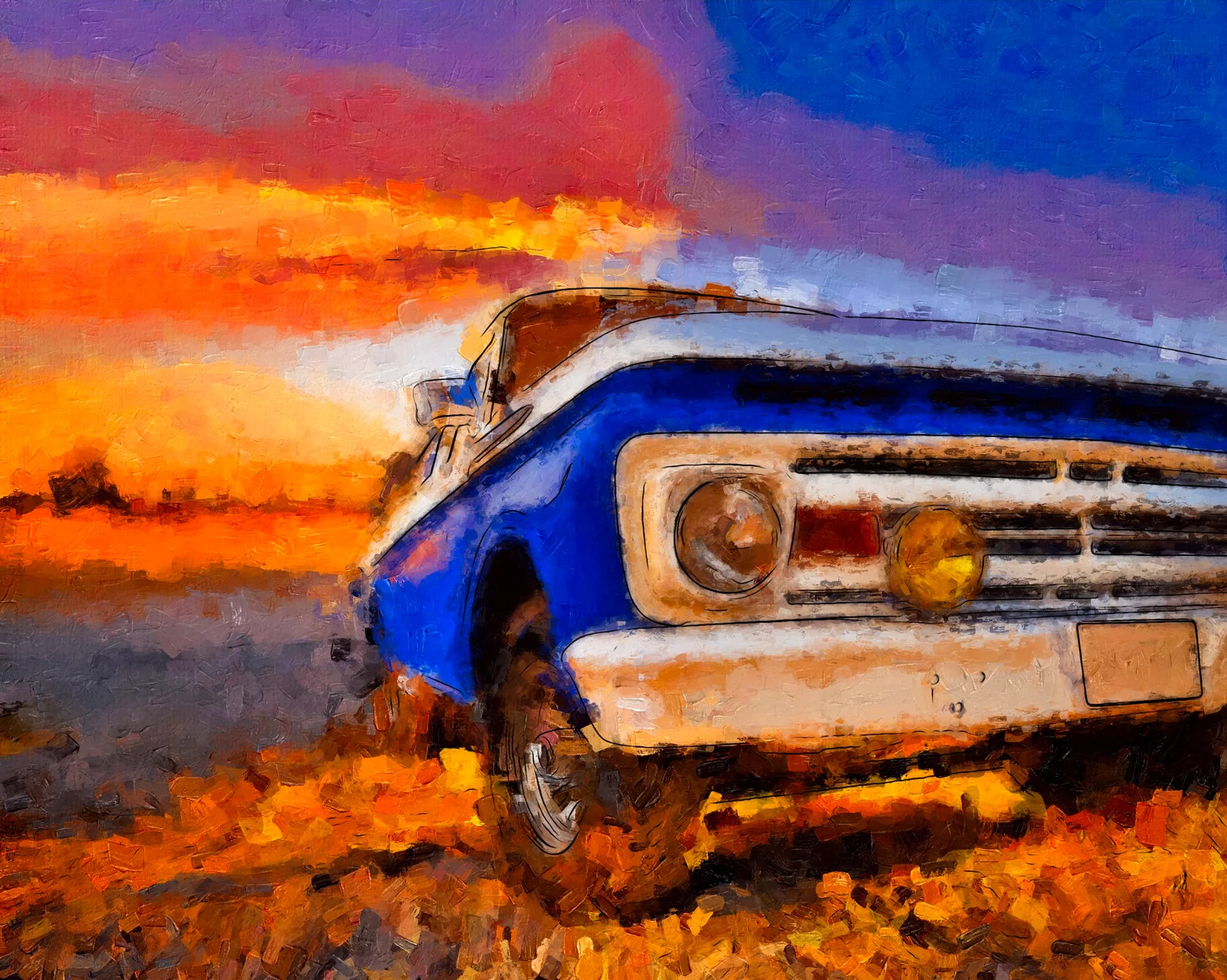
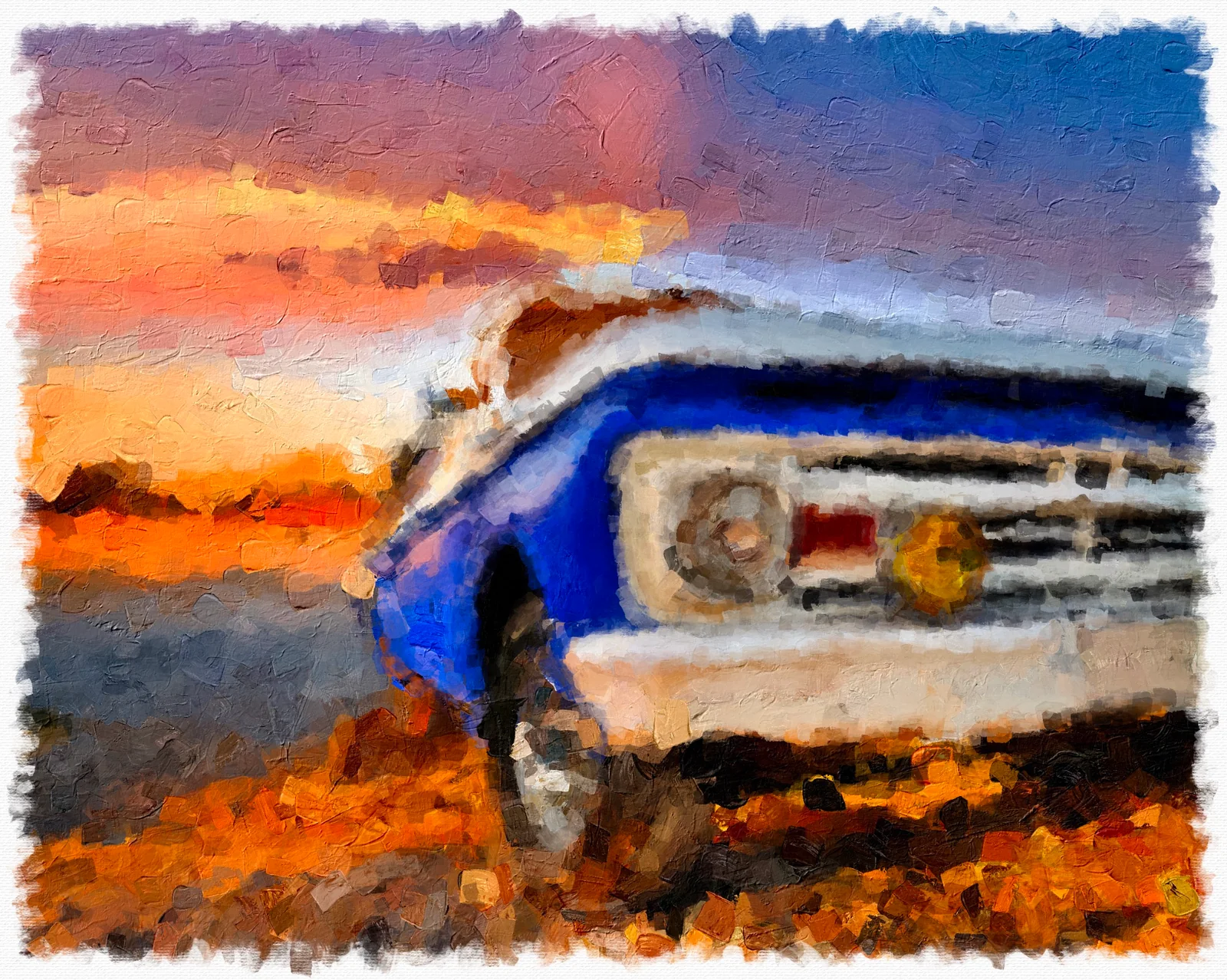
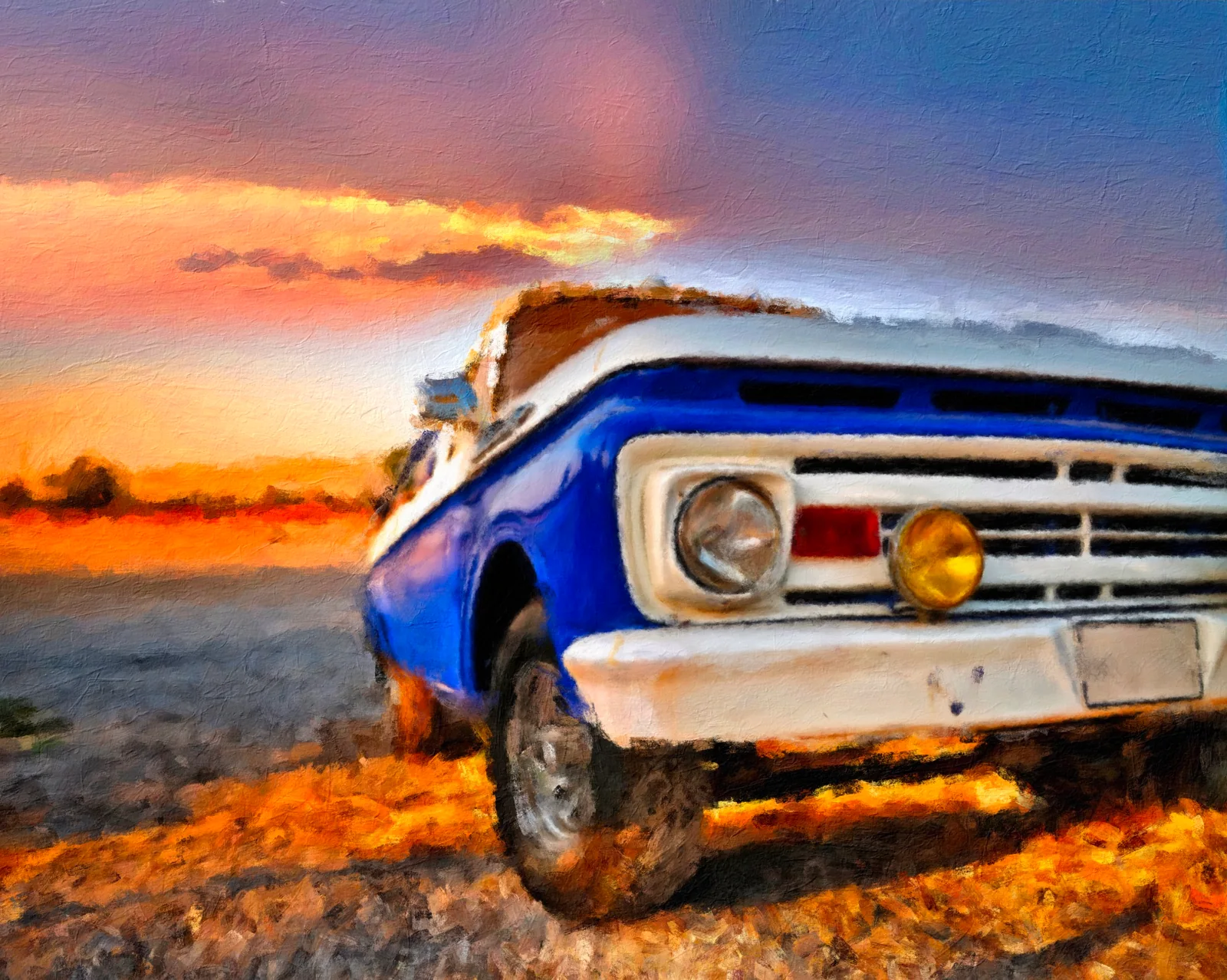
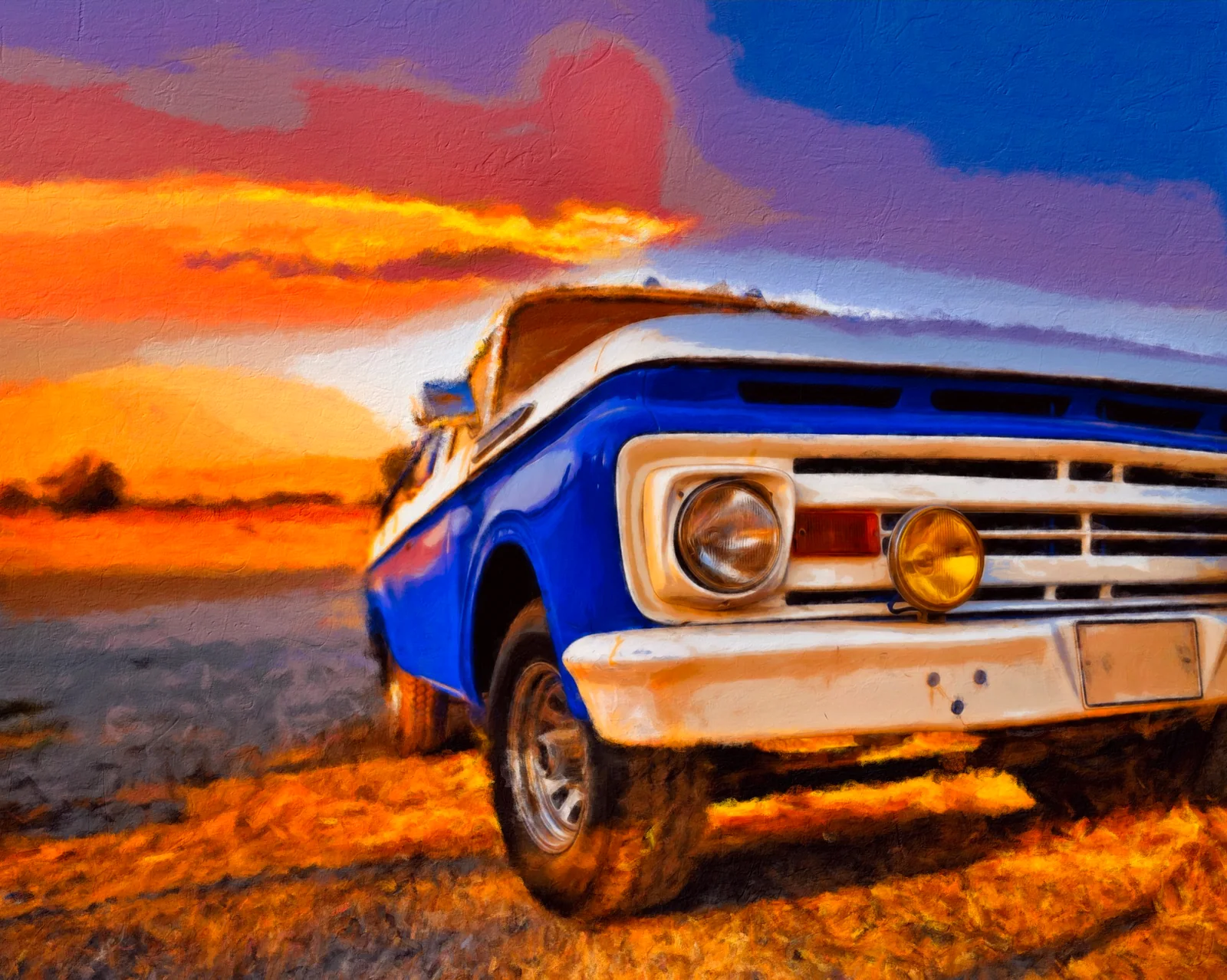
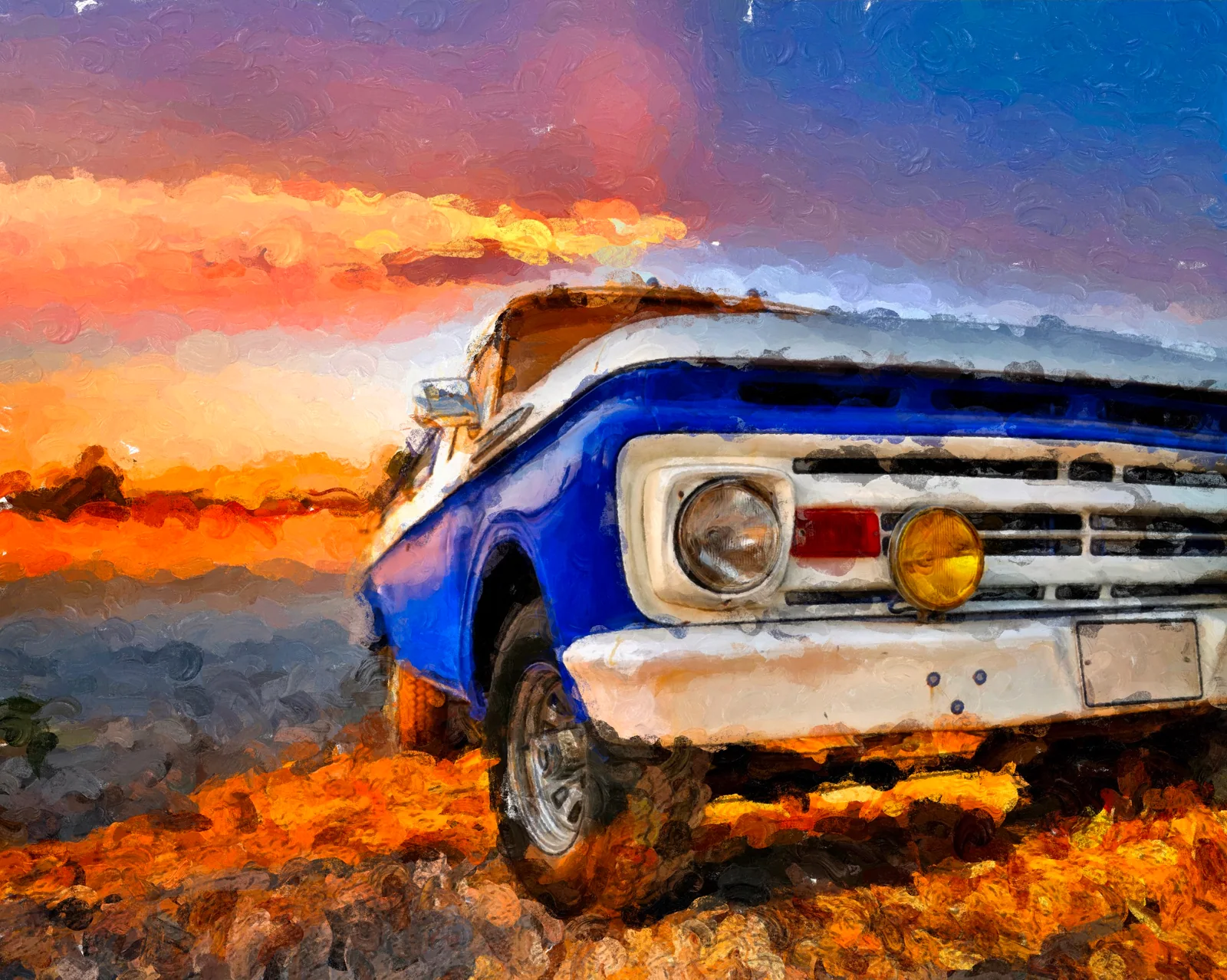
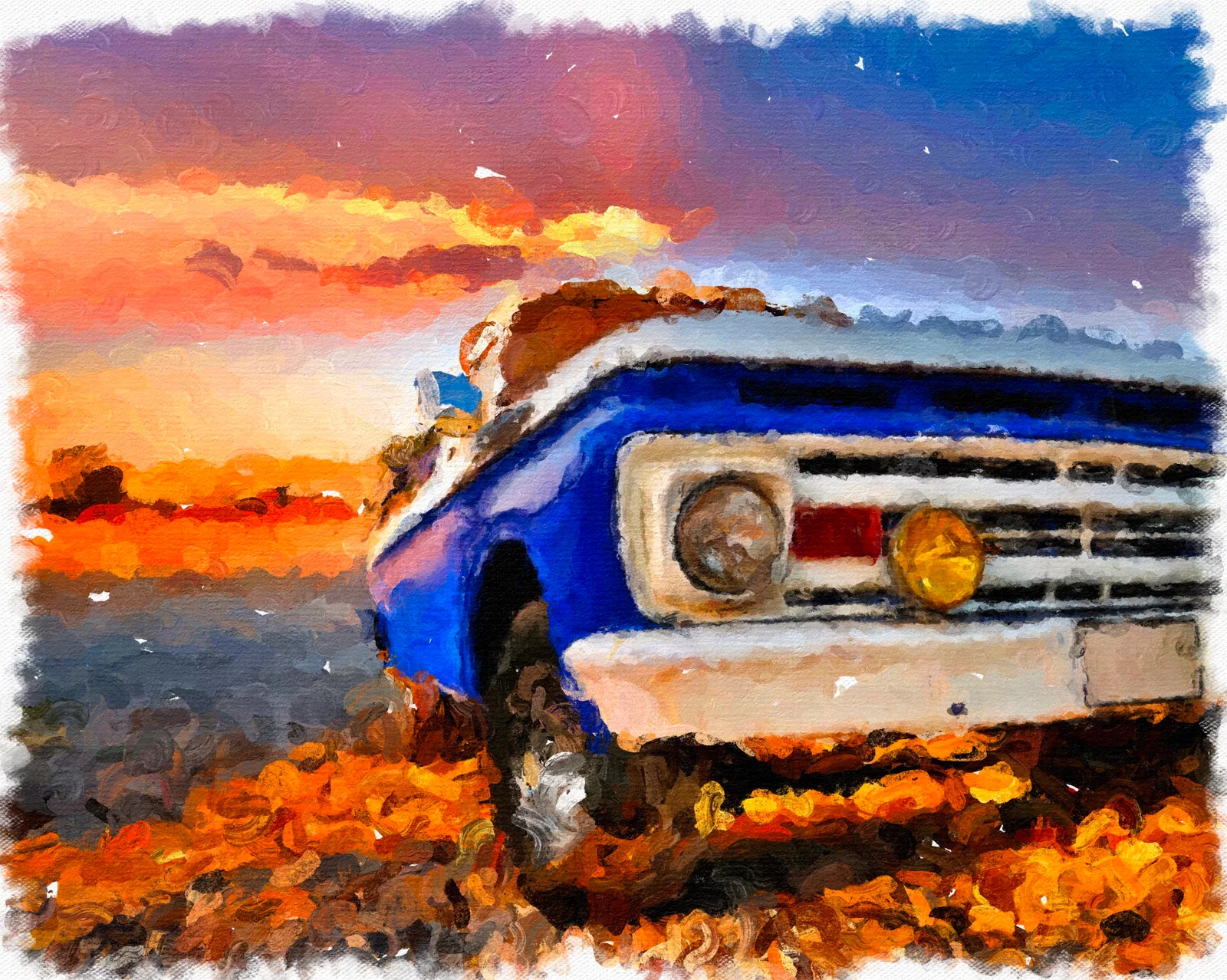
15 paintings from one truck photo
Every example came straight from Randomize Painting with Photo Style set to General. Compare the results within each Painting Style to see how much a single setting can vary.