Impresso Studio
Part 1. Smooth the face with a brush
1. Choose Portrait and Rich Impasto
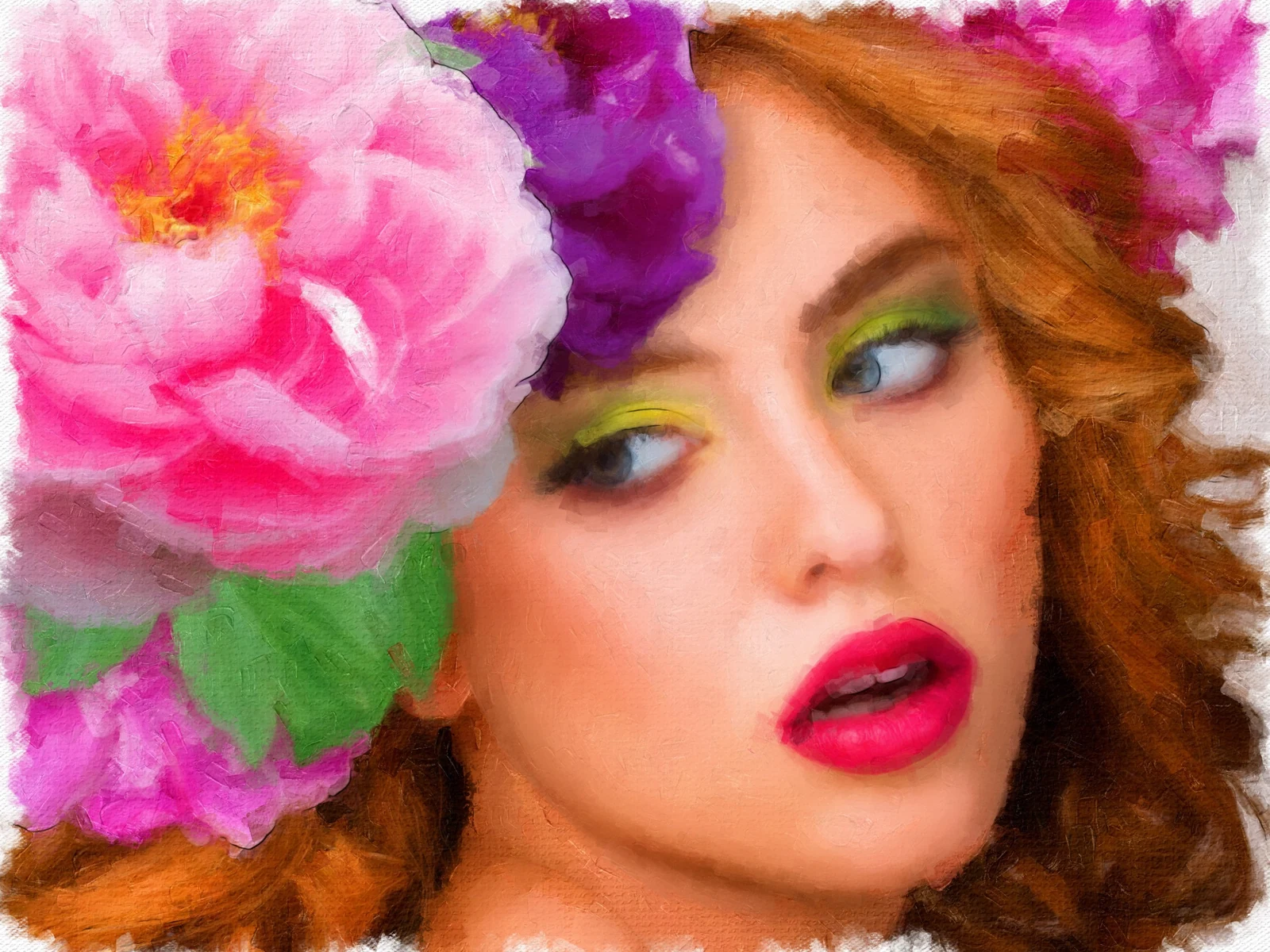
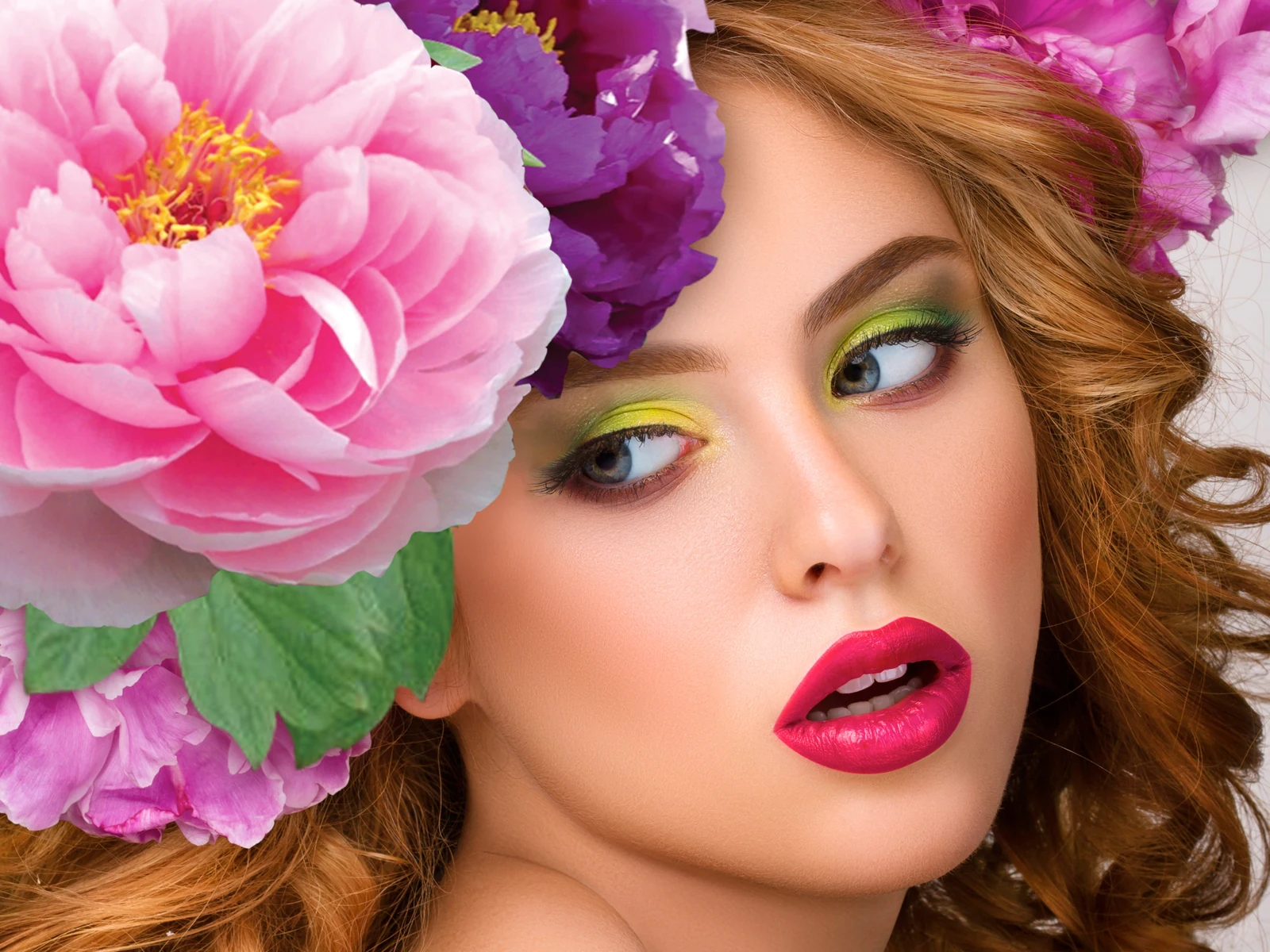
Use Get Photo to open the flower portrait. Check the two menus beside Randomize Painting at the top of the app.
- Open Photo Style and choose Portrait. This gives recognizable facial features more weight in the next painting.
- Open Painting Style and choose Rich Impasto. This sub-style favors thicker, raised-looking marks, which work well in the petals and hair.
- Click Randomize Painting and let the painting finish rendering.



2. Randomize until the brushwork feels right
Click Randomize Painting a few times with the same settings. Look for substantial strokes in the hair and flowers and a readable cheek and jawline. A soft eye or lip line is easy to refine in the next step. If a big stroke crosses the face outline, try another randomization.
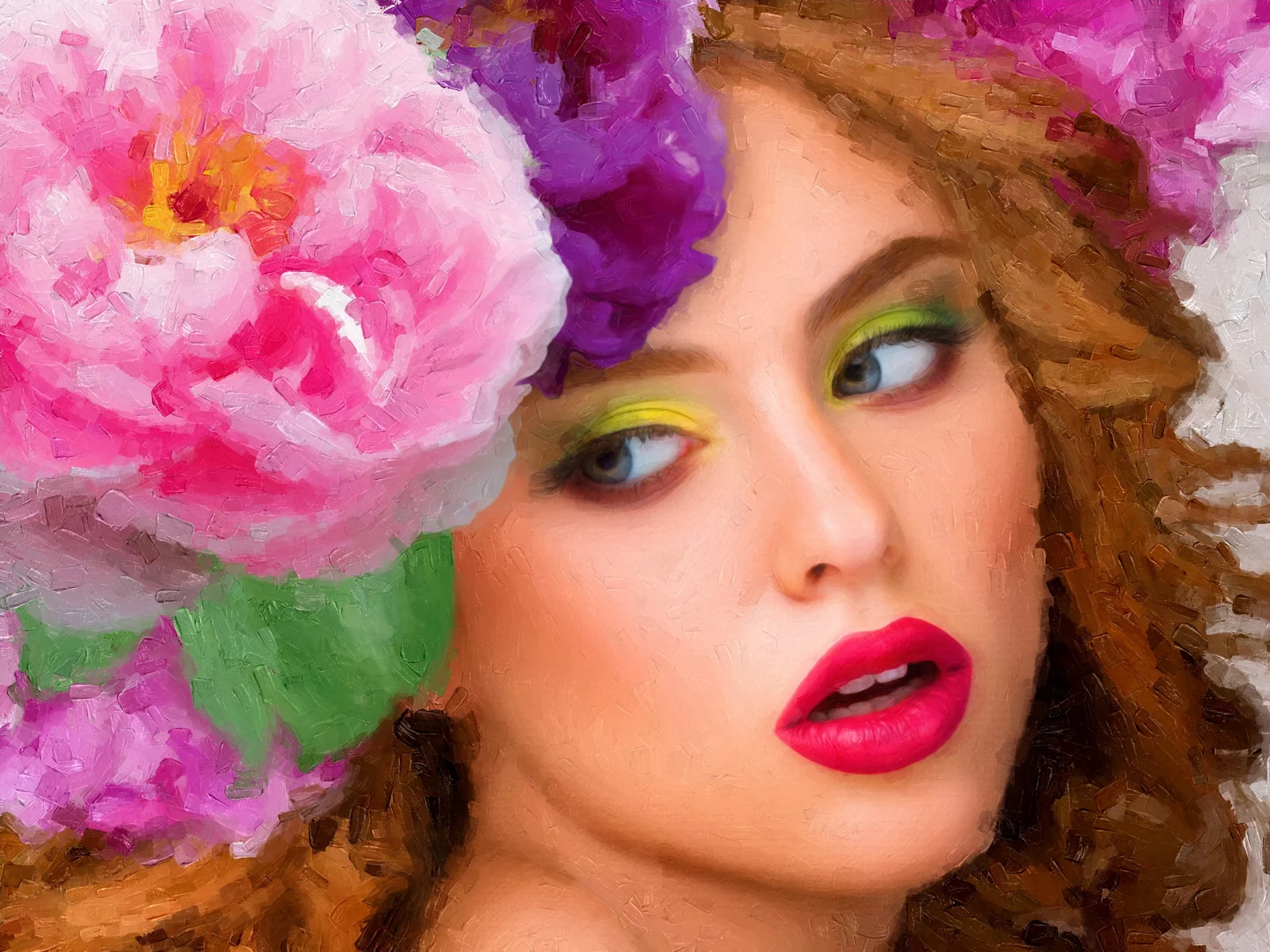
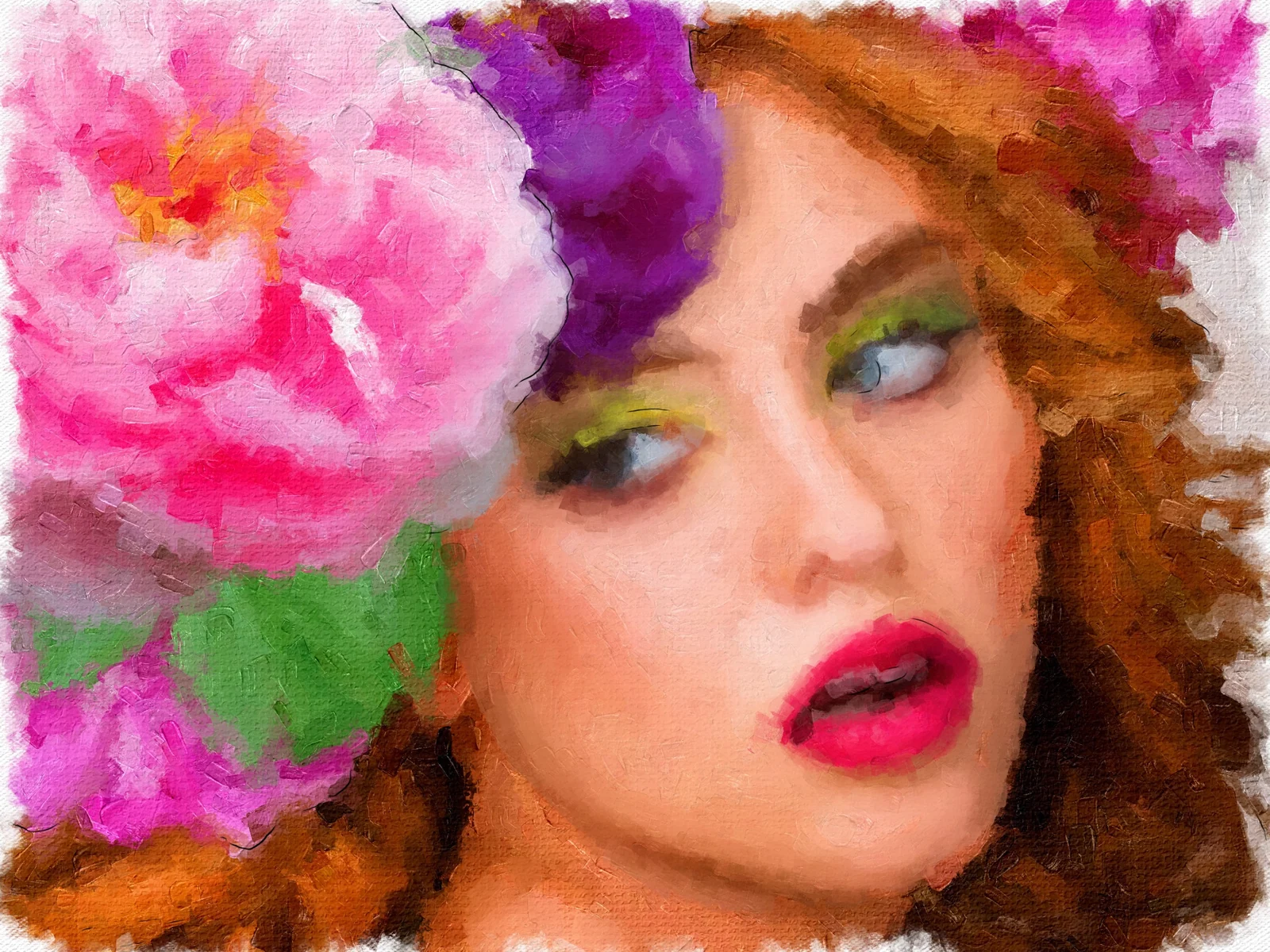
3. Add a Soft Paint layer
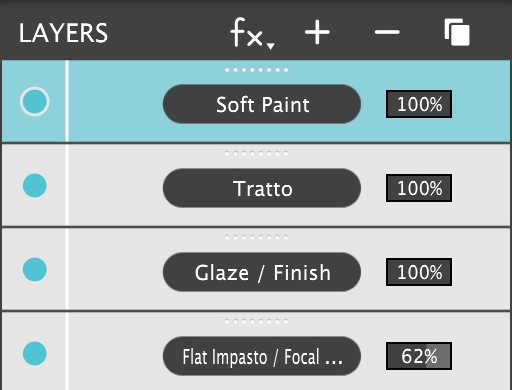
- Select the top layer in Layers. A new layer goes above the selected row.
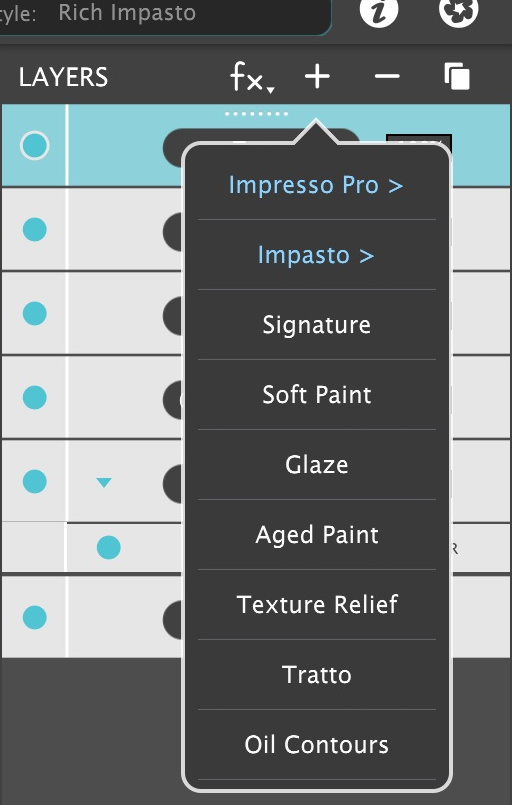
- Click + in the Layers header and choose Soft Paint. The new row appears at the top of the stack.
- Keep the new layer selected. With the brush controls visible, click Clear beside Mask to start with empty coverage. Soft Paint will appear as you brush it in.

4. Smooth the face with overlapping passes
Make sure the Brush icon is highlighted. Start with a brush about the width of one cheek and set the toolbar Opacity high. Zoom in so you can see where the edges of the brush land.



- Skin. Start in the center and overlap your strokes across the forehead, cheeks, nose bridge, and chin. Continuous coverage softens the chunky strokes between features.
- Eyes, nose, and lips. Brush over the full eye and lid on each side, around the tip and nostrils, and over the full lip shape. Add another pass wherever a block of paint still breaks up a contour.
- Face edges. Lower Brush Size and toolbar Opacity for the passes just inside the hairline and jaw. Use a small Eraser to clean up any spill into the flowers or hair. If the lashes or lip line look too blurred, move the Soft Paint slider in Adjust a little to the left.
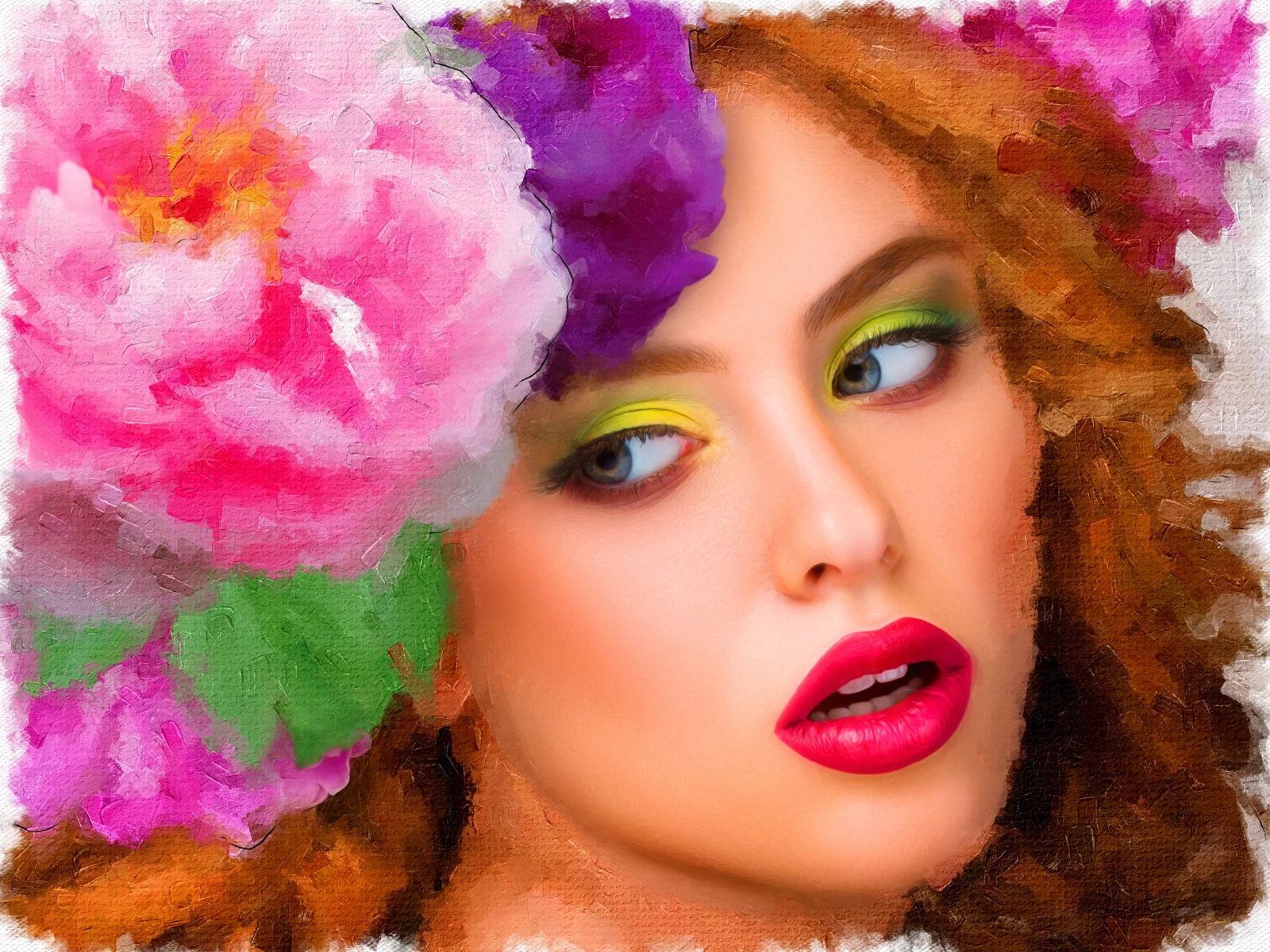
5. Compare before and after
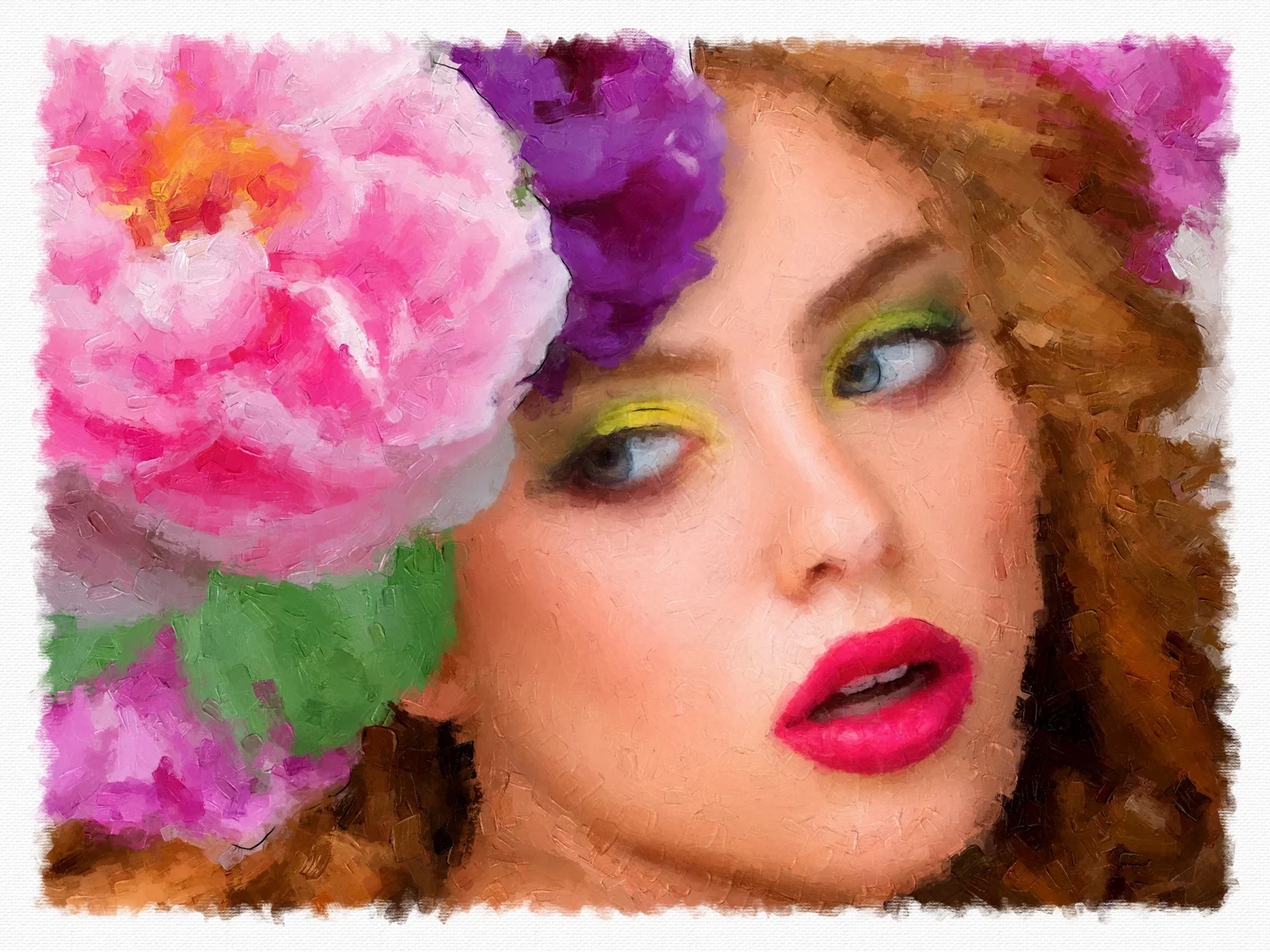
Click the visibility circle beside Soft Paint to compare. Check that the eyelids, nostrils, and lip contours read clearly and that the skin blends smoothly between them. This example uses 93% layer opacity on the brushed area.
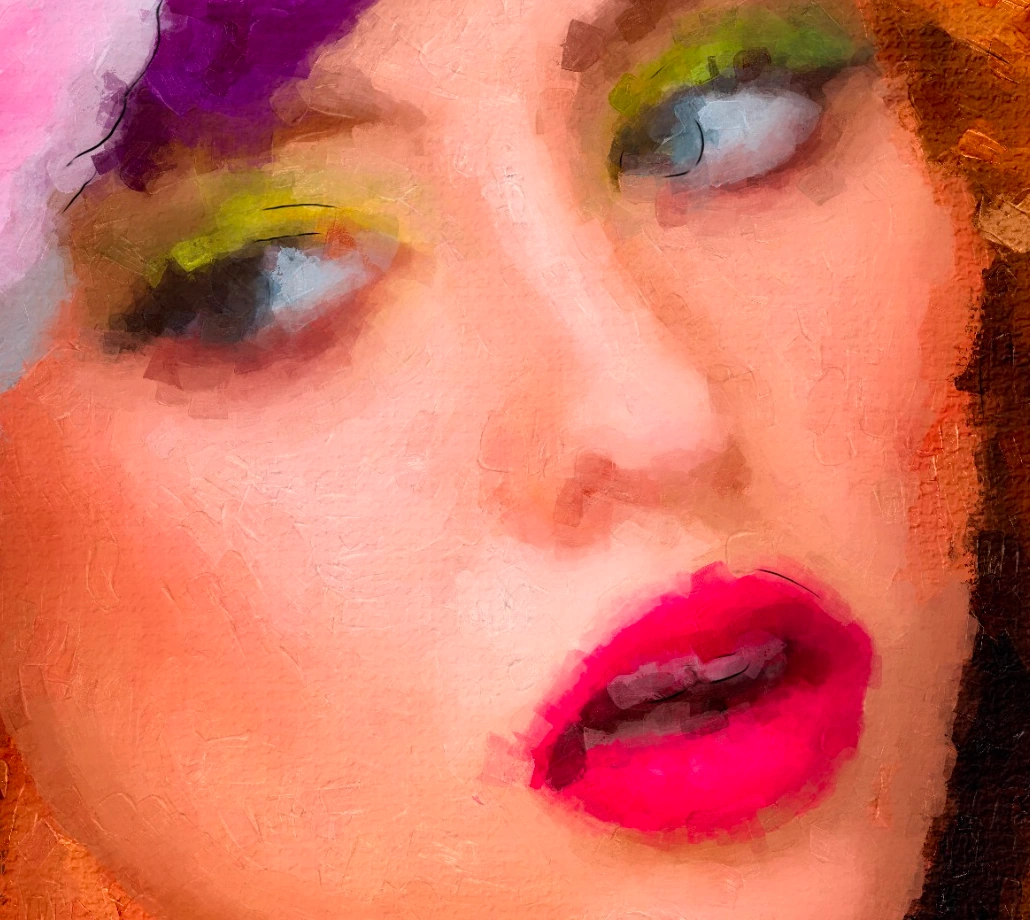
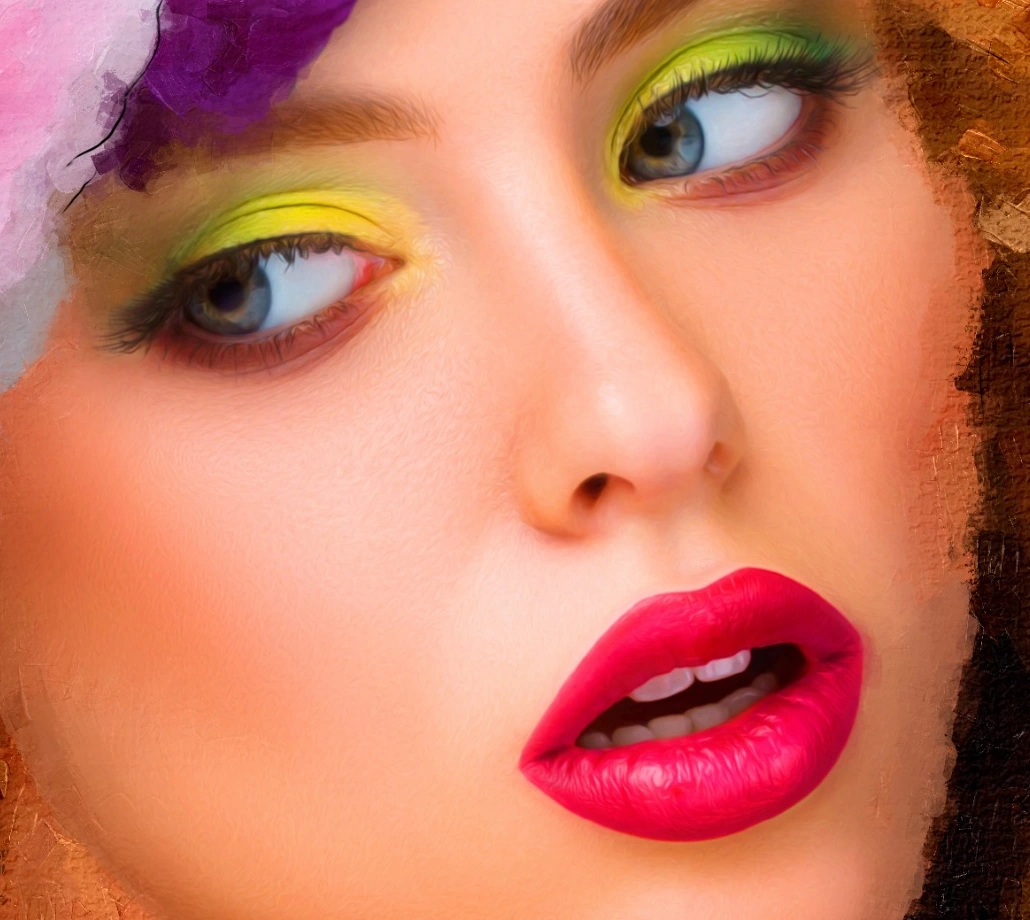
Part 2. Blend Soft Paint across the whole image
Soft Paint can also bring some of the original detail back across the entire painting. Here, the same Rich Impasto base gets a full-image pass at 35% layer opacity.
- Select a Soft Paint layer above the paint layers. Select the Brush if its toolbar is hidden.
- Click Fill beside Mask. This replaces any existing brush coverage on that layer with coverage across the whole canvas.
- Double-click the percentage on the Soft Paint row, type 35, and press Return. The percentage on the layer row controls the strength of the whole-image blend.