

JixiPix's Dramatic Black & White app starts by leaving color in the rearview mirror, and enables you to make expert adjustments with easy-to-use, fully customizable controls to contrast and light, texture and shape. Before your eyes, watch your photo transform into the dramatic looks of the past and cutting-edge styles of the present.
Dramatic Black & White - iPhone & iPad

Buttons
Top Bar Buttons

- Original Image - Hold down to view the original image for a quick comparison
- Resize - Click to zoom in on the image or to fill the window with the image
- Undo - Undo the last edit
- Randomize - Randomizes the effect on the image.
Bottom Bar Buttons

- Get Photo - Load a photo from your device
- Crop - Cut out an area of your image hiding the rest
- Info - Brings you to this page
- Save - Save your image
- Share - Save or email your image or send your image to another app. You can also save a preset, follow us on Facebook and signup for our newsletter
Adjustments
Dramatic Black and White includes four tabs which you can use to customize your image.
Adjust Tab

- Tone Slider - Create a mood or add depth using the tone slider. Select a color then move slider right to tone the image.
- Soften/ Sharpen Slider - Move slider left for a dreamy feel or right to bring out details in the image.
- Darken/ Brighten Slider - Enhances the lighter tones in the image. (Not available when using Dramatic B&W style)
- Contrast Slider - Increase highlights in the image and darken shadows. Move slider right to increase contrast strength..
Black & White Tab

- Red/Green/Blue Sliders - Filters the image with the selected color range.
- B&W Strength - Move slider right to increases the opacity of the Black and White effect or left to blend the original color back in.
- Grain Strength - Add interest to the image by choosing a darkroom-style grain. Move slider right to increase grain opacity.
Spotlight Tab

- Add Spotlight - Add a spotlight to the image - use multiple spotlights for a creative look. Resize the spotlight using anchor points on ellipses placed on top of the image.
- Remove Spotlight - Remove the last spotlight that was placed on the image.
- Reset - Resets the Spotlight
- Spotlight Slider - Adds a darkened edge around the ellipse move the slider right to increase its opacity.
Saving
Click on the Share Button to open a variety of different ways to save and share your image.
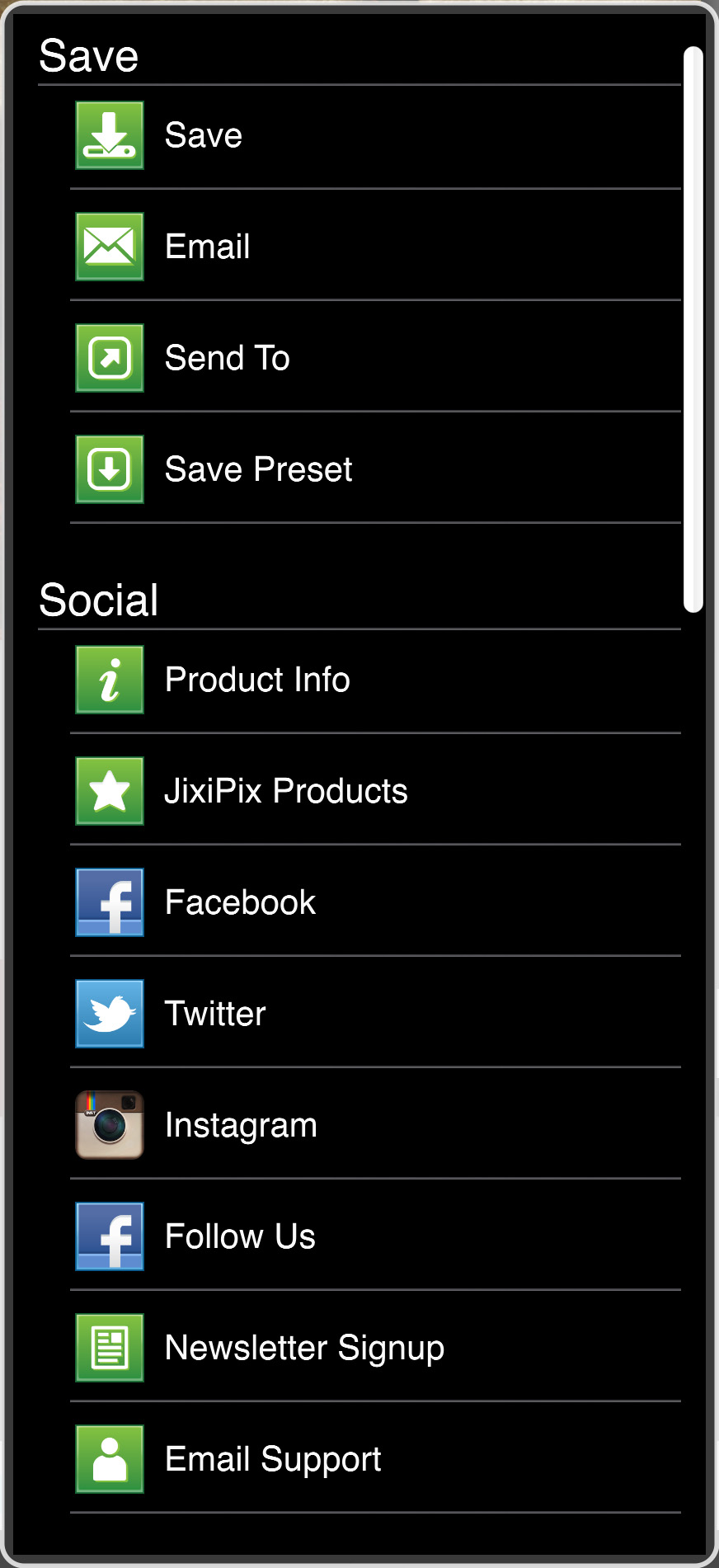
- Save - Saves the image to your camera roll.
- Email - Opens up your email so you can share your photo with friends and family.
- Send To - Send your image to another app such as a social network, email or image editing app
- Save Preset - Save your adjustments as a preset to use later.
- Product Info - Brings you to this page.
- Jixipix Products - Takes you to the Itunes App Store where you can view all our Apps.
- Facebook - Opens Facebook's login screen, once logged in you can share your image on facebook.
- Twitter - Opens Twitter's login screen, once logged in you can share your image on Twitter.
- Instagram - Opens Instagram where you can upload your image. (Requires Instagram and being logged into your Instagram account.)
- Follow Us on Facebook - Opens up our Facebook page where you can like us to get info on our latest apps and updates.
- Newsletter Signup - Enter your email to be the first to here about our upcoming apps and updates.
- Email Support - Send us a support email using one of your email apps
Presets
Saving Presets
Once you have applied a preset and modified it using the adjust tabs, you can save your own custom preset by using the "Share" button on the main screen and choosing "Save Preset" off the menu.
Favoriting and Deleting Presets
Favorite a preset to move it to the front of the presets list for quick access. To favorite or delete a preset press down on a preset thumbnail and hold until an X and heart appears, tap the heart to favorite it or tap the X to delete it.
